
1. הקדמה
This manual provides instructions for the installation, operation, and maintenance of your NETGEAR GS305P 5-Port PoE Gigabit Ethernet Unmanaged Switch. This device is designed to expand your network connectivity with both standard Gigabit Ethernet and Power over Ethernet (PoE+) capabilities, ideal for small office or home network environments.
2. תכולת החבילה
ודא שהחבילה שלך מכילה את הפריטים הבאים:
- NETGEAR GS305P 5-Port PoE Gigabit Ethernet Unmanaged Switch (GS305Pv3)
- מתאם מתח
- ערכת Wallmount
- מדריך התקנה מהיר

Image: The NETGEAR GS305P switch, power adapter, and power cord as typically found in the package.
3. המוצר נגמרview
The NETGEAR GS305P is an unmanaged switch featuring 5 Gigabit Ethernet ports, with 4 of these ports supporting PoE+ (Power over Ethernet Plus). It provides a total power budget of 63W for connected PoE devices. The switch is designed for plug-and-play operation, requiring no software installation or configuration.
וידאו: אוברview of the NETGEAR 5-Port PoE Switch, demonstrating its features and ease of use.
פאנל קדמי

Image: Front panel of the GS305P switch, highlighting the 5 Gigabit Ethernet ports and LED indicators for power, PoE Max, link/activity, and PoE fault.
- LED מתח: מציין מצב כוח.
- PoE Max LED: Illuminates when PoE power consumption is near maximum capacity.
- Link/Activity LEDs (Ports 1-5): Green for 1000Mbps link, Yellow for 10/100Mbps link. Blinks to indicate activity.
- נוריות מצב PoE (פורטים 1-4): Green for PoE powered, Yellow for PoE fault.
- יציאות Ethernet (1-5): RJ-45 ports for network connections. Ports 1-4 support PoE+.
4. התקנה והתקנה
The NETGEAR GS305P switch is designed for simple plug-and-play installation. No software configuration is required.
4.1 חיבור המתג
- Connect the power adapter to the switch's power input and then plug the power adapter into an electrical outlet. The Power LED on the switch will illuminate.
- חבר את הנתב או המודם שלך לכל אחת מ-5 יציאות ה-Gigabit Ethernet במתג באמצעות כבל Ethernet.
- Connect your network devices (computers, printers, network storage) to the remaining Gigabit Ethernet ports. For PoE-powered devices (e.g., IP cameras, wireless access points), connect them to ports 1-4.

Image: A diagram illustrating the plug-and-play nature of the unmanaged switch, connecting various devices like WiFi Access Points, IP Cameras, Computers, and NAS.
4.2 אפשרויות הרכבה
The GS305P switch can be placed on a desktop or mounted on a wall. A wallmount kit is included for secure installation.
- מיקום בשולחן העבודה: Ensure the switch is placed on a flat, stable surface with adequate ventilation.
- קיר קיר: Use the provided wallmount kit to secure the switch to a wall. Refer to the quick installation guide for detailed steps on wall mounting.
5. הפעלת המתג
Once connected, the switch operates automatically. The LEDs provide visual feedback on the network status.
- הפעלה: The Power LED will be green when the switch is receiving power.
- Network Activity: The Link/Activity LEDs will light up when a device is connected and blink to indicate data transmission.
- כוח PoE: For PoE-powered devices, the PoE Status LED will be green when power is being supplied. If a PoE fault occurs, the LED will turn yellow.
- פעולה שקטה: The fanless design ensures quiet operation, making it suitable for noise-sensitive environments.
6. תחזוקה
To ensure optimal performance and longevity of your switch, follow these maintenance guidelines:
- ניקוי: השתמשו במטלית רכה ויבשה לניקוי החלק החיצוני של המתג. אין להשתמש בחומרי ניקוי נוזליים או בתרסיס.
- אוורור: ודא שפתחי האוורור אינם חסומים כדי למנוע התחממות יתר.
- סְבִיבָה: Operate the switch within its specified temperature and humidity ranges. Avoid direct sunlight or extreme temperatures.
- ניהול כבלים: Keep network cables organized to prevent strain on ports and improve airflow.
7. פתרון תקלות
If you encounter issues with your NETGEAR GS305P switch, refer to the following common troubleshooting steps:
- אין כוח: Ensure the power adapter is securely connected to the switch and a working electrical outlet. Check the Power LED.
- אין קישור/פעילות: Verify that Ethernet cables are properly connected to both the switch and the connected device. Try a different cable or port. Check the Link/Activity LED.
- התקן PoE לא נדלק: Ensure the device is PoE-compatible and connected to one of the PoE+ ports (1-4). Check the PoE Status LED for the port; a yellow light indicates a fault. Verify the total power budget (63W) is not exceeded by all connected PoE devices.
- מהירות רשת איטית: Ensure all connected devices and cables support Gigabit Ethernet for optimal performance. Check for excessive network traffic.
8. מפרטים
Key technical specifications for the NETGEAR GS305P switch:
| תכונה | תֵאוּר |
|---|---|
| דֶגֶם | GS305P (GS305Pv3) |
| מספר יציאות | 5 יציאות Gigabit Ethernet |
| יציאות PoE+ | 4 (יציאות 1-4) |
| תקציב כוח PoE כולל | 63W |
| קצב העברת נתונים | 1000 מגה-ביט לשנייה (ג'יגה-ביט) |
| סוג מתג | לא מנוהל |
| חומר מארז | מַתֶכֶת |
| מידות (L x W x H) | 9.5" x 6.7" x 3.4" (approximate, from product data) |
| כרך ידtage | 240 Volts (Power adapter input) |
| סביבת הפעלה | Designed for indoor use in U.S. & CA. |
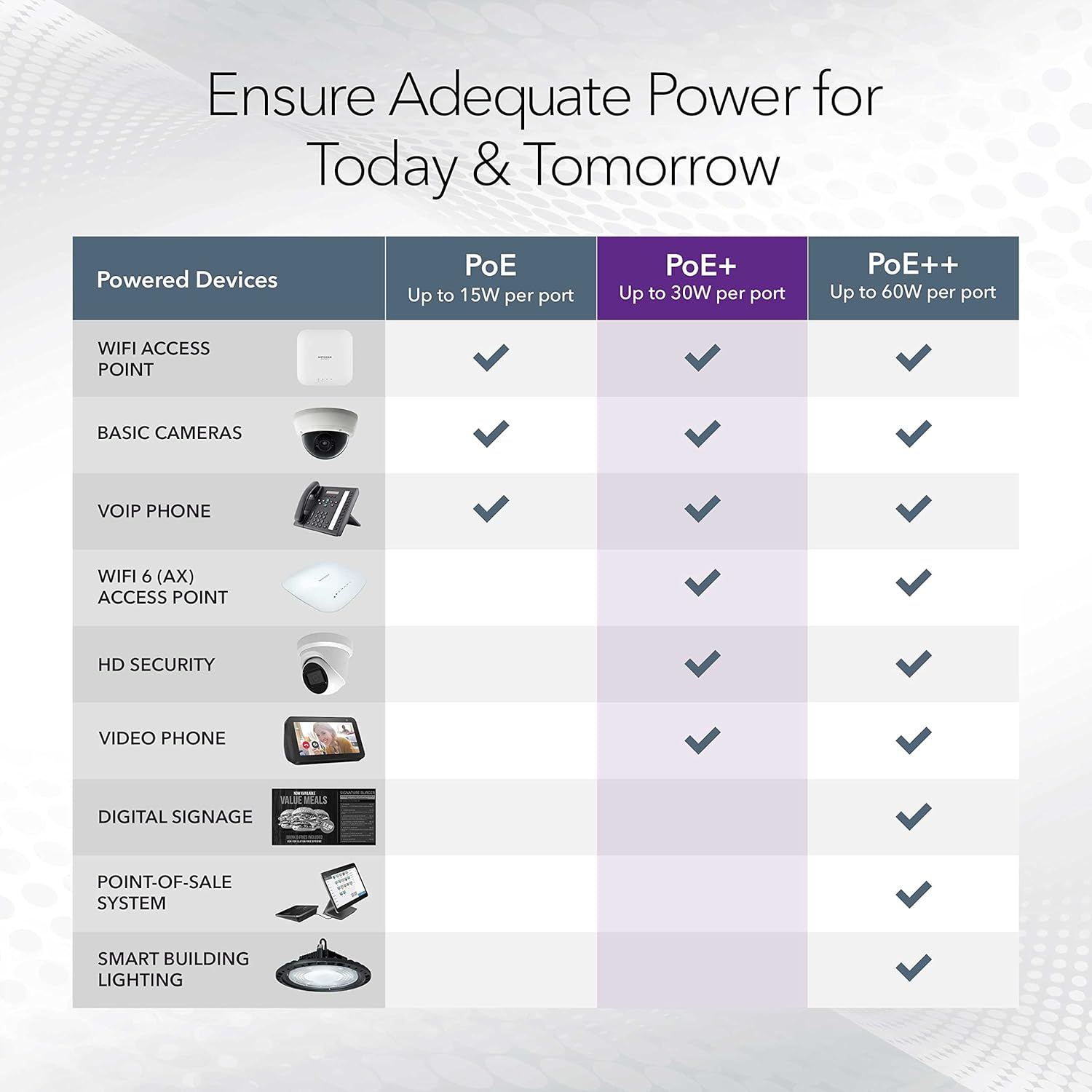
Image: A table illustrating the power capabilities of PoE, PoE+, and PoE++ for different powered devices.
9. אחריות ותמיכה
9.1 מידע אחריות
The NETGEAR GS305P switch comes with an industry-leading אחריות מוגבלת לחומרה לשנתיים. Please retain your proof of purchase for warranty claims. For full warranty terms and conditions, refer to the official NETGEAR webהאתר או התיעוד המצורף למוצר שלך.
9.2 תמיכה טכנית
For technical assistance, product registration, or to access additional resources, visit the official NETGEAR support website. You can find FAQs, firmware updates, and community forums there.
תמיכת NETGEAR Webאֲתַר: www.netgear.com/support