
Unitech TS100
Unitech TS100 2D Hands-Free Presentation Barcode Scanner
מדריך למשתמש
מָבוֹא
This manual provides essential information for the proper setup, operation, and maintenance of your Unitech TS100 2D Hands-Free Presentation Barcode Scanner. Please read this manual thoroughly before using the device to ensure optimal performance and to prevent damage.
The Unitech TS100 is an omnidirectional USB wired desktop barcode reader designed for efficient and intuitive scanning of 1D and 2D barcodes, including PDF417 and Data Matrix, in retail and other point-of-sale environments.
מידע בטיחות
- אין לחשוף את הסורק לטמפרטורות קיצוניות, לחות או אור שמש ישיר.
- הימנעו מהפלת הסורק או מחשיפתו לפגיעות חזקות.
- אל תנסה לפרק או לשנות את הסורק. פעולה זו תגרום לביטול האחריות.
- השתמש רק בכבל ה-USB המצורף לחיבור.
- יש לשמור על ניקיון חלון הסריקה כדי להבטיח קריאת ברקוד מדויקת.
תוכן החבילה
אנא בדקו את תוכן החבילה כדי לוודא שכל הפריטים נמצאים:
- Unitech TS100 2D Presentation Barcode Scanner
- כבל USB
- מדריך התחלה מהירה (אם רלוונטי)
המוצר נגמרview
The Unitech TS100 features a compact design with a large scan window for easy barcode presentation. Its omnidirectional scanning capability allows for quick and efficient data capture.
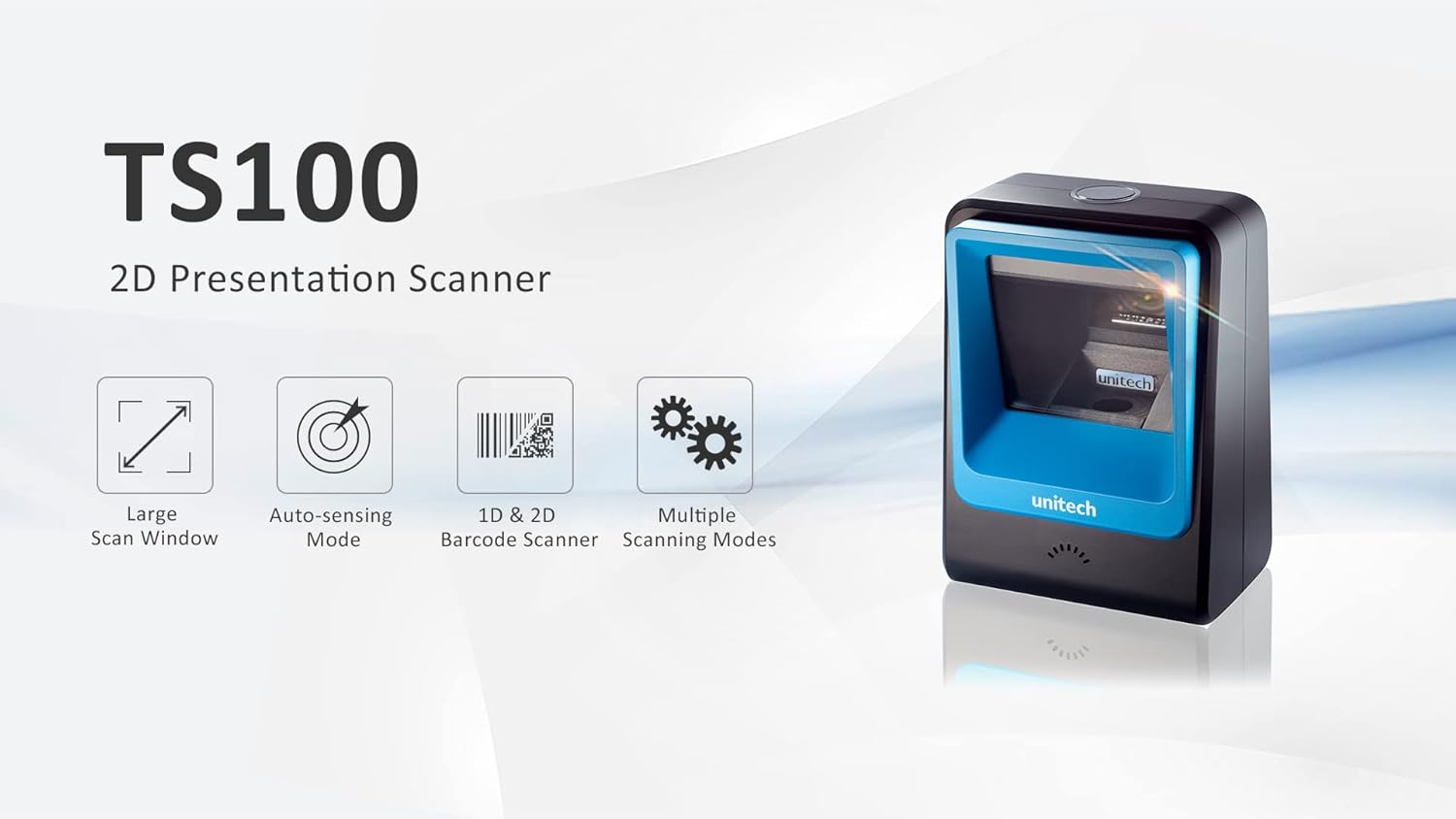
Figure 1: Unitech TS100 2D Presentation Scanner highlighting its large scan window, auto-sensing mode, 1D & 2D barcode scanning, and multiple scanning modes.

איור 2: חזית view of the Unitech TS100 scanner, showing the blue scanning window and the Unitech logo.

איור 3: אחורה view of the Unitech TS100 scanner, displaying the product label with model number TS100-SUCB00-SG and power specifications.
הגדרה
Follow these steps to set up your Unitech TS100 barcode scanner:
- הוצא את הסורק מהאריזה: Carefully remove the TS100 scanner and its accessories from the packaging.
- חבר את כבל ה-USB: Insert the USB cable into the port at the back of the scanner.
- התחברות להתקן מארח: Plug the other end of the USB cable into an available USB port on your computer, laptop, or POS system.
- התקנת דרייבר: הסורק הוא בדרך כלל מסוג "חבר והפעל". מערכת ההפעלה שלך אמורה לזהות ולהתקין באופן אוטומטי את מנהלי ההתקנים הדרושים. המתן להשלמת ההתקנה.
- הפעלה: The scanner will power on automatically once connected to a powered USB port. A beep and/or LED indicator will confirm it is ready for use.
הוראות הפעלה
The Unitech TS100 is designed for hands-free operation, offering multiple scanning modes for various applications.
סריקה בסיסית
- Place the barcode within the scanner's field of view, facing the scanning window.
- The scanner will automatically detect the barcode and emit a successful scan indication (e.g., a beep and/or green LED).
- The scanned data will be transmitted to your connected host device as keyboard input.
מצבי סריקה
The TS100 supports multiple scanning modes to optimize performance for different barcode types and environments:
- מצב רגיל: Standard scanning for most 1D and 2D barcodes.
- Smartphone Mode: Optimized for reading barcodes displayed on smartphone screens, which can sometimes be reflective.
- מצב מהיר: Designed for faster scanning of multiple barcodes in quick succession.
Refer to the full programming manual (available on the Unitech website) for instructions on how to switch between these modes using configuration barcodes.
תַחזוּקָה
תחזוקה נאותה מבטיחה את אורך החיים והביצועים של הסורק שלך:
- ניקוי חלון הסריקה: השתמש קלות במטלית רכה נטולת מוך דampיש לשטוף במים או בחומר ניקוי עדין ולא שוחק. אין להשתמש בכימיקלים חזקים או בחומרים שוחקים.
- ניקוי החלק החיצוני: נגבו את החלק החיצוני של הסורק בעזרת מטלית רכה ויבשה.
- אִחסוּן: כאשר אינו בשימוש, יש לאחסן את הסורק בסביבה נקייה ויבשה הרחק מאור שמש ישיר וטמפרטורות קיצוניות.
פתרון בעיות
If you encounter issues with your TS100 scanner, refer to the table below for common problems and solutions:
| בְּעָיָה | סיבה אפשרית | פִּתָרוֹן |
|---|---|---|
| הסורק לא נדלק. | USB cable not properly connected or host device USB port is not powered. | ודא שכבל ה-USB מחובר היטב הן לסורק והן להתקן המארח. נסה יציאת USB או התקן מארח אחר. |
| הסורק לא קורא ברקודים. | Barcode is damaged, poorly printed, or not supported. Scanning window is dirty. Incorrect scanning mode. | Ensure the barcode is clear and undamaged. Clean the scanning window. Verify the barcode symbology is supported. Try switching scanning modes (e.g., Smartphone Mode for screen barcodes). |
| הנתונים הסרוקים שגויים או לא שלמים. | Poor barcode quality. Scanner configuration issues. | Ensure the barcode is clear. Refer to the programming manual for advanced configuration settings. |
| הסורק מצפצף אך לא משודרים נתונים. | Host device not recognizing the scanner as a keyboard input. | Ensure the cursor is in a text field on your host device. Reconnect the USB cable. Restart the host device. |
מפרטים
Detailed technical specifications for the Unitech TS100 scanner:
| תכונה | מִפרָט |
|---|---|
| חיישן | Image Sensor with 1280x800 pixels |
| תְאוּרָה | 650nm RED LED |
| קצב סריקה | 60 פריימים לשנייה |
| Skew Angle | Horizontal Angle: 50°; Vertical Angle: 35° |
| זווית המגרש | ±65° |
| גליל זווית | 360° |
| רזולוציה אופטית | 1D: 4 mil; 2D: 6.7 mil |
| Printing Contrast Scale | 25% |
| ממשק מארח | USB |
| מידות (L x W x H) | 4.1 אינץ' x 5.7 אינץ' x 2.7 אינץ' (105 מ"מ x 146 מ"מ x 70 מ"מ) |
| מִשׁקָל | 12.1 oz / 345g (without cable) |
| 1D Symbologies Supported | UPC-A/E, EAN-8/13, UPC/EAN Supplementals, EAN-8 Extend, Code 128, Code 39, Code 93, Code 11, Interleaved 2 of 5, Matrix 2 of 5, Codabar, MSI Plessey, GS1 DataBar, China Postal, Korean Postal, etc. |
| 2D Symbologies Supported | PDF417, MicroPDF417, DataMatrix, DataMatrix-Inverse, Maxicode, QRcode, MicroQR, Aztec, Aztec Inverse, Han Xin, Han Xin Inverse |
| מַד | LED, זמזם |
| טמפרטורת הפעלה | 32°F עד 122°F (0°C עד 50°C) |
| טמפרטורת אחסון | -40°F עד 158°F (-40°C עד 70°C) |
| לחות יחסית | 0% עד 95% ללא עיבוי |
אחריות ותמיכה
The Unitech TS100 barcode scanner main unit comes with a אחריות לשנה מתאריך הרכישה. אחריות זו מכסה פגמים בחומרים ובעבודה בשימוש רגיל.
For technical support, warranty claims, or further assistance, please contact Unitech customer service or visit the official Unitech webאתר. שמור את קבלת הרכישה כהוכחת קנייה עבור שירותי האחריות.
Unitech America Webאֲתַר: www.unitechamerica.com
Ask a question about this manual
Ask about setup, troubleshooting, compatibility, parts, safety, or missing instructions. Manuals+ will review the question and use this page’s manual context to help answer it.