
1. הקדמה
The MAONO GamerWave DGM20 is a versatile USB condenser microphone designed for gaming, streaming, podcasting, and online communication. It features one-key noise cancellation, stunning RGB lighting, one-click mute with LED indicator, mic gain control, and zero-latency monitoring to enhance your audio experience.
2. תכולת החבילה
אנא סמן את התיבה עבור הפריטים הבאים:
- USB Gaming Microphone x1
- לעמוד x1
- מסנן פופ x1
- Shock Mount x1
- USB-C to USB-A/USB-C 2-in-1 Cable x1
- מדריך למשתמש x1
- Arm Stand Adapter x1

Image: MAONO GamerWave DGM20 microphone and its included accessories.
3. התקנה
The MAONO GamerWave DGM20 microphone is designed for plug-and-play convenience. No additional drivers or software are required for basic functionality.
3.1 חיבור המיקרופון
- Attach the microphone to the included stand or an arm stand using the provided adapter. Ensure the pop filter is positioned correctly in front of the microphone.
- Connect the USB-C end of the 2-in-1 cable to the microphone.
- Connect the USB-A or USB-C end of the cable to your computer, laptop, Mac, or Android phone.
- The microphone will be automatically recognized by your device.
Note: This microphone is not compatible with XBOX consoles.
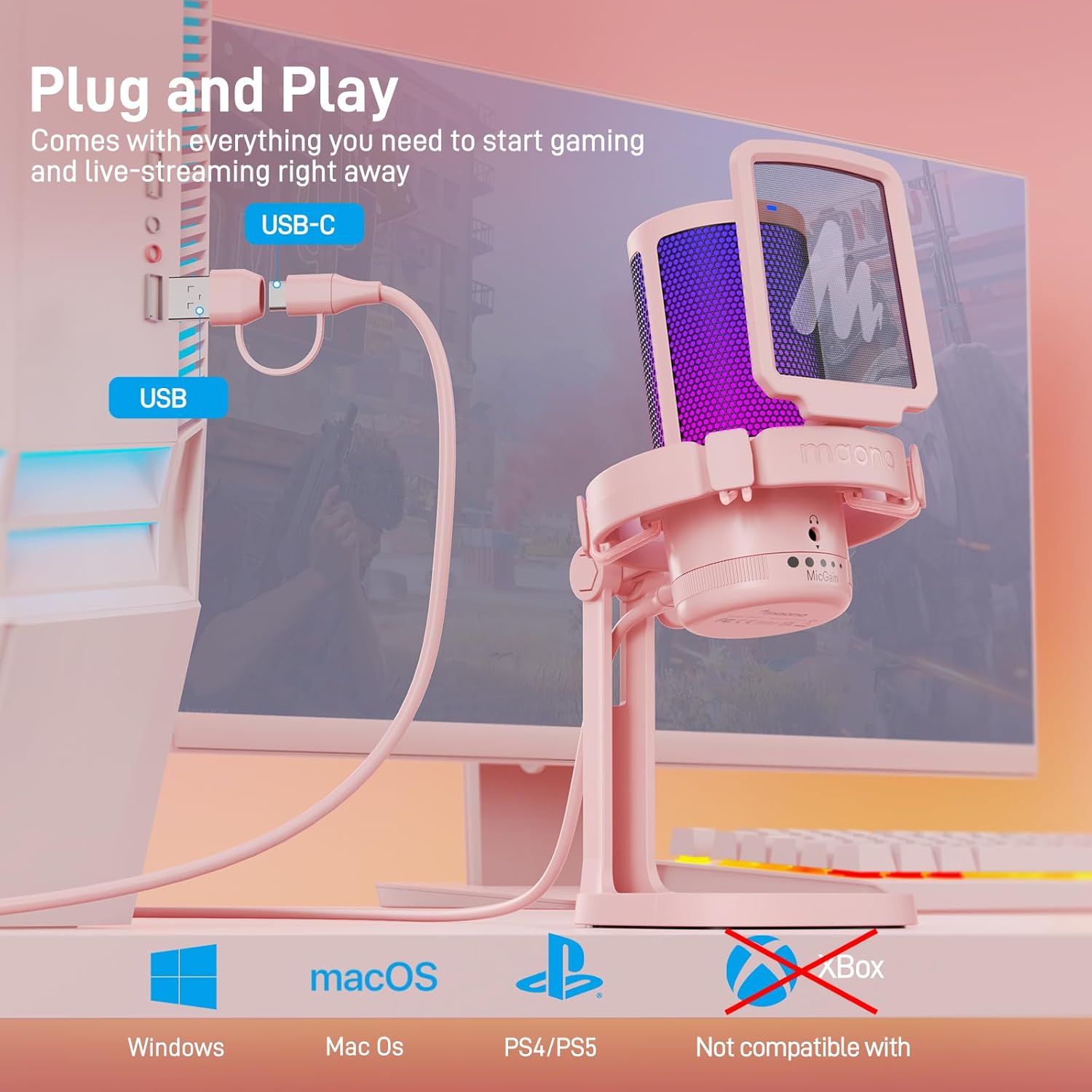
Image: The MAONO GamerWave DGM20 microphone connected to a computer, illustrating its plug-and-play setup.

Image: The MAONO GamerWave DGM20 microphone connected to various devices, including a PC and laptop, highlighting its broad compatibility.
4. הוראות הפעלה
4.1 One-Key Noise Cancellation
The microphone features a one-key noise cancellation function to suppress background noise, ensuring clear voice pickup. Long press the dedicated button on the microphone to activate or deactivate this feature. A blue LED light indicates that noise cancellation is active.

Image: The MAONO GamerWave DGM20 microphone with its one-key noise cancellation feature, showing the difference in audio clarity before and after activation.
Video: A short demonstration of the MAONO GamerWave DGM20 microphone's noise cancellation feature.
4.2 Stunning RGB Lighting
The microphone features customizable RGB lighting with various modes including static solid colors, breathing light, and dynamic multicolor gradients. Tap the light button on the microphone to cycle through the modes. Long press the button to turn off the RGB lights.

Image: The MAONO GamerWave DGM20 microphone showcasing its controllable RGB lighting with static, breathing, and gradient modes.
Video: A demonstration of the MAONO GamerWave DGM20 USB RGB gaming microphone's lighting effects.
4.3 One-Click Mute with LED Indicator
Instantly mute or unmute the microphone with a single tap on the mute button. A green LED light indicates the microphone is active, while a red light signifies it is muted.
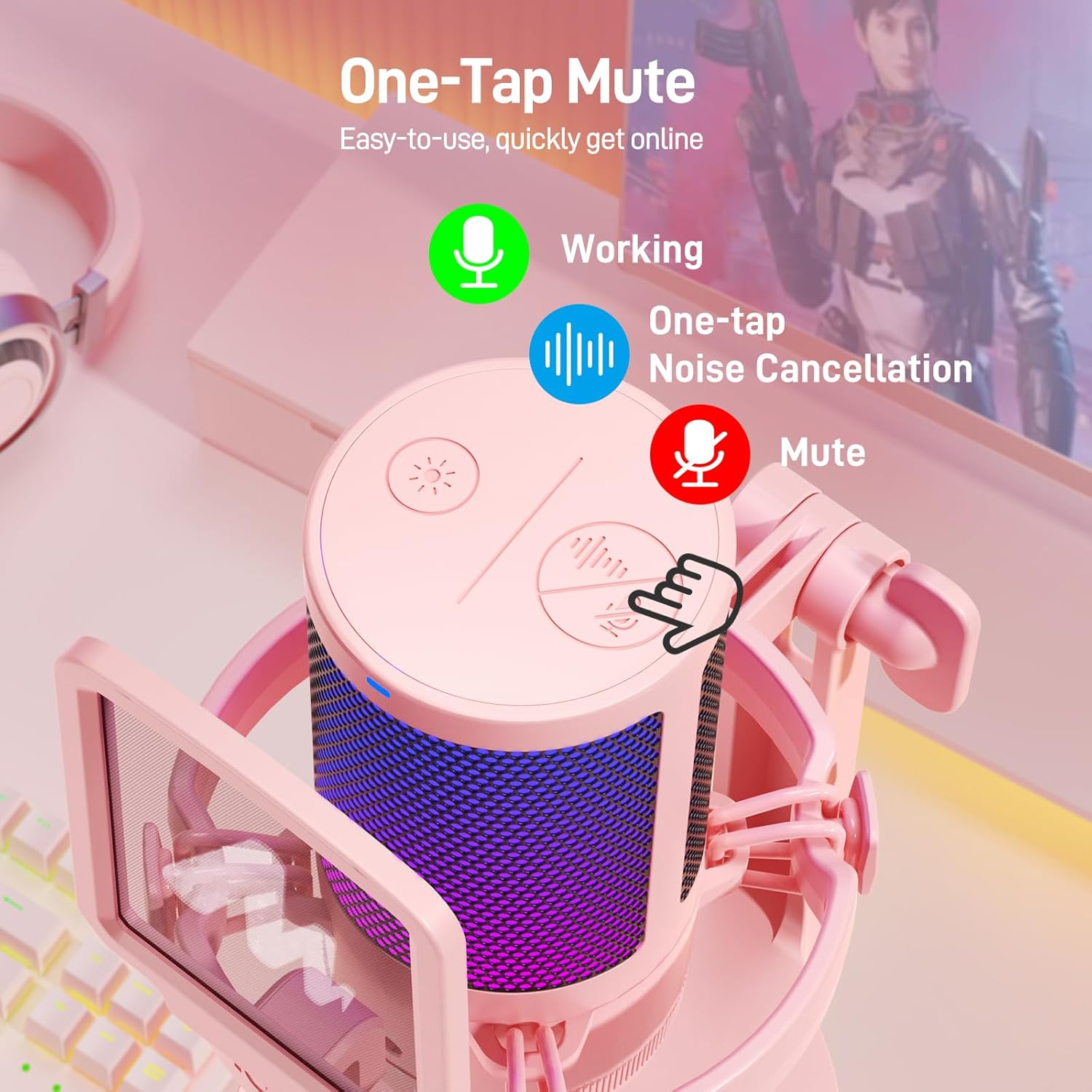
Image: The MAONO GamerWave DGM20 microphone showing the one-tap mute function and its corresponding LED indicator (green for active, red for muted).
4.4 Mic Gain Control and Monitoring
Adjust the microphone's sensitivity using the gain control knob located at the bottom. Turn the knob to increase or decrease the gain to suit your environment and desired audio level. For real-time audio monitoring without latency, plug your headphones into the 3.5mm jack on the microphone.
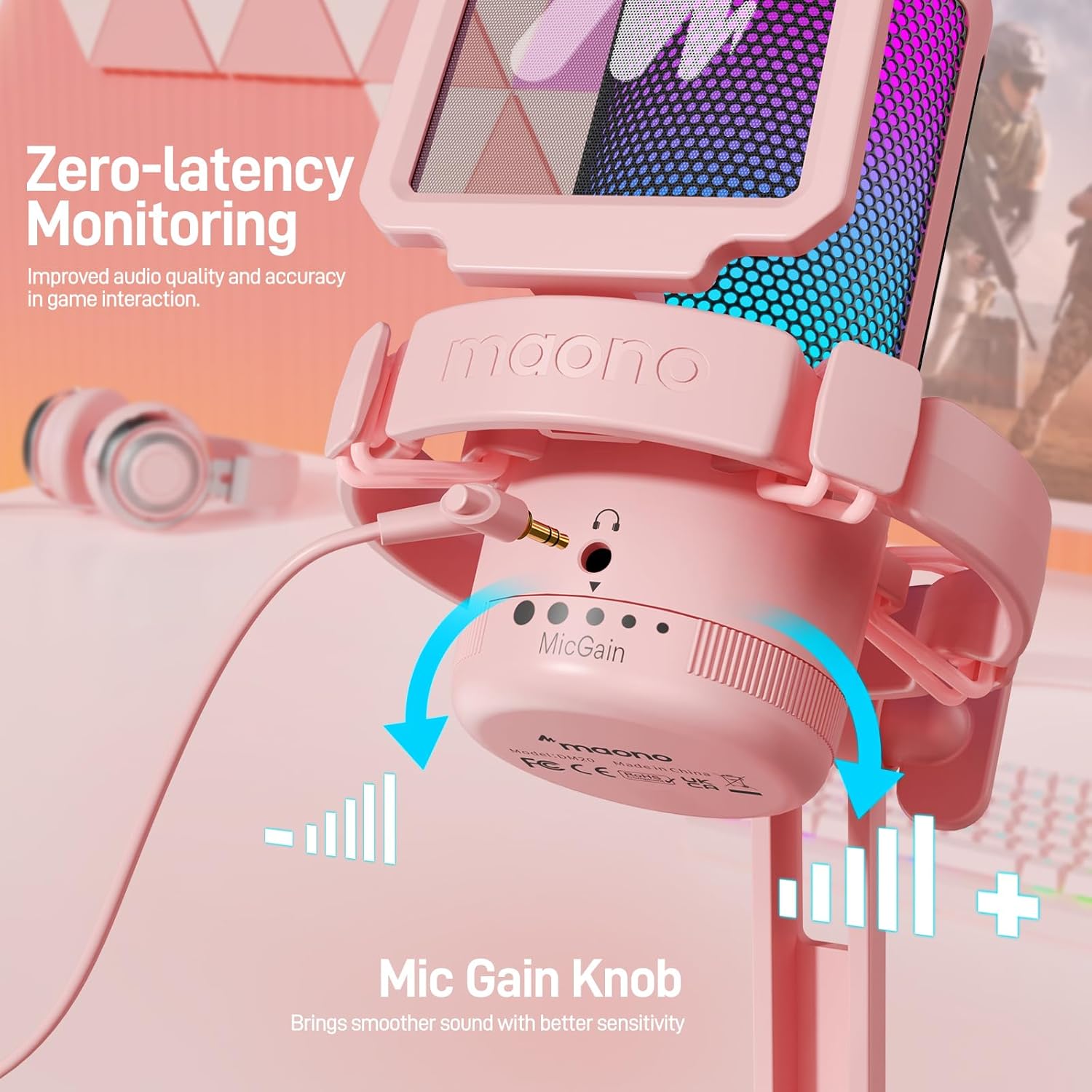
Image: The MAONO GamerWave DGM20 microphone highlighting the mic gain control knob and the 3.5mm jack for zero-latency monitoring.
4.5 Polar Pattern
The GamerWave DGM20 features a cardioid polar pattern, which means it primarily picks up sound from directly in front of the microphone. This design helps to isolate your voice and minimize unwanted background noise, making it ideal for single-speaker applications like streaming and podcasting.
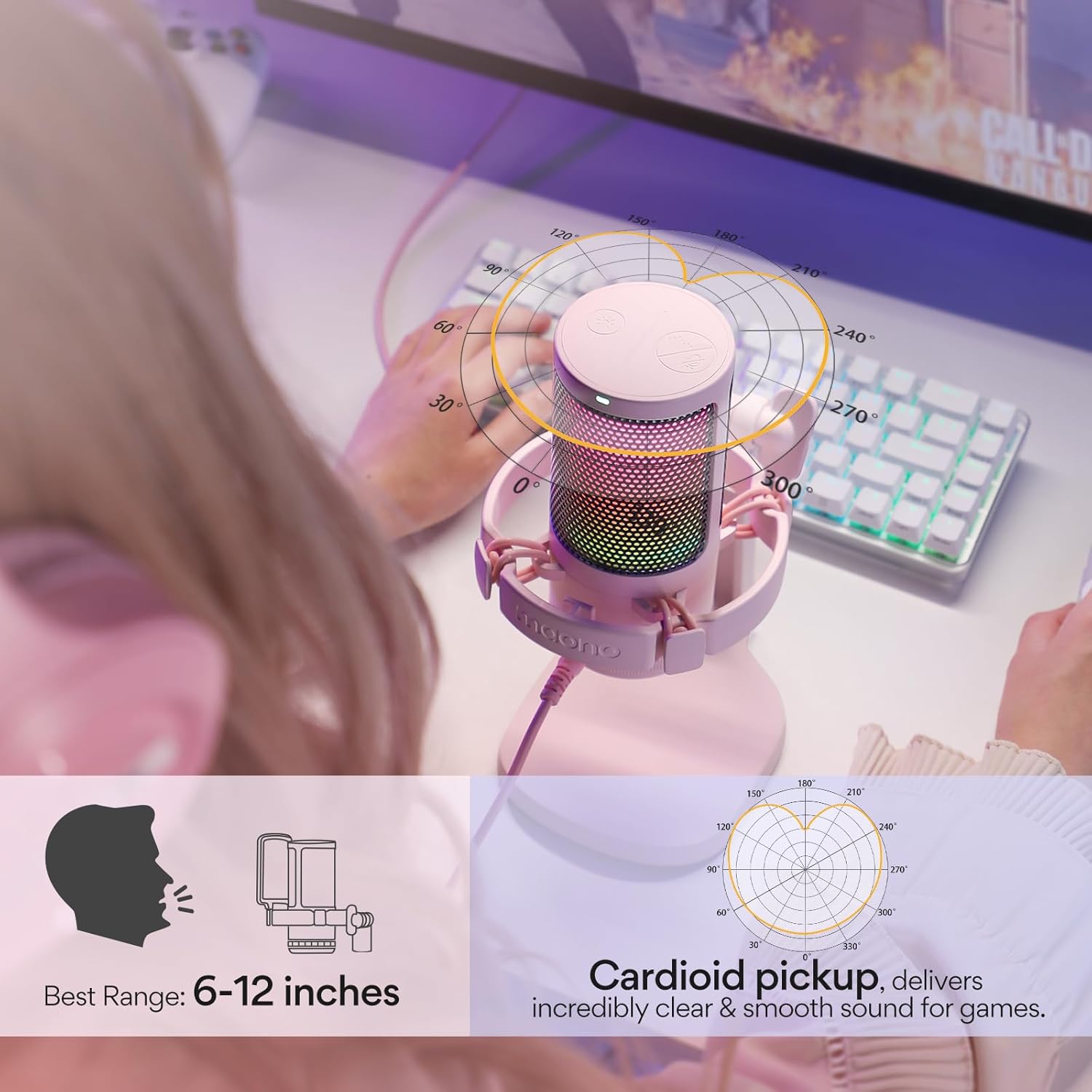
Image: The MAONO GamerWave DGM20 microphone with a diagram illustrating its cardioid pickup pattern, focusing on sound from the front.
5. תאימות
The MAONO GamerWave DGM20 is compatible with a wide range of devices:
- Computers (PC, Laptop, Desktop)
- מכשירי Mac OS
- פלייסטיישן 4 (PS4)
- פלייסטיישן 5 (PS5)
- טלפונים אנדרואיד
Note: This microphone is not compatible with XBOX consoles.
6. תחזוקה
To ensure the longevity and optimal performance of your MAONO GamerWave DGM20 microphone, follow these maintenance guidelines:
- ניקוי: Use a soft, dry cloth to wipe the microphone's exterior. Avoid using liquid cleaners or solvents, as they may damage the finish or internal components.
- אִחסוּן: כאשר המיקרופון אינו בשימוש, יש לאחסן אותו במקום נקי ויבש הרחק מטמפרטורות קיצוניות, לחות ואור שמש ישיר.
- טיפול: טפלו במיקרופון בזהירות. הימנעו מהפלתו או מחשיפתו לפגיעות חזקות, העלולות לפגוע בביצועיו.
- טיפול בכבלים: Do not bend or crimp the USB cable excessively. Store it neatly to prevent damage.
7. פתרון תקלות
If you encounter issues with your MAONO GamerWave DGM20 microphone, try the following troubleshooting steps:
- אין צליל/לא זוהה מיקרופון:
- ודא שכבל ה-USB מחובר היטב הן למיקרופון והן למכשיר שלך.
- Try connecting the microphone to a different USB port on your device.
- Verify that the microphone is selected as the input device in your operating system's sound settings and any recording software you are using.
- הפעל מחדש את המחשב או המכשיר.
- איכות צליל ירודה/עיוות:
- Adjust the mic gain knob to an appropriate level. Too high gain can cause distortion, while too low can result in faint audio.
- Ensure you are speaking directly into the front of the microphone (where the MAONO logo is visible) due to its cardioid polar pattern.
- Activate the one-key noise cancellation feature if background noise is an issue.
- Check for any obstructions between your mouth and the microphone.
- נורות RGB לא עובדות:
- Tap the RGB light button on the microphone to cycle through modes.
- ודא שהמיקרופון מחובר כראוי דרך חיבור ה-USB.
- Monitoring Audio Issues:
- Ensure your headphones are securely plugged into the 3.5mm jack on the microphone.
- Check your headphone volume.
8. מפרטים
| תכונה | פְּרָט |
|---|---|
| גורם צורת מיקרופון | כף יד |
| מידות (L x W x H) | 3.94 x 3.54 x 7.09 אינץ' |
| משקל פריט | 15.5 אונקיות |
| מקור כוח | חשמלי עם כבלים |
| חוֹמֶר | מתכת, פלסטיק |
| יחס אות לרעש | 73 |
| פלטפורמת חומרה | Computer, PC, Laptop, Desktop, Mac OS, PS4, PS5 |
| מספר ערוצים | 1 |
| שם הדגם | GamerWave DGM20 Gaming Mic |
| טכנולוגיית קישוריות | USB |
| סוג מחבר | USB, USB Type-C |
| תכונות מיוחדות | Controllable RGB Lights, One-key Noise Cancellation, One-tap Mute, Mic Gain Control, Zero Latency Monitoring, Plug and Play |
| צֶבַע | וָרוֹד |
| דפוס קוטבי | חד כיווני (קרדיואיד) |
9. אחריות ותמיכה
For warranty information and technical support, please visit the official MAONO website or contact MAONO customer service. You can also visit the MAONO Store on Amazon לפרטים נוספים על המוצר ומשאבי תמיכה.