
1. הקדמה
This manual provides detailed instructions for the HPRT N80 Barcode Scanner. It covers the scanner's features, setup, operation, maintenance, and troubleshooting. Please read this manual carefully before using the product to ensure proper and safe operation.

Image: HPRT N80 Barcode Scanner, USB cable, and included instruction manual.
2. תכונות מוצר
- 1D & 2D Scanning: Supports a wide range of 1D and 2D codes including UPC, UCC/EAN-128, ISBN/ISSN, Code 39, Code 128, Interleaved 2 of 5, QR Code, Data Matrix, and Postal Codes.
- Screen and Paper Scanning: Capable of scanning barcodes from both printed labels and digital screens.
- תאימות רחבה: Works with Windows, iOS, Android, Linux, and Mac OS. Connects to PCs, laptops, and iPads. (Note: Mac OS requires a USB wired connection).
- Fast and Precise Scan: Utilizes a superior CMOS sensor and image scanning technology for quick decoding. Achieves recognition precision up to 4 mil.
- מצבי סריקה מרובים: Offers manual trigger mode, continuous scan mode, and auto-sensing mode.
- עיצוב ארגונומי: Features a comfortable grip and durable ABS plastic construction, designed to withstand drops from up to 3.93ft.

Image: The HPRT N80 barcode scanner demonstrating its ability to decode a wide range of 1D and 2D barcode formats, including QR codes, Data Matrix, and Aztec Code.

Image: Illustration showing the HPRT N80 barcode scanner's capability to read damaged, blurred, and stained barcodes effectively.

Image: The HPRT N80 barcode scanner being applied in various environments, including a supermarket, hospital, warehouse, and library.
3. הגדרה וחיבור
The HPRT N80 Barcode Scanner is designed for plug-and-play functionality, requiring no driver installation for most operating systems.
חיבור USB קווי 3.1
- חבר את כבל ה-USB ליציאת הסורק.
- Plug the USB connector into an available USB port on your computer or device.
- The scanner will be automatically recognized by your system. No additional drivers are typically needed.
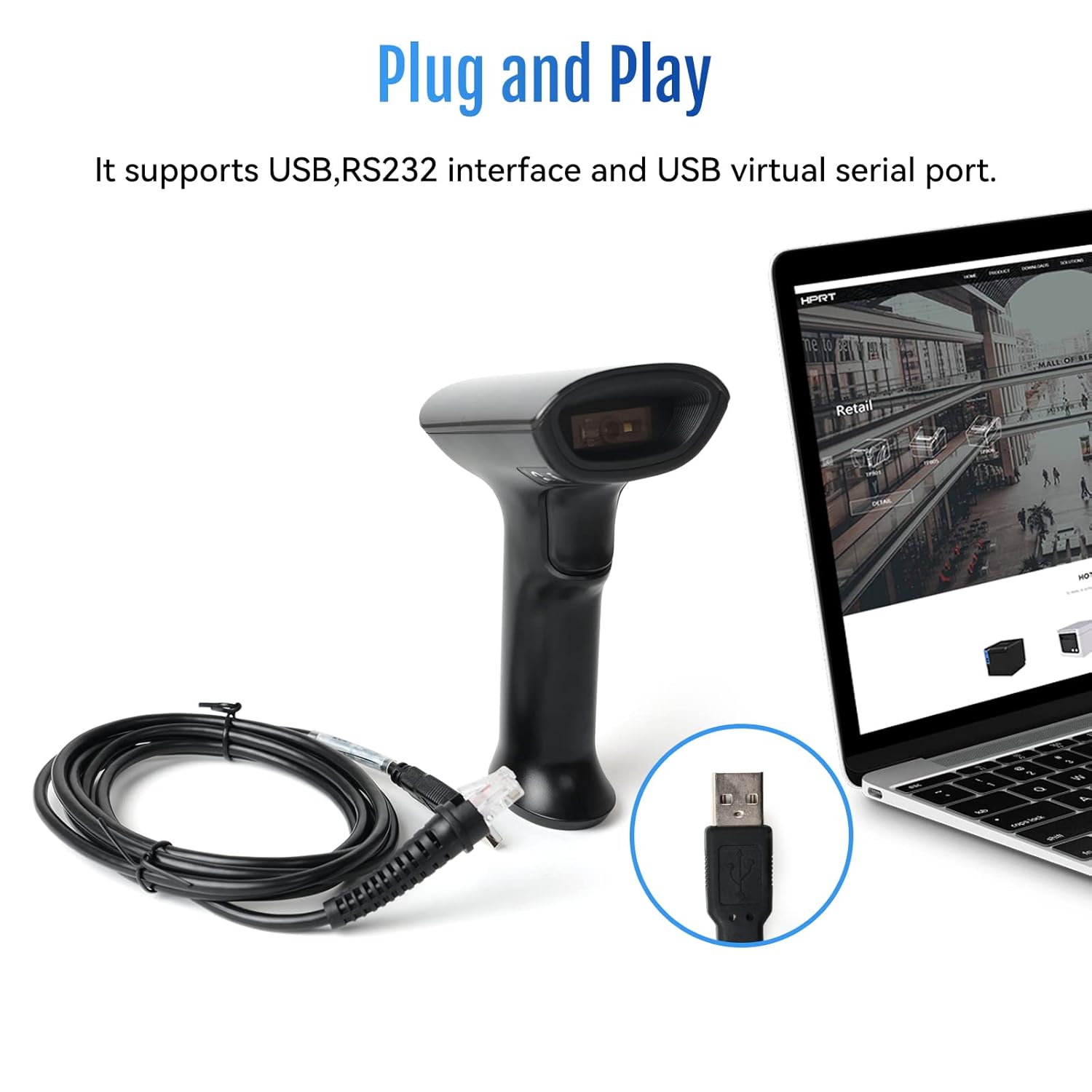
Image: The HPRT N80 barcode scanner with its USB cable, illustrating the plug-and-play connection to a laptop.

Image: A close-up of the HPRT N80 barcode scanner being connected to a laptop, demonstrating the plug-and-play functionality.
4. תפעול
The HPRT N80 Barcode Scanner offers various modes for efficient scanning.
4.1 סריקת ברקודים
- החזק את הסורק כאשר חלון הסריקה פונה אל הברקוד.
- Press the trigger button to activate the scan beam.
- Ensure the scan beam covers the entire barcode. A successful scan is usually indicated by an audible beep and/or a visual indicator.
- The decoded data will appear on your connected device.
4.2 מצבי סריקה
- מצב הדק ידני: Press the trigger for each scan.
- מצב סריקה רציפה: The scanner continuously emits a scan beam, scanning any barcode it detects.
- מצב חישה אוטומטית: The scanner activates the scan beam automatically when a barcode is presented within its field of view.

Image: The HPRT N80 barcode scanner performing a fast scan of both 1D and QR codes displayed on a smartphone screen.

Image: The HPRT N80 barcode scanner accurately scanning a barcode even in a dark environment, highlighting its low-light performance.
4.3 וידאו תפעולי
Video: Demonstrates the HPRT N80 barcode scanner's fast scanning capabilities for both 1D and 2D barcodes on paper and screens, highlighting its plug-and-play setup and ergonomic design.
5. תחזוקה
To ensure the longevity and optimal performance of your HPRT N80 Barcode Scanner, follow these maintenance guidelines:
- ניקוי: השתמשו במטלית רכה ויבשה לניקוי החלק החיצוני של הסורק. עבור חלון הסריקה, השתמשו במטלית נטולת סיבים נגבו קלות.ampיש לשטוף בחומר ניקוי עדין ולא שוחק. יש להימנע מכימיקלים חזקים או מחומרים שוחקים.
- אִחסוּן: אחסן את הסורק במקום קריר ויבש, הרחק מאור שמש ישיר וטמפרטורות קיצוניות.
- טיפול: While the scanner is designed to be durable, avoid unnecessary drops or impacts.
- טיפול בכבלים: Do not bend or twist the USB cable excessively. Always grasp the plug, not the cable, when disconnecting.
6. פתרון תקלות
If you encounter issues with your HPRT N80 Barcode Scanner, please refer to the following common troubleshooting steps:
- הסורק לא מגיב:
- Ensure the USB cable is securely connected to both the scanner and the host device.
- נסה לחבר את הסורק ליציאת USB אחרת.
- הפעל מחדש את המחשב או את המכשיר המארח.
- לא ניתן לסרוק ברקודים:
- Verify that the barcode is not excessively damaged, blurred, or stained.
- ודא שחלון הסריקה נקי וללא חסימות.
- Check if the scanner is in the correct scanning mode (e.g., manual trigger, continuous, auto-sensing).
- Ensure sufficient lighting for the barcode.
- פלט נתונים שגוי:
- Confirm that the correct keyboard layout or input method is selected on your host device.
- Refer to the full product manual (if available) for advanced configuration barcodes to reset settings or adjust data formatting.
If the problem persists, please contact HPRT customer support.
7. מפרטים
| תכונה | פְּרָט |
|---|---|
| מותג | HPRT |
| דֶגֶם | N80 |
| טכנולוגיית קישוריות | כבל USB |
| מקור כוח | מופעל על סוללה |
| מכשירים תואמים | Laptop (Windows, iOS, Android, Linux, Mac OS) |
| יכולת סריקה | 1D & 2D (UPC, EAN, QR, Data Matrix, etc.) |
| עֲמִידוּת | Withstands drops from up to 3.93ft |
8. אחריות ותמיכה
For warranty information or technical support, please contact HPRT customer service.
- דוא"ל לשירות לקוחות: pravin.m@hprt.com
- רִשְׁמִי Webאֲתַר: https://www.hprt.com

Image: HPRT customer service contact details, including email and official webאֲתַר.