
1. הקדמה
Thank you for choosing the typecase Touch iPad Keyboard Case. This manual provides detailed instructions for setting up, operating, and maintaining your keyboard case to ensure optimal performance and longevity. Please read this manual thoroughly before use.
2. תאימות
This keyboard case is designed for specific iPad models. Please verify your iPad model number to ensure compatibility.
- iPad 10th Generation (10.9-inch, 2022): דגמים A2696, A2757, A2777
- iPad A16 (11th Generation, 2025): דגמים A3354, A3355, A3356
To verify your iPad model:
- שיטה 1: Check the back of your iPad for the model number (e.g., A2696).
- שיטה 2: Go to iPad Settings > General > About > Model Number. Tap the model number to display the A-number.
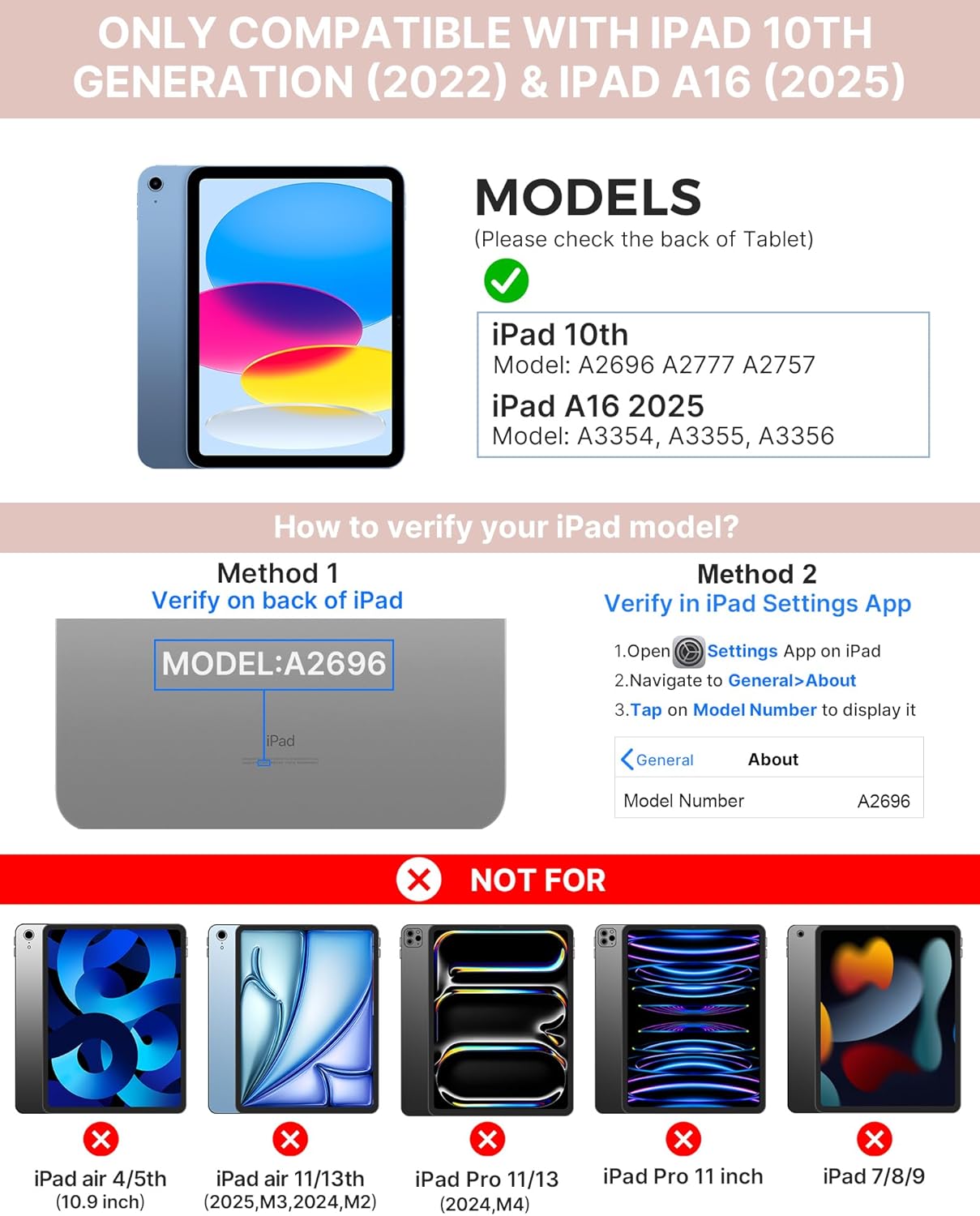
Image: Visual guide for identifying compatible iPad models and verifying the model number on the device or through settings.
3. תכולת החבילה
החבילה כוללת:
- 1 x typecase Touch iPad Keyboard Case
- כבל טעינה 1 x USB-C
- 1 x מדריך למשתמש
4. הוראות התקנה
4.1 טעינת המקלדת
לפני השימוש הראשוני, טען את המקלדת במלואה. חבר את כבל הטעינה USB-C המצורף לשקע הטעינה של המקלדת ולמקור חשמל. נורית חיווי הטעינה תציג את מצב הטעינה.
- המתנה: עד שנה
- Daytime use (2 hours/day with backlight off): עד 3 חודשים
- Nighttime use (2 hours/day with backlight on): עד שבועיים

Image: Close-up of the keyboard's USB-C charging port and battery life specifications.
4.2 Pairing with iPad
- ודא שהמקלדת טעונה.
- Turn on the keyboard by pressing the power button. The Bluetooth indicator light will flash.
- באייפד שלך, עבור אל הגדרות > Bluetooth.
- Turn on Bluetooth. Your iPad will search for available devices.
- Select "typecase Keyboard" from the list of devices.
- פעל לפי ההנחיות שעל המסך כדי להשלים את תהליך הצימוד. נורית חיווי ה-Bluetooth במקלדת תידלק באופן קבוע לאחר הצימוד המוצלח.
5. הוראות הפעלה
5.1 Installing Your iPad
Gently insert your iPad into the case, ensuring all edges are securely seated. The case provides full protection for your device.
5.2 פונקציות מקלדת
The keyboard features a standard 78-key layout with a dedicated row of iPadOS shortcut keys for enhanced productivity.

תמונה: מעל הראש view of the keyboard layout, highlighting the 78-key design and iPadOS shortcuts.
מקשים עם תאורה אחורית
The keyboard features 11-color RGB LED backlighting with adjustable brightness levels. This allows for comfortable typing in various lighting conditions.
- הקש על מפתח נורה to cycle through backlight colors.
- לִלְחוֹץ מקש Fn + נורה כדי להתאים את בהירות התאורה האחורית.
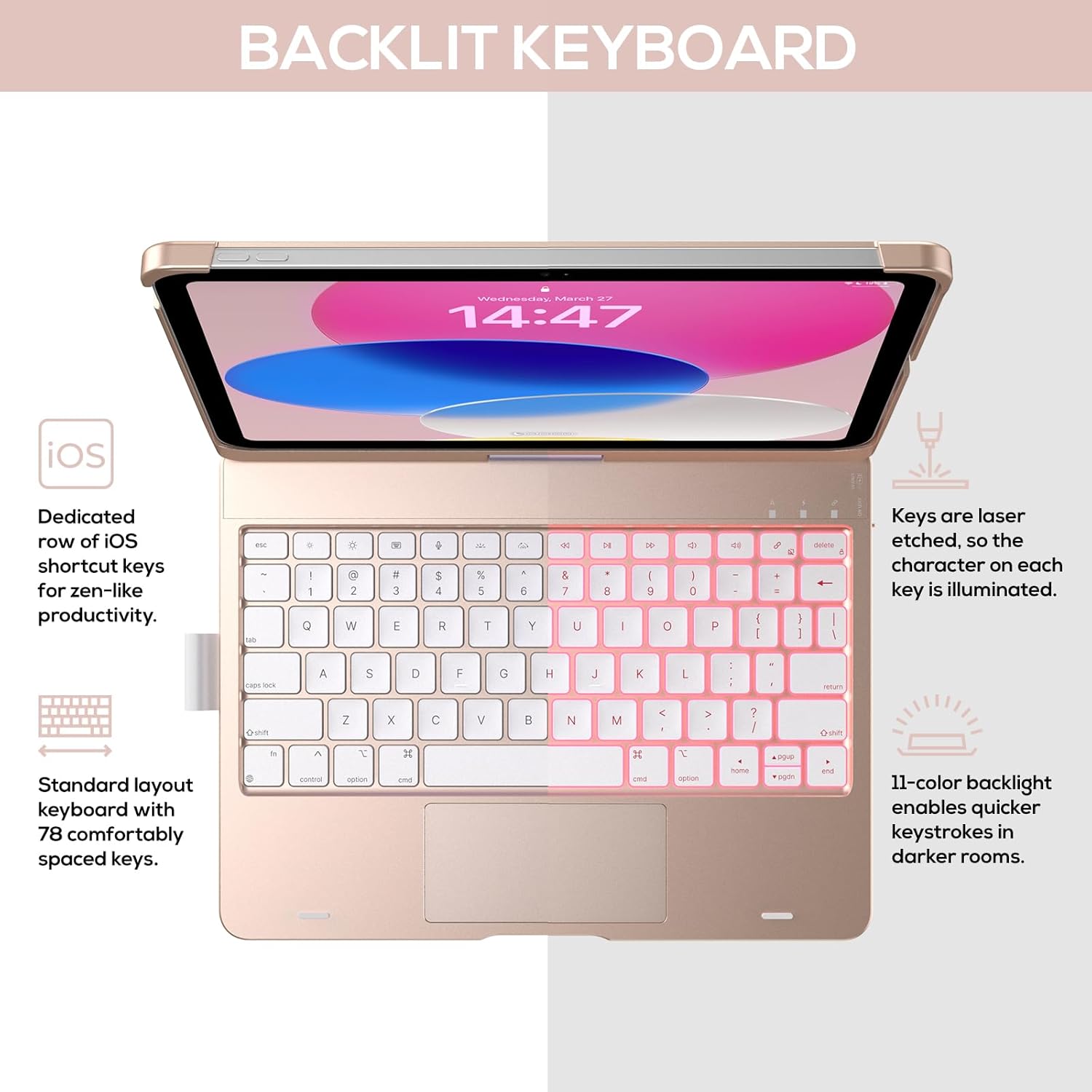
Image: The keyboard with illuminated keys, demonstrating the 11-color backlight and dedicated iOS shortcut keys.
משטח עקיבה רב-מגע 5.3
The integrated precision trackpad supports multi-gesture controls, enhancing productivity for tasks like document editing, web browsing, and presentation building.
- הקשה באצבע אחת: לחץ/בחר
- גלילה עם שתי אצבעות: גלילה למעלה/למטה או שמאלה/ימינה
- צובטים לזום: התקרב/הקטן
- החלקה למעלה בשלוש אצבעות: פתיחת מחליף אפליקציות
- החלקה למטה בשלוש אצבעות: חזור למסך הבית

Image: Diagram showing common multi-touch gestures for the trackpad, including managing files, web browsing, and app switching.
5.4 360° Rotatable Hinge and Use Modes
The patented 360° hinge allows for versatile use of your iPad in 7 unique modes, adapting to various tasks from typing to viewing.
- מצב מחשב נייד: Traditional laptop setup for typing.
- מצב עמידה: אידיאלי עבור viewתוכן.
- מצב אוהל: Stable for touch interaction or presentations.
- מצב טאבלט: Fold the keyboard behind the iPad for tablet use. Keys are protected in this mode.
- מצב פינה: Angled for comfortable drawing or writing.
- מצב שיתוף: Rotate the screen to share content with others.
- Protect Mode: Close the case to fully protect the iPad.
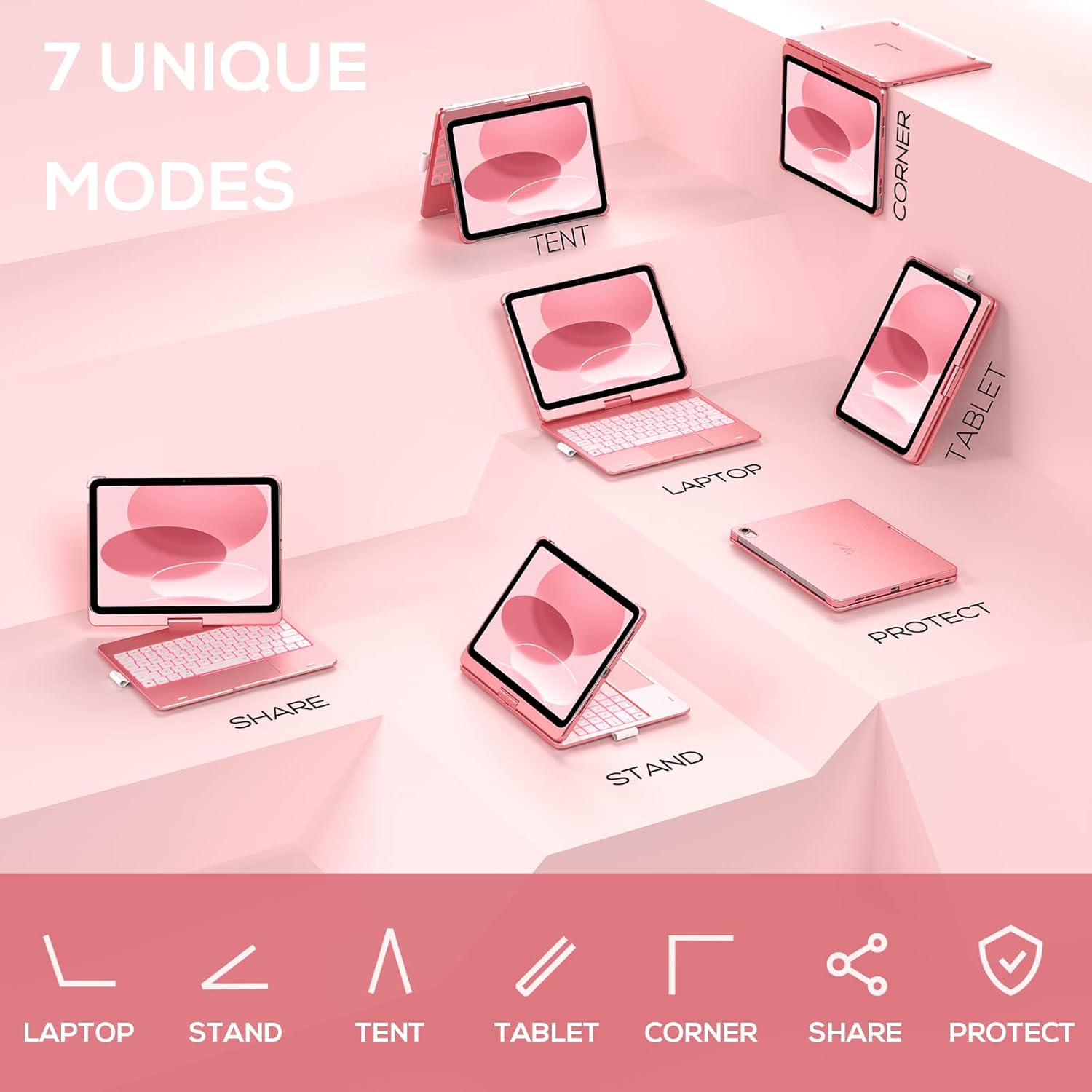
Image: A visual representation of the seven different configurations the keyboard case can be used in, including laptop, stand, and tablet modes.
5.5 פונקציית שינה/ערה אוטומטית
The case features an auto sleep/wake function. Opening the case will wake your iPad, and closing it will put your iPad to sleep, helping to conserve battery life for both the iPad and the keyboard.

Image: A user's hand on the trackpad, illustrating the built-in trackpad and the auto sleep/wake feature that activates when the case is opened or closed.
5.6 Apple Pencil Holder
An integrated holder is provided for your Apple Pencil, ensuring it is securely stored and easily accessible.
6. תחזוקה
6.1 ניקוי
כדי לנקות את מארז המקלדת, השתמש במטלית רכהamp cloth. Avoid using harsh chemicals or abrasive materials, as these may damage the surface. Ensure the charging port is dry before charging.
6.2 אחסון
כאשר אינו בשימוש למשך תקופות ממושכות, יש לאחסן את מארז המקלדת במקום קריר ויבש. מומלץ לטעון את המקלדת במלואה לפני אחסון לטווח ארוך כדי לשמור על תקינות הסוללה.
7. פתרון תקלות
7.1 המקלדת לא מתחברת
- ודא שהמקלדת דולקת וטעונה.
- Check that Bluetooth is enabled on your iPad.
- שכח את המכשיר בהגדרות ה-Bluetooth של האייפד שלך ונסה לבצע התאמה מחדש.
- הפעל מחדש את האייפד ואת המקלדת.
7.2 מקשים אינם מגיבים
- ודא שהמקלדת מחוברת כראוי דרך Bluetooth.
- בדוק את רמת הסוללה של המקלדת.
- נקו כל פסולת מסביב למקשים.
7.3 Trackpad Not Working
- ודא שהמקלדת מחוברת.
- בדוק את הגדרות ה-iPad כדי לוודא שהמשטח עקיבה פונקציונלי (הגדרות > כללי > משטח עקיבה).
- הפעל מחדש את המקלדת ואת האייפד.
7.4 תאורת רקע לא עובדת
- ודא שהמקלדת מופעלת.
- Press the backlight control keys (light bulb key, Fn + light bulb key) to activate or adjust.
- Check battery level; low battery may disable backlighting.
8. מפרטים
| מספר דגם | KB201T-100 |
| מידות המוצר | 11 x 8.6 x 1.5 אינץ' (11 אינץ' אורך x 8.6 אינץ' רוחב x 1.5 אינץ' גובה) |
| משקל פריט | 1.43 פאונד |
| טכנולוגיית קישוריות | בלוטות' |
| תיאור מקלדת | Flexible, 78-key layout with iPadOS shortcuts |
| תכונות מיוחדות | 360° Rotatable, 11-Color Backlit, Ergonomic, Lightweight, Multi-Touch Trackpad, Auto Sleep/Wake, Apple Pencil Holder |
| תאורה אחורית של המקלדת | RGB (11 צבעים) |
| סוג סוללה | סוללת ליתיום פולימר אחת (כלול) |
9. אחריות ותמיכה
typecase is committed to product quality and customer satisfaction. This product comes with the following support:
- שירות החלפה: Within 1 year of purchase.
- מדיניות החזר כספי: תוך 30 ימים ממועד הרכישה.
For any issues or inquiries, please contact typecase customer support for quick feedback and assistance.

Image: Information on typecase's after-sales service, including replacement, refund, and customer support.