
1. הקדמה
This instruction manual provides detailed guidance for setting up and operating your Olizen Universal Large Button Simple TV Remote Control. Designed for ease of use, this learning remote is specifically compatible with Infrared (IR) remote-controlled devices, such as most televisions. It is not compatible with RF, Bluetooth, or Magic Link remote systems.
Please read this manual thoroughly before use to ensure proper functionality and to maximize your experience with the remote control.
2. המוצר נגמרview
The Olizen Universal Remote Control features a simplified design with large, easy-to-press buttons, making it ideal for seniors or anyone seeking a straightforward remote solution. It is designed to learn commands from your existing IR remote control.

איור 2.1: חזית ואחורה View של השלט הרחוק
This image displays the front of the remote with its large, clearly labeled buttons for Power, Volume, Channel, and AV input. The back view shows the battery compartment.

Figure 2.2: Large Button Design
The remote features oversized buttons for improved visibility and tactile feedback, enhancing usability for individuals with dexterity challenges or visual impairments.

Figure 2.3: Internal Smart Chip
Equipped with an upgraded smart chip, the remote is designed for enhanced performance and extended durability.
3. Setup and Learning Instructions
This remote control operates by learning infrared signals from your existing remote. Ensure your original remote is an IR type before proceeding.
3.1 Confirming IR Remote Compatibility

Figure 3.1: Checking for IR Signal Light
To confirm if your original remote is an IR remote, point its front end towards a smartphone camera. Press any button on the original remote. If you see a flashing light on your phone screen, your remote is an IR remote and compatible with this learning remote.
3.2 התקנת סוללה
Before operation, ensure you have installed 2xAAA alkaline batteries into the learning remote control. Open the battery compartment cover on the back of the remote, insert the batteries according to the polarity indicators (+/-), and close the cover securely.
3.3 Learning Process
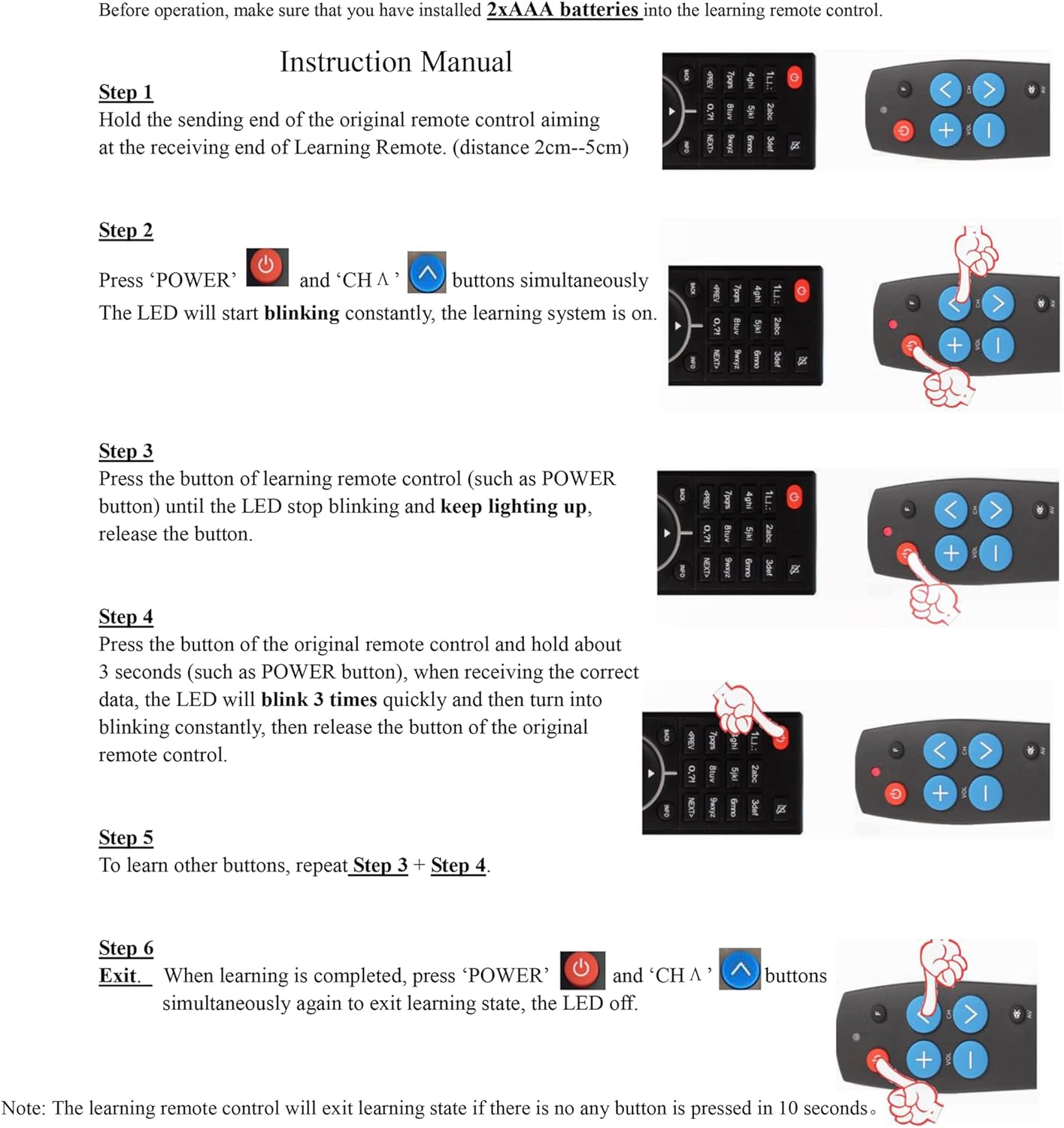
Follow these steps to program the Olizen Universal Remote Control:

Figure 3.2: Learning Instruction Steps
This image provides a visual representation of each step in the learning process, showing the positioning of the remotes and the buttons to press.
- Step 1: Position Remotes
Hold both the original remote control and the learning remote control at a distance of 2-5 cm (approximately 1-2 inches) from each other, with their IR emitters facing each other. - Step 2: Activate Learning Mode
לחץ והחזק את כּוֹחַ ו CH ^ buttons simultaneously on the learning remote control. The LED indicator on the learning remote will start blinking continuously, indicating that the learning system is activated. - Step 3: Select Button to Learn
Press the desired button on the learning remote control (e.g., the כּוֹחַ button). The LED indicator will stop blinking and remain lit, waiting for the signal. - Step 4: Learn Command
While keeping the original remote control aimed at the learning remote, press and hold the corresponding button on the original remote (e.g., its Power button) for at least 2 seconds. Upon successful reception of the signal, the LED on the learning remote will blink 3 times quickly and then return to continuous blinking. Release the button on the original remote. - Step 5: Learn More Buttons
To program additional buttons, repeat Step 3 and Step 4 for each desired button (e.g., Volume +, Volume -, Channel +, Channel -, AV). - Step 6: Exit Learning Mode
Once you have finished programming all desired buttons, press the כּוֹחַ ו CH ^ buttons simultaneously again on the learning remote. The LED indicator will turn off, signifying that the learning mode has been exited.
פֶּתֶק: The learning mode will automatically exit if there is no button pressed for 10 seconds. If a button does not work after programming, please repeat the learning steps for that specific button.
4. הוראות הפעלה
Once programmed, the Olizen Universal Remote Control functions like your original remote for the learned commands. Simply point the remote at your device (TV, IR cable box) and press the desired button.
- כּוֹחַ לַחְצָן: מדליק או מכבה את המכשיר שלך.
- ווליום + / - כפתורים: מכוון את עוצמת הקול למעלה או למטה.
- CH ^ / v כפתורים: משנה את הערוץ למעלה או למטה.
- AV לַחְצָן: Switches between video input sources (e.g., HDMI 1, HDMI 2, AV).
- F לַחְצָן: Function button, can be programmed for an additional command.
איור 4.1: תאימות אוניברסלית
The remote is designed to work with a wide range of major TV brands once programmed. It is important to note that it is not compatible with Cable Boxes, Fire Sticks, Roku Sticks, or DVD/Blu-Ray players, as it is designed for IR TV and IR cable box control only.
5. תחזוקה
כדי להבטיח את אורך החיים והביצועים המיטביים של השלט רחוק, יש לפעול לפי הנחיות התחזוקה הבאות:
- ניקוי: נגבו את השלט בעזרת מטלית רכה ויבשה. אין להשתמש בחומרי ניקוי שוחקים או ממסים.
- החלפת סוללה: Replace batteries when the remote's response becomes sluggish or the LED indicator does not light up. Always use new AAA alkaline batteries and dispose of old batteries responsibly.
- אִחסוּן: יש לאחסן את השלט במקום קריר ויבש, הרחק מאור שמש ישיר וטמפרטורות קיצוניות.
- הימנע מטיפות: הגן על השלט הרחוק מפני זעזועים פיזיים ונפילות, אשר עלולים לגרום נזק לרכיבים פנימיים.
6. פתרון תקלות
If you encounter issues with your Olizen Universal Remote Control, refer to the following common solutions:
- השלט לא מגיב:
- Check if batteries are correctly inserted and have sufficient charge. Replace if necessary.
- ודא שאין מכשולים בין השלט רחוק למקלט ה-IR של המכשיר.
- A specific button does not work after programming:
- Repeat the learning process (Section 3.3) specifically for that button. Ensure the original remote is held steady and close to the learning remote during the learning step.
- Verify that your original remote is indeed an IR remote (Section 3.1).
- Learning mode exits unexpectedly:
- The learning mode automatically exits after 10 seconds of inactivity. Ensure you complete each step within this timeframe.
- Remote does not control my device:
- Confirm that your device uses an IR remote control. This universal remote is not compatible with RF, Bluetooth, or Magic Link systems.
- Ensure all necessary buttons have been successfully programmed from your original remote.
7. מפרטים
| תכונה | פְּרָט |
|---|---|
| מותג | Olizen |
| שם הדגם | AN-MR21GA |
| מספר דגם | Remote Control for Seniors |
| מכשירים תואמים | Television (IR-controlled) |
| תכונות מיוחדות | IR Learning, Universal Compatibility |
| סוג מחבר | אינפרא אדום |
| מספר כפתורים | 6 |
| טווח מקסימלי | 15 מטר |
| תיאור הסוללה | אלקליין (AAA) |
| סוללות כלולות | לֹא |
| מידות המוצר | 2.4 x 4.7 x 5 ס"מ; 90 גרם |
8. אחריות ותמיכת לקוחות
Olizen offers a 360-day warranty return service for this product. If you experience any issues or have questions, please contact our customer service team. We aim to respond to all customer service inquiries within 12 hours.
For support, please refer to the contact information provided with your purchase or visit the official Olizen webאֲתַר.