
1. הקדמה
This manual provides detailed instructions for the installation, operation, and maintenance of your Avision FB25 Flatbed Scanner. The FB25 is a high-resolution A4 color flatbed scanner designed for efficient document and ID card scanning. It features a 1200dpi Contact Image Sensor (CIS) and USB 2.0 connectivity, making it suitable for various scanning tasks. Please read this manual thoroughly before using the scanner to ensure proper operation and to maximize its performance.
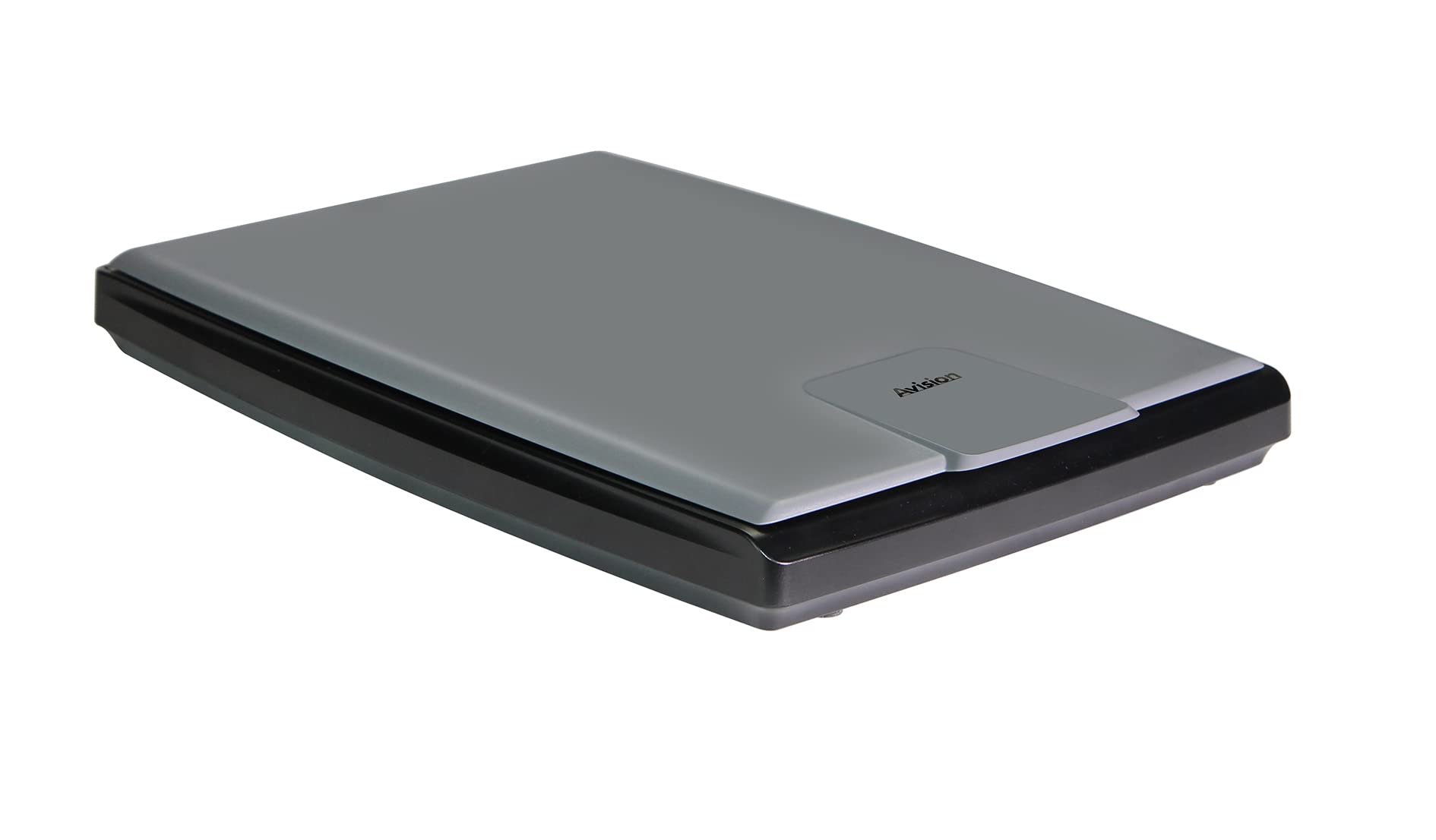
תמונה 1.1: מלמעלה למטה view of the Avision FB25 Flatbed Scanner. The scanner features a dark gray base with a lighter gray lid, displaying the 'Avision' logo prominently on the lid's front section.
2. מידע בטיחות
- אין לחשוף את הסורק למים או ללחות.
- אל תנסה לפרק או לשנות את הסורק. יש לפנות לכל טיפול וטיפול באנשי מקצוע מוסמכים.
- השתמש רק במתאם החשמל המצורף לסורק.
- Place the scanner on a stable, level surface to prevent damage from falling.
- הרחק את הסורק מאור שמש ישיר וממקורות חום.
- ודא אוורור נאות סביב הסורק כדי למנוע התחממות יתר.
3. תכולת החבילה
ודא שכל הפריטים נמצאים בחבילה:
- Avision FB25 Flatbed Scanner Unit
- כבל USB 2.0
- מתאם מתח
- מדריך להתחלה מהירה
- Software CD (or download instructions for TWAIN Driver and PaperPort SE14)
4. המוצר נגמרview
The Avision FB25 is a compact flatbed scanner. Its design includes a scanning bed for documents up to A4 size, a hinged lid, and a power/data interface.

Image 4.1: The Avision FB25 Flatbed Scanner shown with its approximate dimensions: 16.77 inches in length, 13.65 inches in width, and 3.12 inches in height.
4.1 חזית View
The front of the scanner typically features the Avision logo on the lid. There are no physical buttons on the front.
4.2 אחורי View
The rear panel houses the power input port and the USB 2.0 port for connecting to your computer.
4.3 Scanning Bed
The flat glass surface where documents are placed for scanning. Ensure this surface is clean before each use.
5. התקנה
5.1 חיבור חומרה
- הנח את הסורק על משטח יציב ושטוח.
- Connect the power adapter to the scanner's power input port and then plug it into an electrical outlet.
- Connect one end of the USB 2.0 cable to the scanner's USB port and the other end to an available USB port on your computer.
- Power on the scanner (if it has a power button; otherwise, it powers on automatically when connected).
5.2 התקנת תוכנה
The Avision FB25 requires driver software for proper operation. It supports Windows XP, Vista, 7, 8, 10, and 11.
- Insert the provided Software CD into your computer's CD/DVD drive. If your computer does not have a CD/DVD drive, download the latest drivers and software (TWAIN Driver and PaperPort SE14) from the official Avision support webאֲתַר.
- Follow the on-screen instructions to install the TWAIN driver. The TWAIN driver allows the scanner to communicate with various scanning applications.
- Install PaperPort SE14, the bundled document management software. This software provides an intuitive interface for scanning, organizing, and sharing documents.
- Restart your computer after the installation is complete to ensure all drivers are properly loaded.
6. הוראות הפעלה
6.1 Placing Documents
- הרם את מכסה הסורק.
- Place the document face-down on the scanning glass, aligning it with the corner guide (usually top-left).
- Gently close the scanner lid. Ensure the document lies flat against the glass.
6.2 Using the TWAIN Driver
The TWAIN driver allows you to scan directly from TWAIN-compliant applications (e.g., Adobe Photoshop, Microsoft Paint, or other document management software).
- Open your preferred TWAIN-compliant application.
- נווט אל 'File' menu and select 'Import' or 'Acquire Image'.
- Choose the Avision FB25 scanner from the list of available devices.
- The TWAIN driver interface will appear, allowing you to adjust scanning settings such as resolution (up to 1200dpi), color mode (color, grayscale, black & white), and scan area.
- Click 'Scan' to initiate the scanning process. The FB25 can scan an A4 color page at 300 dpi in approximately 1.5 seconds.
- The scanned image will appear in your application.
6.3 Using PaperPort SE14
PaperPort SE14 provides a user-friendly environment for scanning and managing your documents.
- Launch PaperPort SE14 from your desktop or Start menu.
- In the PaperPort interface, locate the 'Scan' button or option.
- Select the Avision FB25 as your scanner.
- Adjust scanning settings as needed (e.g., resolution, color, document type).
- Click 'Scan' to begin. The scanned document will appear in your PaperPort workspace.
- You can then save the document in various formats including BMP, PNG, GIF, JPEG, Single-Page PDF, Multi-Page PDF, Multi-TIFF, TIFF, RTF, TXT, OCR, XPS, DOC, XLS, PPT, DOCS, XLSX, PPTX, and HTML.
7. תחזוקה
7.1 ניקוי זכוכית הסורק
אבק או כתמים על זכוכית הסורק עלולים לפגוע באיכות הסריקה.
- Turn off the scanner and unplug the power adapter.
- פתח את מכסה הסורק.
- Gently wipe the glass surface with a soft, lint-free cloth dampיש לנקות את המכשיר עם חומר ניקוי עדין לזכוכית. אין לרסס את חומר הניקוי ישירות על הזכוכית.
- נגבו יבש בעזרת מטלית נקייה ויבשה נוספת.
- Close the lid and reconnect power.
7.2 טיפול כללי
- שמור על הסורק מכוסה כאשר אינו בשימוש כדי למנוע הצטברות אבק.
- הימנעו מהנחת חפצים כבדים על מכסה הסורק.
8. פתרון תקלות
If you encounter issues with your Avision FB25 scanner, refer to the following common problems and solutions:
| בְּעָיָה | סיבה אפשרית | פִּתָרוֹן |
|---|---|---|
| הסורק לא זוהה על ידי המחשב. | Loose USB cable, power not connected, driver not installed. | Check USB and power connections. Ensure the scanner is powered on. Reinstall the TWAIN driver. Try a different USB port. |
| איכות סריקה ירודה (פסים, תמונות מטושטשות). | Dirty scanner glass, incorrect resolution settings, document not flat. | Clean the scanner glass (refer to Section 7.1). Adjust resolution settings in the scanning software. Ensure the document is placed flat. |
| תוכנת הסריקה קורסת או קופאת. | Outdated driver, software conflict, insufficient system resources. | Update the TWAIN driver and PaperPort SE14 to the latest versions. Close other applications. Restart the computer. |
| הסורק לא נדלק. | Power adapter not connected, faulty power outlet. | Check power adapter connection to scanner and outlet. Try a different power outlet. Ensure the power adapter is functional. |
9. מפרטים
Key technical specifications for the Avision FB25 Flatbed Scanner:
- סוג סורק: Document, ID Card Flatbed
- טכנולוגיית חיישן אופטי: חבר העמים (חיישן תמונה ליצירת קשר)
- סוג מקור אור: LED
- רזולוציה אופטית: 1200 dpi
- עומק צבע: קלט 48 סיביות, פלט 24 סיביות
- Grayscale Depth: קלט 16 סיביות, פלט 8 סיביות
- Scan Size (Max): A4 (216 x 297 מ"מ)
- מהירות סריקה: Approximately 1.5 seconds per A4 color page at 300 dpi (3.5 seconds including return)
- קישוריות: USB 2.0
- מידות המוצר (עומק x רוחב x גובה): 16.93 אינץ' x 13.78 אינץ' x 3.15 אינץ' (430 מ"מ x 350 מ"מ x 80 מ"מ)
- קיבולת גיליון סטנדרטית: 1 (flatbed)
- דרישות מערכת מינימליות: Windows XP, Vista, 7, 8, 10, 11
- תוכנה מצורפת: TWAIN Driver, PaperPort SE14
- נתמך File פורמטים: BMP, PNG, GIF, JPEG, Single-Page PDF, Multi-Page PDF, Multi-TIFF, TIFF, RTF, TXT, OCR, XPS, DOC, XLS, PPT, DOCS, XLSX, PPTX, HTML
10. אחריות ותמיכה
10.1 אחריות יצרן
The Avision FB25 Flatbed Scanner comes with a אחריות יצרן לשנתיים. This warranty covers defects in materials and workmanship under normal use during the warranty period. Please retain your proof of purchase for warranty claims.
10.2 תמיכה טכנית
For technical assistance, driver updates, or further troubleshooting not covered in this manual, please visit the official Avision support website or contact their customer service department. Contact information can typically be found on the Avision webבאתר או במדריך ההתחלה המהירה המצורף למוצר שלך.