
1. המוצר נגמרview
The havit GK59 Gaming Microphone is designed for clear audio capture during gaming, streaming, and voice communication. It features a condenser microphone for high-quality sound and a versatile design for ease of use.

איור 1.1: חזית view of the havit GK59 Gaming Microphone, showcasing its main body, stand, and control buttons.
תכונות עיקריות:
- קל לשימוש: פונקציונליות פשוטה של חיבור והפעל.
- Good Performance: Delivers clear and consistent audio.
- Good Quality: Durable construction for reliable use.
- עיצוב נייד: קומפקטי וקל להובלה.
- מעמד מתכוונן: Allows for flexible positioning.
2. הוראות התקנה
2.1 תכולת החבילה
אנא בדקו את החבילה עבור הפריטים הבאים:
- havit GK59 Gaming Microphone
- כבל חיבור USB
- מדריך למשתמש (מסמך זה)
2.2 חיבור המיקרופון
The GK59 microphone offers versatile connectivity options for various devices.
- חיבור USB: Connect the provided USB cable to the USB-C port on the back of the microphone and the other end to an available USB port on your computer or gaming console. The microphone is plug-and-play and should be automatically recognized by most operating systems.
- חיבור שקע 3.5 מ"מ: For devices supporting a 3.5mm auxiliary input, connect a 3.5mm audio cable (not included) to the 3.5mm jack on the back of the microphone and to your device's audio input.
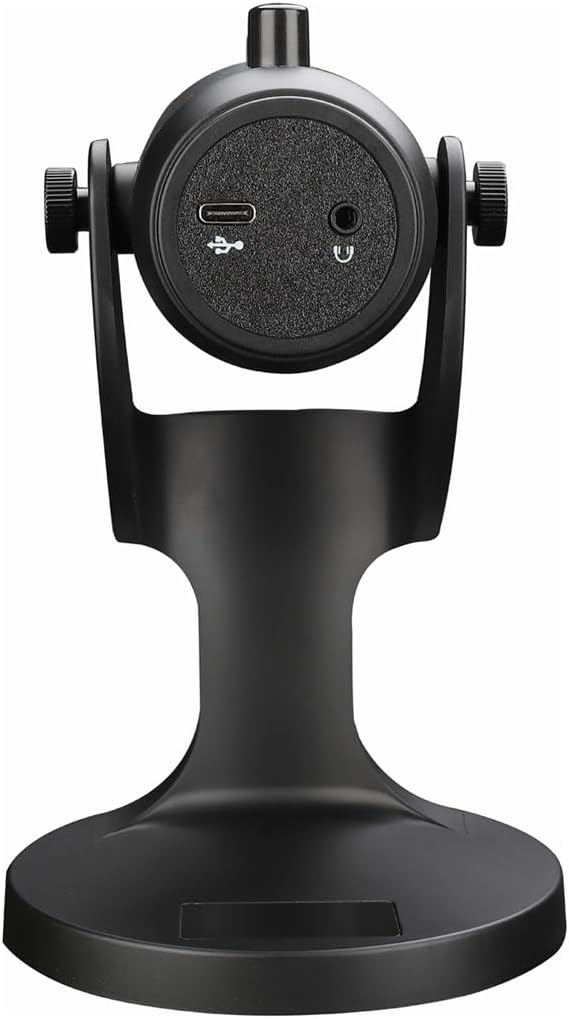
איור 2.1: אחורי view of the havit GK59 Gaming Microphone, highlighting the USB-C port for data and power, and the 3.5mm headphone jack for monitoring.
After connecting, ensure the microphone is selected as the default input device in your system's sound settings or your gaming/streaming software.
3. הוראות הפעלה
3.1 בקרות בסיסיות
The havit GK59 features intuitive controls located on the front of the microphone body:
- כפתור השתק: Press to mute or unmute the microphone. An indicator light will typically show the mute status.
- MIC +/- Buttons: Adjust the microphone input sensitivity (gain). Press '+' to increase, '-' to decrease.
- כפתורי VOL +/-: Adjust the headphone output volume for monitoring. Press '+' to increase, '-' to decrease.
- ECHO +/- Buttons: Adjust the echo effect level. Press '+' to increase, '-' to decrease.
איור 3.1: מפורט view of the microphone's control panel, including the mute button, microphone gain, volume, and echo adjustment buttons.
3.2 כוונון מיקום המיקרופון
The microphone is equipped with an adjustable stand, allowing you to optimize its position for best sound capture and comfort.
- Gently hold the microphone body and the base of the stand.
- Tilt the microphone forward or backward to achieve the desired angle. The stand's design helps reduce vibration and abnormal sounds during use.
- Position the microphone approximately 6-12 inches (15-30 cm) from your mouth for optimal voice clarity.

Figure 3.2: The havit GK59 microphone demonstrating its adjustable tilt feature on the stand, designed for anti-vibration.
4. תחזוקה
4.1 ניקוי
כדי לשמור על ביצועי המיקרופון ומראהו:
- Disconnect the microphone from its power source before cleaning.
- השתמש במטלית רכה ויבשה כדי לנגב את המשטחים החיצוניים.
- אין להשתמש בחומרי ניקוי נוזליים, תרסיסים או ממיסים, מכיוון שאלה עלולים לפגוע בגימור או ברכיבים הפנימיים.
4.2 אחסון
כאשר המיקרופון אינו בשימוש, יש לאחסן אותו במקום קריר ויבש הרחק מאור שמש ישיר וטמפרטורות קיצוניות. יש להגן עליו מפני אבק ולחות.
5. פתרון תקלות
If you encounter issues with your havit GK59 Gaming Microphone, please refer to the following table for common problems and solutions:
| בְּעָיָה | סיבה אפשרית | פִּתָרוֹן |
|---|---|---|
| No sound input from microphone | המיקרופון לא מחובר כהלכה נבחר התקן קלט שגוי המיקרופון מושתק | ודא שכבל ה-USB מחובר היטב. Check system sound settings and select GK59 as input. Press the Mute button on the microphone to unmute. |
| עוצמת מיקרופון נמוכה | Microphone gain too low System input volume too low | Press the 'MIC +' button on the microphone. Adjust input volume in your system's sound settings. |
| שמע מעוות או לא ברור | Microphone gain too high המיקרופון קרוב מדי לפה רעש סביבתי | Press the 'MIC -' button on the microphone. Adjust microphone position (6-12 inches from mouth). הפחתת רעשי רקע בסביבתך. |
| No headphone monitoring sound | אוזניות לא מחוברות Headphone volume too low | Ensure headphones are plugged into the 3.5mm jack. Press the 'VOL +' button on the microphone. |
6. מפרט טכני
Below are the technical specifications for the havit GK59 Gaming Microphone:
| תכונה | מִפרָט |
|---|---|
| מותג | מקלט |
| מספר דגם | GK59 |
| טכנולוגיית קישוריות | USB, 3.5 mm Jack (Auxiliary) |
| שימושים מומלצים | משחקים |
| דפוס קוטבי | חַד כִּוּוּנִי |
| גורם צורת מיקרופון | Handheld (with desktop stand) |
| משקל פריט | 429 גרם |
| עַכָּבָּה | 250 אוהם |
| יחס אות לרעש | 18 dB |
| רעש נשמע | 18 דציבלים |
| מקור כוח | חשמלי עם כבל (דרך USB) |
| מכשירים תואמים | Gaming Consoles, PCs |
| מידות פריט (LxWxH) | 5.59 x 4.92 x 9.06 אינץ' |
| צֶבַע | שָׁחוֹר |
7. אחריות ותמיכה
7.1 מידע אחריות
The havit GK59 Gaming Microphone comes with a standard manufacturer's warranty. Please refer to the warranty card included in your product packaging or visit the official havit webבאתר לקבלת תנאי האחריות המפורטים.
7.2 תמיכת לקוחות
For technical assistance, troubleshooting not covered in this manual, or warranty claims, please contact havit customer support through their official channels. You can find more information and contact details on the havit Store on Amazon או הפקיד שלהם webאֲתַר.