
1. המוצר נגמרview
The Point Wired Mini Keyboard Pt-350 is a compact and versatile keyboard designed for both gaming and general typing. It features a high-quality build and a modern design, adhering to industry standards for reliable performance. This keyboard is an ideal choice for users seeking a durable and efficient input device.
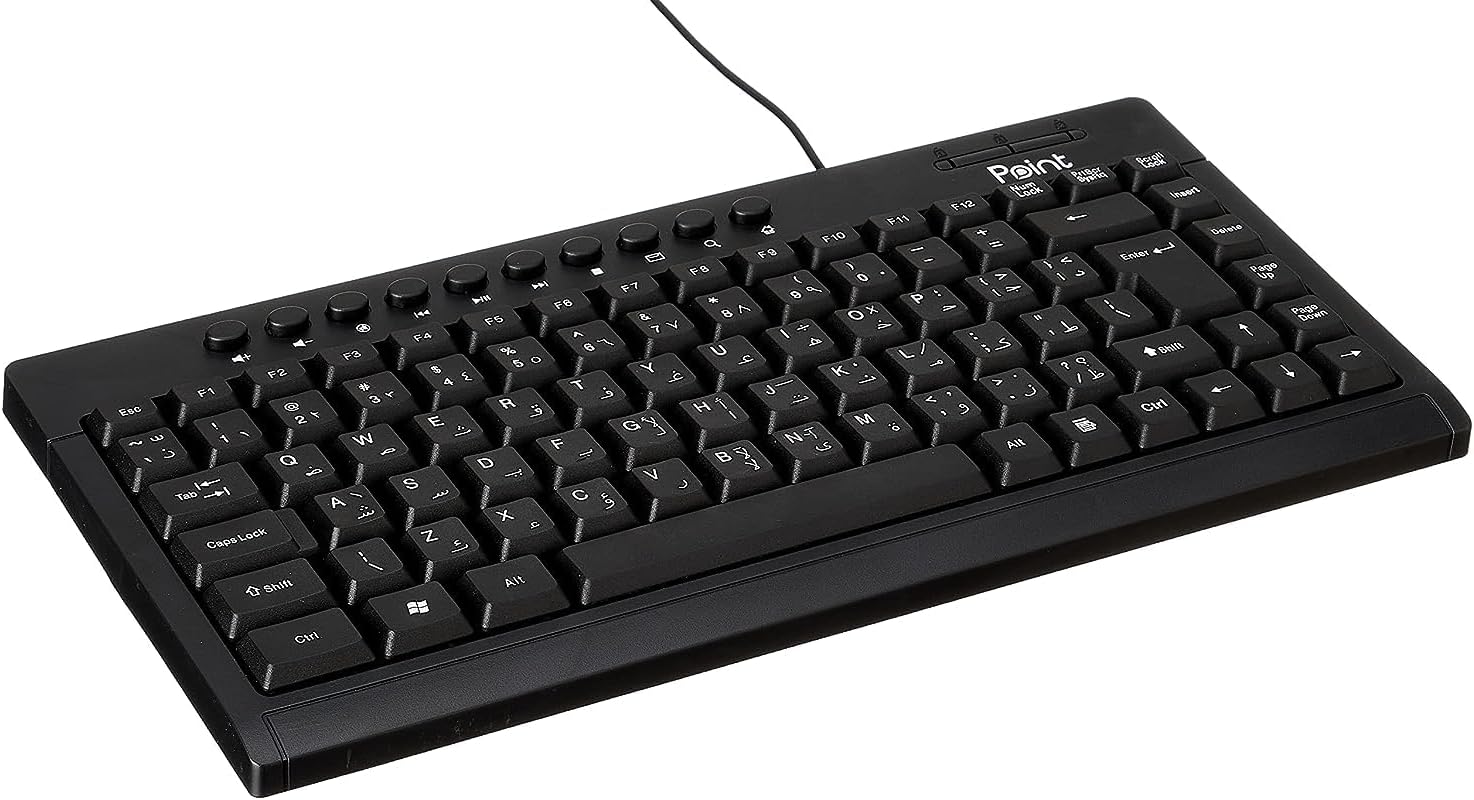
איור 1.1: זוויתי view of the Point Wired Mini Keyboard Pt-350, showcasinהעיצוב הקומפקטי ופריסת המקשים שלו.
תכונות עיקריות:
- Wired connectivity for stable performance.
- Compact design suitable for various setups.
- Durable construction from high-quality plastic materials.
- Designed for both gaming and typing applications.
2. תכולת החבילה
אנא בדקו היטב את החבילה כדי לוודא שכל הפריטים נמצאים:
- Point Wired Mini Keyboard Pt-350
- מדריך למשתמש (מסמך זה)
3. התקנה
Follow these steps to set up your Point Wired Mini Keyboard Pt-350:
- פרק את המקלדת: הוציאו בזהירות את המקלדת מהאריזה שלה.
- זהה את מחבר ה-USB: The keyboard comes with an integrated USB cable.
- התחבר למחשב שלך: Locate an available USB port on your computer (desktop PC, laptop, etc.). Insert the keyboard's USB connector firmly into the USB port.
- התקנת מנהל התקן (Plug & Play): The keyboard is plug-and-play compatible. Your operating system (Windows, macOS, Linux) should automatically detect and install the necessary drivers. This process usually takes a few seconds.
- אימות פונקציונליות: Once connected, open a text editor or any application that accepts text input and test the keys to ensure proper operation.

איור 3.1: מלמעלה למטה view of the keyboard, illustrating the key layout and integrated cable for connection.
4. הוראות הפעלה
The Point Wired Mini Keyboard Pt-350 operates like a standard computer keyboard. Below are general instructions and tips for use:
הקלדה בסיסית:
- Simply press the desired keys to input characters, numbers, and symbols into your active application.
- השתמש ב- מִשׁמֶרֶת key for uppercase letters and alternative symbols on keys.
- ה Caps Lock key toggles permanent uppercase typing.
- ה Backspace key deletes characters to the left of the cursor.
- ה לְהַכנִיס key confirms input or moves to the next line.
מקשי פונקציה (F1-F12):
The function keys (F1 through F12) perform various tasks depending on the active program or operating system. Some common uses include:
- F1: Often opens help for the active program.
- F2: Renames a selected item.
- F5: מרענן את א web page or document.
- F11: Toggles full-screen mode in many browsers.
מקשי מולטימדיה:
The keyboard may include dedicated multimedia keys or secondary functions on the F-keys (accessed via the Fn key, if present). These typically control:
- Volume control (Mute, Volume Up, Volume Down)
- Media playback (Play/Pause, Stop, Previous Track, Next Track)
5. תחזוקה
תחזוקה נכונה מבטיחה את אורך החיים והביצועים האופטימליים של המקלדת שלך:
- ניקוי: Regularly clean the keyboard to prevent dust and debris buildup. Use a soft, lint-free cloth slightly dampשטוף במים או בתמיסת ניקוי עדינה. הימנע מכימיקלים חזקים או מחומרים שוחקים.
- הסרת אבק: Use compressed air to blow out dust and crumbs from between the keys.
- הימנע משפכים: יש להרחיק נוזלים מהמקלדת כדי למנוע נזק לרכיבים הפנימיים. במקרה של שפיכה, יש לנתק מיד את המקלדת ולאפשר לה להתייבש לחלוטין לפני חיבורה מחדש.
- אִחסוּן: כאשר המקלדת אינה בשימוש, יש לאחסן אותה בסביבה נקייה ויבשה הרחק מטמפרטורות קיצוניות.
6. פתרון תקלות
If you encounter issues with your Point Wired Mini Keyboard Pt-350, refer to the following common problems and solutions:
המקלדת לא מגיבה:
- בדיקת חיבור USB: ודא שכבל ה-USB מחובר היטב ליציאת USB תקינה במחשב שלך. נסה יציאת USB אחרת.
- אתחל מחשב: הפעלה מחדש פשוטה יכולה לעתים קרובות לפתור בעיות קישוריות.
- בדיקה במחשב אחר: Connect the keyboard to another computer to determine if the issue is with the keyboard or your computer's setup.
- בדוק את מנהל ההתקנים (Windows): In Windows, go to Device Manager and check if the keyboard is listed under 'Keyboards' and if there are any error symbols. You might need to update or reinstall the driver.
Keys Not Working or Sticky:
- ניקוי מפתחות: Dust, crumbs, or liquid residue can cause keys to stick or malfunction. Refer to the Maintenance section for cleaning instructions.
- נזק פיזי: Inspect the keys for any visible physical damage.
פלט תווים שגוי:
- בדוק את הגדרות השפה: Ensure your operating system's keyboard language settings match the physical layout of your keyboard.
- בעיית מנהל התקן: Reinstalling the keyboard driver might resolve this.
אם הבעיה נמשכת לאחר שניסית את השלבים הבאים, אנא צור קשר עם תמיכת הלקוחות.
7. מפרטים
Technical specifications for the Point Wired Mini Keyboard Pt-350:

איור 7.1: צד view of the keyboard, highlighting its profile and compact form factor.
| תכונה | פְּרָט |
|---|---|
| שם מותג | נְקוּדָה |
| דֶגֶם | Pt-350 |
| טכנולוגיית קישוריות | חוטי |
| מכשירים תואמים | מַחשֵׁב |
| תיאור מקלדת | רב תכליתי |
| שימושים מומלצים | משחקי מחשב |
| תכונות מיוחדות | משחקים |
| צֶבַע | שָׁחוֹר |
| סִגְנוֹן | מוֹדֶרנִי |
| חוֹמֶר | פּלָסטִי |
| מידות משלוח | 34.5 x 26.4 x 3 ס"מ |
| מִשׁקָל | 800 גרם |
| תאריך זמין ראשון | 4 בספטמבר 2022 |
| ASIN | B0BD2DM9ZJ |
8. אחריות ותמיכה
This product is covered by a standard manufacturer's warranty. Please refer to the warranty card included with your purchase for specific terms and conditions, including the warranty period and coverage details.
For technical support, troubleshooting assistance, or warranty claims, please contact Point customer service through the contact information provided on the product packaging or the official Point website. When contacting support, please have your product model (Pt-350) and purchase details ready.