
1. הקדמה
This manual provides essential information for setting up, operating, maintaining, and troubleshooting your Alienware X17 R2 Gaming Laptop. Please read this guide thoroughly to ensure optimal performance and longevity of your device.
The Alienware X17 R2 is designed for high-performance gaming and demanding tasks, featuring advanced cooling technologies, powerful processors, and dedicated graphics.
2. המוצר נגמרview
The Alienware X17 R2 is engineered to deliver an immersive gaming experience in a thin 17-inch form factor. Key features include:
- Powerful Intel CPUs: Experience high-performance action across all your favorite games with 12th Gen Intel Core processors.
- Next-Gen GPUs: Game unrestrained with NVIDIA GeForce RTX 3070Ti graphics, Dynamic Boost 2.0, and Deep Learning Super Sampטכנולוגיית לינג.
- Patented Quad Cooling: An industry-first design uses four intelligently controlled and programmable fans to dissipate heat.
- זמן משחק מורחב: Improve battery life with Advanced Optimus technology from NVIDIA—now available on all display options.
- Legend 2.0 Industrial Design: A fresh evolution in design with a high-endurance finish and customizable AlienFX lighting.

איור 2.1: חזית view of the Alienware X17 R2 Gaming Laptop displaying a game.
3. התקנה
3.1 פתיחת הקופסה ובדיקה ראשונית
- הוציאו בזהירות את המחשב הנייד ואת כל האביזרים מהאריזה.
- ודא שכל הפריטים המפורטים בסעיף "מה בקופסה" קיימים.
- בדקו את המחשב הנייד לאיתור נזק פיזי. אם נמצא נזק, צרו קשר עם הספק שלכם מיד.
3.2 חיבור חשמל
- Connect the power adapter to the charging port located at the rear of the laptop.
- חבר את כבל החשמל לשקע בקיר.
- The power indicator light will illuminate, indicating the laptop is receiving power.
3.3 אתחול ראשון והגדרת מערכת הפעלה
- Press the Alienware head power button to turn on the laptop.
- פעל לפי ההוראות שעל המסך כדי להשלים את תהליך ההגדרה של Windows 11 Home. זה כולל בחירת האזור שלך, חיבור לרשת Wi-Fi ויצירת חשבון משתמש.
- אפשר למערכת להוריד ולהתקין את כל העדכונים הדרושים.
4. הפעלת המחשב הנייד
4.1 מקלדת ומשטח מגע
The Alienware X17 R2 features a backlit keyboard and a responsive touchpad. The AlienFX lighting allows for customizable colors and effects across the keyboard and other zones.

איור 4.1: מפורט view של המקלדת ומשטח המגע עם התאורה האחורית.
4.2 תצוגה וגרפיקה
Enjoy stunning visuals on the 17.3-inch FHD display with a 480Hz refresh rate and 3ms response time. The NVIDIA GeForce RTX 3070Ti graphics card ensures smooth gameplay and high-fidelity rendering. The laptop supports Dolby Vision for optimized color profiles.
4.3 אודיו
Experience immersive 3D sound via Dolby Atmos, designed to deliver audio as studios intended.
4.4 יציאות וקישוריות
The laptop offers a variety of ports for peripherals and external displays:

איור 4.2: אחורי view הממחיש את יציאות החיבור השונות.
- יציאות USB 3.0: 3 ports for connecting various USB devices.
- יציאות USB-C: For versatile connectivity, including Thunderbolt 4.
- HDMI 2.1: Supports up to 4K/120Hz output for external displays.
- אתרנט: Killer E3100 RJ45 Ethernet for stable wired network connections.
- אַלחוּט: Killer Wi-Fi 6 (802.11ax) and Bluetooth for wireless connectivity.
5. תחזוקה
5.1 ניקוי
- השתמש במטלית רכה ונטולת סיבים כדי לנקות את המסך והמשטחים החיצוניים.
- הימנע משימוש בכימיקלים קשים או חומרים שוחקים.
- נקו באופן קבוע את פתחי הקירור כדי למנוע הצטברות אבק, אשר עלולה לפגוע בביצועים.
5.2 עדכוני תוכנה
Ensure your operating system and drivers are kept up-to-date. Windows Update will handle OS updates, and Alienware Command Center can assist with driver and firmware updates.
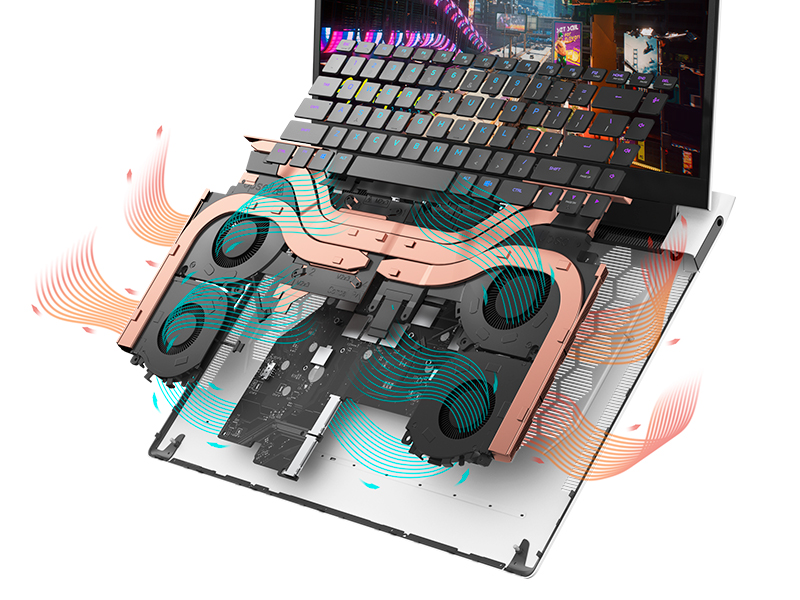
Figure 5.1: Alienware Command Center for system management.
6. פתרון תקלות
If you encounter issues with your Alienware X17 R2, consider the following basic troubleshooting steps:
- אין כוח: ודא שמתאם החשמל מחובר היטב הן למחשב הנייד והן לשקע חשמל תקין. בדוק את נורית חיווי ההפעלה.
- בעיות תצוגה: If the screen is black, try connecting an external monitor to verify if the issue is with the laptop's display or the graphics card. Update graphics drivers.
- התחממות יתר: Ensure cooling vents are clear of obstructions. Use Alienware Command Center to monitor temperatures and adjust fan profiles.
- האטת ביצועים: Close unnecessary applications. Check for background processes consuming high CPU or RAM. Ensure sufficient free space on the SSD.
- בעיות תוכנה: Restart the laptop. If issues persist, consider performing a system restore or reinstalling the problematic software.
7. מפרטים
| תכונה | מִפרָט |
|---|---|
| גודל מסך | 17.3 אינץ' |
| רזולוציית מסך | 1920 x 1080 פיקסלים (FHD) |
| מעבד | אינטל Core i9-12900H (3.8 גיגה-הרץ, 14 ליבות) |
| אַיִל | זיכרון DDR5 בנפח 16 ג'יגה-בייט (4800 מגה-הרץ) |
| כונן קשיח | כונן SSD (מצב מוצק) בנפח 1 טרה-בייט |
| מעבד גרפי | NVIDIA GeForce RTX 3070 Ti (8 GB GDDR6) |
| מַעֲרֶכֶת הַפעָלָה | Windows 11 Home |
| סוג אלחוטי | 802.11ax (Killer Wi-Fi 6), Bluetooth |
| יציאות USB 3.0 | 3 |
| משקל פריט | 6.82 פאונד |
| מידות המוצר | 11.79 x 15.72 x 0.58 אינץ' |
8. מה בקופסה
- מחשב נייד למשחקים Alienware X17 R2
- מתאם מתח
- כבל חשמל
- תיעוד
9. סרטוני מוצר רשמיים
Alienware X17 R2 Gaming Laptop Overview
סרטון 9.1: אובר רשמיview of the Alienware X17 R2 Gaming Laptop, highlighting its design, cooling, and performance features.
About Alienware X17 R2 Gaming Laptop
Video 9.2: A detailed look at the Alienware X17 R2 Gaming Laptop, showcasing its features and design elements.
10. אחריות ותמיכה
Your Alienware X17 R2 Gaming Laptop comes with a standard manufacturer's warranty. For detailed warranty information, please refer to the documentation included with your product or visit the official Alienware support webאֲתַר.
For technical support, driver downloads, and service requests, please visit the Alienware support portal. You can also find FAQs and community forums for additional assistance.