
Minoston MT10W
מדריך למשתמש של מתג טיימר WiFi של Minoston - מדריך למשתמש
Model: MT10W
מותג: מינוסטון
מָבוֹא
Thank you for choosing the Minoston MT10W WiFi Timer Switch. This smart countdown timer switch allows you to control lights, fans, and heaters with preset countdown times and remote access via a smartphone application. It integrates seamlessly with Amazon Alexa and Google Assistant for voice control. This manual provides detailed instructions for installation, operation, and maintenance to ensure optimal performance and safety.

תמונה: חזית view of the Minoston MT10W WiFi Timer Switch and its retail packaging, highlighting key features and certifications.
מידע בטיחות חשוב
- סכנת שריפה, הלם חשמלי או פציעה.
- מכשיר זה מיועד להתקנה בהתאם לחוק החשמל הלאומי ולתקנות המקומיות.
- Consult a qualified electrician if you are unsure about any part of these instructions.
- תמיד נתק את החשמל במפסק החשמל או בתיבת הנתיכים לפני התקנה או שירות.
- NEUTRAL WIRE REQUIRED. Ensure your electrical box has a neutral wire.
- Do not use with dimmable fixtures or 3-way switches.
- טמפרטורת פעולה: 32°F עד 104°F (0°C עד 40°C).
- לשימוש פנימי בלבד.
תוכן החבילה
- Minoston MT10W WiFi Timer Switch
- מדריך הוראות
- ברגי הרכבה
- אגוזי תיל
מפרטים
| מספר דגם | MT10W |
| כּוֹחַ | 120VAC, 60Hz |
| עומס ליבון | 960W (1200W Tungsten) |
| עומס מנוע | 1 / 2 HP |
| עומס התנגדות | 1800W |
| תדר Wi-Fi | 2.4GHz |
| טמפרטורת הפעלה | 32 ° F ~ 104 ° F (0 ° C ~ 40 ° C) |
| לַחוּת | 95% לחות יחסית, ללא עיבוי |
| הסמכות | ETL, FCC |
| מידות | 4.5 x 3 x 10.49 ס"מ (1.77 x 1.18 x 4.13 אינץ ') |

Image: Diagram showing the physical dimensions of the Minoston MT10W WiFi Timer Switch, including depth reduction for easier installation.
מדריך התקנה
תרשים חיווט
The Minoston MT10W requires a neutral wire for proper operation. Please follow the diagram below carefully.
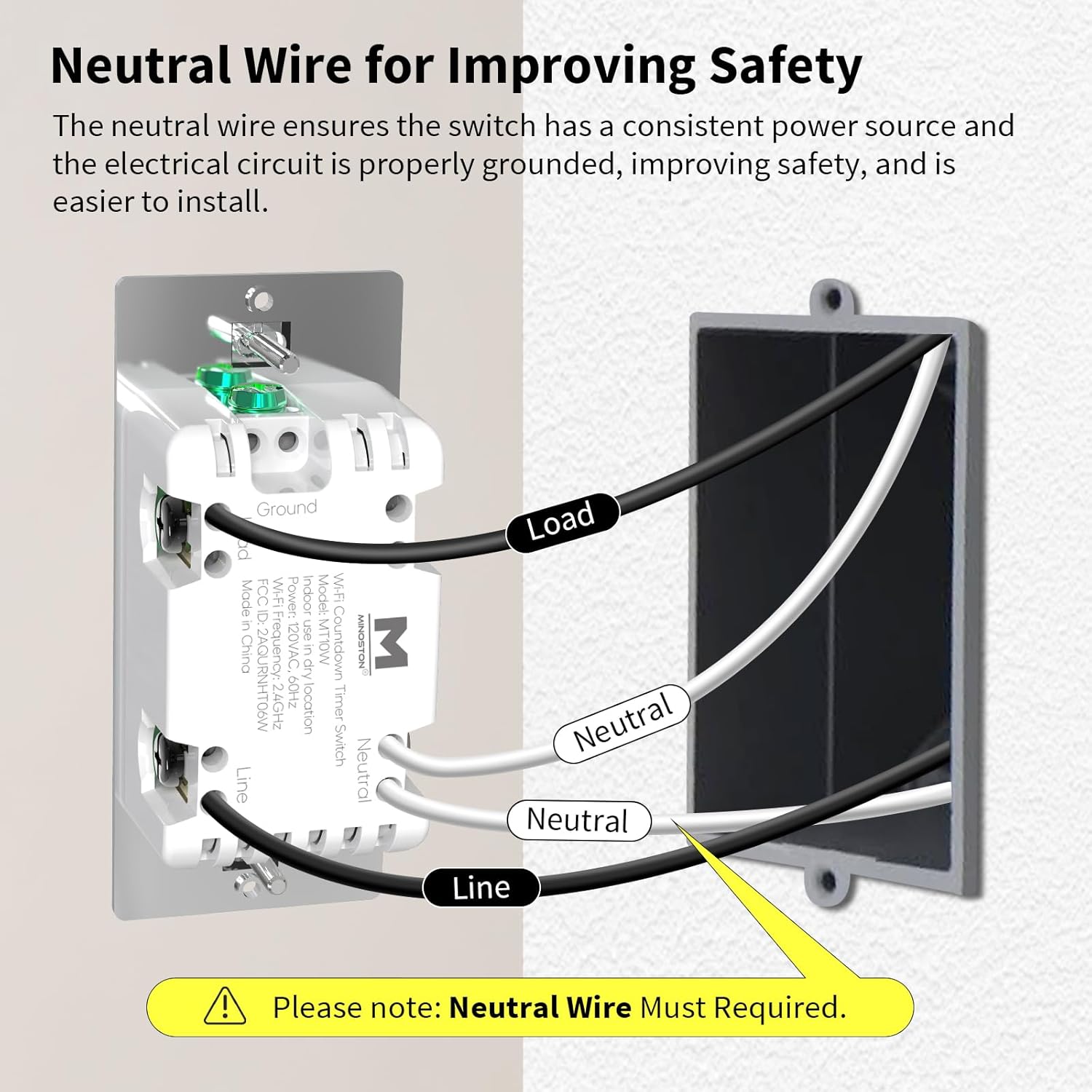
Image: Detailed wiring diagram for the Minoston MT10W WiFi Timer Switch, showing connections for Line, Load, Neutral, and Ground wires. A note emphasizes the requirement for a neutral wire.
שלבי התקנה
- כבה את החשמל: Before beginning, turn off the power to the switch location at the circuit breaker or fuse box.
- הסר את המתג הישן: הסר בזהירות את לוחית הקיר הקיימת ואת המתג מקופסת החשמל.
- זיהוי חוטים: Identify the Line (hot), Load, Neutral, and Ground wires. A neutral wire is typically white. If you do not have a neutral wire, this switch is not compatible.
- חבר חוטים:
- Connect the Line wire from the wall box to the Line terminal on the MT10W switch.
- Connect the Load wire from the wall box to the Load terminal on the MT10W switch.
- Connect the Neutral wire from the wall box to the Neutral terminal on the MT10W switch.
- Connect the Ground wire from the wall box to the Ground terminal on the MT10W switch.
- מתג הרכבה: דחף בזהירות את המתג החוטי לתוך קופסת החשמל. אבטח אותו בעזרת הברגים המצורפים.
- התקנת לוחית קיר: חבר את לוחית הקיר החדשה או הקיימת.
- שחזור חשמל: הפעל מחדש את החשמל במפסק החשמל.
Wi-Fi and App Setup
The Minoston MT10W can be controlled via the Smart Life or Minoston APP. Ensure your Wi-Fi network is 2.4GHz.
- הורד אפליקציה: Download the "Smart Life" or "Minoston" app from the App Store (iOS) or Google Play Store (Android).
- הרשמה/התחברות: פתחו את האפליקציה והירשמו לחשבון חדש או התחברו אם כבר יש לכם אחד.
- הוסף מכשיר:
- Tap "+" or "Add Device" in the app.
- Select "Electrical" > "Switch (Wi-Fi)" or search for "MT10W".
- Follow the in-app instructions to put the switch into pairing mode. This usually involves holding the "30 Min" button for 5 seconds until the blue LED indicator flashes quickly.
- הזן את שם רשת ה-Wi-Fi 2.4GHz שלך ואת הסיסמה.
- Wait for the device to connect. Once connected, you can rename the switch.

Image: Screenshot of the mobile application interface demonstrating remote control of the Minoston MT10W WiFi Timer Switch.
Voice Control Setup (Alexa/Google Assistant)
- Ensure your Minoston MT10W switch is successfully added to the Smart Life/Minoston app.
- פתחו את אפליקציית Amazon Alexa או Google Home.
- עבור אל "מיומנויות ומשחקים" (אלקסה) או "עובד עם גוגל" (גוגל הום).
- חפש "Smart Life" (or "Minoston" if available) and enable the skill.
- Link your Smart Life/Minoston account with your Alexa/Google account.
- Discover devices. You can now control your switch using voice commands like "Alexa, turn on the timer for 30 minutes" or "Hey Google, turn off the fan."

Image: Illustration of a user interacting with an Amazon Echo device to control the Minoston MT10W WiFi Timer Switch via voice commands.
הוראות הפעלה
פונקציות כפתור
The Minoston MT10W features an ON/OFF override button and six preset countdown buttons.

Image: Diagram illustrating the various buttons on the Minoston MT10W WiFi Timer Switch and their corresponding functions, including ON/OFF override, preset countdowns, and LED brightness adjustments.
- ON/OFF Override Button:
- Press to manually turn the connected device ON or OFF.
- Hold for 3 seconds to exit countdown mode. Press again to resume countdown mode.
- Preset Countdown Buttons (5 Min, 10 Min, 30 Min, 60 Min, 2 Hour, 4 Hour):
- Press any button to activate the corresponding countdown timer. The connected device will turn ON and automatically turn OFF after the selected duration.
- 5 Min Button (Hold for 3s): Turn off or resume the 6 LED indicators of the countdown.
- 10 Min Button (Hold for 3s): Dim the LED indicator (backlight) of the ON/OFF button.
- 2 Hour Button (Hold for 3s): Dim LED indicators of all 7 buttons to minimum brightness. All LED indicators flash on minimum brightness.
- 4 Hour Button (Hold for 3s): Brighten LED indicators of all 7 buttons to maximum brightness. All LED indicators flash on maximum brightness.
- 30 Min Button (Hold for 5s): Until blue LED indicator flashes quickly, Wi-Fi network configuration is displayed (for pairing mode).
נורית חיווי LED
The amber LED indicator light provides soft illumination, making it easy to locate the switch in the dark.

Image: Close-up of the Minoston MT10W WiFi Timer Switch showing the amber LED indicator light, designed for visibility in low-light conditions.
תכונות חיסכון באנרגיה
Utilizing the countdown timer helps save electricity by ensuring devices like fans, ceiling lights, and other appliances automatically turn off after a set period, preventing unnecessary energy consumption.

Image: A Minoston MT10W WiFi Timer Switch installed in a bathroom setting, illustrating its use for energy saving by automatically turning off lights or exhaust fans.
תַחזוּקָה
- נקו את משטח המתג בעזרת מטלית רכהamp בַּד. אין להשתמש בכימיקלים קשים או בחומרי ניקוי שוחקים.
- ודא שהמתג אינו חשוף ללחות מוגזמת או להתזת מים ישירה.
- Regularly check for any loose wiring connections during routine electrical inspections (by a qualified electrician).
פתרון בעיות
| בְּעָיָה | סיבה אפשרית | פִּתָרוֹן |
|---|---|---|
| המתג לא נדלק. | No power at the circuit breaker; incorrect wiring; neutral wire not connected. | Check circuit breaker. Verify wiring connections according to the diagram. Ensure neutral wire is connected. |
| לא ניתן להתחבר ל-Wi-Fi. | Incorrect Wi-Fi password; not 2.4GHz network; switch not in pairing mode; too far from router. | Verify Wi-Fi password. Ensure you are connecting to a 2.4GHz network. Put switch into pairing mode (hold 30 Min button for 5s). Move router closer or use a Wi-Fi extender. |
| בקרת קולית לא עובדת. | Skill not enabled; account not linked; incorrect device name. | Ensure "Smart Life" skill is enabled and accounts are linked in Alexa/Google Home app. Check device name in app and use that name for voice commands. |
| Countdown not working. | Switch is in override mode. | Hold the ON/OFF button for 3 seconds to exit override mode and resume countdown functionality. |
אחריות ותמיכה
Minoston products come with a standard manufacturer's warranty. For specific warranty details, please refer to the warranty card included with your product or visit the official Minoston webאֲתַר.
For technical support, troubleshooting assistance, or to inquire about replacement parts, please contact Minoston Customer Service:
- Webאֲתַר: www.minoston.com
- אֶלֶקטרוֹנִי: support@minoston.com
Please have your model number (MT10W) and purchase date ready when contacting support.
Ask a question about this manual
Ask about setup, troubleshooting, compatibility, parts, safety, or missing instructions. Manuals+ will review the question and use this page’s manual context to help answer it.