
מָבוֹא
This manual provides essential information for the installation, operation, and maintenance of your MACHINIST B75 Motherboard, which includes an integrated 256GB M.2 Solid State Drive. The B75 motherboard is designed for Intel LGA 1155 processors and offers a range of interfaces for building a personal computer system.
מה יש בקופסה
ודא שכל הפריטים המפורטים להלן כלולים בחבילה שלך.
- 1 x MACHINIST B75 Motherboard
- 1 x 256GB M.2 SSD (pre-installed on the motherboard)
- 1 x כבל SATA
- 1 x מחיצת קלט/פלט
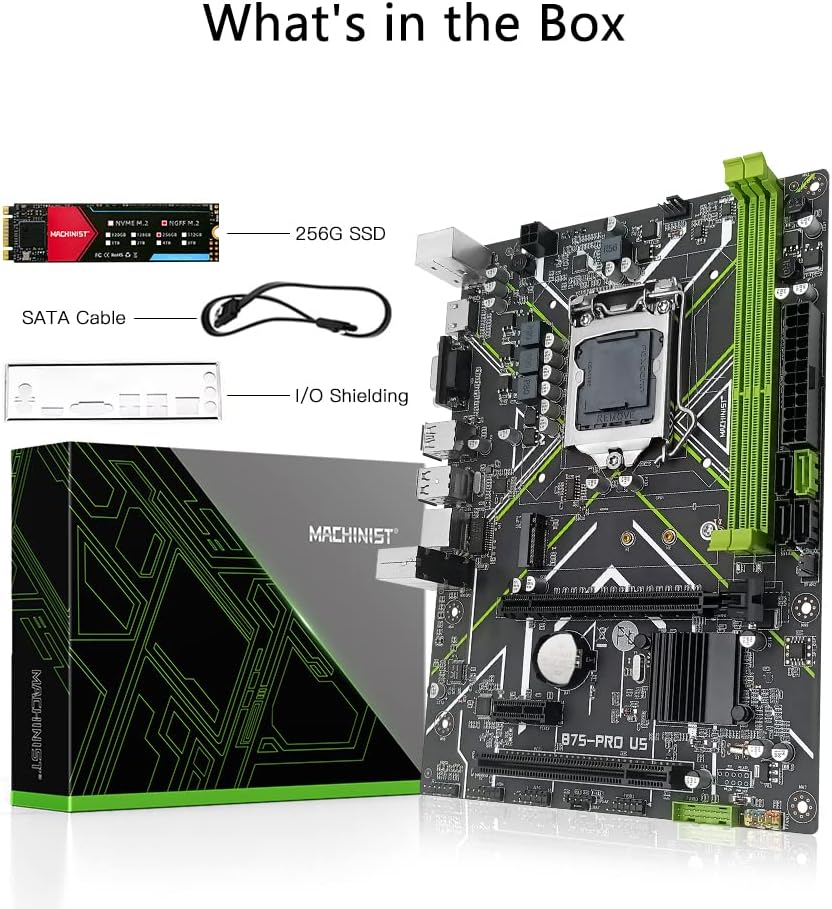
תְמוּנָה: Package contents showing the MACHINIST B75 motherboard, a 256GB M.2 SSD, a SATA cable, and an I/O baffle.
הגדרה
1. דרישות אספקת חשמל
A stable power supply is crucial for the proper functioning of this motherboard. Ensure your power supply unit (PSU) can provide sufficient power, with a minimum recommendation of a 500W brand power supply. Connect the 24-pin ATX power connector and the 4-pin CPU power connector from your PSU to the corresponding sockets on the motherboard.
2. התקנת מעבד (LGA 1155)
- פתח את ידית שקע המעבד בלוח האם.
- Carefully align your Intel LGA 1155 processor with the socket, ensuring the gold triangle on the CPU matches the indicator on the socket.
- הכנס בעדינות את המעבד לשקע מבלי ללחוץ עליו בכוח.
- סגור את ידית השקע כדי לאבטח את המעבד.
- התקן את מקרר המעבד בהתאם להוראות היצרן.
3. התקנת זיכרון (RAM)
The motherboard supports DDR3 desktop memory.
- אתר את שני חריצי ה-DDR3 DIMM בלוח האם.
- פתחו את הקליפסים בשני קצוות חריץ הזיכרון.
- יישר את החריץ במודול זיכרון DDR3 עם המפתח בחריץ ה-DIMM.
- לחץ בחוזקה על שני קצוות מודול הזיכרון עד שהקליפסים יתייצבו במקומם.
4. SSD M.2
The 256GB M.2 SSD is pre-installed on the motherboard. This is a SATA M.2 (NGFF M.2) interface. If you need to install an additional M.2 drive or re-seat the existing one:
- אתר את חריץ M.2 בלוח האם.
- הכנס את כונן ה-SSD מסוג M.2 לחריץ בזווית של 30 מעלות.
- Push the SSD down and secure it with the provided screw.

תְמוּנָה: Illustration of the M.2 SATA interface on the motherboard, highlighting its location and the installation process for an M.2 SSD.
5. Expansion Cards (PCIe/PCI)
The motherboard features one PCI-E X16 slot for graphics cards, one PCI-E X1 slot, and one PCI slot for other expansion cards like sound cards or network cards.
- Align your expansion card with the appropriate slot (PCI-E X16, PCI-E X1, or PCI).
- לחץ בחוזקה כלפי מטה עד שהכרטיס ייכנס במלואו בחריץ.
- אבטח את הכרטיס בעזרת בורג למארז.

תְמוּנָה: Visual representation of the PCI-E X16, PCI-E X1, and PCI expansion slots on the MACHINIST B75 motherboard.
6. Storage Devices (SATA)
Connect your SATA hard drives or SSDs to the available SATA ports. The motherboard includes one SATAIII interface and three SATAII interfaces.
7. חיבורי לוח קדמי
Connect the cables from your computer case's front panel (USB ports, audio jacks, power button, reset button, and LED indicators) to the corresponding headers on the motherboard. Refer to the motherboard layout for exact header locations.
הוראות הפעלה
1. אתחול ראשוני וגישה ל-BIOS
To access the BIOS (Basic Input/Output System) settings, press the "Del" key repeatedly immediately after pressing the power button to turn on your computer. Do not wait for the operating system's startup logo to appear, as it will be too late.
2. פלט וידאו
The motherboard supports high-definition dual display output via VGA ו-HDMI interfaces. These integrated display outputs support 4K video and audio output, allowing for display functionality without a dedicated graphics card.

תְמוּנָה: A monitor connected via HDMI, demonstrating the high-definition dual screen display support of the motherboard.
3. M.2 SSD Performance
The integrated 256GB M.2 SSD utilizes TLC NAND flash technology and a SATA III 6Gb/s transfer interface, providing sequential read speeds up to 500MB/s and write speeds up to 450MB/s. This enhances system responsiveness and application loading times.

תְמוּנָה: A visual comparison highlighting the faster startup and online game loading speeds achieved with the M.2 SSD compared to a traditional HDD.
תַחזוּקָה
1. ניקיון כללי
Regularly clean your computer's interior to prevent dust buildup, which can affect performance and component lifespan. Use compressed air to remove dust from fans, heatsinks, and motherboard components. Ensure the system is powered off and unplugged before cleaning.
2. CMOS Reset
If you encounter system instability or issues related to BIOS settings, you may need to reset the CMOS (Complementary Metal-Oxide-Semiconductor) to factory defaults. This can typically be done by:
- Powering off the computer and unplugging it from the wall.
- Locating the CMOS battery (CR2032) on the motherboard and carefully removing it for 5-10 minutes.
- Reinserting the battery.
- Alternatively, some motherboards have a "Clear CMOS" jumper or button; refer to the motherboard layout for its location.
פתרון בעיות
1. No Display, No Boot, or No Picture
If the system does not display an image or fails to boot after installation:
- שחזור הגדרות יצרן: Try restoring the motherboard to factory settings (e.g., by resetting CMOS as described in the Maintenance section).
- בדיקת אנשי קשר: Use an eraser to gently wipe the metal contacts (golden fingers) of the memory modules, CPU, and any installed graphics cards. This can improve contact with the motherboard slots.
- ספק כוח: Ensure your power supply meets the minimum 500W requirement and all power cables are securely connected.
- מושב רכיבים: Verify that the CPU, RAM, and any expansion cards are correctly and fully seated in their respective slots.
2. M.2 SSD Capacity Display Discrepancy
The actual usable storage space displayed by your operating system may be slightly less than the total listed capacity (e.g., 256GB). This is normal and due to the decimal measurement system used to represent usable capacity by the SSD manufacturer versus the binary system used by operating systems.
3. Driver Issues
If you experience issues with network connectivity, sound, or other peripherals, ensure all necessary drivers are installed. Windows 10 typically handles most driver installations automatically. For manual driver installation, consider using a driver management tool like Driver Talent.
מפרטים
| ערכת שבבים ראשית | אינטל B75 |
| שקע מעבד | LGA 1155 |
| מעבדים נתמכים | Intel Core i3/i5/i7 (2nd/3rd Gen), Xeon E3 V2, Pentium series processors |
| סוג זיכרון | זיכרון שולחן עבודה DDR3 |
| חריצי זיכרון | 2 רכיבי DDR3 DIMM |
| קיבולת זיכרון מקסימלית | 16GB |
| מהירות שעון זיכרון | 1280/1333/1600/1866MHz (Supported) |
| סוג לוח אם | מיקרו-ATX |
| מידות לוח האם | 240 מ"מ x 170 מ"מ |
| חריץ לכרטיס המסך | 1 x PCI-E X16 |
| חריצי הרחבה | 1 x PCI-E X1, 1 x PCI |
| ממשקי SATA | 1 x SATAIII, 3 x SATAII |
| M.2 ממשק | 1 x NGFF M.2 (SATA M.2) |
| יציאות USB (אחוריות) | 2x USB 3.0, 2x USB 2.0 |
| יציאות PS/2 | 2 |
| פלט וידאו | VGA, HDMI |
| מחברי חשמל | 1 x 4 פינים, 1 x 24 פינים |
| מעגל חשמלי | שלושה שלבים |
| Included SSD | 256GB M.2 SSD (SATA III, Read 500MB/s, Write 450MB/s) |
| חומר PCB | 6 שכבת |
| סוֹלְלָה | 1 x CR2032 (כלול) |
| משקל פריט | 1.48 פאונד |
| מידות חבילה | 10.75 x 8.43 x 2.4 אינץ' |
מידע על אחריות
Specific warranty terms and conditions may vary. Please refer to your purchase documentation, retailer, or the official MACHINIST website for detailed warranty information regarding your B75 Motherboard and included SSD.
תְמִיכָה
For further assistance, technical inquiries, or driver downloads, please consider the following resources:
- הורדות מנהלי התקנים: For driver installation, Windows 10 typically provides automatic driver support. If manual installation is required, Driver Talent is a recommended tool.
- פניות כלליות: For product-specific questions not covered in this manual, please contact the seller or manufacturer directly.
- MACHINIST Store: בקר אצל הפקיד MACHINIST Store on Amazon למידע נוסף על המוצר ועדכונים.