
מָבוֹא
The HyperGear HyperStream 1080P Webcam provides high-definition video and clear audio for various applications, including online meetings, classes, and streaming. This manual provides instructions for setup, operation, maintenance, and troubleshooting to ensure optimal performance of your webפִּקָה.
תוכן החבילה
אנא ודא שכל הפריטים נמצאים בחבילה שלך:
- HyperGear HyperStream 1080P Webפִּקָה
- כבל USB
- מיקרופון מובנה
המוצר נגמרview
The HyperGear HyperStream 1080P Webcam is designed for ease of use and high-quality performance. Key features include:
- Crystal-Clear 1080P HD Resolution: Delivers sharp and vibrant visuals.
- Built-in Noise Reduction Microphone: Captures clear audio by reducing background sounds.
- קישוריות USB של חבר והפעל: Requires no additional software or drivers for quick setup.
- Wide-Angle 110° Lens: לוכד תחום רחב של view, suitable for group interactions.
- Auto-White Balance: Automatically adjusts to various lighting conditions for optimal image quality.
- תושבת קליפס מתכווננת: Securely attaches to monitors or laptops, and can also be positioned as a standalone unit.
הוראות התקנה
Follow these steps to set up your HyperGear HyperStream 1080P Webפִּקָה:
- פרק את ה Webפִּקָה: הסר בזהירות את webcam and its USB cable from the packaging.

Image: The HyperGear HyperStream 1080P Webcam is designed for instant plug-and-play setup without requiring additional drivers. Simply connect the USB cable to your computer.
- הר את Webפִּקָה:
- על גבי צג/מחשב נייד: Open the adjustable clip and place it securely on top of your monitor or laptop screen. Adjust the angle to ensure the webהמצלמה יציבה ופונה אליך.
- על שולחן כתיבה: Fold the clip to form a stable stand and place the webcam on a flat surface, such as your desk.

תמונה: ה webcam features an adjustable mount that allows it to be clamped onto any screen or display, or positioned as a standalone unit on your desk. It offers 180-degree rotation for flexible positioning.
- התחבר למכשיר שלך: חבר את כבל ה-USB מה- webcam into an available USB port on your computer (PC, Mac) or Xbox console. The webcam is plug-and-play, so no additional drivers are typically required.
- אמת חיבור: Your operating system should automatically detect the webcam. You can verify its connection in your device settings or within your preferred video conferencing/streaming application.
הוראות הפעלה
Once connected, the HyperGear HyperStream 1080P Webהמצלמה מוכנה לשימוש עם יישומים שונים.
תאימות מערכת
ה webcam is compatible with multiple operating systems and platforms:
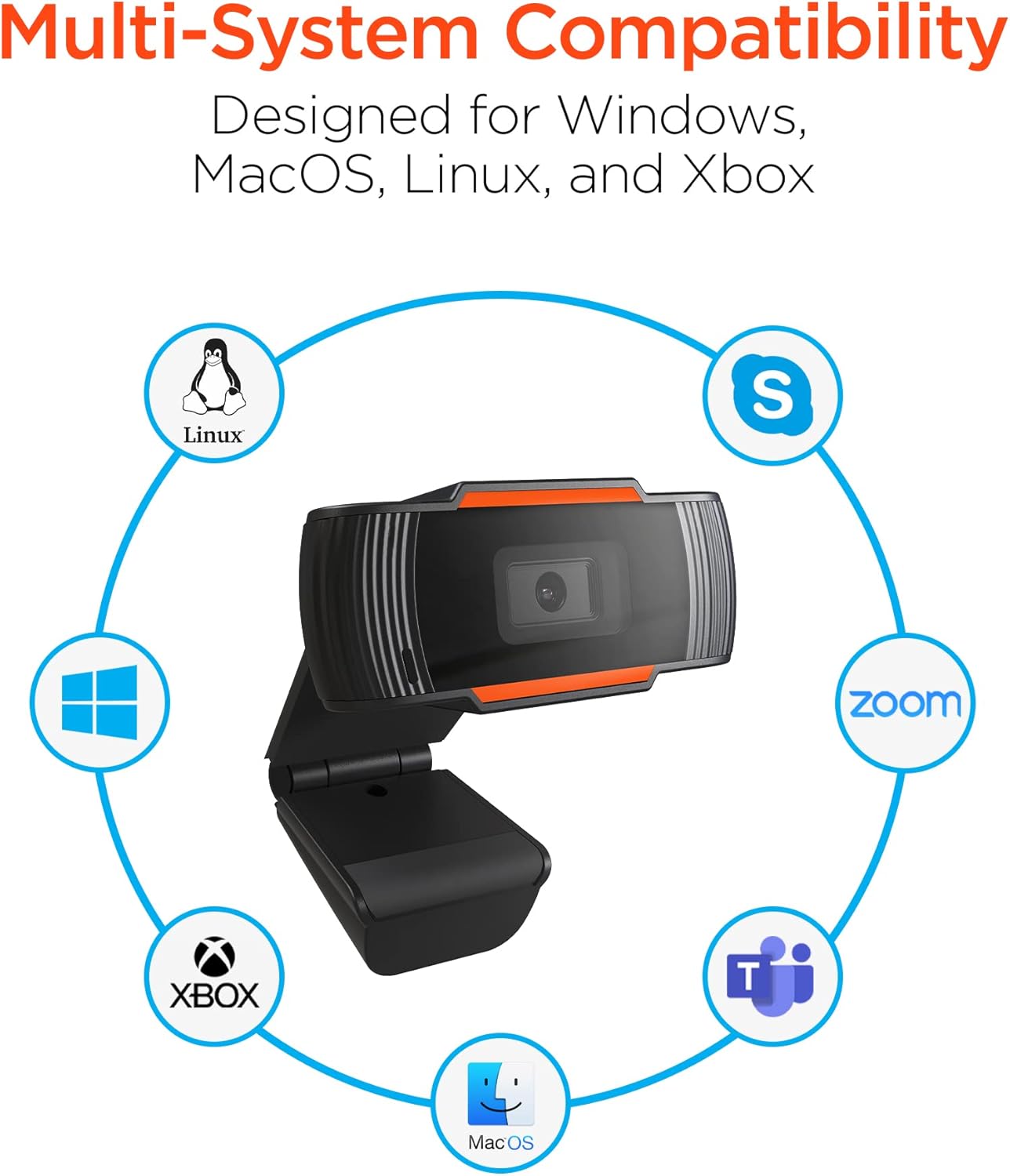
Image: The HyperGear HyperStream 1080P Webcam offers multi-system compatibility, designed for use with Windows, MacOS, Linux, and Xbox, as well as popular communication platforms like Skype, Zoom, and Microsoft Teams.
- חלונות
- macOS
- לינוקס
- Xbox
- Compatible with popular video conferencing software (e.g., Skype, Zoom, Microsoft Teams).
שימוש ב- Webפִּקָה
- בחר את Webפִּקָה: In your video conferencing or streaming application, navigate to the video and audio settings. Select "HyperGear HyperStream 1080P Webcam" as your video input device and its integrated microphone as your audio input device.
- Adjust Position and Angle: להבטיח את webcam is positioned to capture your desired view. The 110° wide-angle lens is ideal for capturing multiple participants or a broader background.

Image: The 110° ultra wide-angle lens ensures that your entire team and presentations fit within the frame, making it suitable for group meetings and collaborative environments.
- Benefit from Auto-White Balance and Fixed Focus: ה webcam automatically adjusts for optimal lighting and maintains a sharp focus on subjects within its field of view, eliminating the need for manual adjustments.

תמונה: ה webcam features fixed focus and auto-white balance (AWB) to automatically adjust to various lighting conditions (like daylight or fluorescent), ensuring clear and sharp visuals without manual intervention.
- Utilize Noise Reduction Microphone: The built-in microphone actively reduces ambient noise, ensuring your voice is clear and easily understood during calls.

Image: The integrated noise reduction microphone minimizes unwanted background noise and distortions, ensuring clear audio during your video calls and streams.
תַחזוּקָה
כדי להבטיח את אורך החיים והביצועים האופטימליים שלך webמצלמה, יש לפעול לפי הנחיות התחזוקה הבאות:
- ניקוי: Gently wipe the lens with a soft, lint-free cloth. Avoid using harsh chemicals or abrasive materials that could scratch the lens or damage the casing.
- אִחסוּן: כאשר אינו בשימוש, אחסן את webיש לאחסן את המצלמה במקום נקי ויבש, הרחק מטמפרטורות קיצוניות ואור שמש ישיר.
- טיפול: הימנע מלהפיל את webcam or subjecting it to strong impacts, which could damage internal components.
פתרון בעיות
If you encounter issues with your HyperGear HyperStream 1080P Webמצלמה, נסה את שלבי פתרון הבעיות הבאים:
- Webמצלמת רשת לא זוהתה:
- ודא שכבל ה-USB מחובר היטב לשני המכשירים webcam and your computer's USB port.
- נסה לחבר את ה- webמצלמה ליציאת USB אחרת.
- הפעל מחדש את המחשב.
- Check your operating system's device manager (Windows) or System Information (macOS) to see if the webהמצלמה רשומה.
- אין פלט וידאו:
- ודא כי webהמצלמה נבחרה כהתקן קלט הווידאו בהגדרות האפליקציה שלך.
- ודא שאף יישום אחר אינו משתמש כעת ב- webcam, as some systems only allow one application to access it at a time.
- בדוק אם יש חסימות פיזיות המכסות את העדשה.
- אין כניסת שמע (מיקרופון):
- אשר כי webcam's microphone is selected as the audio input device in your application's settings and your system's sound settings.
- Check that the microphone is not muted in your application or system settings.
- Ensure your system's privacy settings allow applications to access the microphone.
- איכות וידאו ירודה:
- Ensure you have adequate lighting in your environment. While the webcam has auto-white balance, sufficient ambient light is crucial for best results.
- נקה את webcam lens if it appears smudged or dirty.
- Check your internet connection speed if streaming or video conferencing, as a slow connection can affect video quality.
מפרטים
| תכונה | פְּרָט |
|---|---|
| מותג | HyperGear |
| שם הדגם | HyperStream Portable 1080P |
| רזולוציית לכידת וידאו | 1080p |
| טכנולוגיית קישוריות | USB |
| צֶבַע | שָׁחוֹר |
| תכונה מיוחדת | מתכוונן |
| סוג מצלמת וידיאו | Webפִּקָה |
| מַעֲרֶכֶת הַפעָלָה | Windows, macOS |
| סוג עדשה | זווית רחבה |
| סוג פוקוס | פוקוס קבוע |
| יחס גובה-רוחב תמונה | 16:9 |
| סוג בקרת חשיפה | אוֹטוֹמָטִי |
| רזולוציית וידאו יעילה | 1920 פיקסלים |
| מכשירים תואמים | מחשב אישי |
| מדיה מובנית | Microphone, USB Cable |
| משקל פריט | 4.72 אונקיות |
| UPC | 633755155390 |
| ASIN | B09S51KSC4 |
אחריות ותמיכה
For warranty information and customer support, please refer to the documentation included with your purchase or visit the official HyperGear webאֲתַר.
אתה יכול גם לבקר ב חנות HyperGear באמזון למידע נוסף על המוצר ומשאבי תמיכה.