
1. מבוא ומעלהview
The Alienware X17 R2 is a high-performance VR Ready Gaming Laptop designed for demanding tasks such as gaming, video editing, and graphic design. It features a 17.3-inch Full HD display with a 360Hz refresh rate and 1ms response time, powered by a 12th Gen Intel Core i7-12700H processor and NVIDIA GeForce RTX 3070 Ti graphics with 8GB GDDR6 memory. This manual provides essential information for setting up, operating, maintaining, and troubleshooting your device.
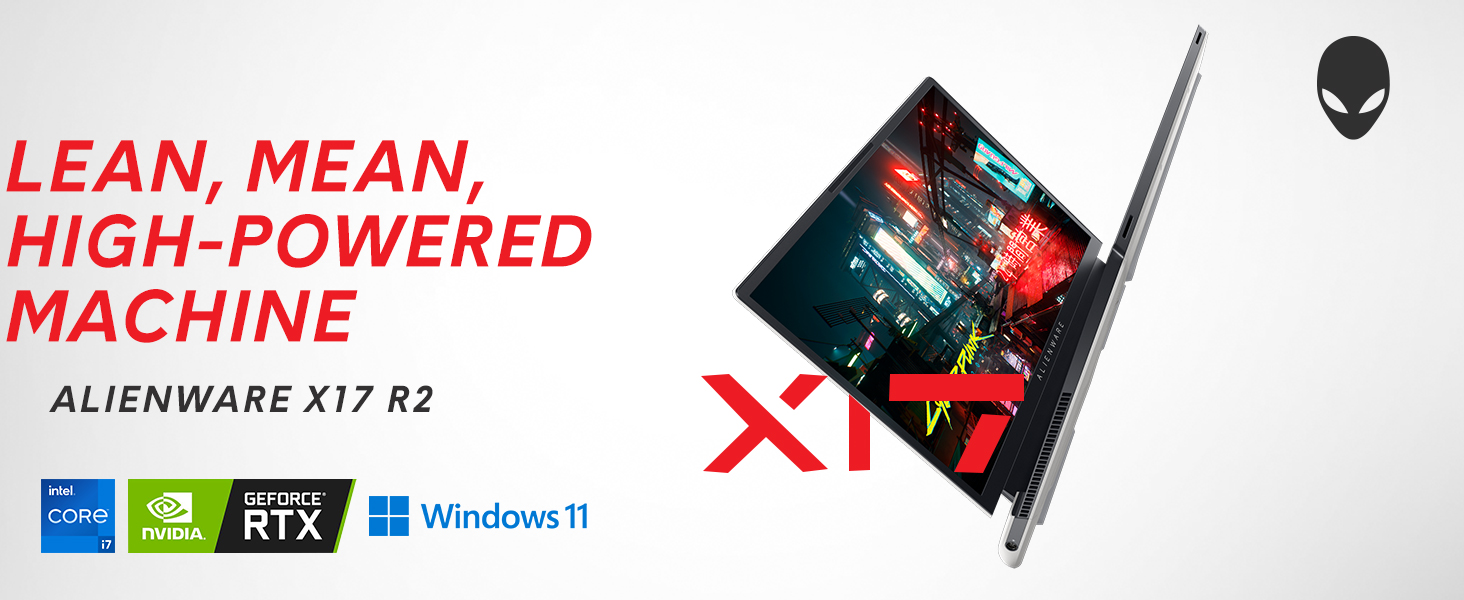
Image: Alienware X17 R2 showcasing its powerful components and sleek design.
2. מה בקופסה
Upon unboxing your Alienware X17 R2, ensure all the following components are present:
- Alienware X17 R2 Notebook
- Power Adapter (240W Small Form Factor)
- כבל חשמל
- תיעוד (כולל מדריך זה)
3. התקנה
3.1 הפעלה ראשונית
- Connect the power adapter to the laptop's power/DC-in port and then to a power outlet.
- פתח את מכסה המחשב הנייד.
- Press the Alienware head power button located on the keyboard deck to turn on the laptop.
- פעל לפי ההוראות שעל המסך כדי להשלים את הגדרת Windows 11 Home.
3.2 חיבור ציוד היקפי
Utilize the various ports available for connecting external devices:
- USB 3.2 דור 1 סוג-A: עבור התקני USB סטנדרטיים.
- USB 3.2 Gen 2 Type-C with Power Delivery: להעברת נתונים במהירות גבוהה וטעינה של מכשירים תואמי טעינה.
- Thunderbolt 4 / USB 3.2 Gen 2 Type-C with Power Delivery: For ultra-fast data transfer, display output, and power delivery.
- HDMI 2.1: חיבור לצגים חיצוניים או טלוויזיות.
- Mini Display Port 1.4: חיבור לצגים חיצוניים.
- Killer E3100 RJ-45 2.5G Ethernet: עבור חיבור רשת קווית.
- שקע אוזניות גלובלי: עבור קלט/פלט שמע.
- חריץ לכרטיס מיקרו SD: להרחבת אחסון או העברה files.
תמונה: מפורט view of the Alienware X17 R2's rear and side ports.
4. הפעלת המחשב הנייד
4.1 תכונות תצוגה
The 17.3-inch Full HD display offers a 360Hz refresh rate and 1ms response time for smooth visuals. It also features ComfortView Plus technology to reduce blue light emissions, enhancing viewing comfort during extended use. Dolby Vision support provides an authentic visual experience with enhanced color profiles.
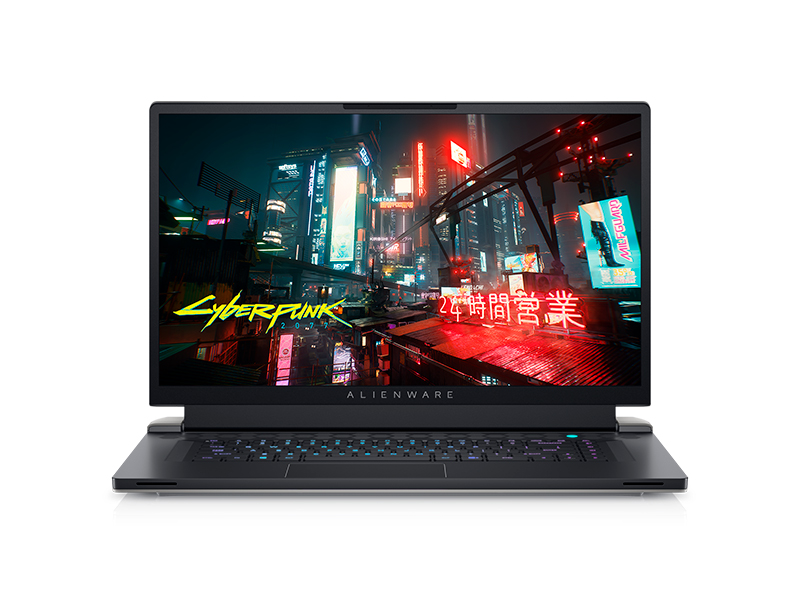
Image: Laptop screen showing vibrant game graphics with Dolby Vision and Atmos branding.
4.2 Keyboard and Lighting
The Alienware X17 R2 features an AlienFX keyboard with customizable backlighting, supporting 16.8 million colors. You can personalize the lighting effects, including wave patterns or solid colors, through the Alienware Command Center software. The power button, shaped like the Alienware head, also illuminates and can be customized.
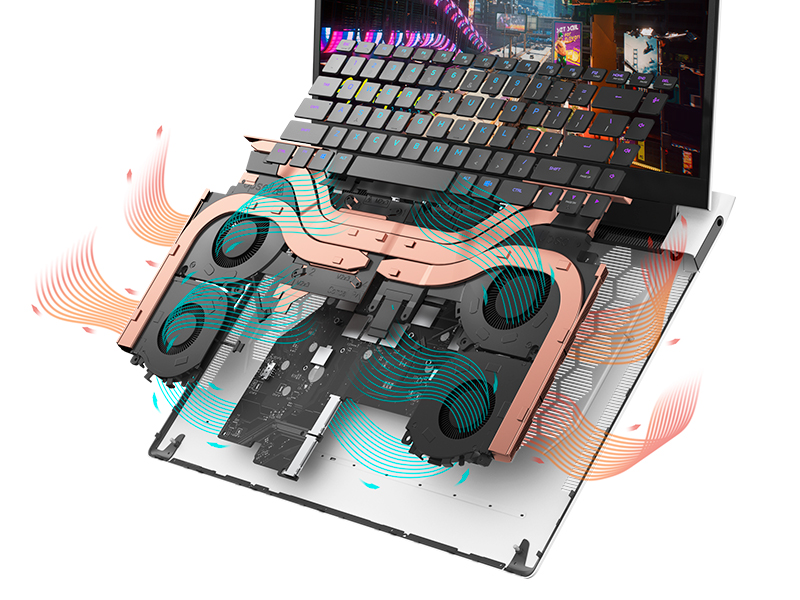
Image: The Alienware X17 R2 keyboard with customizable RGB lighting.
4.3 מערכת שמע
The laptop is equipped with stereo speakers, including two 2W tweeters and two 2W woofers, totaling 8W for rich audio output. Dolby Atmos support further enhances the immersive sound experience.
4.4 קישוריות
Enjoy high-speed wireless connectivity with Wi-Fi 6 (802.11ax) and Bluetooth. The USB 3.2 Gen 2 Type-C ports offer data transfer speeds up to 40Gbps, ensuring rapid file transfers and peripheral performance.

תמונה: אחורי view of the Alienware X17 R2 showing connectivity options and lighting.
5. תחזוקה
5.1 ניהול תרמי
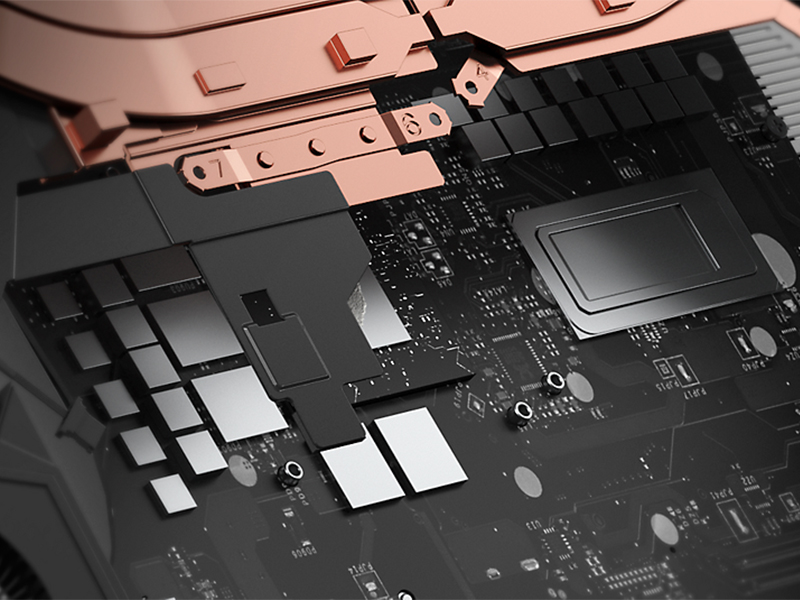
The Alienware X17 R2 features an advanced thermal design utilizing Element 31, an encapsulated gallium-silicone thermal interface material. This system maximizes airflow by expelling warm air through side vents and drawing in cooler air from the top of the keyboard, helping to keep the laptop cool during intensive use.
תמונה: פנימי view of the Alienware X17 R2's cooling technology.
5.2 ניקיון וטיפול
- Regularly clean the screen with a soft, lint-free cloth and a screen-safe cleaning solution.
- Use compressed air to clear dust from the keyboard and ventilation ports.
- Avoid placing heavy objects on the laptop or exposing it to extreme temperatures.
6. פתרון תקלות
If you encounter issues with your Alienware X17 R2, consider the following general troubleshooting steps:
- אין כוח: Ensure the power adapter is securely connected to both the laptop and the power outlet. Try a different outlet if necessary.
- בעיות תצוגה: If the screen is black, try connecting an external monitor to determine if the issue is with the laptop's display or graphics card. Restart the laptop.
- האטת ביצועים: Close unnecessary applications, check for background processes, and ensure your system drivers are up to date. Overheating can also cause slowdowns; ensure vents are clear.
- בעיות קישוריות: For Wi-Fi issues, restart your router and the laptop. For Bluetooth, ensure the device is discoverable and within range.
- תקלות תוכנה: Restart the laptop. If problems persist, check for Windows updates or consider reinstalling problematic software.
For more detailed troubleshooting or persistent issues, refer to the official Alienware support webאתר או צור קשר עם שירות הלקוחות.
7. מפרטים
| תכונה | מִפרָט |
|---|---|
| גודל תצוגת מסך עומד | 17.3 אינץ' |
| רזולוציית מסך | 1920 x 1080 פיקסלים |
| רזולוציית מסך מקסימלית | 1920x1080 פיקסלים |
| מעבד | 4.7 GHz core_i7_family (Intel Core i7-12700H) |
| אַיִל | זיכרון DDR5 בנפח 16 ג'יגה-בייט (4800 מגה-הרץ) |
| כונן קשיח | כונן SSD בנפח 1 טרה-בייט (M.2 PCIe NVMe) |
| מעבד גרפי | NVIDIA GeForce RTX 3070 Ti |
| כרטיס מסך גודל ראם | 8 GB GDDR6 |
| סוג אלחוטי | 802.11ax (Wi-Fi 6), בלוטות' |
| מספר יציאות USB 3.0 | 3 |
| מַעֲרֶכֶת הַפעָלָה | Windows 11 Home |
| משקל פריט | 6.82 פאונד |
| מידות המוצר | 11.79 x 15.72 x 0.82 אינץ' |
| צֶבַע | Lunar Light |
| מקור כוח | מופעל על סוללה |
| סוללות | נדרשות 1 סוללות ליתיום יון (כלולות) |
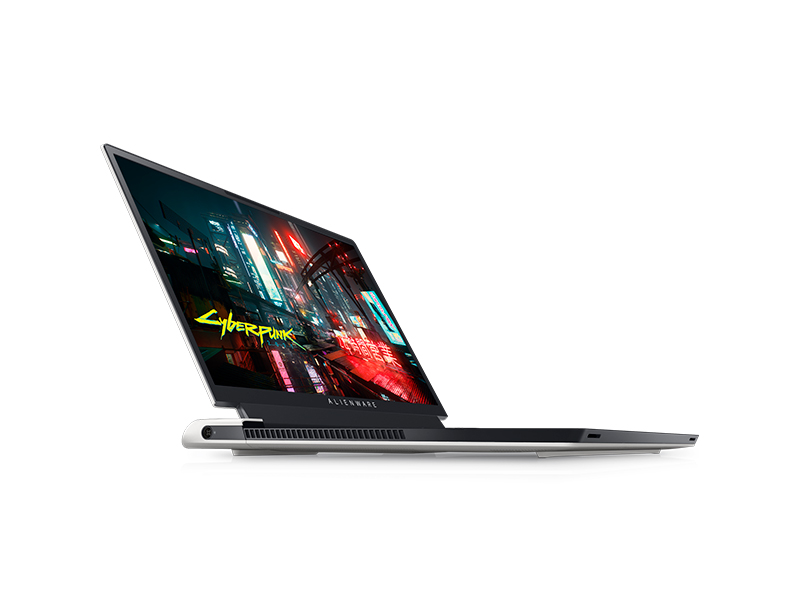
Image: Key specifications of the Alienware X17 R2.
8. אחריות ותמיכה
Your Alienware X17 R2 laptop comes with a manufacturer's warranty. Please refer to the included warranty documentation for details on coverage, terms, and conditions. For technical support, driver downloads, or service requests, visit the official Alienware support webלאתר או לפנות למחלקת שירות הלקוחות שלהם.