
מָבוֹא
This manual provides detailed instructions for the BINIZE Portable Carplay Screen Navigation system. It covers setup, operation, and maintenance to ensure optimal performance and user experience.
מידע בטיחות
- ודא שהמכשיר מותקן בצורה מאובטחת ואינו חוסם את הגישה שלך view או להפריע לשלטי הרכב.
- Connect the power cord only to a 12V cigarette lighter port.
- אל תנסה לפרק או לשנות את המכשיר.
- תן תמיד עדיפות לנהיגה בטוחה. אל תפעיל את המכשיר באופן שמסיח את דעתך מהכביש.
תוכן החבילה
ודא שכל הפריטים נמצאים בחבילה:
- BINIZE Portable Carplay Screen Navigation Unit
- כבל חשמל מצית סיגריות
- כבל מאריך USB
- כבל פלט שמע (RCA)
- Mounting Bracket with 3M Adhesive
- שְׁלַט רָחוֹק
- מדריך למשתמש (מסמך זה)
הגדרה
1. הרכבת ההתקן
בחרו מיקום מתאים בלוח המחוונים שלכם שלא מפריע לכם view או בקרות הרכב.

The base of the mounting bracket comes with 3M adhesive. Clean the dashboard surface thoroughly before attaching the base. Securely attach the unit to the bracket.

כוונן את זווית המסך לקבלת תצוגה אופטימלית viewing.
2. חיבור חשמל
Connect the cigarette lighter power cable to the device and insert it into your vehicle's 12V cigarette lighter port. The device will power on automatically.

ודא את עוצמת הקול של הרכבtage הוא בין 12V ל-14V.
This video demonstrates the initial power-up sequence of the BINIZE Portable Carplay Screen Navigation unit by connecting it to a cigarette lighter port. It shows the "welcome" screen appearing upon successful power-on.
הוראות הפעלה
1. הגדרה ראשונית ובחירת שפה
Upon first power-on, the device will display the home screen. Navigate to the "Settings" menu to select your preferred language.

2. אפשרויות פלט שמע
The monitor itself does not have internal speakers. Sound is routed through your original car audio system.
משדר FM
To use the FM transmitter, set the device's FM frequency to match an unused FM channel on your car's stereo.

Ensure both the device and your car stereo are tuned to the same FM frequency for audio output.
פלט שמע RCA
For additional audio requirements, such as connecting to a subwoofer or amplifier, use the two RCA ports (White: Audio Out Left, Red: Audio Out Right).
3. Apple CarPlay Connection
To use Apple CarPlay, connect your iPhone to the device using an original Apple data cable via the USB port on the right side of the player.
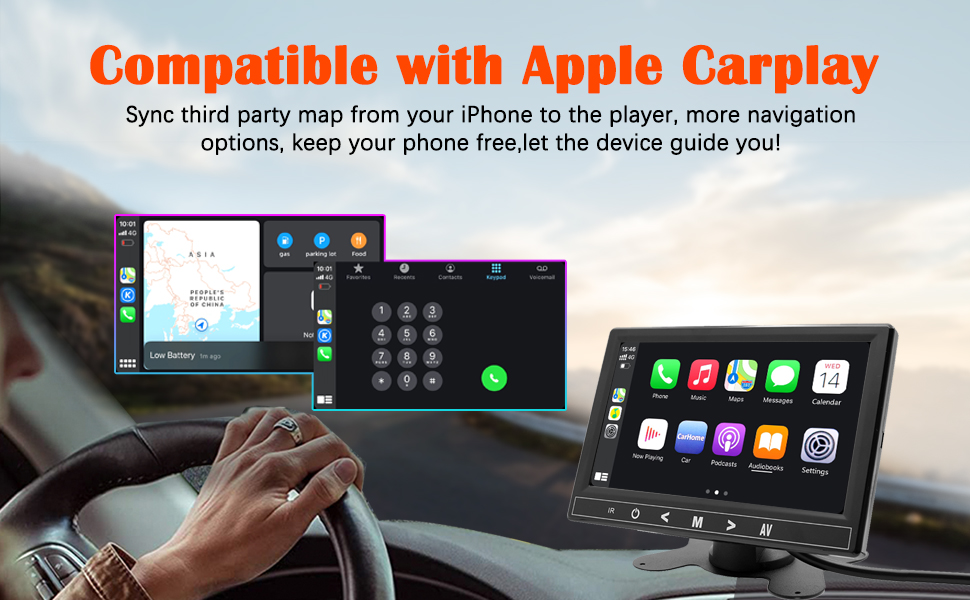
Select "i-Play" in the device settings. Grant any necessary permissions on your iPhone.
This video demonstrates how to connect an iPhone to the BINIZE Portable Carplay Screen Navigation for Apple CarPlay functionality. It shows the steps to select "i-Play" in settings and connect the original data cable.
4. Android Auto Connection
To use Android Auto, connect your Android phone to the device using an original data cable via the USB port on the right side of the player.

Select "A-Auto" in the device settings. Grant any necessary permissions on your Android phone.
This video illustrates the process of connecting an Android phone to the BINIZE Portable Carplay Screen Navigation for Android Auto. It guides the user to select "A-Auto" in settings and connect the data cable.
5. MirrorLink (iPhone)
To mirror your iPhone screen, connect your iPhone to the device using an original Apple data cable via the USB port on the right side of the player.
Select "i-Mirror" in the device settings. Grant permissions on your iPhone. The iPhone screen will be projected onto the player's screen.
This video demonstrates the MirrorLink function for iPhone, showing how to connect the device and mirror the phone's display.
6. MirrorLink (Android Phone)
To mirror your Android phone screen, connect your Android phone to the device using an original data cable via the USB port on the right side of the player.
Select "A-Link" in the device settings. Grant permissions on your Android phone. The Android phone screen will be projected onto the player's screen.
This video demonstrates the MirrorLink function for Android phones, showing how to connect the device and mirror the phone's display.
7. USB Flash Drive Reading
Insert a USB flash drive into the USB extension cable to play music or videos. The device supports various media formats.
8. טעינת טלפון
The USB extension cable can also be used to charge your mobile phone.
תַחזוּקָה
- שמרו על ניקיון המסך באמצעות מטלית רכה ויבשה. הימנעו מחומרי ניקוי שוחקים.
- ודא שכל חיבורי הכבלים מאובטחים.
- הימנע מחשיפת המכשיר לטמפרטורות קיצוניות או לאור שמש ישיר לתקופות ממושכות.
פתרון בעיות
| בְּעָיָה | סיבה אפשרית | פִּתָרוֹן |
|---|---|---|
| המכשיר לא נדלק. | No power from cigarette lighter. | Check vehicle's 12V port. Ensure power cable is securely connected. |
| אין פלט קול. | FM frequency not synchronized or incorrect RCA connection. | Match FM frequency on device and car stereo. Verify RCA cable connections. |
| CarPlay/אנדרואיד אוטו לא מתחברים. | Non-original data cable, incorrect settings, or phone permissions. | Use original data cable. Check "i-Play" or "A-Auto" settings. Grant all necessary phone permissions. |
| MirrorLink not working. | Incorrect settings or phone permissions. | Check "i-Mirror" or "A-Link" settings. Grant all necessary phone permissions. |
| המסך קופא או לא מגיב. | תקלת תוכנה זמנית. | הפעל מחדש את המכשיר על ידי ניתוק וחיבור מחדש של כבל החשמל. |
For further assistance, please contact BINIZE customer support.
מפרטים
| תכונה | פְּרָט |
|---|---|
| מותג | בינייז |
| מספר דגם | B09DSMJ59X |
| טכנולוגיית קישוריות | בלוטות', RCA, USB |
| סוג בקר | Android, Google Assistant |
| תכונה מיוחדת | מסך מגע |
| מכשירים תואמים | סמארטפון |
| מצב פלט שמע | סטריאו |
| מספר ערוצים | 4 |
| קידוד וידאו | H.264, H.265/HEVC |
| שיטת בקרה | לָגַעַת |
| טכנולוגיה אלחוטית | בלוטות' |
| קלט כוח | 12V (via cigarette lighter) |
הערה: המפרט נתון לשינויים ללא הודעה מוקדמת.
אחריות ותמיכה
BINIZE products come with a standard manufacturer's warranty. Please refer to the warranty card included in your package for specific terms and conditions.
For technical support, warranty claims, or any other inquiries, please visit the official BINIZE webאתר או צור קשר עם צוות שירות הלקוחות שלהם.