
1. הקדמה
This manual provides instructions for the Keychron K14 mechanical keyboard. The K14 is a 70% layout, 72-key keyboard designed for both Mac and Windows operating systems, offering both Bluetooth wireless and USB wired connectivity. It features an RGB backlight, an aluminum frame, and Gateron G Pro Brown mechanical switches.

תמונה: מעלview of the Keychron K14 mechanical keyboard highlighting its 70% layout, wireless/wired modes, multi-device connectivity, Gateron G Pro switches, RGB lighting, Mac/Windows compatibility, and USB-C plug.
2. תכולת החבילה
ודא שכל הפריטים נמצאים בחבילת ה-Keychron K14 שלך:
- מקלדת מכנית Keychron K14
- כבל USB מסוג C
- פולר Keycap
- משיכת מתגים (אם גרסה הניתנת להחלפה חמה)
- Extra Keycaps for Windows/Mac operating systems
- מדריך למשתמש
3. תכונות מוצר
3.1. 70% Layout and Key Cluster
The K14 features a compact 70% layout with 72 keys, providing a smaller footprint while retaining essential navigation keys such as Home, End, and Arrow keys, similar to a tenkeyless keyboard.

תמונה: תקריב view of the Keychron K14 keyboard, illustrating its 70% layout which includes dedicated navigation keys such as Insert, Home, End, Delete, Page Up, Page Down, and arrow keys.
3.2. Gateron G Pro Brown Switches
The keyboard is equipped with Gateron G Pro Brown mechanical switches, known for their tactile feedback. These switches offer a durable lifespan of up to 50 million keystrokes.

Image: Specifications for the Gateron G Pro mechanical Brown Switch, detailing operating force (55±15gf), pre-travel (2±0.6mm), tactile behavior, gentle sound level, pre-lubed status (Yes), and a lifespan of up to 50 million keystrokes.
3.3. עיצוב ארגונומי
The K14 features two-level adjustable feet, allowing for typing angles of 6º and 9º. This design, combined with an inclined bottom frame, provides ergonomic support for extended typing comfort.

תמונה: צד view of the Keychron K14 keyboard, illustrating its two-level adjustable feet that allow for typing angles of 6 and 9 degrees, enhancing ergonomic support.
4. התקנה
4.1. חיבור המקלדת
The Keychron K14 supports both Bluetooth wireless and USB Type-C wired connections.
4.1.1. חיבור Bluetooth
- Ensure the keyboard's mode switch (located on the side) is set to "BT" (Bluetooth).
- Press and hold the "Fn" + "1" (or "2" or "3") keys for 4 seconds to enter pairing mode. The backlight will flash rapidly.
- במכשיר שלך (סמארטפון, מחשב נייד, אייפד), הפעל את בלוטות' וחפש "Keychron K14".
- Select the keyboard to pair. The backlight will stop flashing upon successful connection.
- The keyboard can connect to up to 3 devices. Use "Fn" + "1", "Fn" + "2", or "Fn" + "3" to switch between paired devices.
4.1.2. חיבור קווי
- Ensure the keyboard's mode switch is set to "Cable".
- חבר את כבל ה-USB Type-C המצורף מהמקלדת ליציאת ה-USB של המחשב.
- המקלדת תזוהה אוטומטית ותפעל כמקלדת חוטית.

Image: The Keychron K14 keyboard shown connecting wirelessly to a desktop computer, laptop, and smartphone, indicating compatibility with Mac and Windows operating systems.

Image: The Keychron K14 keyboard displayed with icons representing its dual connectivity options: wireless Bluetooth and wired USB-C.
4.2. מתג מערכת הפעלה
The K14 includes a switch to toggle between Mac and Windows layouts. Locate the OS switch on the side of the keyboard and set it to the appropriate operating system for optimal key functionality.
4.3. כוונון זווית המקלדת
The keyboard features two-level adjustable feet. Flip out the feet to select between 6º and 9º typing angles to suit your ergonomic preference.
5. תפעול
5.1. בקרת תאורה אחורית
The Keychron K14 features RGB backlighting with 19 different types of lighting effects. Use the dedicated backlight key (often marked with a lightbulb icon) or function key combinations to cycle through effects, adjust brightness, and change colors.
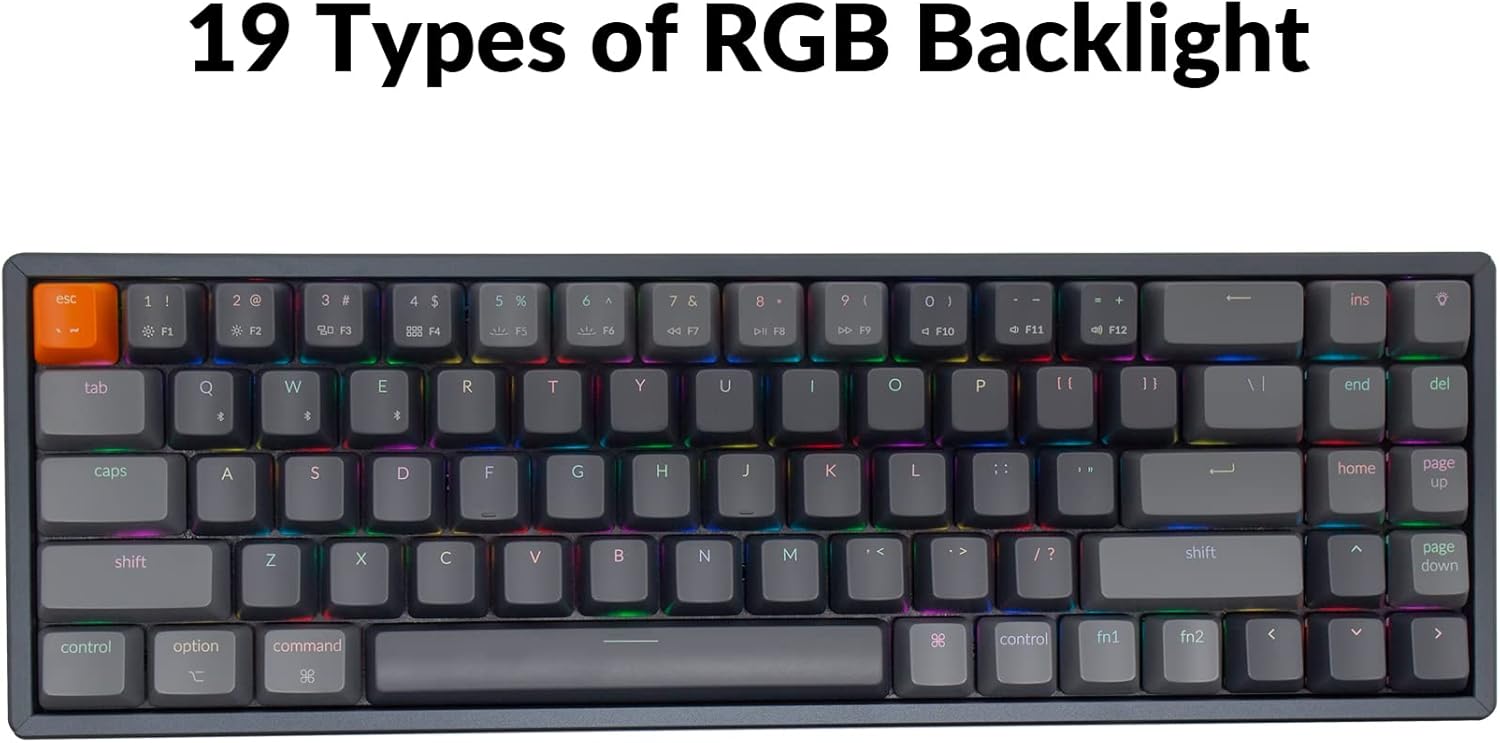
Image: The Keychron K14 keyboard illuminated with a multi-color RGB backlight, demonstrating its various lighting capabilities.
5.2. מקשי מולטימדיה
Access multimedia functions (e.g., volume control, play/pause) using the Fn key in combination with the designated function row keys. Refer to the keycap legends for specific functions.
5.3. העברת מפתח N (NKRO)
ה-K14 תומך ב-N-key rollover (NKRO) במצב קווי, המאפשר רישום של כל המקשים בו זמנית. במצב אלחוטי, הוא תומך ב-6-key rollover (6KRO).
6. ניהול סוללה
The Keychron K14 is equipped with a 4000 mAh battery, providing up to 240 hours of usage with the backlight off. Connect the keyboard via the USB Type-C cable to charge the battery. The charging indicator will show the charging status.

Image: A close-up of the Keychron K14 keyboard with a prominent overlay indicating its 4000 mAh battery capacity.
7. תחזוקה
כדי להבטיח את אורך החיים והביצועים האופטימליים של מקלדת Keychron K14 שלכם, יש לפעול לפי הנחיות התחזוקה הבאות:
- ניקוי מכסי מקשים: השתמשו במשיכת פקקי מפתחות כדי להסיר את פקקי המקשים. נקו אותם בעזרת תמיסת סבון עדינה ומטלית רכה. ודאו שהם יבשים לחלוטין לפני חיבורם מחדש.
- ניקוי גוף המקלדת: Use a soft, dry, lint-free cloth to wipe the aluminum frame and other surfaces. For stubborn dirt, a slightly damp ניתן להשתמש בבד, אך יש להימנע מלחות מוגזמת.
- הסרת אבק: השתמש באוויר דחוס כדי להסיר אבק ופסולת בין מכסי המקשים והמתגים.
- אִחסוּן: כאשר המקלדת אינה בשימוש למשך תקופות ממושכות, יש לאחסן אותה במקום יבש וקריר, הרחק מאור שמש ישיר וטמפרטורות קיצוניות.
- הימנע מנוזלים: The keyboard is not water-resistant. Keep liquids away to prevent damage.
8. פתרון תקלות
If you encounter issues with your Keychron K14 keyboard, refer to the following common solutions:
8.1. המקלדת לא מגיבה
- בדוק חיבור: Ensure the USB cable is securely connected or that Bluetooth is properly paired.
- רמת סוללה: If using Bluetooth, check if the battery is charged. Connect the USB cable to charge.
- מתג מצב: Verify the keyboard's mode switch is set correctly (BT for Bluetooth, Cable for wired).
- הפעל מחדש: Try restarting your computer or device and the keyboard.
8.2. בעיות ניתוק Bluetooth
- הַפרָעָה: קרב את המקלדת למכשיר שלך והרחק ממכשירים אלחוטיים אחרים שעלולים לגרום להפרעות.
- לְתַקֵן: Unpair the keyboard from your device's Bluetooth settings and then re-pair it.
- קושחה: Check the official Keychron website for any available firmware updates for your K14 model.
8.3. מקשים לא נרשמים או הקלדה כפולה
- Clean Switches: Dust or debris under the keycap or switch can cause issues. Use compressed air.
- החלפת מתג: If you have a hot-swappable version, try replacing the problematic switch with a spare one.
8.4. תאורה אחורית לא עובדת
- בְּהִירוּת: Ensure the backlight brightness is not set to the lowest level.
- מקשי פונקציה: Try cycling through backlight modes and brightness levels using the designated function key combinations.
9. מפרטים
| תכונה | פְּרָט |
|---|---|
| מותג | Keychron |
| מספר דגם | K14C3 |
| מַעֲרָך | 70% (72 מקשים) |
| קישוריות | Bluetooth 5.1 & USB Type-C Wired |
| מתגים | גייטרון G פרו חום מכני |
| תאורה אחורית | RGB (19 סוגים) |
| חומר מסגרת | אֲלוּמִינְיוּם |
| קיבולת סוללה | 4000 מיליאמפר/שעה |
| חיי סוללה | עד 240 שעות (תאורה אחורית כבויה) |
| רגליים מתכווננות | Yes (6º and 9º) |
| גלגול N-Key | NKRO (Wired), 6KRO (Wireless) |
| מכשירים תואמים | מחשב נייד, סמארטפון, טאבלט |
| מערכות הפעלה | מק, ווינדוס |
10. אחריות ותמיכה
Keychron products are covered by a limited warranty. For specific warranty terms, duration, and support inquiries, please refer to the official Keychron webאתר או צרו קשר ישירות עם שירות הלקוחות שלהם. שמרו את הוכחת הרכישה שלכם לצורך תביעות אחריות.
רִשְׁמִי Webאֲתַר: www.keychron.com