
1. הקדמה
This manual provides instructions for the installation, operation, and troubleshooting of your ARRIS Touchstone TM804G DOCSIS 3.0 Telephone Modem. The TM804G is designed to provide high-speed data access and up to four lines of Voice over IP (VoIP) telephone service over your cable network. It features DOCSIS 3.0 technology for enhanced internet speeds and reliability.
2. תכונות עיקריות
- DOCSIS 3.0 compliant for high-speed internet.
- Four (4) dedicated VoIP telephone ports.
- Supports download speeds up to 343 Mbps.
- Two independent 96MHz RF tuners.
- Ethernet connectivity for network devices.
3. תכולת החבילה
ודא שהחבילה שלך מכילה את הפריטים הבאים:
- ARRIS Touchstone TM804G Telephone Modem
- מתאם מתח
- כבל Ethernet
- תיעוד (מדריך התחלה מהירה, מידע בטיחות)
Note: A backup battery is sold separately and is not included in the standard package.
4. מאפיינים פיזיים
4.1 מחווני לוח קדמי
The front panel of the TM804G modem features several LED indicators that provide status information.

איור 1: חֲזִית view of the ARRIS Touchstone TM804G Telephone Modem. This image shows the modem's black casing with ventilation holes on top and a row of green LED indicator lights on the right side of the front panel.
| מַד | סטָטוּס | תֵאוּר |
|---|---|---|
| כּוֹחַ | ירוק מלא | המודם מופעל. |
| DS (במורד הזרם) | ירוק מלא | ערוץ הזרם במורד הזרם מחובר. |
| ארה"ב (במעלה הזרם) | ירוק מלא | ערוץ הזרם במעלה הזרם מחובר. |
| אונליין | ירוק מלא | The modem is registered and online. |
| לְקַשֵׁר | ירוק מלא | An Ethernet device is connected. |
| טל '1-4 | ירוק מלא | Telephone line is active. |
4.2 יציאות בפאנל האחורי
הפאנל האחורי מספק את כל יציאות החיבור הדרושות למודם.
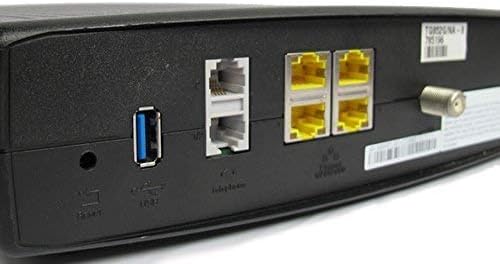
איור 2: אֲחוֹרִי view of the ARRIS Touchstone TM804G Telephone Modem. This image displays the back of the modem, featuring a coaxial cable connector, four yellow Ethernet ports, two grey telephone ports (RJ-11), a USB port, a reset button, and the power input.
- חַד צִירִי: מתחבר לשקע הכבלים בקיר.
- אתרנט (LAN): Four (4) RJ-45 ports for connecting to a computer or router.
- TEL1-4 (RJ-11): Four (4) telephone ports for connecting to telephones or a home telephone wiring system.
- USB: (Functionality may vary or be disabled by your service provider).
- אפס: Recessed button to reset the modem to factory defaults (use with caution).
- כּוֹחַ: מתחבר למתאם החשמל.
5. התקנה והתקנה
Follow these steps to install your ARRIS Touchstone TM804G modem.
- חבר כבל קואקסיאלי: Connect one end of a coaxial cable to the COAXIAL port on the modem and the other end to a cable wall outlet. Ensure the connection is finger-tight.
- חיבור כבל אתרנט: Connect one end of the Ethernet cable to one of the ETHERNET ports on the modem and the other end to your computer's network port or your wireless router's WAN/Internet port.
- חיבור קווי טלפון: If using telephone service, connect your telephone(s) or home telephone wiring to the TEL1, TEL2, TEL3, or TEL4 ports on the modem using standard RJ-11 telephone cables.
- חבר מתאם מתח: חבר את מתאם החשמל ליציאת POWER במודם ולאחר מכן חבר את המתאם לשקע חשמלי.
- הפעלה: The modem will automatically power on. Observe the front panel indicator lights. The POWER, DS, US, and ONLINE lights should eventually turn solid green, indicating a successful connection to the cable network and internet. The TEL lights will illuminate when telephone lines are active.
- הפעלת שירות: Contact your Internet Service Provider (ISP) to activate the modem. You will need to provide them with the MAC address and serial number, typically found on a label on the bottom or back of the modem.
Important: Do not connect the modem to a power outlet until all other connections are made.
6. הוראות הפעלה
Once the modem is successfully installed and activated, it operates automatically.
- גישה לאינטרנט: Any device connected via Ethernet to the modem (or through a connected router) should have internet access once the ONLINE light is solid green.
- שירות טלפוני: If your service plan includes VoIP, connected telephones will have dial tone and function once the corresponding TEL lights are solid green.
- מצב ניטור: Refer to the front panel LED indicators (Section 4.1) to monitor the modem's operational status.
7. תחזוקה
- ניקוי: Keep the modem clean and free of dust. Use a soft, dry cloth to wipe the exterior. Do not use liquid cleaners or aerosols.
- אוורור: ודא שהמודם ממוקם באזור מאוורר היטב כדי למנוע התחממות יתר. אין לחסום את פתחי האוורור.
- עדכוני קושחה: Firmware updates are typically managed automatically by your Internet Service Provider. Do not attempt to manually update the firmware unless instructed by your ISP.
- Restarting the Modem: If you experience connectivity issues, try restarting the modem by unplugging the power adapter for 10-15 seconds and then plugging it back in.
- איפוס למפעל: The recessed RESET button on the rear panel can be used to restore factory default settings. This should only be done if instructed by your ISP, as it will erase all custom configurations. To perform a factory reset, use a paperclip to press and hold the RESET button for at least 10 seconds.
8. פתרון תקלות
If you encounter problems with your modem, refer to the following common issues and solutions.
| בְּעָיָה | סיבה אפשרית | פִּתָרוֹן |
|---|---|---|
| אין כוח | מתאם החשמל לא מחובר או ששקע פגום. | Ensure power adapter is securely connected to the modem and a working electrical outlet. Check the POWER LED. |
| אין גישה לאינטרנט | Coaxial cable loose, modem not activated, or ISP outage. |
|
| אין צליל חיוג בטלפון | Telephone cable loose, TEL light off, or service issue. |
|
| מהירות אינטרנט איטית | עומס ברשת, נתב ישן או בעיה עם ספק האינטרנט. |
|
For further assistance, contact your Internet Service Provider's technical support.
9. מפרטים
| מספר דגם | TM804G |
| תקן DOCSIS | DOCSIS 3.0 |
| Internet Download Speed | Up to 343 Mbps (ISP dependent) |
| יציאות VoIP | 4 (RJ-11) |
| יציאות Ethernet | 4 (RJ-45) |
| טכנולוגיית קישוריות | אתרנט |
| מידות (L x W x H) | 11.81 x 9.13 x 2.56 אינץ' בערך |
| מִשׁקָל | בערך 2.16 פאונד |
| ספקי אינטרנט תואמים | Optimum, Mediacom (and others, check with your provider) |
10. אחריות ותמיכה
מוצר זה מוצע כפריט של Amazon Renewed. מוצרי Amazon Renewed נבדקים ונבדקים באופן מקצועי כדי לוודא שהם פועלים ונראים כמו חדשים. הם זכאים להחלפה או החזר כספי במסגרת אחריות Amazon Renewed אם אינך מרוצה מהרכישה שלך.
For technical support, troubleshooting, or service-related inquiries, please contact your Internet Service Provider (ISP) directly. Your ISP is responsible for the activation, configuration, and ongoing support of the modem on their network.