
1. הקדמה
Thank you for choosing the CHONCHOW US801 Gaming Keyboard and Mouse Combo. This manual provides detailed instructions for setting up, operating, and maintaining your new peripheral set. Please read this manual carefully before use to ensure optimal performance and longevity of your product.

Image: The CHONCHOW US801 Gaming Keyboard and Mouse Combo, showcasinהפריסה בגודל מלא והעיצוב הארגונומי שלה.
2. תכולת החבילה
The CHONCHOW US801 Gaming Keyboard and Mouse Combo package includes:
- 1 x CHONCHOW US801 Wired Gaming Keyboard
- 1 x CHONCHOW US801 Wired Gaming Mouse
- מדריך למשתמש אחד (מסמך זה)
3. הוראות התקנה
The CHONCHOW US801 Gaming Keyboard and Mouse Combo is a plug-and-play device. No additional drivers or software are typically required for basic functionality.
- חבר את המקלדת: Locate an available USB 2.0 port on your computer, laptop, or gaming console. Insert the USB connector of the keyboard into the port.
- חבר את העכבר: Locate another available USB 2.0 port. Insert the USB connector of the mouse into the port.
- זיהוי מערכת: Your operating system (Windows, Mac OS, Xbox, PS4) should automatically detect and install the necessary drivers. This process may take a few moments. A notification typically appears once the device is ready for use.
- Initial Functionality Test: After installation, test the keyboard by typing and the mouse by moving the cursor and clicking buttons to ensure they are working correctly.
Note on Initial Connection:
In rare cases, after connecting the USB cable, the keyboard backlight may not illuminate fully or correctly. This can occur due to static electricity or repeated disconnections/reconnections causing signal issues with the operating system. If this happens, please wait patiently for approximately 20 seconds for the keyboard's light control chip to restart. If the issue persists, ensure your computer is connected to the internet, then reconnect the keyboard and wait for the "driver installation is complete" notification. If problems continue, refer to the Troubleshooting section or contact customer support.
4. Keyboard Features and Operation
4.1. בקרת תאורה אחורית
The keyboard features adjustable RGB backlighting with multiple modes and brightness levels.
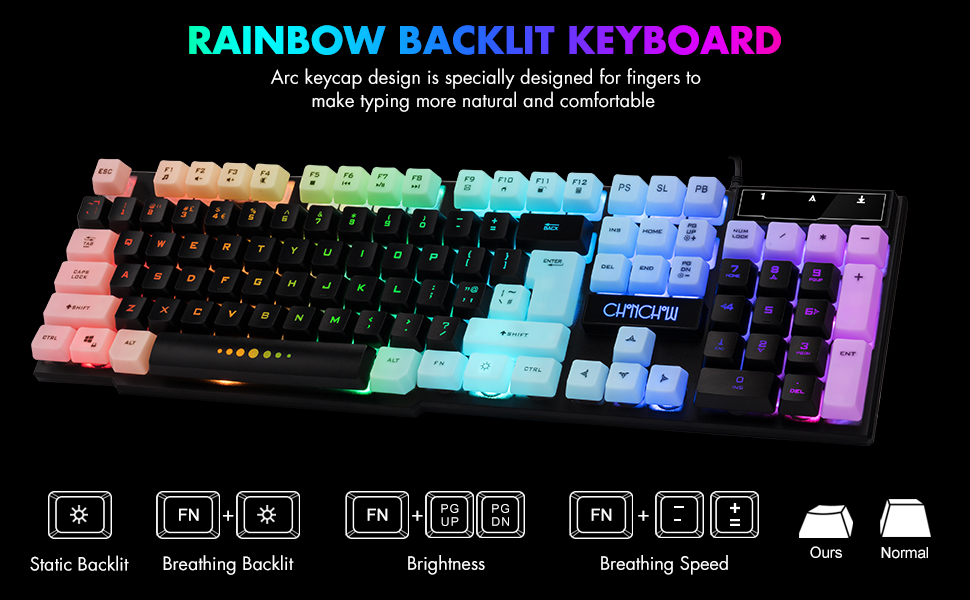
Image: Visual guide for controlling keyboard backlighting, showing key combinations for various effects.
- הפעלה/כיבוי של תאורה אחורית: הקש על נורה key (usually located near the right Ctrl key).
- Switch Backlight Mode (Breathing/Static): לִלְחוֹץ FN + נורה מַפְתֵחַ.
- התאם את הבהירות: לִלְחוֹץ FN + PG UP to increase brightness, or FN + PG DN כדי להפחית את הבהירות.
- התאמת מהירות נשימה: לִלְחוֹץ FN + + to increase breathing speed, or FN + - to decrease breathing speed.
4.2. מקשי מולטימדיה
The keyboard includes 12 multimedia function shortcut keys for quick access to common functions.

Image: Layout of the keyboard highlighting the 12 multimedia function keys and their corresponding FN key combinations.
| שילוב מפתחות | פוּנקצִיָה |
|---|---|
| FN + F1 | נַגָן |
| FN + F2 | הורדת עוצמת הקול |
| FN + F3 | הגברת עוצמת הקול |
| FN + F4 | לְהַשְׁתִיק |
| FN + F5 | הפעל/עצור |
| FN + F6 | המסלול הקודם |
| FN + F7 | הפעל/השהה |
| FN + F8 | המסלול הבא |
| FN + F9 | אֶלֶקטרוֹנִי |
| FN + F10 | Web בַּיִת |
| FN + F11 | מסך נעילה |
| FN + F12 | מַחשְׁבוֹן |
4.3. מפתחות נגד רפאים
The keyboard features 19 anti-ghosting keys, ensuring that multiple key presses are registered simultaneously, which is crucial for gaming.

Image: The keyboard layout with 19 anti-ghosting keys visually indicated.
4.4. WIN Key Lock
The Windows key can be disabled to prevent accidental presses during gaming sessions.

Image: Close-up of the Windows key with an overlay indicating its lock function.
- Disable/Enable WIN Key: לִלְחוֹץ FN + לְנַצֵחַ מַפְתֵחַ.
5. Mouse Features and Operation
The gaming mouse features 7-color breathing LED lighting and adjustable DPI settings.

Image: The CHONCHOW gaming mouse displaying its 7-color LED breathing light effect.
5.1. כוונון DPI
The mouse offers four levels of DPI sensitivity to suit different tasks and preferences.
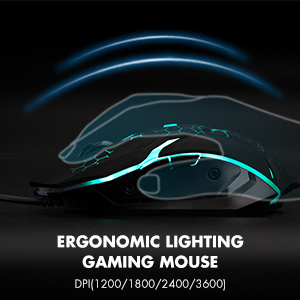
Image: The ergonomic design of the gaming mouse, highlighting its lighting and DPI settings.
- רמות DPI: 1200 / 1800 / 2400 / 3600 DPI.
- התאמת DPI: הקש על כפתור DPI (usually located behind the scroll wheel) to cycle through the available DPI settings.
5.2. Mouse Buttons
The mouse is equipped with 6 buttons for enhanced control:
- לחצן לחץ שמאל
- לחצן קליק ימני
- גלגל גלילה (ניתן ללחיצה)
- כפתור DPI
- כפתור קדימה
- כפתור אחורה
6. תאימות
The CHONCHOW US801 Gaming Keyboard and Mouse Combo offers wide compatibility with various operating systems and devices.
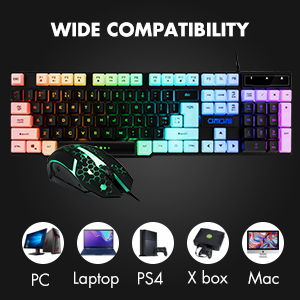
Image: Icons representing various compatible devices including PC, Laptop, PS4, Xbox, and Mac.
- מערכות הפעלה: חלונות 2000 / 2003 / XP / Vista / Win7 / Win8 / Win10
- מכשירים: PC, Computer, Laptop, PS4, Xbox, Mac
7. תחזוקה
Proper maintenance ensures the longevity and optimal performance of your keyboard and mouse.
- ניקוי: Use a soft, dry cloth to wipe down the surfaces of the keyboard and mouse. For deeper cleaning, especially for dust under keycaps, the keycaps are removable. Gently pull them off for cleaning and press them back into place. Avoid using harsh chemicals or abrasive materials.
- דליפות: The keyboard features drainage holes to help mitigate damage from minor spills. In case of a liquid spill, immediately disconnect the keyboard from your device, turn it upside down to drain, and allow it to dry completely before reconnecting.
- אִחסוּן: אחסנו את המקלדת והעכבר במקום קריר ויבש, הרחק מאור שמש ישיר וטמפרטורות קיצוניות.
8. פתרון תקלות
If you encounter issues with your CHONCHOW US801 Gaming Keyboard and Mouse Combo, please refer to the following common solutions:
- מקלדת/עכבר לא מגיבים:
- Ensure both USB cables are securely plugged into your device's USB ports.
- Try connecting the keyboard and mouse to different USB ports.
- הפעל מחדש את המחשב או קונסולת המשחקים.
- בדוק את ההתקנים במחשב אחר כדי לשלול בעיות ספציפיות למערכת.
- Backlight Issues (Not Bright / Partially Lit):
- Wait approximately 20 seconds after connecting; the keyboard's light control chip may be restarting due to static electricity or repeated connections.
- Ensure your computer is connected to the internet, then reconnect the keyboard. Wait for the "driver installation is complete" notification.
- כוונן את הבהירות באמצעות FN + PG UP / PG DN.
- מפתחות לא נרשמים / נרשמים כרפאים:
- ודא שהמקלדת נקייה וללא לכלוך מתחת למכסי המקשים.
- Verify that the WIN key lock is not accidentally engaged if you are experiencing issues with the Windows key.
- סמן העכבר קופץ או אינו יציב:
- נקו את החיישן האופטי בתחתית העכבר.
- ודא שאתה משתמש בעכבר על משטח מתאים (למשל, משטח עכבר).
- התאם את הגדרות ה-DPI לערך נמוך יותר אם הסמן רגיש מדי.
If the problem persists after attempting these steps, please contact CHONCHOW customer support for further assistance.
9. מפרטים
| תכונה | פְּרָט |
|---|---|
| מותג | צ'ונצ'ו |
| מספר דגם | US801 |
| טכנולוגיית קישוריות | USB חוטי |
| פריסת מקלדת | 104-Keys Full Size |
| תאורה אחורית של המקלדת | RGB (Rainbow Backlit) |
| תכונות מיוחדות של המקלדת | 19 Anti-Ghosting Keys, 12 Multimedia Keys, WIN Key Lock, Ergonomic, Removable Keycaps |
| רמות DPI של עכבר | 1200 / 1800 / 2400 / 3600 DPI |
| כפתורי עכבר | 6 Buttons (Left, Right, Forward, Backward, DPI, Scroll Wheel) |
| Mouse Backlighting | נורית LED לנשימה ב-7 צבעים |
| מידות מוצר (מקלדת) | 17 x 5.1 x 1.3 אינץ' |
| משקל פריט | 1.94 פאונד |
| חוֹמֶר | פּלָסטִי |
10. אחריות ותמיכה
CHONCHOW stands behind the quality of its products. Your CHONCHOW US801 Gaming Keyboard and Mouse Combo is covered by the following:
- 30-Day Refund or Replacement: לכל בעיה שתתקיים תוך 30 יום ממועד הרכישה.
- 12-Month After-Sales Service: For quality-related problems within 12 months of purchase.
For friendly and easy-to-reach support, please contact our customer service team. Refer to your purchase documentation or the CHONCHOW official webהאתר לפרטי יצירת קשר.