
1. הקדמה
This manual provides comprehensive instructions for the setup, operation, and maintenance of your CPVAN Wireless Security Camera (Model BC01). Please read this guide thoroughly before using the product to ensure optimal performance and safety.

Figure 1: CPVAN Wireless Security Camera (Model BC01)
2. תכונות מוצר
- וידאו HD 1080P: Captures clear 1080P HD video and images with a 120-degree wide-angle view.
- AI Recognition & Smart Motion Detection: Accurately analyzes and recognizes people, vehicles, pets, and packages, sending instant notifications.
- ראיית לילה צבעונית: Integrated white and infrared light sources provide full-color and infrared night vision up to 33 ft.
- אודיו דו-כיווני: Built-in microphone and speaker for real-time two-way communication.
- Siren Alarm & Spotlight: Deter unwanted visitors with an audible siren and flashing white light.
- Wire-Free & Waterproof: Rechargeable battery for 1-5 months of use on a single charge and IP65 waterproof rating for outdoor installation.
- אפשרויות אחסון: Supports up to 128GB SD card and free 3-day rolling cloud storage.
3. מה בקופסה
ודא שכל הרכיבים נמצאים בחבילה:
- CPVAN Wireless Security Camera (BC01)
- תושבת הרכבה
- כבל טעינה USB
- ברגי הרכבה ועוגני קיר
- מדריך למשתמש
4. מדריך התקנה
4.1 טעינה ראשונית
Before first use, fully charge the camera. Connect the provided USB cable to the camera's charging port and a compatible USB power adapter (not included). The indicator light will be yellow during charging and turn green when fully charged. A full charge may take 8-10 hours.

Figure 2: Camera charging port and indicator light. The yellow light indicates charging, green indicates fully charged.
4.2 App Installation & Account Creation
- Download the 'VicoHome' app from your smartphone's App Store (iOS) or Google Play Store (Android).
- Open the VicoHome app and create a new account using your email address. Follow the on-screen prompts to set up your account details and password.
- Verify your account using the confirmation code sent to your registered email.
4.3 Camera Pairing & Wi-Fi Connection
- In the VicoHome app, select 'Add a new camera' or the '+' icon to begin the pairing process.
- Turn on the camera by long-pressing the power button for 3 seconds. The camera will emit voice prompts and its indicator light will flash.
- Confirm in the app that the camera is emitting a beeping sound.
- Input your 2.4GHz Wi-Fi network password when prompted by the app. Ensure your Wi-Fi signal is strong in the camera's intended location.
- The app will display a QR code. Position the camera to scan this QR code from your phone screen. Hold the camera about 4-12 inches from the phone.
- Once the camera successfully scans the QR code, it will emit a voice prompt indicating connection. The app will then show 'Connection succeeded'.
- Name your camera and set its location within the app (e.g., 'Front Door', 'Garden').
Video 1: This video demonstrates the step-by-step process of connecting the CPVAN Wireless Security Camera to the VicoHome app, including account creation, camera power-on, and scanning the QR code for Wi-Fi pairing.
4.4 הרכבת המצלמה
The camera can be installed indoors or outdoors. Choose a location with a clear view ואות Wi-Fi חזק.
- Secure the mounting bracket to the desired surface using the provided screws and wall anchors.
- חבר את המצלמה לתושבת ההרכבה והתאם את זוויתה לכיסוי אופטימלי.
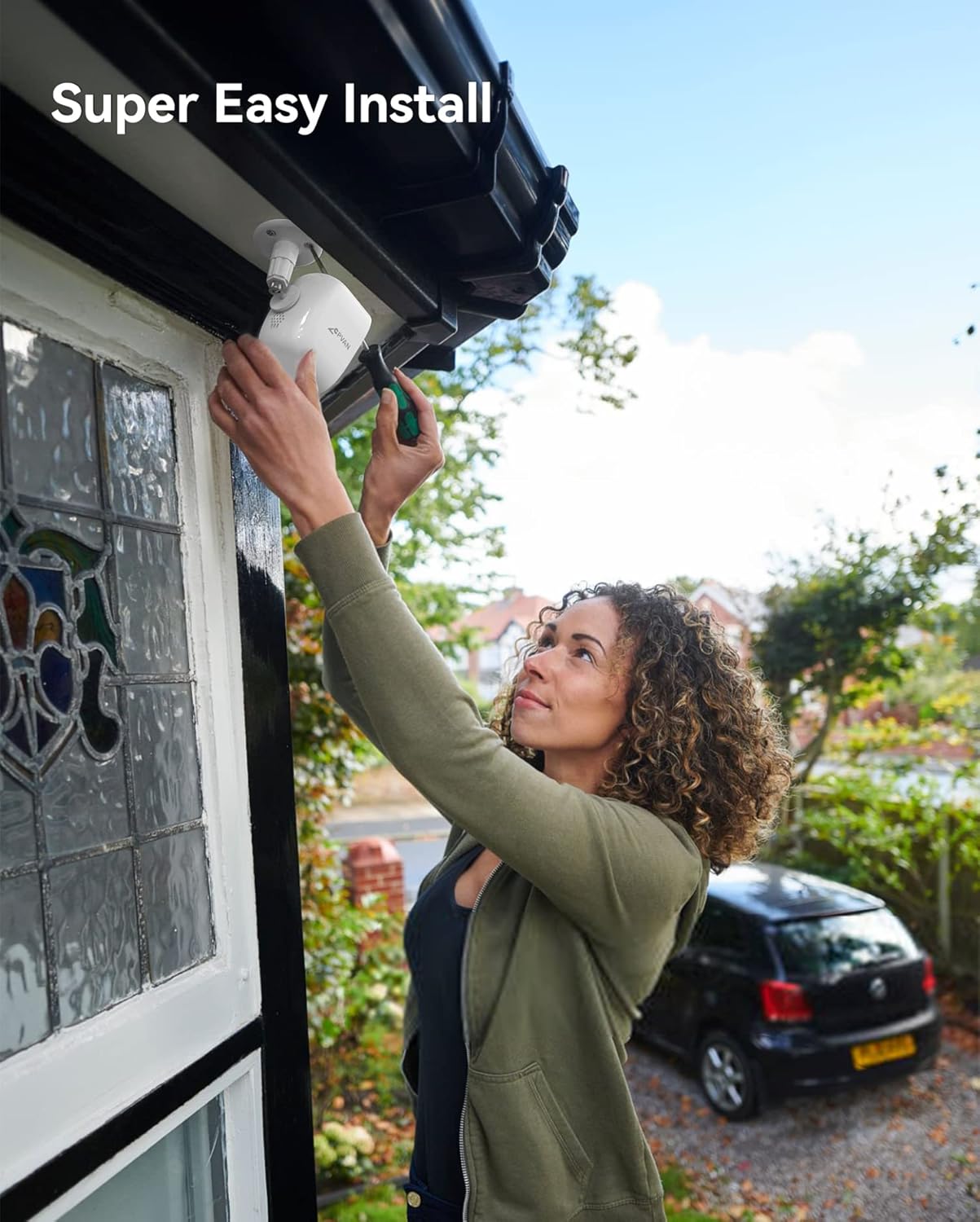
Figure 3: Illustration of easy camera installation on an outdoor wall.
5. הוראות הפעלה
5.1 בשידור חי View &השמעה
גש לאפליקציית VicoHome כדי view פו חיtage from your camera at any time. You can also review recorded events stored on the SD card or cloud.
Figure 4: VicoHome app interface displaying recorded events and cloud storage options.
5.2 Motion Detection & AI Recognition
The camera uses PIR motion detection and AI recognition to identify specific objects and send alerts.
- חיישן PIR: מזהה חתימות חום לזיהוי תנועה מדויק.
- AI Recognition: Distinguishes between people, vehicles, pets, and packages to reduce false alarms.

Figure 5: AI recognition actively identifying a person and a pet within the camera's view.
5.3 אזורי פעילות
הגדירו אזורים ספציפיים בתוך המצלמה view for motion detection. This helps in focusing on critical areas and minimizing unwanted notifications.
Video 2: This video illustrates how to set up custom activity zones within the VicoHome app, allowing users to define specific areas for motion detection and alerts.
5.4 מצבי ראיית לילה
המצלמה מציעה שני מצבי ראיית לילה:
- מצב אינפרא אדום: מספק אוכל שחור-לבן ברורtage בתנאי תאורה חלשה.
- מצב צבע מלא: Utilizes the built-in spotlight to capture color video at night.

Figure 6: Comparison of day, white light (color night vision), and infrared night vision modes.
Video 3: This video showcases the camera's night vision capabilities, demonstrating its ability to capture clear footage בתנאי תאורה חלשה.
5.5 2-Way Audio & Siren Alarm
Use the 2-way audio feature to communicate with visitors or deter intruders. Activate the siren alarm directly from the app for added security.

Figure 7: Two-way audio communication feature in use.
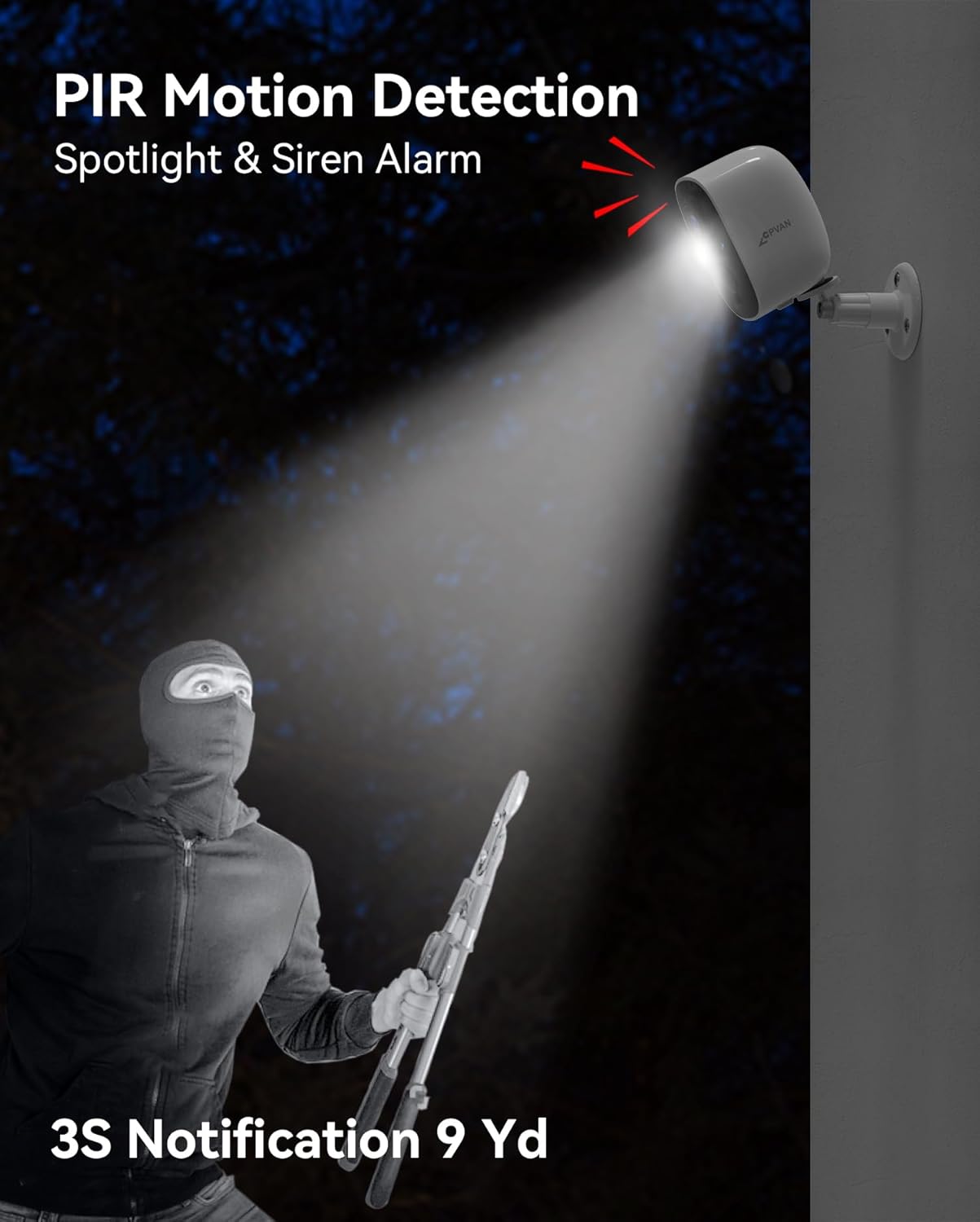
Figure 8: The camera's spotlight and siren alarm activating upon detecting an intruder.
6. תחזוקה
6.1 ניהול סוללה
The camera is powered by a rechargeable lithium-ion battery, offering 1 to 5 months of usage depending on activity. Monitor battery levels via the VicoHome app and recharge as needed using the provided USB cable.

Figure 9: The camera can be paired with an optional solar panel for continuous charging.
6.2 עמידות בפני מזג אוויר
With an IP65 waterproof rating, the camera is designed to withstand various weather conditions, including rain, snow, and extreme temperatures.

Figure 10: The camera's IP65 rating ensures durability in various weather conditions.
6.3 ניקוי
נקו מעת לעת את עדשת המצלמה ואת גוף המצלמה בעזרת מטלית רכהamp מטלית כדי להבטיח איכות תמונה ברורה. הימנעו משימוש בכימיקלים חזקים.
7. פתרון תקלות
- המצלמה לא מתחברת ל-Wi-Fi: Ensure the camera is within range of your 2.4GHz Wi-Fi network. Verify the Wi-Fi password entered in the app is correct.
- איכות תמונה ירודה: Check if the camera lens is clean and free from obstructions. Ensure adequate lighting, especially at night.
- הסוללה מתרוקנת במהירות: Reduce the sensitivity of motion detection or the frequency of recordings. Ensure the camera is fully charged.
- אין התראות זיהוי תנועה: Verify that motion detection is enabled in the app settings and that activity zones are correctly configured.
- בעיות באפליקציה: Ensure your VicoHome app is updated to the latest version. Restart the app or your smartphone if issues persist.
8. מפרטים
| תכונה | פְּרָט |
|---|---|
| מספר דגם | BC01 |
| רזולוציית לכידת וידאו | 1080p |
| רזולוציית וידאו יעילה | 1080 פיקסלים |
| רזולוציית סטילס אפקטיבית | 16 מגה פיקסל |
| טכנולוגיית קישוריות | אלחוטי (Wi-Fi) |
| מקור כוח | מופעל על סוללה (סוללת ליתיום יון אחת כלולה) |
| שימוש בפנים/חוץ | פנימי, חיצוני |
| רמת עמידות במים | Waterproof (IP65) |
| טווח ראיית לילה | 33 רגל |
| תכונות מיוחדות | Motion Sensor, Night Vision, 2-Way Audio, AI Recognition, Siren Alarm, Spotlight |
| אִחסוּן | SD Card (up to 128GB), Cloud Storage |
| מידות פריט (L x W x H) | 2.64 x 2.28 x 3.5 אינץ' |
| משקל פריט | 7 אונקיות (0.2 קילוגרם) |
| שיטת בקרה | App (VicoHome) |
9. אחריות ותמיכה
For warranty information and technical support, please refer to the documentation included with your product or visit the official CPVAN website. If you encounter any issues not covered in this manual, please contact CPVAN customer service for assistance.