
מָבוֹא
Thank you for choosing the Cellularline CORE True Wireless Bluetooth Earphones. These earphones are designed to provide a seamless audio experience with advanced features such as a charging case with an LED display, touch controls, and automatic pairing. This manual will guide you through the setup, operation, and maintenance of your new earphones.
מה יש בקופסה
- Cellularline CORE True Wireless Bluetooth Earphones (Left and Right)
- מארז טעינה עם תצוגת LED
- כבל טעינה USB-C
- מדריך למשתמש
המוצר נגמרview
The Cellularline CORE earphones feature a compact design and a charging case with an integrated LED display to show the remaining battery percentage. They offer up to 16 hours of total play time with the charging case.

Image: Cellularline CORE True Wireless Bluetooth Earphones and Charging Case. The earphones are white and sit in an open white charging case.

Image: A close-up of the Cellularline CORE charging case with an LED display showing '100', indicating full battery. The earphones are inside the case.
The LED display on the charging case provides real-time battery status, ensuring you are always aware of the remaining charge.
הגדרה
1. טעינת האוזניות והמארז
- הניחו את שתי האוזניות במארז הטעינה. ודאו שהן ממוקמות כראוי בחריצים המתאימים.
- Connect the provided USB-C cable to the charging port on the case and plug the other end into a USB power adapter (not included) or a computer's USB port.
- תצוגת ה-LED על מארז הטעינה תציג את אחוז הסוללה הנוכחיtage during charging. A full charge typically takes approximately 4 hours for the case and earphones.
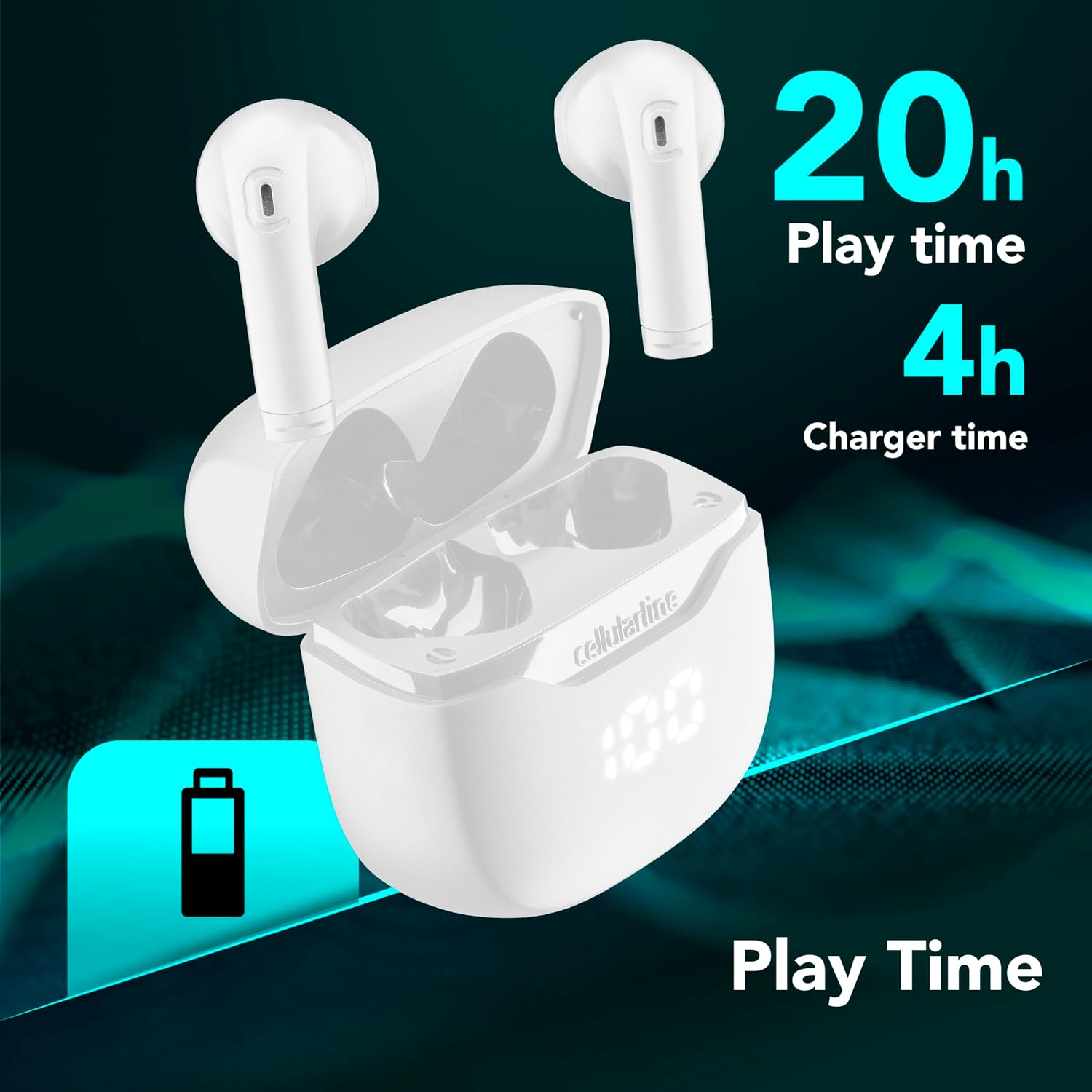
Image: The Cellularline CORE earphones and charging case, highlighting 20 hours of total play time and 4 hours of charging time for the case.
2. Initial Pairing (Autopairing)
- ודא שהאוזניות טעונות.
- פתחו את מארז הטעינה. האוזניות יידלקו אוטומטית ויכנסו למצב צימוד.
- בטלפון החכם או במכשיר התומך ב-Bluetooth שלך, עבור אל הגדרות ה-Bluetooth.
- חפש available devices and select "Cellularline CORE" from the list.
- לאחר החיבור, תשמעו אישור קולי, והאוזניות מוכנות לשימוש.

Image: Cellularline CORE earphones and charging case next to a smartphone displaying a music application, with a Bluetooth icon indicating successful pairing.
The Autopairing function ensures that once paired, the earphones will automatically connect to your last paired device when removed from the case.
הוראות הפעלה
מגע בפקדים
The Cellularline CORE earphones feature intuitive touch controls on each earbud for managing calls, music, and voice assistant functions.
| פוּנקצִיָה | פְּעוּלָה |
|---|---|
| הפעל/השהה מוזיקה | הקשה אחת על אחת האוזניות |
| המסלול הבא | הקש פעמיים על האוזניה הימנית |
| המסלול הקודם | הקש פעמיים על האוזניה השמאלית |
| מענה/סיום שיחה | הקשה אחת על אחת האוזניות |
| דחה שיחה | לחץ והחזק את אחת האוזניות למשך 2 שניות |
| הפעל את עוזר הקולי | לחיצה משולשת על כל אחת מהאוזניות |
| הגברת עוצמת הקול | לחץ והחזק את האוזניה הימנית |
| הורדת עוצמת הקול | לחץ והחזק את האוזניה השמאלית |
Double Master Function
The Double Master function allows you to use either the left or right earbud independently for calls. Simply remove one earbud from the case, and it will automatically connect. You can answer calls by tapping the active earbud.
תַחזוּקָה
ניקוי
- נקו באופן קבוע את האוזניות ואת מארז הטעינה בעזרת מטלית רכה, יבשה ונטולת סיבים.
- אין להשתמש בחומרי ניקוי שוחקים, ממסים או תרסיסים.
- ודאו שמגעי הטעינה הן באוזניות והן בנרתיק נקיים וללא לכלוך כדי לשמור על טעינה תקינה.
אִחסוּן
- כאשר אינן בשימוש, אחסנו את האוזניות בנרתיק הטעינה שלהן כדי להגן עליהן ולשמור עליהן טעונות.
- יש לאחסן את המכשיר במקום קריר ויבש, הרחק מטמפרטורות קיצוניות ואור שמש ישיר.

Image: A hand placing the compact Cellularline CORE charging case into the pocket of a pair of jeans, demonstrating its portable size.
פתרון בעיות
| בְּעָיָה | פתרון אפשרי |
|---|---|
| האוזניות לא נדלקות. | Ensure the earphones and charging case are fully charged. Place earphones in the case and close it, then open it again. |
| האוזניות לא מתחברות למכשיר. | Make sure Bluetooth is enabled on your device. Forget the device in your Bluetooth settings and try pairing again. Ensure earphones are in pairing mode (LED indicator blinking). |
| רק אוזניות אחת עובדות. | Place both earphones back into the charging case, close the lid, wait a few seconds, then open it again. This should re-sync them. If the issue persists, try resetting the earphones (refer to manufacturer's webאתר לקבלת הוראות איפוס ספציפיות אם אינן במדריך). |
| עוצמת קול נמוכה או איכות צליל ירודה. | Adjust the volume on both your device and the earphones. Ensure the earphones are clean and properly seated in your ears. Check for any obstructions in the earbud speakers. |
| Charging case LED display is not working. | Ensure the charging cable is securely connected and the power source is active. If the issue persists, contact customer support. |
מפרטים
- שם הדגם: BTCORETWSW
- מותג: קו סלולרי
- צֶבַע: לָבָן
- מיקום אוזניים: בתוך האוזן
- גורם צורה: בתוך האוזן
- טכנולוגיית קישוריות: אַלחוּט
- טכנולוגיה אלחוטית: בלוטות'
- גרסת בלוטות': 5.0
- עַכָּבָּה: 16 אוהם
- בקרת רעש: בידוד קול
- תגובת תדירות: 20 הרץ - 20,000 הרץ
- רְגִישׁוּת: 100 dB
- סוג בקרה: לָגַעַת
- סוג מנהל התקן: מנהל התקן דינמי
- חוֹמֶר: פּלָסטִי
- חיי סוללה ממוצעים: 16 שעות (עם מארז טעינה)
- רמת עמידות במים: Waterproof (Note: Refer to product packaging for specific IP rating if available)
- תכונות: True Wireless Technology, Automatic Pairing, Touch Controls, LED Display
- מכשירים תואמים: מכשירים התומכים בבלוטות'
- ארץ מוצא: סִין
מידע על אחריות
The Cellularline CORE True Wireless Bluetooth Earphones come with a אחריות יצרן לשנה ממועד הרכישה. אחריות זו מכסה פגמים בחומרים ובביצוע בשימוש רגיל. היא אינה מכסה נזק שנגרם כתוצאה משימוש לרעה, תאונות, שינויים לא מורשים או בלאי רגיל.
Please retain your proof of purchase for warranty claims. For detailed warranty terms and conditions, please visit the official Cellularline webאתר או צור קשר עם תמיכת הלקוחות.
תְמִיכָה
For further assistance, technical support, or warranty inquiries, please contact Cellularline customer service through their official webאֲתַר:
Webאֲתַר: www.cellularline.com
You may also find FAQs and additional support resources on their webאֲתַר.