
1. המוצר נגמרview
The SIIG JU-DK0L11-S1 is a versatile USB 3.0 Dual Monitor Docking Station designed to expand your laptop or desktop's connectivity and display capabilities. It supports up to two 1080p@60Hz Full HD video displays via two HDMI ports, along with multiple USB ports, Gigabit Ethernet, and a 3.5mm audio jack. This docking station is compatible with both Windows and macOS operating systems, including Mac M1/M2/M3 Pro&Max.
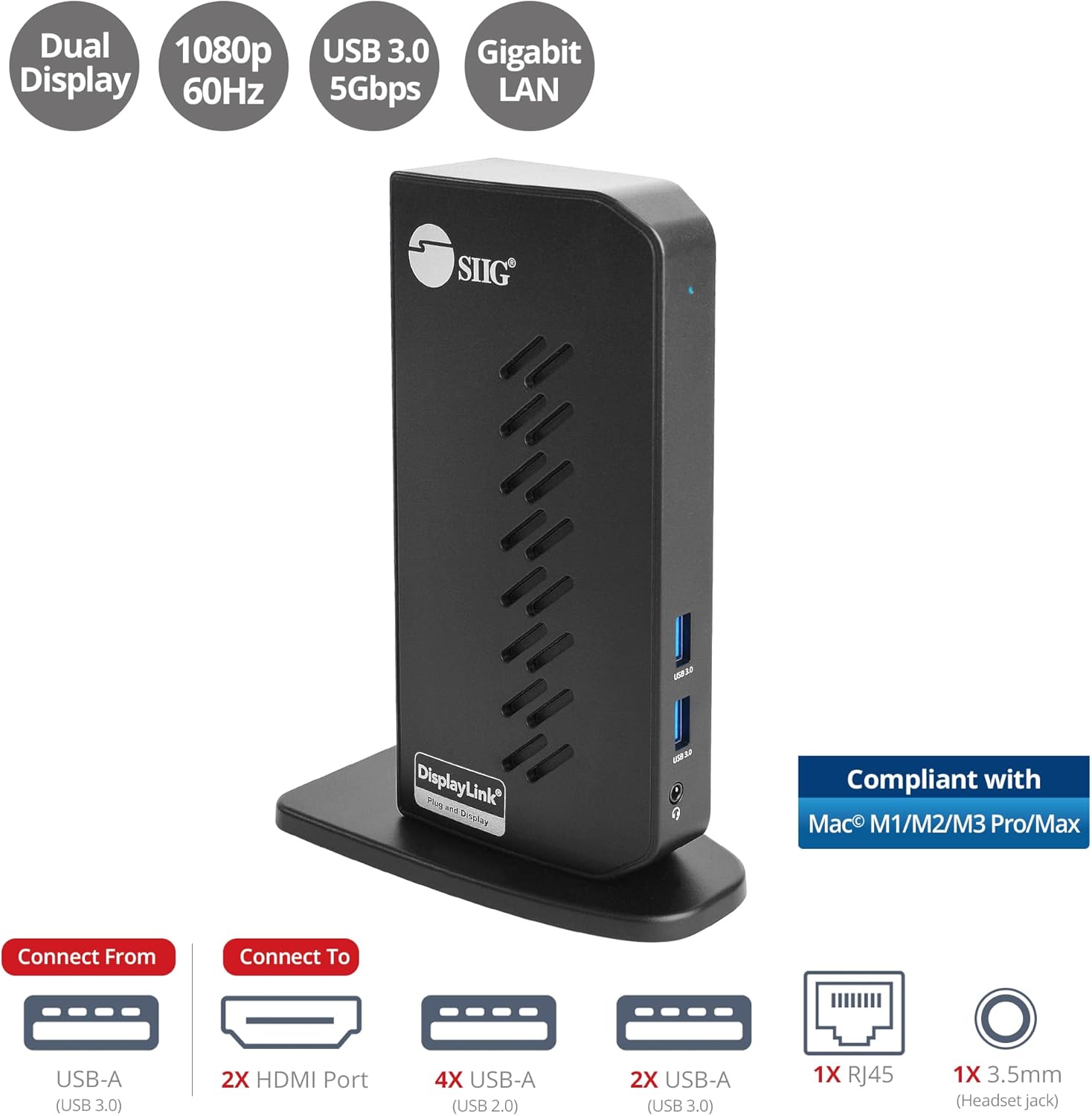
Image 1.1: The SIIG JU-DK0L11-S1 Dual Monitor Docking Station, showcasing its compact vertical design and various connectivity options.
2. תכולת החבילה
ודא שכל הפריטים נמצאים באריזה לפני שתמשיך בהתקנה.
- SIIG JU-DK0L11-S1 Dual Head Full HD HDMI Video Docking Station
- מתאם מתח (12V/2A)
- USB 3.0 Type-A to Type-B Cable
- Driver CD (Drivers can also be downloaded from the official SIIG webאֲתַר)
- מדריך למשתמש

Image 2.1: All components included in the SIIG JU-DK0L11-S1 docking station package, including the docking station, power adapter, USB cable, driver CD, and user manual.
3. פריסת חומרה
Familiarize yourself with the ports and indicators on the docking station.
פאנל קדמי
- LED מתח: מציין מצב כוח.
- 2x יציאות USB 3.0: For connecting high-speed USB devices (5Gbps, 4.5W/900mA).
- שקע אוזניות 3.5 מ"מ: For connecting headphones or stereo speakers with microphone input.
פאנל אחורי
- 4x יציאות USB 2.0: For connecting standard USB devices (480Mbps, 5V/900mA).
- יציאת RJ45 Gigabit Ethernet: לחיבור רשת קווי (10/100/1000Mbps).
- 2x HDMI Outputs: For connecting external displays (up to 1080p@60Hz).
- USB 3.0 Type-B Port: For connecting the docking station to your host computer.
- שקע חשמל: לחיבור מתאם החשמל 12V/2A.

תמונה 3.1: מפורט view of the front and rear panels of the docking station, highlighting all available ports and their functions.
4. הוראות התקנה
בצע את השלבים הבאים כדי להגדיר את תחנת העגינה שלך:
- התקנת מנהלי התקנים של DisplayLink: Before connecting the docking station, install the necessary DisplayLink drivers on your computer. You can use the included driver CD or download the latest drivers from the official DisplayLink webאתר (www.displaylink.com/downloads) or SIIG's support page.
- חבר חשמל: Plug the provided 12V/2A power adapter into the docking station's power jack and then into a wall outlet. The Power LED on the front panel should illuminate.
- התחברות למחשב מארח: Use the supplied USB 3.0 Type-A to Type-B cable to connect the docking station's USB 3.0 Type-B port to an available USB 3.0 Type-A port on your laptop or desktop computer.
- חיבור צגים: Connect your external monitors to the two HDMI output ports on the rear of the docking station using HDMI cables.
- חבר ציוד היקפי: Connect your USB devices (keyboard, mouse, printer, flash drives, etc.) to the available USB 3.0 and USB 2.0 ports. Connect an Ethernet cable to the RJ45 port for a wired network connection. Plug your headset or speakers into the 3.5mm audio jack.
Video 4.1: An official video demonstrating the setup and connectivity of the SIIG JU-DK0L11-S1 Dual Head Full HD HDMI Docking Station, showing how to connect monitors and peripherals.
5. הוראות הפעלה
Once the docking station is set up, you can configure your display settings and utilize the connected peripherals.
מצבי תצוגה
The docking station supports three primary display modes:
- מצב מראה: Duplicates your primary display onto the external monitors.
- מצב הארכה: מרחיב את שולחן העבודה שלך על פני מסכים מרובים, ומאפשר מרחב עבודה גדול יותר.
- מצב ראשי: Designates one of the connected displays as the main display.
You can configure these settings through your operating system's display settings (e.g., Windows Display Settings or macOS System Settings > Displays).

Image 5.1: A typical dual 1080p monitor setup utilizing the SIIG docking station, demonstrating an extended display configuration for enhanced productivity.
קישוריות USB
The docking station provides two USB 3.0 ports for high-speed data transfer (e.g., external hard drives, SSDs) and four USB 2.0 ports for standard peripherals (e.g., keyboard, mouse, printer). Simply plug your devices into the corresponding ports.
Gigabit Ethernet
For a stable and fast internet connection, connect an Ethernet cable from your router or modem to the RJ45 port on the docking station. This provides a more reliable connection than Wi-Fi, supporting 10/100/1000 BASE-T wired networks.

תמונה 5.2: תקריב view of the Gigabit RJ45 Ethernet port and USB ports, illustrating their use for network and high-speed data transmission.
חיבור שמע
The 3.5mm headset jack allows you to connect headphones, speakers, or a microphone. Ensure your operating system's audio settings are configured to use the docking station's audio output/input.
6. Specifications (Model: JU-DK0L11-S1)
| מותג | SIIG |
| מספר דגם | JU-DK0L11-S1 |
| ממשק חומרה | 3.5mm Audio, Ethernet, HDMI, USB 1.1, USB 2.0, USB 3.0 |
| מכשירים תואמים | Desktop or laptop computer with an available USB 3.0 Type-A port. Compatible with Windows® 11/10/8.1/8/7 and macOS® 11 / 10.15 to 10.10. |
| סך כל יציאות USB | 6 (2x USB 3.0, 4x USB 2.0) |
| סך כל יציאות HDMI | 2 |
| רזולוציה מקסימלית | 1080p@60Hz (per display) |
| מהירות אתרנט | ג'יגה-ביט (10/100/1000 מגה-ביט לשנייה) |
| קלט כרךtage | 100 וולט (AC) |
| מידות המוצר (L x W x H) | 5.31 אינץ' x 2.87 אינץ' x 7.36 אינץ' |
| משקל פריט | 0.75 פאונד |

Image 6.1: Physical dimensions of the SIIG JU-DK0L11-S1 docking station, illustrating its compact and space-saving design.
7. פתרון תקלות
- אין פלט תצוגה:
- ודא שתחנת העגינה דולקת וכי נורית ההפעלה דולקת.
- Verify that the USB 3.0 cable is securely connected between the docking station and your computer.
- Check that HDMI cables are firmly connected to both the docking station and your monitors.
- Confirm that DisplayLink drivers are correctly installed and up to date.
- נסה להפעיל מחדש את המחשב.
- התקני USB לא מזוהים:
- Ensure the docking station is powered and connected to your computer.
- נסה לחבר את התקן ה-USB ליציאה אחרת בתחנת העגינה.
- Connect the USB device directly to your computer to rule out device issues.
- אין חיבור רשת:
- Verify the Ethernet cable is securely connected to the RJ45 port on the docking station and your network source.
- Check your computer's network settings to ensure the Ethernet adapter is enabled.
- Confirm that your router/modem is functioning correctly.
- בעיות שמע:
- Ensure your headset/speakers are properly plugged into the 3.5mm jack.
- Check your computer's sound settings to select the docking station as the default audio output/input device.
8. תחזוקה
To ensure the longevity and optimal performance of your SIIG docking station, follow these maintenance guidelines:
- שמרו על ניקיון המכשיר על ידי ניגובו במטלית רכה ויבשה. הימנעו משימוש בחומרי ניקוי נוזליים או תרסיסים.
- Ensure proper ventilation around the docking station to prevent overheating. The vertical design with heat dissipation features aids in this.
- הימנע מחשיפת המכשיר לטמפרטורות קיצוניות, לחות או לאור שמש ישיר.
- טפלו בכבלים ובמחברים בעדינות כדי למנוע נזק.
9. אחריות ותמיכה
For warranty information and technical support, please refer to the documentation included with your product or visit the official SIIG website. SIIG is committed to providing reliable products and customer assistance.
For further assistance, you may contact SIIG customer support directly through their webאתר או פרטי הקשר המופיעים באריזת המוצר.