
1. הקדמה
This manual provides essential information for setting up, operating, maintaining, and troubleshooting your ASUS TUF Gaming A15 FA506II-AS53 laptop. Please read this manual thoroughly to ensure proper usage and to maximize the performance and lifespan of your device.
2. המוצר נגמרview
The ASUS TUF Gaming A15 FA506II-AS53 is a robust gaming laptop designed for performance and durability. It features a 15.6-inch 144Hz Full HD IPS-Type display, powered by an AMD Ryzen 5 4600H processor and NVIDIA GeForce GTX 1650 Ti graphics. The laptop includes 8GB DDR4 RAM and a 512GB PCIe SSD for fast loading and multitasking. Its design incorporates a durable MIL-STD-810H military standard construction and an Anti-Dust Cooling (ADC) system for extended longevity. The RGB backlit keyboard offers a 20-million keystroke durability.
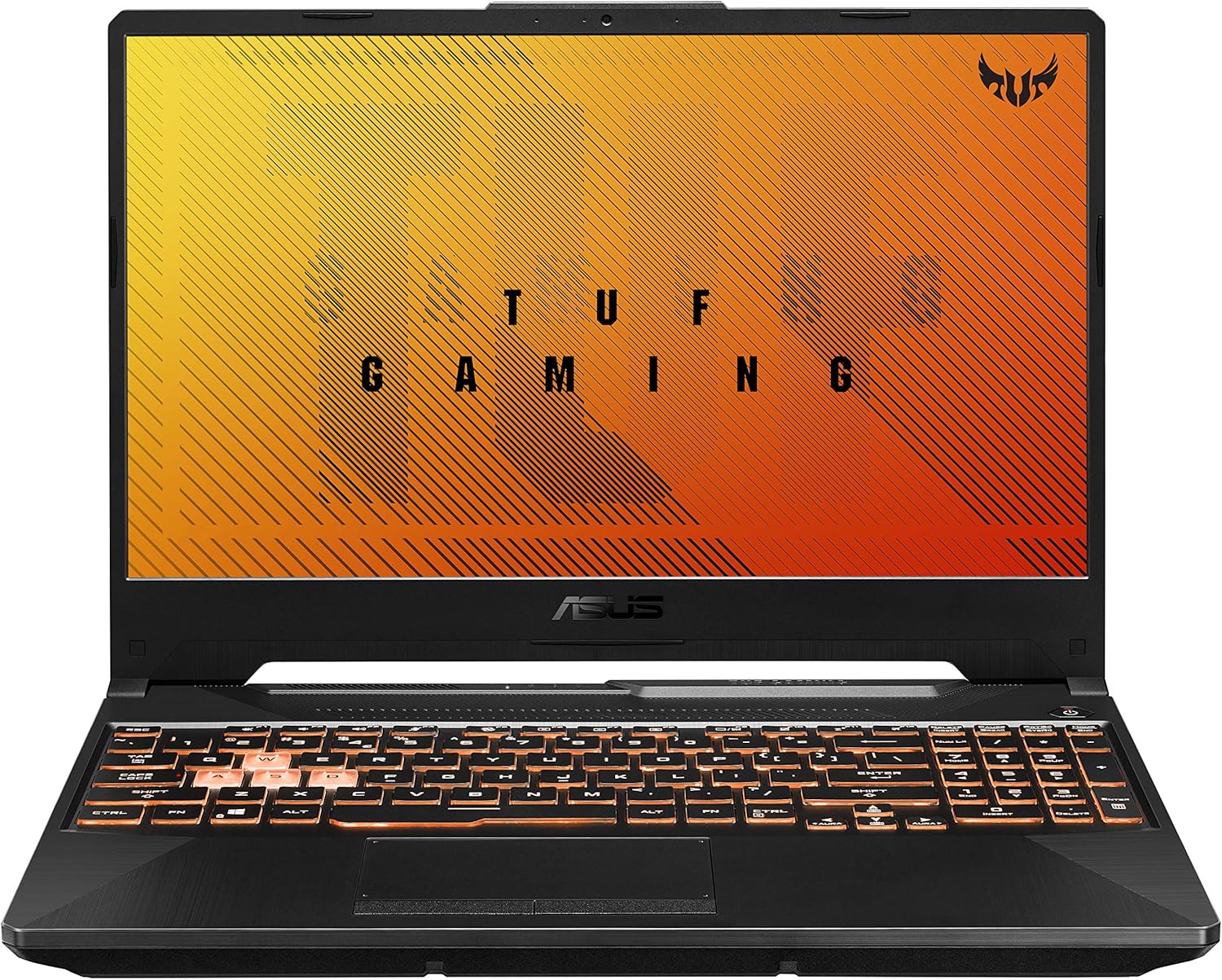
איור 2.1: זוויתי view of the ASUS TUF Gaming A15 laptop with its display open.
תכונות עיקריות:
- מעבד: AMD Ryzen 5 4600H
- גרָפִיקָה: NVIDIA GeForce GTX 1650 Ti 4GB GDDR6
- לְהַצִיג: 15.6-inch 144Hz FHD (1920x1080) IPS-Type
- אִחסוּן: כונן SSD PCIe NVMe M.2 בנפח 512 ג'יגה-בייט
- זֵכֶר: זיכרון RAM של 8 ג'יגה-בייט DDR4 3200 מגה-הרץ
- מַעֲרֶכֶת הַפעָלָה: Windows 10 Home (Free upgrade to Windows 11 available)
- עֲמִידוּת: MIL-STD-810H military standard construction
- הִתקָרְרוּת: Dual fans with self-cleaning anti-dust technology
- מִקלֶדֶת: RGB Backlit, 20-million keystroke durability
- קישוריות: Gigabit Wave 2 Wi-Fi 5 (802.11ac)
3. הגדרה ראשונית
3.1 פתיחת האריזה וחיבור לחשמל
- הוציאו בזהירות את המחשב הנייד ואת כל האביזרים מהאריזה.
- חבר את מתאם ה-AC לשקע החשמל של המחשב הנייד ולאחר מכן חבר אותו לשקע חשמל.
- פתח את מכסה המחשב הנייד ולחץ על כפתור ההפעלה כדי להפעיל את המכשיר.

Figure 3.1: The ASUS TUF Gaming A15 laptop with its display open, ready for initial setup.
3.2 הגדרת מערכת הפעלה (Windows 10 Home)
Upon first boot, the laptop will guide you through the Windows 10 Home setup wizard. Follow the on-screen prompts to configure your region, language, network settings, and user account. It is recommended to connect to the internet during this process to ensure all necessary updates are downloaded.
During the setup, you will be asked to customize your device usage. Selecting 'Gaming' will optimize Windows 10 for gaming performance and suggest relevant tools and services.

איור 3.2: מלמעלה למטה view of the ASUS TUF Gaming A15 keyboard, highlighting the WASD keys and RGB backlighting.
4. יציאות וקישוריות
The ASUS TUF Gaming A15 offers a variety of ports for connecting peripherals and external displays.
4.1 יציאות זמינות:
- USB 3.2 דור 1 סוג-A: Multiple ports for high-speed data transfer.
- USB 3.2 דור 2 סוג-C: Supports DisplayPort 1.4 for external monitors.
- HDMI 2.0b: לחיבור לצגים חיצוניים או טלוויזיות.
- יציאת LAN RJ45: עבור חיבור אינטרנט קווי.
- שקע אודיו משולב 3.5 מ"מ: For headphones with microphone.
- קלט כוח: לחיבור מתאם ה-AC.

Figure 4.1: Left side of the ASUS TUF Gaming A15 laptop, displaying the power input, RJ45, HDMI, USB-A, and USB-C ports.
4.2 Wireless Connectivity:
- Wi-Fi 5 (802.11ac): Provides fast wireless internet access.
- Bluetooth 5.0: For connecting wireless peripherals like headsets and mice.
5. מקלדת ומשטח מגע
The ASUS TUF Gaming A15 features a full-sized RGB backlit keyboard and a responsive touchpad.
5.1 RGB Backlit Keyboard:
- The keyboard offers customizable RGB backlighting, allowing you to personalize the lighting effects.
- The WASD keys are highlighted for gaming.
- Keys are rated for 20-million keystroke durability.
5.2 לוח מגע:
The touchpad supports multi-touch gestures for intuitive navigation within Windows. It is designed for quick and accurate response.
6. ביצועים
The ASUS TUF Gaming A15 is built for gaming and demanding tasks. Its AMD Ryzen 5 4600H processor and NVIDIA GeForce GTX 1650 Ti graphics card provide solid performance for 1080p gaming and everyday computing.
6.1 Gaming Performance:
The GTX 1650 Ti is capable of running many modern games at 1080p resolution with playable frame rates. For optimal performance, ensure your laptop is plugged in and set to a high-performance power profile.
6.2 Cooling System:
The laptop incorporates dual fans with self-cleaning anti-dust technology to maintain optimal temperatures during intensive use, preventing thermal throttling and extending component lifespan. While fans may become audible under heavy load, this is normal for gaming laptops.

Figure 6.1: Diagram illustrating the 'Lasting Cool' anti-dust cooling system of the ASUS TUF Gaming A15.
7. תחזוקה
Regular maintenance helps ensure the longevity and optimal performance of your ASUS TUF Gaming A15 laptop.
7.1 ניקוי:
- השתמש במטלית רכה ונטולת סיבים כדי לנקות את המסך והחלק החיצוני.
- עבור כתמים עקשניים, לטחון קלותampשטפו את המטלית במים או בחומר ניקוי למסכים.
- נקו באופן קבוע את המקלדת ואת משטח המגע כדי להסיר אבק ולכלוך.
- Ensure cooling vents are clear of obstructions to maintain airflow.
7.2 עדכוני תוכנה:
Keep your operating system and drivers updated. Windows Update will handle OS updates, and the MyASUS application can assist with driver and firmware updates specific to your ASUS hardware.
7.3 טיפול בסוללה:
- הימנעו מפריקת הסוללה באופן מלא לעתים קרובות.
- For prolonged storage, charge the battery to about 50-60% and store the laptop in a cool, dry place.
- If primarily using the laptop while plugged in, consider using battery health management features in MyASUS to extend battery lifespan.
8. פתרון תקלות
סעיף זה מטפל בבעיות נפוצות שאתה עשוי להיתקל בהן במחשב הנייד שלך.
8.1 בעיות נפוצות ופתרונות:
- מחשב נייד לא נדלק: ודא שמתאם ה-AC מחובר היטב ושקע החשמל תקין. נסה להחזיק את לחצן ההפעלה למשך 15-20 שניות כדי לבצע איפוס קשיח.
- המסך ריק: Connect an external monitor to check if the display output is working. If it is, the laptop screen may require service. Try pressing Fn + F6 (or the appropriate function key for display toggle) to switch display modes.
- ביצועים איטיים: Check for background applications consuming resources. Ensure Windows and drivers are up to date. Consider upgrading RAM if frequently running demanding applications.
- בעיות קישוריות Wi-Fi: Restart your router and modem. Ensure Wi-Fi drivers are updated. Check network settings in Windows.
- מקלדת או משטח מגע לא מגיבים: הפעל מחדש את המחשב הנייד. בדוק אם יש עדכוני מנהלי התקנים במנהל ההתקנים.
8.2 MyASUS Application for Diagnostics and Support:
The MyASUS application provides tools for system diagnostics, updates, and direct contact with ASUS support. It can help identify and resolve many software and hardware issues.
Video 8.1: MyASUS Product Video. This video demonstrates the features and benefits of the MyASUS application, including system updates, diagnostics, and customer support options, helping users maintain and troubleshoot their ASUS devices.
9. מפרטים
| תכונה | מִפרָט |
|---|---|
| מותג | ASUS |
| שם הדגם | ASUS TUF A16 Gaming Laptop (FA506II-AS53) |
| גודל מסך | 15.6 אינץ' |
| רזולוציית מסך | 1920 x 1080 pixels (FHD IPS-Type) |
| מעבד | AMD Ryzen 5 4600H (3 גיגה-הרץ) |
| אַיִל | 8 ג'יגה-בייט DDR4 3200 מגה-הרץ |
| כונן קשיח | כונן SSD PCIe NVMe M.2 בנפח 512 ג'יגה-בייט |
| מעבד גרפי | NVIDIA GeForce GTX 1650 Ti (4 GB GDDR6) |
| מַעֲרֶכֶת הַפעָלָה | Windows 10 Home |
| סוג אלחוטי | 802.11ac (Wi-Fi 5) |
| מספר יציאות USB 3.0 | 4 (includes USB 3.2 Gen 1 Type-A and USB 3.2 Gen 2 Type-C) |
| משקל פריט | 5.07 פאונד (2.3 ק"ג) |
| מידות המוצר | 13.97 x 0.87 x 9.92 אינץ' |
| צֶבַע | מדורה שחורה |
| סוללות | נדרשת סוללת ליתיום יון אחת (כלול) |
10. אחריות ותמיכה
Your ASUS TUF Gaming A15 laptop comes with a manufacturer's warranty. For specific warranty terms and conditions, please refer to the documentation included with your product or visit the official ASUS support website. Registering your product with ASUS can facilitate support and warranty claims.
10.1 Contacting ASUS Support:
For technical assistance, troubleshooting, or warranty service, you can contact ASUS customer support through their official website or the MyASUS application. Having your product's serial number (located on the bottom of the laptop or in the MyASUS app) ready will expedite the support process.
10.2 MyASUS Application:
The MyASUS application is pre-installed on your laptop and serves as a central hub for system information, diagnostics, software updates, and direct access to ASUS customer service. It is recommended to utilize this tool for managing your device and seeking support.