
מָבוֹא
This manual provides essential instructions for setting up, operating, maintaining, and troubleshooting your Surfans K7 Kids Tablet. Please read this guide thoroughly to ensure proper use and to maximize the tablet's features for a safe and engaging experience for children.
המוצר נגמרview
תכונות מפתח
- מערכת הפעלה אנדרואיד 10.0: Provides a secure and fast user experience.
- 7-inch IPS FHD Display: Features a 1920 x 1200 resolution eye-care touchscreen with a 178-degree wide viewזווית ing.
- מעבד מרובע ליבות: Ensures smooth performance for apps and games.
- 2GB RAM, 32GB ROM: Sufficient memory for multitasking and storage, expandable via MicroSD card.
- מצלמות כפולות: Equipped with 2MP front and 5MP rear cameras for photos and video calls.
- קישוריות: Includes Wi-Fi and Bluetooth for wireless connections.
- Pre-installed iWAWA App: Offers updated educational content including games, videos, e-books, drawing, puzzles, and creative arts.
- גישה לחנות גוגל פליי: Allows downloading additional applications like YouTube Kids, Netflix, and Hulu.
- Parental Control Mode: Enables parents to manage content, set time limits, and customize child profiles.
- נרתיק עמיד לילדים: Comes with a colorful, soft, and high-quality silicone case with an integrated 360-degree adjustable stand, suitable for children aged 2 to 10 years.

Image: The Surfans K7 Kids Tablet showcasing its GMS Certified Android 10.0 operating system and access to various applications via Google Play Store.

Image: The Surfans K7 Kids Tablet in use, illustrating its key features including quad-core processor, Android 10.0, 2GB RAM, 32GB ROM, WiFi, and Parent Mode.
רכיבי טאבלט
הכירו את הרכיבים הפיזיים של הטאבלט שלכם:
- לחצן הפעלה: Typically located on the side, used to turn the tablet on/off or put it to sleep/wake it up.
- לחצני עוצמת הקול: כוונן את רמת פלט השמע.
- יציאת USB-C: For charging the tablet and connecting to a computer for data transfer.
- שקע שמע 3.5 מ"מ: לחיבור אוזניות או רמקולים חיצוניים.
- חריץ כרטיס MicroSD: Allows for memory expansion using a compatible MicroSD card.
- מצלמה קדמית: Used for video calls and taking selfies.
- מצלמה אחורית: לצילום תמונות וסרטונים.
- רַמקוֹל: Provides audio output for media and notifications.
הגדרה
1. טעינת הטאבלט
Before first use, fully charge the tablet. Connect the provided USB cable to the tablet's USB-C port and the other end to the power adapter. Plug the adapter into a wall outlet. The battery indicator on the screen will show the charging status.
2. הפעלה / כיבוי
- כדי להפעיל: Press and hold the Power Button until the screen lights up and the Surfans logo appears.
- כדי לכבות: Press and hold the Power Button until a menu appears on the screen. Select "Power off" and confirm.
- לישון/להתעורר: לחץ לחיצה קצרה על לחצן ההפעלה כדי להעביר את הטאבלט למצב שינה או להעיר אותו.
3. הגדרה ראשונית
Upon first power-on, follow the on-screen prompts to configure basic settings:
- בחר את השפה המועדפת עליך.
- Connect to a Wi-Fi network (see next step).
- Set up your Google account or create a new one. This is necessary for downloading apps from the Google Play Store.
- Review ולקבל את התנאים וההגבלות.
4. התחברות ל-Wi-Fi
To connect your tablet to the internet:
- עבור אל הגדרות.
- הקש על רשת ואינטרנט.
- לִבחוֹר Wi-Fi ולהפעיל אותו.
- The tablet will scan for available networks. Select your desired network from the list.
- Enter the Wi-Fi password if prompted, then tap לְחַבֵּר.
הוראות הפעלה
1. ניווט בסיסי
The Surfans K7 tablet uses a touchscreen for interaction:
- בֶּרֶז: Touch the screen once to select an item, open an app, or press a button.
- לִגנוֹב: גרור את האצבע על פני המסך כדי לגלול בין דפים, רשימות או לעבור בין מסכי בית.
- צביטה-להגדלה: הניחו שתי אצבעות על המסך והרחיקו אותן זו מזו או זו מזו כדי להגדיל או להקטין את התצוגה.
- התראות והגדרות מהירות: החלק מטה מראש המסך כדי לגשת להתראות ולמתגי הגדרות מהירות (Wi-Fi, Bluetooth וכו').
2. Downloading Apps from Google Play Store
With a Google account set up, you can download a wide variety of applications:
- הקש על חנות Play סמל במסך הבית או במגירת האפליקציות.
- Browse or search for apps, games, movies, and books.
- Select an item and tap לְהַתְקִין כדי להוריד ולהתקין אותו.
3. Using Pre-installed iWAWA App
The iWAWA app provides a safe and engaging environment for children:
- אתר והקש על iWAWA סמל.
- Explore the various categories such as games, videos, e-books, and creative activities.
- Content within iWAWA is curated to be age-appropriate and educational.
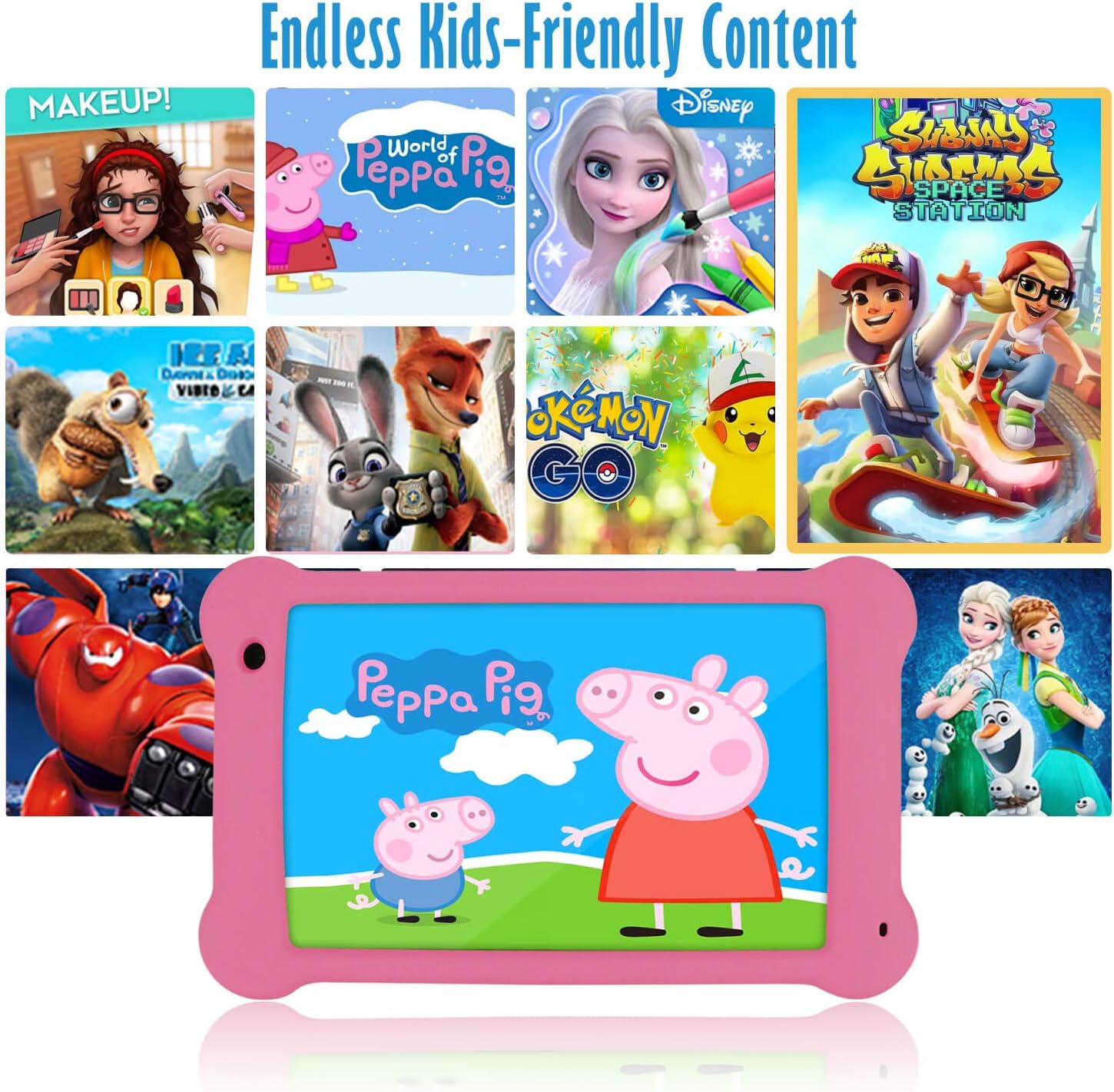
Image: The Surfans K7 Kids Tablet showcasing a variety of popular kid-friendly content, accessible through pre-installed apps and Google Play Store.
מצב בקרת הורים
The Surfans K7 tablet includes a dedicated Parental Control Mode to manage your child's usage and ensure a safe digital environment.
1. Accessing Parental Mode
To access and configure parental controls:
- אתר ופתח את מצב ההורה or iWAWA Parent יישום בטאבלט.
- You will be prompted to set up a password or PIN for secure access. Remember this password.
2. Setting Time Limits
Manage how long your child can use the tablet:
- Configure daily usage limits for the tablet.
- Set specific time blocks during which the tablet can or cannot be used (e.g., bedtime restrictions).
3. Content Filtering
Ensure your child accesses only appropriate content:
- Select and approve specific applications, websites, and media content that your child is allowed to access.
- Block inappropriate content categories or specific webאתרים.
4. Managing Child Profiles
Create personalized experiences for each child:
- צור מקצוען אישיfiles for multiple children.
- Customize settings, content access, and time limits for each profile based on age and preferences.

Image: A parent and child using the Surfans K7 Kids Tablet, demonstrating the ease of setting up and managing parental controls for time limits, child lock, and content filtering.
תַחזוּקָה
1. ניקוי הטאבלט
To keep your tablet clean and functional:
- Use a soft, lint-free cloth (e.g., microfiber cloth) to gently wipe the screen and tablet body.
- עבור כתמים עקשניים, מעט דמוי עורampen the cloth with water. Avoid using harsh chemicals, abrasive cleaners, or excessive moisture, as these can damage the screen or internal components.
- ודא שהטאבלט כבוי ומנותק מהחשמל לפני הניקוי.
2. טיפול בסוללה
Proper battery care extends the tablet's lifespan:
- Avoid fully discharging the tablet frequently. Charge the tablet when the battery level is low (e.g., below 20%).
- Do not expose the tablet to extreme temperatures (hot or cold), as this can degrade battery performance.
- השתמש רק במטען המצורף או במטען תואם מאושר.
3. עדכוני תוכנה
Keep your tablet's software up-to-date for optimal performance and security:
- Periodically check for system updates by going to הגדרות > מערכת > עדכון מערכת.
- Ensure your tablet is connected to Wi-Fi and has sufficient battery charge before starting an update.
4. Protective Case Care
The included kid-proof silicone case offers protection:
- נקה את המארז עם מודעהamp מטלית אם היא מתלכלכת.
- Ensure the case is properly fitted around the tablet to provide maximum protection against drops and bumps.

תמונה: מפורט view of the Surfans K7 Kids Tablet's durable kid-proof case, highlighting its soft silicone material and anti-drop corner design for enhanced protection.
פתרון בעיות
This section addresses common issues you might encounter with your Surfans K7 Kids Tablet.
Tablet Does Not Turn On
- בדוק את הסוללה: Ensure the tablet is charged. Connect it to the charger for at least 30 minutes, then try powering it on again.
- כפה הפעלה מחדש: Press and hold the Power Button for about 10-15 seconds until the tablet restarts.
Screen is Black but Audio is Playing
This can sometimes occur:
- Briefly press the Power Button to put the screen to sleep, then press it again to wake it up.
- If the issue persists, perform a force restart by pressing and holding the Power Button for 10-15 seconds.
בעיות חיבור Wi-Fi
- הפעל Wi-Fi: עבור אל הגדרות > רשת ואינטרנט > Wi-Fi and ensure Wi-Fi is turned on.
- הפעל מחדש את הנתב: הפעל מחדש את הנתב והמודם של ה-Wi-Fi.
- שכחו את הרשת: Go to Wi-Fi settings, tap on your network, and select "Forget network." Then, reconnect to the network and re-enter the password.
- חוזק אות: If the signal is weak, move closer to your Wi-Fi router.
Apps Are Slow or Crashing
- סגור אפליקציות שאינן בשימוש: החלק למעלה מתחתית המסך (או הקש על כפתור הניווט המרובע) כדי view recent apps, then swipe them away to close.
- הפעל מחדש את הטאבלט: A simple restart can often resolve performance issues.
- נקה את מטמון האפליקציה: עבור אל הגדרות > אפליקציות > [שם האפליקציה] > אחסון ומטמון > נקה מטמון.
Tablet is Unresponsive
If the tablet freezes and does not respond to touch:
- Perform a force restart by pressing and holding the Power Button for approximately 10-15 seconds until the device powers off and restarts.
איפוס להגדרות יצרן (מוצא אחרון)
If all other troubleshooting steps fail, a factory reset may be necessary. Warning: This will erase all data on the tablet, including apps, photos, and user settings. Back up any important data before proceeding.
- עבור אל הגדרות > מערכת > אפשרויות איפוס.
- בֶּרֶז מחק את כל הנתונים (איפוס להגדרות היצרן).
- אשר את החלטתך ופעל לפי ההוראות שעל המסך.
מפרטים

Image: Visual comparison highlighting the superior clarity of the 1920x1200 FHD IPS display with a 178-degree wide viewing angle on the Surfans K7 Kids Tablet.
| תכונה | מִפרָט |
|---|---|
| מותג | סרפנים |
| שם הדגם | K7 |
| מַעֲרֶכֶת הַפעָלָה | אנדרואיד 10.0 |
| גודל מסך | 7 אינץ' |
| רזולוציית מסך מקסימלית | 1920 x 1200 פיקסלים |
| מותג מעבד | ARM (Quad-core 1.6GHz) |
| זיכרון RAM מותקן | 2 ג'יגה-בייט |
| קיבולת אחסון זיכרון | 32 ג'יגה-בייט |
| אחסון ניתן להרחבה | חריץ לכרטיס MicroSD |
| Front Photo Sensor Resolution | 2 מגה פיקסל |
| מקסימום Webמצלמה רזולוציית תמונה | 5 מגה פיקסל |
| רזולוציית הקלטת וידאו | FHD 1080p |
| טכנולוגיית קישוריות | בלוטות', USB, Wi-Fi |
| תאימות אלחוטית | 802.11a/b/g/n |
| קישוריות חומרה | 3.5 mm Audio Jack, USB-C Port |
| סוג סוללה | ליתיום פולימר |
| קיבולת סוללה | 3000 מיליאמפר/שעה |
| חיי סוללה ממוצעים | 8 שעות |
| משקל פריט | 450 גרם |
| צֶבַע | וָרוֹד |
| תיאור טווח גילאים | Baby, Children (2-10 years) |
אחריות ותמיכה
The Surfans K7 Kids Tablet comes with a standard manufacturer's warranty. For specific warranty terms, conditions, and duration, please refer to the warranty card included in the product packaging or contact Surfans customer support.
For technical assistance, troubleshooting beyond this manual, or further inquiries, please visit the official Surfans website or contact their customer service department through the contact information provided with your purchase or on their webאֲתַר.