
1. המוצר נגמרview
The j5create JCT425 is a wooden monitor stand designed to elevate your display to an ergonomic viewing height while providing integrated USB-C and HDMI docking capabilities. This device helps organize your workspace and expand connectivity for your computer or laptop.

Image 1.1: The j5create JCT425 monitor stand with a monitor, keyboard, and mouse, showcasing its ergonomic design and integrated hub.
2. תכולת החבילה
ודא שכל הפריטים נמצאים בחבילה:
- Wooden Monitor Stand Top Panel
- Aluminum Legs (2 units)
- כבל USB-C ל-USB-C
- Assembly Screws and Hex Key
- מדריך התקנה מהיר (מדריך זה)
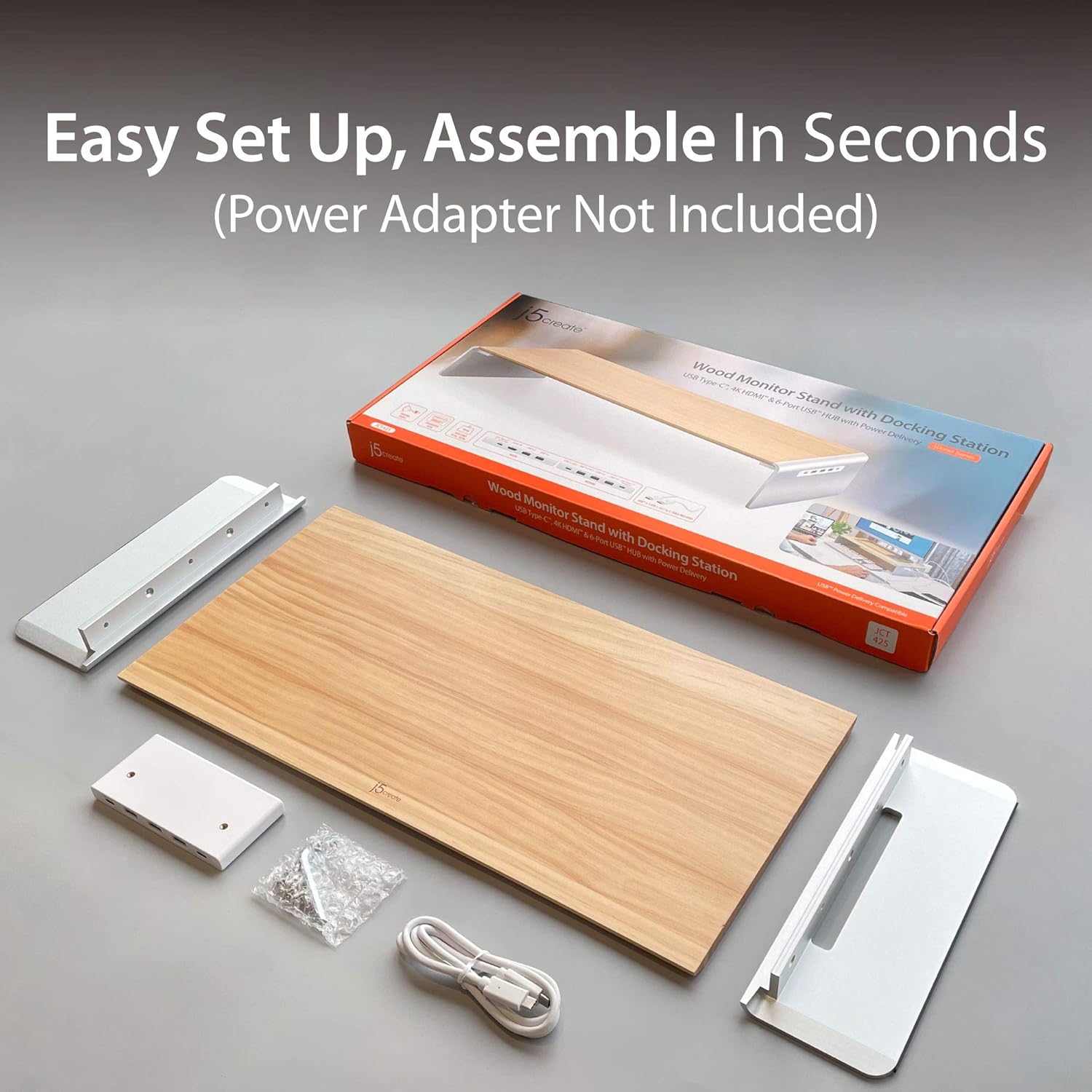
Image 2.1: Contents of the j5create JCT425 package, including the wooden top, aluminum legs, USB-C cable, and assembly hardware.
3. התקנה והתקנה
Follow these steps to assemble and connect your monitor stand:
- הרכב את המעמד: Attach the two aluminum legs to the wooden top panel using the provided screws and hex key. Ensure the screws are tightened securely to prevent wobbling.
- מקם את המעמד: Place the assembled monitor stand on a stable, flat surface on your desk.
- Place Your Monitor: Carefully place your monitor, laptop, or TV on the wooden top panel of the stand. Ensure it is centered and stable. The stand supports up to 88 lbs (40 kg).
- התחברות להתקן מארח: Use the included USB-C to USB-C cable to connect the monitor stand's USB-C upstream port (located on the back or side of the integrated hub) to a USB-C port on your computer or laptop. This connection enables the docking station features.
- חבר ציוד היקפי: Connect your USB devices (keyboard, mouse, external drives) to the available USB 3.0 ports on the stand.
- Connect External Display (Optional): If using an external monitor, connect an HDMI cable from the stand's HDMI port to your external display.
- אספקת חשמל (אופציונלי): If your host device supports USB-C Power Delivery, connect your laptop's USB-C power adapter to the stand's USB-C Power In port (if available and required for charging through the stand).
4. הוראות הפעלה
The j5create JCT425 functions as both an ergonomic monitor riser and a multi-port docking station.
4.1. Ergonomic Monitor Riser
The stand elevates your monitor to a comfortable viewing height, which can help reduce neck and eye strain. The space underneath the stand can be used for keyboard, mouse, or other desk accessories, promoting a clutter-free workspace.

Image 4.1: The monitor stand in use, demonstrating its ability to organize a desk setup with a laptop, external monitor, and peripherals.
4.2. USB-C/HDMI Docking Station
The integrated hub provides various ports for expanded connectivity:
- יציאות USB 3.0: Connect USB peripherals such as keyboards, mice, external hard drives, or USB flash drives. These ports offer high-speed data transfer.
- יציאת USB-C 3.1: For connecting newer USB-C devices.
- יציאת 4K HDMI: Connect an external display to extend or mirror your computer's screen. Supports resolutions up to 4K.
- USB-C to PC/NB (Upstream Port): This port connects the stand to your computer, enabling all docking station functionalities.
- Up To PD 100W Power In (Optional): If your laptop requires power, connect your laptop's USB-C power adapter here to charge your laptop through the stand while using the hub.

תמונה 4.2: מפורט view of the USB-C hub ports on the j5create JCT425, labeling USB 3.0, USB-C 3.1, 4K HDMI, USB-C to PC/NB, and Power In ports.
5. תחזוקה וטיפול
To ensure the longevity and appearance of your j5create JCT425 monitor stand, follow these care guidelines:
- ניקוי: Use a soft, dry cloth to wipe down the wooden and aluminum surfaces. For stubborn marks, a slightly damp ניתן להשתמש במטלית עם סבון עדין, ולאחר מכן ייבוש מיידי. יש להימנע מחומרי ניקוי שוחקים או כימיקלים חזקים.
- טיפול בעץ: The wooden panel is handmade solid wood. Avoid prolonged exposure to direct sunlight or extreme humidity, which can cause warping or discoloration.
- Aluminum Care: The aluminum components have a polished finish. Avoid scratching the surface with sharp objects.
- טיפול בנמל: Keep the USB and HDMI ports free of dust and debris. Use compressed air if necessary to clear any blockages.
6. פתרון תקלות
If you encounter issues with your j5create JCT425, refer to the following common problems and solutions:
- אין פלט תצוגה דרך HDMI:
- Ensure the USB-C cable from the stand is securely connected to your computer's USB-C port.
- Verify the HDMI cable is properly connected between the stand and your external display.
- Check your computer's display settings to ensure the external monitor is detected and configured (e.g., extended or mirrored).
- Try a different HDMI cable or external display to rule out component issues.
- USB Devices Not Recognized or Disconnecting:
- Ensure the USB-C cable connecting the stand to your computer is firmly seated.
- Try connecting the USB device to a different port on the stand.
- Connect the USB device directly to your computer to confirm it functions independently.
- If using high-power USB devices (e.g., external hard drives), ensure your computer's USB-C port provides sufficient power, or connect a power adapter to the stand's Power In port if applicable.
- הפעל מחדש את המחשב.
- Stand is Wobbly After Assembly:
- Re-check all assembly screws to ensure they are fully tightened.
- ודאו שהמעמד ממוקם על משטח ישר ויציב לחלוטין.
- אין אספקת חשמל למחשב נייד:
- Verify that your laptop's USB-C power adapter is connected to the stand's 'Up To PD 100W Power In' port.
- Ensure your laptop supports USB-C Power Delivery through its connected USB-C port.
7. מפרטים
| תכונה | מִפרָט |
|---|---|
| מספר דגם | JCT425 |
| חוֹמֶר | אלומיניום, עץ |
| מידות המוצר (L x W x H) | 22.83 x 11.02 x 1.57 אינץ' (58 x 28 x 4 ס"מ) |
| משקל פריט | 4.69 פאונד (2.13 ק"ג) |
| כושר העמסה | 88.2 פאונד (40 ק"ג) |
| יציאות USB | Multiple USB 3.0, 1x USB-C 3.1 |
| פלט וידאו | 1x HDMI (up to 4K resolution) |
| אספקת חשמל | Up to 100W via USB-C Power In port (optional) |
| UPC | 847626003097 |

Image 7.1: Visual representation of the j5create JCT425's maximum load capacity of 40 kg / 88 lbs.
8. אחריות ותמיכה
j5create products are designed for reliability and performance. For warranty information and technical support, please refer to the official j5create webאתר או צרו קשר ישירות עם שירות הלקוחות שלהם. שמרו את קבלת הרכישה שלכם לצורך תביעות אחריות.
תמיכה מקוונת: בקר ב j5create Store on Amazon לקבלת מידע על המוצר ומשאבי תמיכה.