
1. הקדמה
The TP-Link Archer TX50E is an AX3000 Wi-Fi 6 and Bluetooth 5.2 PCIe Adapter designed to upgrade your desktop computer's wireless capabilities. It provides ultra-fast Wi-Fi speeds, improved network efficiency, and broader Bluetooth connectivity, making it ideal for demanding applications like online gaming, 4K/8K video streaming, and VR experiences. This adapter features a specialized heatsink for enhanced stability and includes high-gain antennas for extended signal coverage.

Image: The Archer TX50E PCIe adapter installed in a desktop computer, showcasing its Wi-Fi 6 and Bluetooth 5.3 capabilities.

Image: Key features of the Archer TX50E, including Wi-Fi 6, Bluetooth 5.3, WPA3 security, Windows 11/10 compatibility, and included low-profile סוֹגְרַיִם.
2. תכולת החבילה
ודא שהחבילה שלך מכילה את הפריטים הבאים:
- TP-Link Archer TX50E AX3000 Wi-Fi 6 Bluetooth 5.2 PCIe Adapter
- שתי אנטנות בעלות הגבר גבוה
- Low-Profile סוֹגֵר
- Quick Installation Guide (not listed in JSON, but typical)
- Resource CD (for drivers)

Image: The retail box for the Archer TX50E adapter, showing the product and its main features.
3. הוראות התקנה
Follow these steps to install your Archer TX50E adapter into your desktop computer.
3.1 התקנת חומרה
- כבה את המחשב שלך: Turn off your computer and unplug the power cable from the wall outlet.
- פתח את מארז המחשב: הסר את הפאנל הצדדי של מארז המחשב כדי לגשת ללוח האם.
- Install the PCIe Adapter: Locate an available PCIe X1 slot on your motherboard. Carefully insert the Archer TX50E adapter into the slot until it is firmly seated. Secure the adapter with a screw if your case requires it.
- חיבור כבל Bluetooth USB: Connect the provided Bluetooth USB cable to the adapter and then to an available F_USB connector on your motherboard. This connection is essential for Bluetooth functionality.
- צרף אנטנות: Connect the two high-gain antennas to the antenna connectors on the adapter. Adjust their orientation for optimal signal reception.
- סגור את מארז המחשב: Replace the side panel of your computer case and plug the power cable back into the wall outlet.
- הפעלה: הפעל את המחשב שלך.

Image: The Archer TX50E adapter with its two high-gain antennas, installed in a desktop computer's PCIe slot.

Image: Illustration demonstrating how the high-gain antennas extend Wi-Fi coverage for the desktop PC.
3.2 התקנת דרייבר
After hardware installation, you need to install the drivers for both Wi-Fi and Bluetooth functionality. The Archer TX50E supports Windows 11/10 (64-bit) only.
- הכנס תקליטור משאבים: Insert the provided resource CD into your computer's CD/DVD drive. If you do not have a CD/DVD drive, download the latest drivers from the official TP-Link webאתר (www.tp-link.com).
- הפעל את תוכנת ההתקנה: Open the CD/DVD drive or the downloaded driver package and run the setup file (e.g., Autorun.exe).
- התקנת מנהל התקן Wi-Fi: Follow the on-screen instructions to install the Wi-Fi driver. This typically involves accepting the license agreement and choosing an installation type.
- התקן מנהל התקן Bluetooth: After the Wi-Fi driver installation is complete, proceed to install the Bluetooth driver by following the on-screen prompts.
- אתחל מחשב: Restart your computer to ensure all driver changes take effect.
פֶּתֶק: Do not run the Bluetooth and Wi-Fi driver installers at the same time. Install them sequentially.
4. הוראות הפעלה
4.1 התחברות ל-Wi-Fi
Once the Wi-Fi driver is installed, your computer can connect to Wi-Fi 6 networks.
- Click the Wi-Fi icon in the system tray (usually bottom-right corner of your screen).
- בחר את רשת ה-Wi-Fi הרצויה מהרשימה.
- הזן את מפתח אבטחת הרשת (סיסמה) אם תתבקש.
- לחץ על 'התחבר'.
The Archer TX50E supports Wi-Fi 6 (802.11ax) for speeds up to 2402 Mbps on the 5 GHz band and 574 Mbps on the 2.4 GHz band, offering a smoother experience with 75% lower latency. Technologies like MU-MIMO and OFDMA boost network throughput and efficiency, especially in multi-device environments.
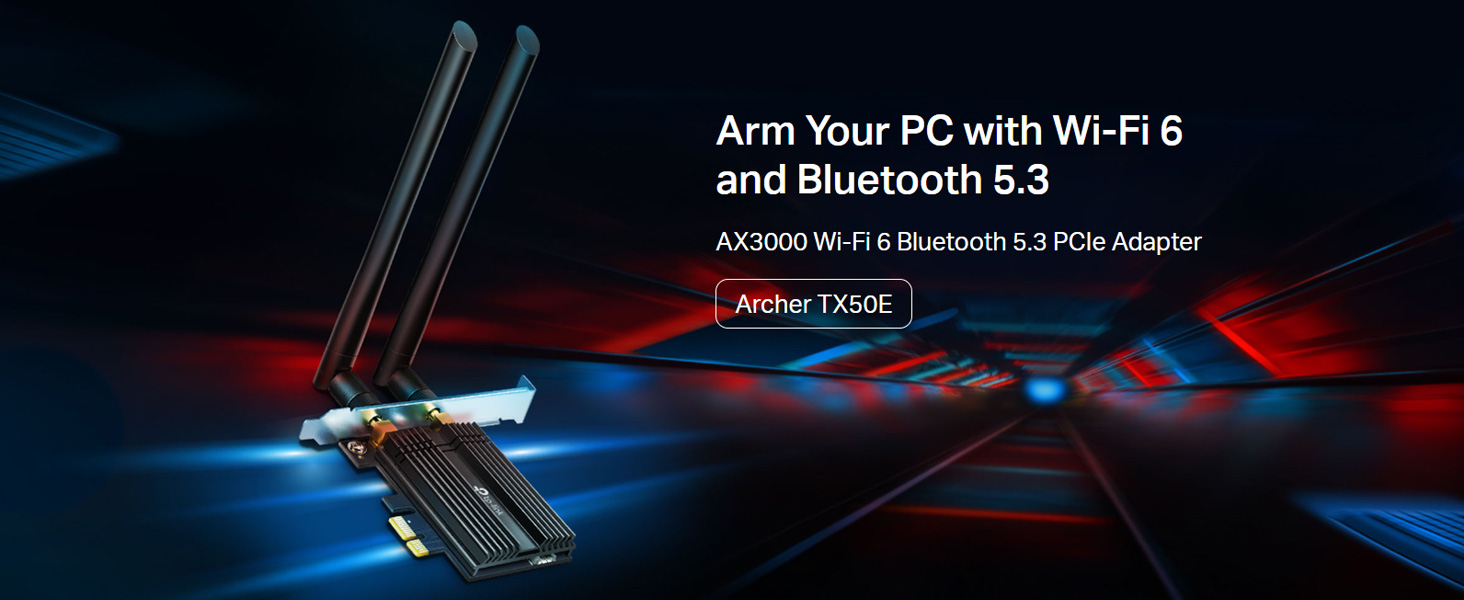
Image: Comparison of Wi-Fi 6 (2402 Mbps) and Wi-Fi 5 (867 Mbps) speeds, illustrating the performance benefits for VR.

Image: Diagram explaining how MU-MIMO and OFDMA reduce latency and improve network efficiency for multiple devices.
4.2 שימוש בבלוטות'
With the Bluetooth driver installed and the USB cable connected, you can pair Bluetooth devices.
- ודא שמכשיר ה-Bluetooth שלך נמצא במצב צימוד.
- במחשב שלך, עבור אל הגדרות > מכשירים > Bluetooth ומכשירים אחרים.
- Turn on Bluetooth and click 'Add Bluetooth or other device'.
- Select 'Bluetooth' and choose your device from the list to pair.
The adapter features Bluetooth 5.2, offering faster speeds and broader coverage compared to previous Bluetooth versions, ensuring reliable connections for your peripherals.

Image: The Bluetooth 5.2 adapter connecting to various devices such as headphones, game controllers, mouse, and keyboard.
5. פתרון תקלות
If you encounter issues with your Archer TX50E adapter, refer to the following common solutions:
- אין Wi-Fi או Bluetooth: Ensure the adapter is correctly seated in the PCIe slot and the Bluetooth USB cable is securely connected to both the adapter and the motherboard's F_USB header. Verify that drivers are installed correctly in Device Manager.
- מהירות Wi-Fi איטית: Check antenna connections and orientation. Ensure your router supports Wi-Fi 6 and is configured for optimal performance. Update drivers to the latest version from the TP-Link webאֲתַר.
- מכשיר בלוטות' לא מתחבר: Make sure the Bluetooth device is in pairing mode and within range. Confirm the Bluetooth driver is installed and enabled in Device Manager.
- חיבור לסירוגין: This could be due to interference. Try repositioning your computer or antennas. Ensure your operating system is up to date.
- בעיות בהתקנת מנהלי התקנים: If the CD does not work, download drivers directly from the TP-Link support website. Ensure you are installing the correct 64-bit drivers for Windows 10 or Windows 11.
6. מפרטים
Detailed technical specifications for the TP-Link Archer TX50E:
| תכונה | תֵאוּר |
|---|---|
| מספר דגם | ארצ'ר TX50E |
| תקן אלחוטי | IEEE 802.11ax/ac/n/a (5 GHz), IEEE 802.11ax/n/g/b (2.4 GHz) |
| גרסת בלוטות' | Bluetooth 5.2/5.0/4.2/4.0 |
| קצב העברת נתונים | עד 3000 מגה-ביט לשנייה (2402 מגה-ביט לשנייה בתדר 5 גיגה-הרץ, 574 מגה-ביט לשנייה בתדר 2.4 גיגה-הרץ) |
| מִמְשָׁק | PCIe X1 |
| אנטנות | שתי אנטנות Dual Band עם רווח גבוה |
| תמיכה במערכת הפעלה | Windows 11/10 (64-bit) only |
| בִּטָחוֹן | WPA3, WPA2, WPA, WEP |
| מידות (L x W x H) | 15 x 20 x 3.9 ס"מ (מוצר) |
| משקל פריט | 200 גרם |
| תכונות מיוחדות | Heat Sink, MU-MIMO, OFDMA, Ultra-Low Latency |

תמונה: תקריב view of the Archer TX50E's specialized heatsink and gold-plated connectors, designed for stability and reliability.
7. אחריות ותמיכה
למידע על אחריות, תמיכה טכנית ורישום מוצר, אנא בקרו באתר הרשמי של TP-Link webלאתר או לפנות לשירות הלקוחות שלהם.
- רִשְׁמִי Webאֲתַר: www.tp-link.com
- תמיכת TP-Link הודו: Toll Free 1800-209-4168, support.in@tp-link.com
אנא שמור את קבלת הרכישה שלך לצורך תביעות אחריות.