
1. הקדמה
This manual provides essential information for the proper use and care of your ProGrade Digital microSDXC UHS-II V60 memory card. This 256GB card is engineered for high-performance applications, including aerial and action cameras, as well as DSLR and mirrorless cameras. It offers UHS-I DDR-104 and U3 speed class ratings for broad compatibility, with read speeds up to 250MB/s and write speeds up to 130MB/s, facilitating efficient capture and transfer of high-resolution photos and 4K video.

תמונה 1.1: חזית view of the ProGrade Digital 256GB microSDXC V60 memory card, highlighting its capacity and speed ratings.
2. תכונות עיקריות
- ביצועים במהירות גבוהה: Features fast write speeds of up to 130MB/s and read speeds of up to 250MB/s, enabling quick capture of high-resolution content and rapid data transfer.
- תאימות רב-תכליתית: Designed for aerial cinematographers, action camera users, and photographers using DSLR or mirrorless cameras. Includes a V60 speed rating for consistent performance in demanding recording scenarios.
- Authenticity and Quality: Each card features a laser-etched custom serial number, ensuring authenticity and quality control. Cards undergo meticulous inspection at the ProGrade Digital Lab.
- Data Recovery Support: Compatible with ProGrade Digital Refresh Pro software (available separately) for advanced data recovery and card maintenance, helping to restore lost photos and videos and optimize card performance.
- Optimized Workflow: Supports efficient data transfer to workstations, reducing waiting times for content offloading.

Image 2.1: A sports car on a road, illustrating the high speed and performance capabilities of the memory card.
3. התקנה והתקנה
To begin using your ProGrade Digital microSD Card, follow these steps:
- זיהוי חריץ: Locate the microSD card slot on your device (e.g., camera, drone, smartphone, tablet). If your device uses a standard SD card slot, use the included microSD to SD adapter.
- הכנס כרטיס: Gently insert the microSD card into the slot with the gold contacts facing down (or as indicated by your device's manual). Ensure it clicks into place. If using the adapter, insert the microSD card into the adapter first, then insert the adapter into the device's SD card slot.
- כרטיס עיצוב: For optimal performance and to ensure compatibility, it is recommended to format the card using your device's internal formatting function before first use. Refer to your device's instruction manual for specific formatting procedures. הערה: עיצוב ימחק את כל הנתונים בכרטיס.
- אימות זיהוי: After formatting, check your device's display or settings to confirm that the microSD card is recognized and shows the correct storage capacity.
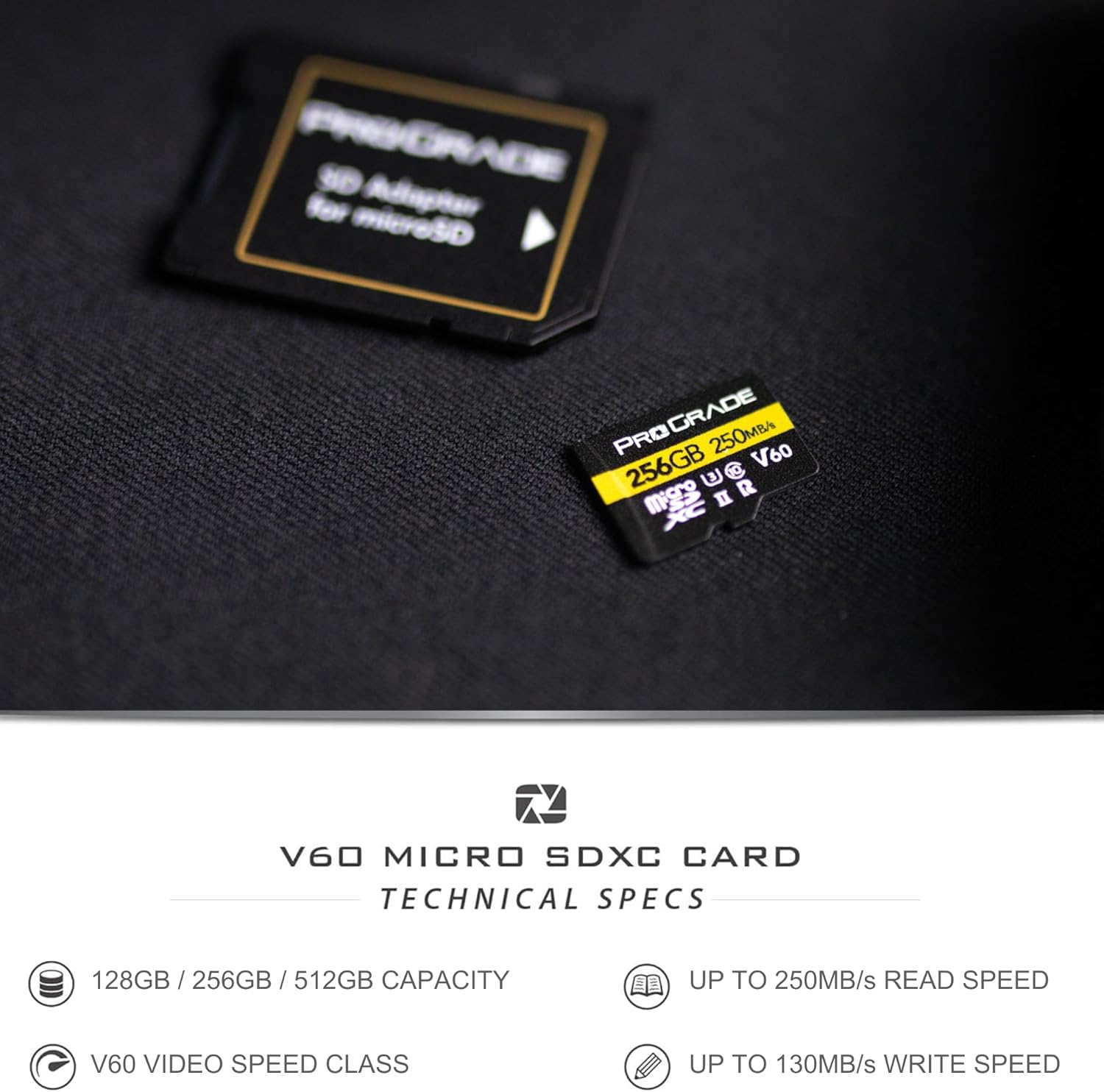
Image 3.1: The ProGrade Digital microSD card shown with its accompanying SD adapter, illustrating how it can be used in devices with standard SD card slots.
4. הוראות הפעלה
Once the microSD card is installed and formatted, you can begin using it to store data.
4.1. Recording Photos and Videos
- Ensure the card is properly inserted and recognized by your camera or device.
- Select your desired recording settings (e.g., resolution, frame rate, compression). The V60 speed class supports high-bitrate 4K video recording.
- Begin recording as per your device's operational instructions. The card's high write speed ensures smooth capture of continuous bursts and high-resolution video.

Image 4.1: A person operating a drone, demonstrating the card's use in aerial photography and videography.

Image 4.2: A photographer with a camera and tripod, representing the card's suitability for professional photography with DSLR and mirrorless cameras.
4.2. העברת נתונים
- To transfer data to a computer, remove the microSD card from your device.
- Insert the microSD card into a compatible card reader (or the included SD adapter and then into an SD card reader).
- Connect the card reader to your computer. The card will appear as a removable drive.
- גרור ושחרר files or use your operating system's file management tools to copy data. The high read speed of 250MB/s will facilitate quick transfers.

Image 4.3: A visual representation of a digital workflow, showing how the card optimizes data transfer and content creation on computers.
5. תחזוקה וטיפול
Proper care extends the life and performance of your memory card:
- הגנה פיזית: Store the card in its protective case when not in use to prevent damage from dust, moisture, and static electricity.
- הימנע מתנאים קיצוניים: Do not expose the card to extreme temperatures, direct sunlight, or strong magnetic fields.
- אנשי קשר נקיים: If necessary, gently clean the gold contacts with a soft, lint-free cloth. Avoid touching the contacts directly with your fingers.
- הסרה בטוחה: יש תמיד להוציא את הכרטיס מהמחשב או מהמכשיר בבטחה לפני הוצאתו פיזית, כדי למנוע פגיעה בנתונים.
- Refresh Pro Software: Consider using ProGrade Digital Refresh Pro software (available separately) to maintain optimal card performance and monitor card health. Flash memory can degrade over time, and this software can help refresh the card's internal memory.
6. פתרון תקלות
If you encounter issues with your microSD card, try the following solutions:
- כרטיס לא מזוהה:
- ודא שהכרטיס מוכנס במלואו ובצורה נכונה לתוך המכשיר או המתאם.
- נסה את הכרטיס במכשיר תואם אחר או בקורא כרטיסים כדי לשלול בעיה במכשיר.
- Check if the card's contacts are clean and free of debris.
- ביצועים איטיים:
- Ensure your device and card reader support UHS-II speeds to fully utilize the card's capabilities.
- The card may be nearly full; transfer data to free up space.
- Consider using ProGrade Digital Refresh Pro software to optimize card performance.
- שגיאות/פגיעות בנתונים:
- תמיד הוצא את הכרטיס בבטחה לפני ההוצאה.
- If data is corrupted, ProGrade Digital Refresh Pro software may be able to recover files.
- Reformat the card (after attempting data recovery) if errors persist.
If problems persist, contact ProGrade Digital customer support for further assistance.
7. מפרטים
| תכונה | פְּרָט |
|---|---|
| מותג | ProGrade Digital |
| שם הדגם | secure-digital-cards |
| סוג זיכרון פלאש | מיקרו SDXC |
| יְכוֹלֶת | 256 ג'יגה-בייט |
| קרא מהירות | עד 250 MB/s |
| מהירות כתיבה | עד 130 MB/s |
| מחלקת מהירות SD | כיתה 10 |
| שיעור מהירות וידאו | V60 |
| שיעור מהירות UHS | U3 |
| ממשק חומרה | microSDXC |
| מכשירים תואמים | Camera, smartphone, tablet, personal computer |
| צֶבַע | שָׁחוֹר |
| משקל פריט | 11 גרם |
| מידות המוצר | 5 x 5 x 1 ס"מ |
| UPC | 850009524881 |
8. אחריות ותמיכה
8.1. אחריות מוגבלת
This ProGrade Digital microSD Card comes with a Limited Warranty. For specific terms and conditions of the warranty, please refer to the warranty documentation included with your product or visit the official ProGrade Digital webאֲתַר.
8.2. תמיכת לקוחות
For technical assistance, troubleshooting, or warranty claims, please contact ProGrade Digital customer support. You can find contact information on the official ProGrade Digital webבאתר או דרך הקמעונאי שממנו רכשת את המוצר.
משאבים מקוונים:
- בקר ב ProGrade Digital Store on Amazon לקבלת מידע ועדכונים על המוצר.
- Check the official ProGrade Digital website for FAQs, support articles, and contact details.