
1. מבוא ומעלהview
The ESX INFOTAINMENT VN1015-MA-DAB-4G is an advanced Android-based naviceiver designed for vehicle integration, offering a comprehensive multimedia and navigation experience. This unit features a 10.1-inch anti-glare multi-angle touchscreen, Android operating system, 4G/LTE connectivity, DAB+ digital radio, and Google Maps navigation. It supports Bluetooth hands-free calling and audio streaming, USB and MicroSD media playback, and includes inputs for rearview cameras and auxiliary devices.
תכונות מפתח כוללות:
- 10.1-inch high-resolution, anti-glare multi-angle touchscreen.
- Android Operating System for versatile app usage.
- Integrated 4G/LTE dongle for mobile internet (requires optional SIM card).
- DAB+ digital radio reception with station logos and AM/FM radio with RDS.
- Google Maps navigation (online and offline capabilities).
- Bluetooth hands-free system with audio streaming.
- Multiple connectivity options: 2x USB ports, 1x MicroSD slot, 1x camera input, 2x video outputs, 1x AUX/video input, 1x AUX/audio input.
- Support for steering wheel controls (optional adapter may be required).
2. התקנה והתקנה
Proper installation is crucial for the optimal performance of your ESX VN1015-MA-DAB-4G naviceiver. It is highly recommended that installation be performed by a qualified professional to ensure correct wiring and vehicle compatibility.
2.1. זיהוי רכיבים
Familiarize yourself with the various ports and connections on the rear of the unit before installation.
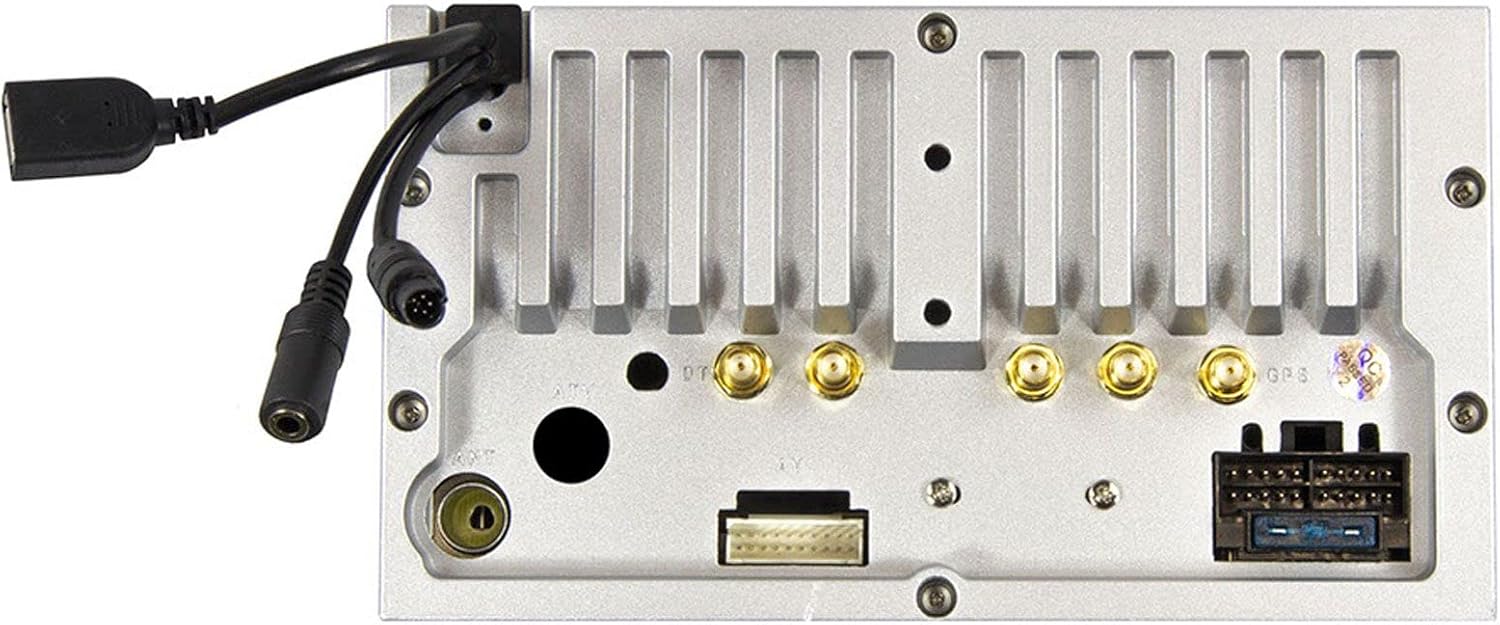
איור 2.1: אֲחוֹרִי view of the ESX VN1015-MA-DAB-4G unit, illustrating the power harness, antenna inputs, USB ports, and auxiliary connections.
2.2. חיבורי חיווט
- ספק כוח: Connect the main power harness to your vehicle's electrical system, ensuring correct positive, negative, and accessory (ACC) connections.
- יציאות רמקולים: Connect your vehicle's speakers to the corresponding outputs on the naviceiver.
- חיבורי אנטנה: Connect the FM/AM antenna. For DAB+ digital radio, connect the included DAB+ antenna to the designated port.
- אנטנת GPS: חבר את אנטנת ה-GPS והתקן אותה במקום עם אור נקי view של השמיים לקבלת קליטת אות אופטימלית.
- יציאות USB: Connect external USB devices for media playback or smartphone connectivity.
- מִיקרוֹפוֹן: Connect the external microphone (VNA-MIC-AND, optional) for improved hands-free call quality.
- אֲחוֹרִיview מַצלֵמָה: חבר אחוריview camera to the dedicated camera input. Ensure the reverse trigger wire is correctly connected for automatic display switching.
- יציאות וידאו: Utilize the two video outputs for connecting external monitors.
- כניסות AUX: Connect external audio/video sources to the AUX/video and AUX/audio inputs.
- 4G/LTE Dongle: If using mobile internet via 4G/LTE, insert a compatible SIM card into the optional 4G/LTE dongle and connect it to a USB port.
- בקרת הגה: If your vehicle supports steering wheel controls, an optional adapter may be required to integrate this functionality.
2.3. הפעלה ראשונית
After all connections are secure, turn on your vehicle's ignition. The naviceiver should power on. Follow any on-screen prompts for initial setup, such as language selection and time zone.
3. הוראות הפעלה
This section details the primary functions and operations of your ESX VN1015-MA-DAB-4G naviceiver.
3.1. בקרות בסיסיות וממשק
The unit features a responsive touchscreen and physical buttons for common functions.

איור 3.1: The main screen showing the radio interface with frequency display and control buttons.
- לחצן הפעלה: Press and hold to turn the unit on/off. A short press may mute audio or put the unit into standby.
- בקרת עוצמת הקול: כוונן את רמת פלט השמע.
- כפתור בית: חוזר למסך הבית הראשי של אנדרואיד.
- כפתור חזרה: Navigates back one step in menus or applications.
- לחצן מצלמה: Direct access to the camera input display (e.g., rearview מַצלֵמָה).
3.2. Android Operating System
The naviceiver runs on an Android operating system, allowing access to various applications and customization options.
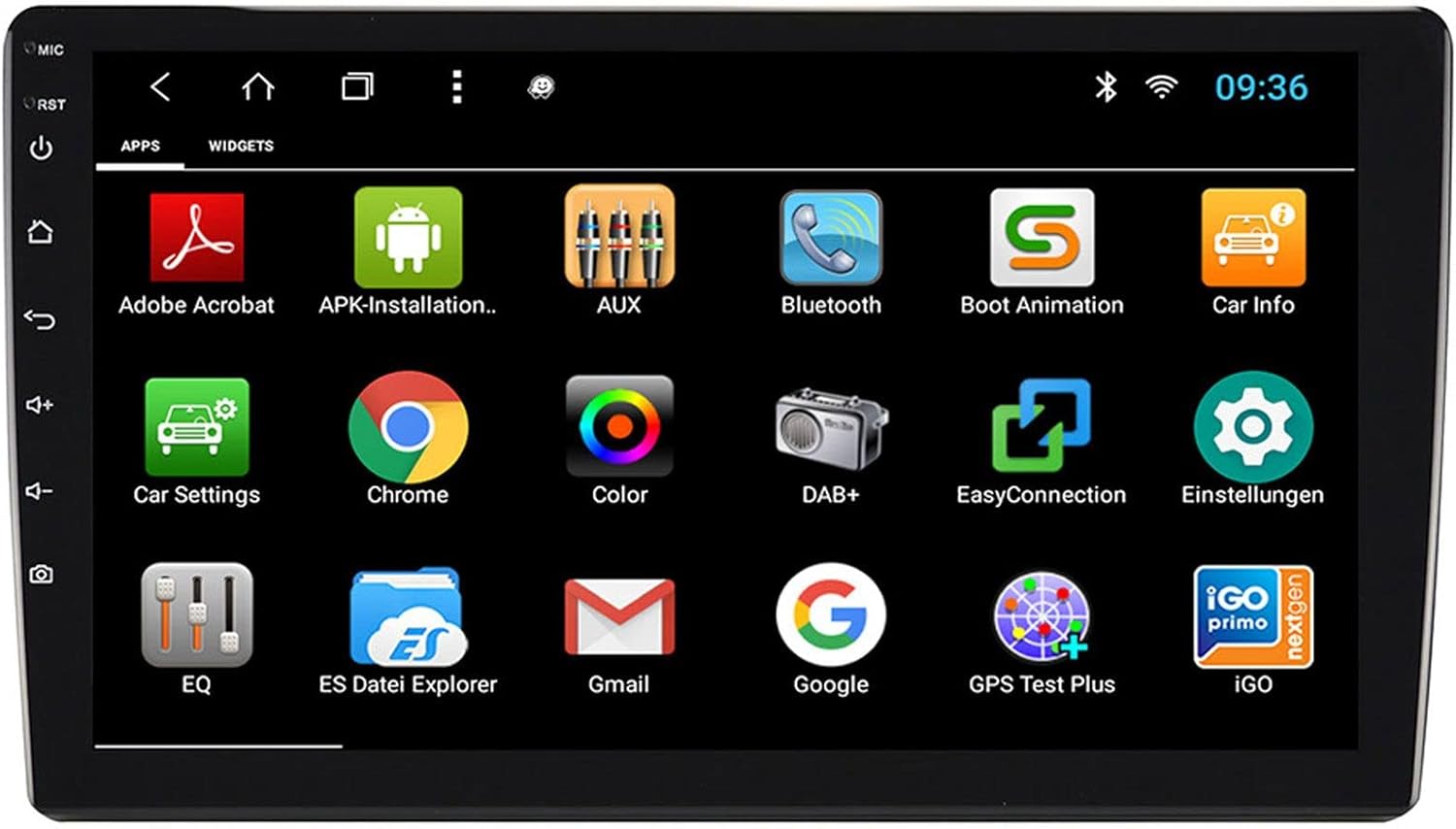
איור 3.2: The applications screen, displaying various pre-installed and user-installed Android apps.
- App Launcher: Access all installed applications from the app drawer.
- ווידג'טים: Customize your home screen with widgets for quick access to information or functions.
- הגדרות: Adjust system settings, network connections, display, audio, and more.
- קישוריות לאינטרנט: Connect to the internet via a WiFi hotspot (from a compatible smartphone) or by inserting a SIM card into the 4G/LTE dongle.
3.3. Radio Functions (AM/FM/DAB+)
The unit supports both analog and digital radio broadcasts.
- בחירת להקה: Switch between AM, FM, and DAB+ bands.
- כוונון: Manually tune or use the auto-scan function to find available stations.
- הגדרות קבועות מראש: שמור את התחנות המועדפות עליך לגישה מהירה.
- RDS (FM): Radio Data System displays station information (e.g., station name, song title).
- DAB+ Features: Enjoy higher quality digital audio and view station logos where available.
3.4. קישוריות בלוטות'
Pair your smartphone for hands-free communication and audio streaming.
- צִמוּד: Enable Bluetooth on your smartphone and search for the naviceiver. Select the unit and confirm the pairing code.
- שיחות ללא ידיים: Make and receive calls directly from the naviceiver screen.
- הזרמת שמע: Play music from your smartphone wirelessly through the naviceiver.
3.5. Navigation (Google Maps)
Utilize Google Maps for turn-by-turn navigation.

איור 3.3: The navigation interface showing a map with a selected destination.
- ניווט מקוון: Requires an active internet connection (WiFi hotspot or 4G/LTE).
- מפות לא מקוונות: Download maps for specific regions to use navigation without an internet connection.
- כניסת יעד: Enter addresses or points of interest using the touchscreen keyboard.
3.6. השמעת מדיה
הפעלת אודיו ווידאו files ממקורות שונים.
- USB: Connect USB drives containing media files.
- MicroSD: Insert a MicroSD card into the dedicated slot for media or navigation data.
- פורמטים נתמכים: The unit supports a wide range of audio and video formats. Refer to the system settings for a complete list.
3.7. Camera Input
The naviceiver automatically displays the rearview camera feed when the vehicle is in reverse, or manually via the camera button.

איור 3.4: אֲחוֹרִיview תצוגת מצלמה עם הנחיות חניה דינמיות.
- הפעלה אוטומטית: When connected correctly, the rearview camera image appears automatically when shifting into reverse.
- הנחיות חניה: Adjustable parking lines assist with maneuvering.
4. תחזוקה
Regular maintenance ensures the longevity and optimal performance of your naviceiver.
- ניקוי מסך: השתמש במטלית רכה ונטולת סיבים כדי לנגב בעדינות את מסך המגע. עבור כתמים עקשניים, נגב קלותampשטפו את המטלית במים או בחומר ניקוי המתאים למסכים. הימנעו מכימיקלים חזקים או מחומרים שוחקים.
- עדכוני תוכנה: בדקו מעת לעת אם קיימים עדכוני תוכנה זמינים דרך הגדרות המערכת או דרך אישור היצרן. webאתר. עדכונים יכולים לשפר ביצועים, להוסיף תכונות ולתקן באגים.
- טיפול כללי: הימנע מחשיפת היחידה לטמפרטורות קיצוניות, לאור שמש ישיר למשך תקופות ממושכות או ללחות מוגזמת. ודא שכל החיבורים יציבים.
5. פתרון תקלות
This section addresses common issues you might encounter with your ESX VN1015-MA-DAB-4G naviceiver.
| בְּעָיָה | סיבה אפשרית | פִּתָרוֹן |
|---|---|---|
| היחידה לא נדלקת. | אין אספקת חשמל; נתיך שרוף; חיווט שגוי. | Check vehicle's fuse box and the unit's power connections. Ensure ACC wire is receiving power. |
| אין קול. | Volume too low; Mute activated; Incorrect speaker wiring; Audio source issue. | Increase volume. Check if mute is active. Verify speaker connections. Try a different audio source. |
| GPS signal loss or inaccurate navigation. | GPS antenna obstructed or disconnected; Outdated maps. | ודא שאנטנת ה-GPS פנויה view of the sky and is securely connected. Update maps if necessary. |
| בעיות בחיבור בלוטות'. | Device not in pairing mode; Interference; Unit not discoverable. | Ensure both devices are in pairing mode. Restart both devices. Check Bluetooth settings on the naviceiver. |
| מסך מגע לא מגיב. | System freeze; Software error. | Perform a soft reset (refer to the unit's specific reset procedure, often a small reset button). If persistent, a factory reset might be needed (data loss may occur). |
| DAB+ radio not receiving stations. | DAB+ antenna not connected or faulty; Poor signal area. | Check DAB+ antenna connection. Ensure the antenna is correctly installed. Try rescanning for stations in a different location. |
If you encounter issues not listed here or if the suggested solutions do not resolve the problem, please contact ESX customer support or your authorized dealer.
6. מפרטים
Below are the technical specifications for the ESX VN1015-MA-DAB-4G Naviceiver:
| תכונה | פְּרָט |
|---|---|
| מותג | ESX |
| דֶגֶם | VN1015-MA-DAB-4G |
| גודל מסך | 10.1 אינץ' (25.6 ס"מ) |
| סוג תצוגה | High-resolution, anti-glare multi-angle touchscreen |
| מַעֲרֶכֶת הַפעָלָה | דְמוּי אָדָם |
| אַיִל | 4 ג'יגה-בייט |
| זיכרון פלאש | 64 ג'יגה-בייט |
| קישוריות | Bluetooth, USB, 4G/LTE (via dongle), WiFi (via hotspot) |
| מקלט רדיו | AM/FM with RDS, DAB+ Digital Radio |
| ניווט | Google Maps (online/offline) |
| תשומות | 1x Camera Input, 1x AUX/Video Input, 1x AUX/Audio Input, 2x USB Ports, 1x MicroSD Slot |
| פלטים | 2x Video Outputs, Pre-amplified outputs (Front/Rear/Subwoofer) |
| שיטת בקרה | מסך מגע |
| מכשירים תואמים | סמארטפון |
7. אחריות ותמיכה
Your ESX VN1015-MA-DAB-4G naviceiver comes with a Certificate of Authenticity. For specific warranty terms and conditions, please refer to the documentation provided with your purchase or contact your authorized ESX dealer.
For technical support, troubleshooting assistance beyond this manual, or inquiries regarding parts and service, please contact your point of purchase or visit the official ESX webאתר ליצירת קשר עם שירות לקוחות.