
1. הקדמה
This manual provides detailed instructions for the setup, operation, maintenance, and troubleshooting of your Sharkoon Light² 200 Gaming Mouse. Please read this manual thoroughly before using the device to ensure optimal performance and longevity.
2. תכולת החבילה
ודא שכל הפריטים נמצאים בחבילה:
- Sharkoon Light² 200 Gaming Mouse
- Interchangeable Solid Top Cover (7g)
- Set of Replacement PTFE Glide Feet
- מדריך הוראות
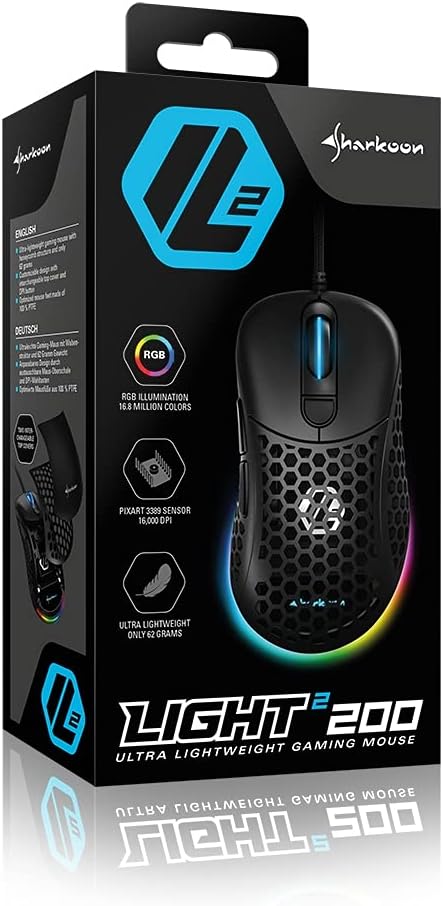
Image: The retail packaging for the Sharkoon Light² 200 Gaming Mouse, showing the mouse and its key features.
3. התקנה
3.1 חיבור העכבר
- Unpack the Sharkoon Light² 200 Gaming Mouse from its packaging.
- Plug the USB connector of the mouse cable into an available USB port on your computer.
- מערכת ההפעלה תזהה ותתקין באופן אוטומטי את מנהלי ההתקנים הדרושים.

Image: The Sharkoon Light² 200 Gaming Mouse with its USB cable, ready for connection to a computer.
3.2 התקנת תוכנה
For full customization and access to all features, download and install the Sharkoon gaming software from the official Sharkoon website. The software allows for DPI adjustments, button programming, and RGB lighting control.
- Visit the official Sharkoon webאֲתַר.
- Navigate to the support or downloads section for the Light² 200 Gaming Mouse.
- Download the latest version of the gaming software.
- עקוב אחר ההוראות שעל המסך כדי להשלים את ההתקנה.
4. הפעלת העכבר
4.1 פונקציות בסיסיות
The Light² 200 features standard mouse buttons and a scroll wheel:
- לחיצה שמאלית: כפתור פעולה ראשי.
- מקש ימני: כפתור פעולה משני, בדרך כלל עבור תפריטי הקשר.
- גלגל גלילה: For vertical scrolling. Can also be pressed for a middle-click function.
- כפתורי צד: Two buttons located on the left side, typically for 'forward' and 'back' navigation.
- לחצן DPI: Located behind the scroll wheel, used to cycle through DPI settings.

תמונה: צד view of the Sharkoon Light² 200 Gaming Mouse, highlighting the two programmable side buttons and the honeycomb structure.
התאמת 4.2 DPI
The optical PixArt sensor supports up to 16,000 DPI. You can adjust the DPI sensitivity using the dedicated DPI button behind the scroll wheel or through the Sharkoon gaming software. The RGB lighting on the scroll wheel and rear of the mouse indicates the current DPI profile.
4.3 לחצנים ניתנים לתכנות
The Light² 200 features six programmable buttons. Use the Sharkoon gaming software to assign custom functions, macros, or key bindings to these buttons for an optimized gaming experience.
4.4 התאמה אישית של תאורת RGB
The mouse features adjustable RGB illumination on the scroll wheel and the back end. The gaming software allows you to customize colors, effects, and brightness to match your preferences or gaming setup.
4.5 Modular Design: Changing the Top Cover
The Light² 200 has a modular design, allowing you to change the top surface. The default honeycomb top cover can be replaced with a closed 7-gram alternative for a different feel or aesthetic.
- Gently lift the rear edge of the honeycomb top cover to detach it. It is held by magnets.
- Align the replacement solid top cover with the mouse body and gently press it down until the magnets secure it in place.

Image: The Sharkoon Light² 200 Gaming Mouse with its honeycomb top cover removed, revealing the internal structure and magnetic attachment points.
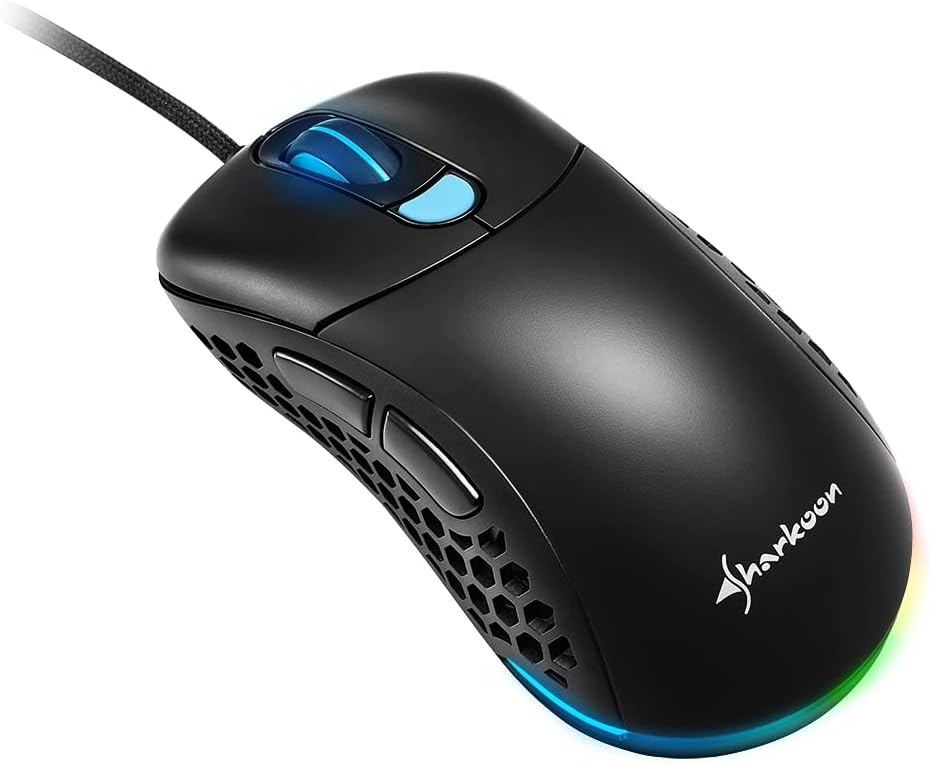
Image: The Sharkoon Light² 200 Gaming Mouse with the alternative solid top cover installed, providing a different aesthetic and feel.
5. תחזוקה
5.1 ניקוי העכבר
כדי לשמור על ביצועים אופטימליים, נקו את העכבר באופן קבוע:
- נתק את העכבר מהמחשב שלך.
- השתמש במטלית רכה ויבשה כדי לנגב את פני השטח של העכבר.
- עבור לכלוך עיקש, מעט דחוףampשטפו את המטלית במים או בתמיסת ניקוי עדינה. הימנעו מכימיקלים חזקים.
- Use compressed air to clear dust from the honeycomb structure and around buttons.
- Clean the optical sensor area with a cotton swab lightly dampהסתיים עם איזופרופיל אלכוהול.
5.2 Replacing PTFE Glide Feet
The PTFE glide feet ensure smooth movement. If they become worn, replace them using the included spare set:
- קלפו בזהירות את רגליות ה-PTFE הישנות באמצעות כלי דק ולא שוחק.
- Clean the surface where the feet were attached to ensure no residue remains.
- Peel the new PTFE feet from their backing and carefully apply them to the corresponding areas on the mouse's underside.
- לחץ בחוזקה כדי להבטיח הידבקות נכונה.

Image: The underside of the Sharkoon Light² 200 Gaming Mouse, showing the optical sensor, the DPI switch, and the four white PTFE glide feet.
6. פתרון תקלות
- עכבר לא מגיב:
- Ensure the USB cable is securely connected to a working USB port.
- Try connecting the mouse to a different USB port or another computer to rule out port or system issues.
- הפעל מחדש את המחשב. - הגדרות DPI לא משתנות:
- Ensure the Sharkoon gaming software is installed and running.
- Check if the DPI button is functioning correctly. - תאורת RGB לא עובדת או שגויה:
- Verify that the Sharkoon gaming software is installed and that lighting settings are configured correctly.
- Ensure the mouse is properly connected. - Mouse movement is erratic or imprecise:
- נקו את החיישן האופטי בחלק התחתון של העכבר.
- Ensure you are using the mouse on a suitable surface (e.g., a mouse pad).
- Check for any physical obstructions around the sensor. - הכפתורים לא מגיבים:
- Check button assignments in the Sharkoon gaming software.
- Ensure no physical debris is obstructing the button mechanism.
7. מפרטים
| תכונה | פְּרָט |
|---|---|
| שם הדגם | Light² 200 |
| מספר דגם של פריט | 4044951029013 |
| מידות המוצר | 4.72 x 2.6 x 1.65 אינץ' (120 x 66 x 42 מ"מ) |
| משקל פריט | 2.19 אונקיות (62 גרם) |
| טכנולוגיית זיהוי תנועה | Optical (PixArt Sensor) |
| DPI מקסימום | 16,000 DPI |
| כפתורים ניתנים לתכנות | 6 |
| טכנולוגיית קישוריות | USB |
| תכונה מיוחדת | RGB LED Lights, Modular Design |
| יַצרָן | שרקון טכנולוגיות |
8. אחריות ותמיכה
8.1 מידע אחריות
Sharkoon products are covered by a manufacturer's warranty against defects in materials and workmanship. The specific warranty period and terms may vary by region. Please retain your proof of purchase for warranty claims.
8.2 תמיכה טכנית
For technical assistance, driver downloads, or further information, please visit the official Sharkoon webאֲתַר:
- Webאֲתַר: www.sharkoon.com
You may also find FAQs and troubleshooting guides on their support pages.