
Hyperkin M07399-bk
Hyperkin Armor3 NuWave Controller User Manual
Model: M07399-bk
מָבוֹא
The Hyperkin Armor3 NuWave Controller is designed to provide accurate and fluid motion control for your Nintendo Wii U and Wii consoles. Featuring built-in Nu+ technology, this controller enhances your gaming experience by offering a wider range of motion in compatible titles. This manual provides essential information on setting up, operating, maintaining, and troubleshooting your NuWave Controller.
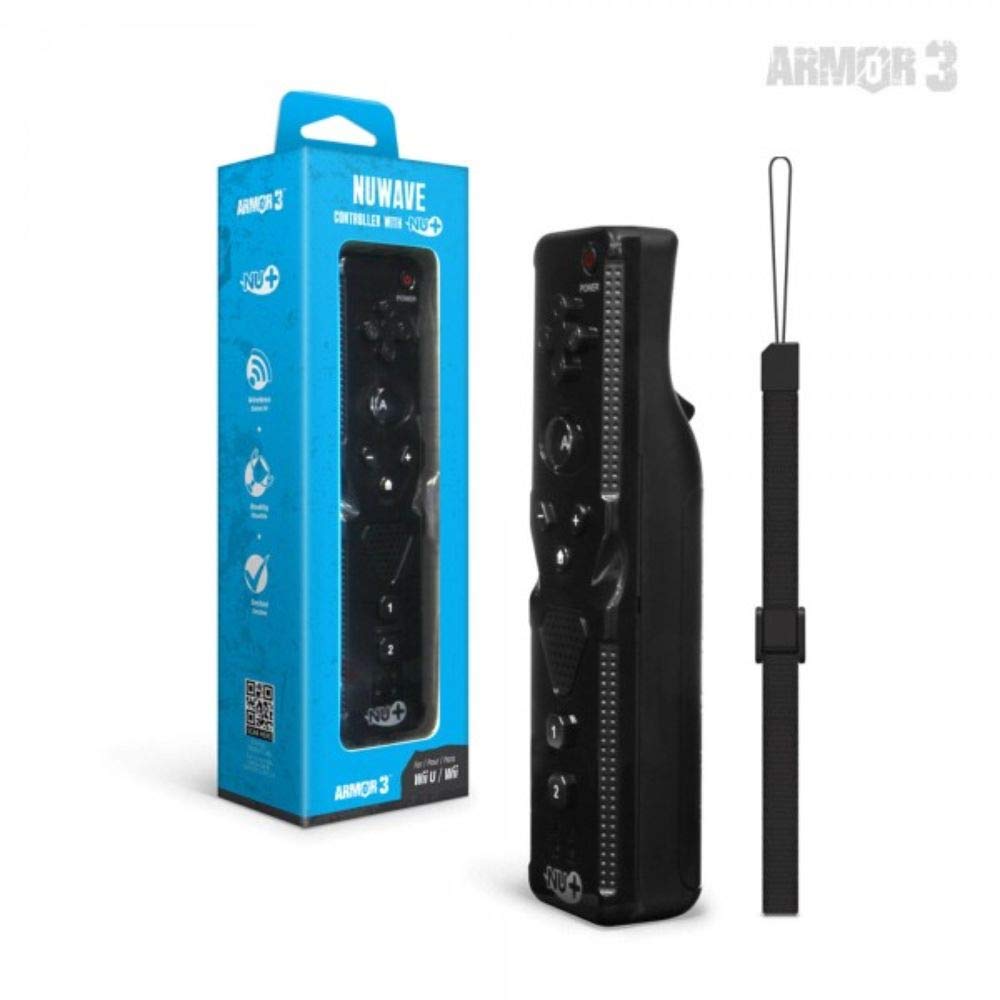
איור 1: Hyperkin Armor3 NuWave Controller and its packaging. The controller is black with a wrist strap, and the packaging highlights its Nu+ technology and compatibility with Wii U and Wii.
המוצר נגמרview
The Armor3 NuWave Controller is a motion-sensing controller compatible with both Wii U and Wii systems. It integrates advanced Nu+ technology for enhanced motion detection and precision in supported games.
תכונות עיקריות:
- תְאִימוּת: Fully compatible with Nintendo Wii U and Nintendo Wii consoles.
- Nu+ Technology: Built-in technology for a wider range of motion and improved accuracy in compatible titles.
- עיצוב ארגונומי: Designed for comfortable grip and extended gameplay sessions.
- מקור כוח: דורש סוללות 2 AA (לא כלולות).
הגדרה
1. התקנת סוללה
- אתר את תא הסוללה בגב הבקר.
- החלק את מכסה הסוללה כלפי מטה כדי לפתוח אותו.
- הכניסו שתי (2) סוללות AA, תוך הקפדה על קוטביות נכונה (+/-) כפי שמסומן בתוך התא.
- החזר את מכסה הסוללה למקומו על ידי החלקתו כלפי מעלה עד שייכנס למקומו בנקישה.
2. Connecting to Your Console
To connect the NuWave Controller to your Wii U or Wii console, follow these steps:
- ודא שהקונסולה שלך מופעלת.
- On your Wii U or Wii console, press the SYNC button (usually located near the SD card slot or battery compartment).
- On the NuWave Controller, open the battery cover and locate the small red SYNC button inside the battery compartment.
- Press and release the SYNC button on the controller.
- The player indicator lights on the bottom of the controller will flash. Once a single light remains lit, the controller is successfully connected.
- If connection fails, repeat steps 2-5. Ensure the controller is within range of the console.
הוראות הפעלה
פקדים בסיסיים:
- משטח כיווני (D-Pad): Used for menu navigation and character movement.
- כפתור: כפתור פעולה ראשי, משמש לעתים קרובות לבחירה או אינטראקציה.
- כפתור B (הדק): Located on the underside, typically used for grabbing or firing.
- 1 & 2 Buttons: Auxiliary action buttons, functions vary by game.
- כפתור בית: Returns to the console's Home Menu.
- Plus (+) & Minus (-) Buttons: Often used for zooming, adjusting settings, or specific in-game actions.
- לחצן הפעלה: מפעיל/מכבה את הבקר.
Motion Sensing with Nu+ Technology:
The built-in Nu+ technology provides enhanced motion tracking. For games that support it, you will experience more precise and responsive movements. Hold the controller firmly and ensure clear line of sight to the sensor bar for optimal performance.
- כִּיוּל: Some games may require initial calibration. Follow on-screen prompts.
- רצועת יד: Always use the included wrist strap to prevent accidental drops during active gameplay.
תַחזוּקָה
ניקוי:
- נגבו את הבקר בעזרת מטלית רכה ויבשה.
- עבור לכלוך עיקש, מעט דחוףampשטפו את המטלית במים. אין להשתמש בכימיקלים חזקים או בחומרי ניקוי שוחקים.
- ודא שאין נוזלים שנכנסים לפתחי הבקר.
אִחסוּן:
- יש לאחסן את הבקר במקום קריר ויבש, הרחק מאור שמש ישיר וטמפרטורות קיצוניות.
- אם מאחסנים את המוצר למשך זמן ממושך, יש להוציא את הסוללות כדי למנוע דליפה.
טיפול בסוללה:
- Always use new, high-quality AA batteries.
- אין לערבב סוללות ישנות וחדשות, או סוגים שונים של סוללות.
- השלך סוללות משומשות בצורה אחראית בהתאם לתקנות המקומיות.
פתרון בעיות
| בְּעָיָה | סיבה אפשרית | פִּתָרוֹן |
|---|---|---|
| הבקר לא נדלק. | סוללות מתות או שהוכנסו בצורה שגויה. | החליפו את הסוללות בסוללות AA חדשות, תוך הקפדה על קוטביות נכונה. |
| Controller does not sync with console. | Incorrect syncing procedure; out of range; console interference. | Ensure console is on. Repeat syncing steps (press SYNC on console, then on controller). Move closer to console. Check for other wireless device interference. |
| הכפתורים אינם מגיבים או מתעכבים. | Low battery; connection issue; physical obstruction. | Replace batteries. Re-sync the controller. Ensure buttons are not stuck. |
| Motion control is inaccurate. | Sensor bar obstruction; improper calibration; environmental factors. | Ensure clear line of sight to the sensor bar. Re-calibrate in-game if prompted. Avoid strong light sources directly facing the sensor bar. |
מפרטים
- דֶגֶם: M07399-bk
- מותג: היפרקין
- תְאִימוּת: Nintendo Wii U, Nintendo Wii
- מקור כוח: 2 x סוללות AA (לא כלול)
- מידות: 2.8 x 1.8 x 8 אינץ' (בערך)
- מִשׁקָל: 3.88 אונקיות (בקירוב, ללא סוללות)
- טֶכנוֹלוֹגִיָה: Built-in Nu+ motion technology
- צֶבַע: שָׁחוֹר
אחריות ותמיכה
For specific warranty information and terms, please refer to the documentation included with your purchase or visit the official Hyperkin website. Hyperkin provides customer support for their products.
תמיכה מקוונת: Visit the official Hyperkin webאתר לשאלות נפוצות, מדריכים לפתרון בעיות ופרטים ליצירת קשר. www.hyperkin.com
מַגָע: Refer to the Hyperkin website for the most current customer service contact methods (phone, email, etc.).
Ask a question about this manual
Ask about setup, troubleshooting, compatibility, parts, safety, or missing instructions. Manuals+ will review the question and use this page’s manual context to help answer it.