
1. הקדמה
This manual provides essential information for the setup, operation, and maintenance of your Elo 10-inch I-Series for Android (Model E461790). The I-Series 3.0 for Android is a commercial-grade touchscreen solution designed for various interactive applications, integrating Google Play Services.
It is built for continuous public use in environments such as retail, hospitality, self-service kiosks, and corporate offices. Please read this manual thoroughly before using the device to ensure proper functionality and longevity.
2. המוצר נגמרview
The Elo 10-inch I-Series for Android is a compact, high-performance touchscreen display. It features a 10.1-inch LCD with 1280 x 800 resolution, powered by a 2 GHz Cortex A53 processor, 3GB RAM, and 32GB storage. The device operates on the Android platform and supports Google Play Services.
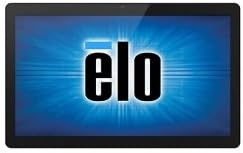
תמונה: חזית view of the Elo 10-inch I-Series for Android touchscreen display, showing the Elo logo on the screen.
This unit is designed to support various peripherals and offers robust performance for demanding applications requiring continuous operation.
3. מה בקופסה
לאחר פתיחת הקופסה, אנא ודא שכל הרכיבים הבאים נמצאים:
- Elo 10-inch I-Series for Android Device (Model E461790)
- מתאם מתח
- Quick Start Guide (if included, not specified in input)
- Safety and Regulatory Information (if included, not specified in input)
If any items are missing or damaged, please contact Elo customer support immediately.
4. התקנה
- פריקת אריזה: Carefully remove the device and all accessories from the packaging. Retain the packaging for future transport or storage.
- מיקום: Place the device on a stable, flat surface. Ensure adequate ventilation around the unit to prevent overheating. Avoid placing it near heat sources or in direct sunlight.
- מתח חיבור:
- Connect the power adapter cable to the power input port on the back of the device.
- חבר את מתאם החשמל לשקע חשמל מתאים.
- הפעלה ראשונית: Press the power button, usually located on the side or back of the unit. The device will boot up and display the Elo logo, followed by the Android operating system interface.
- חיבור רשת:
- For Wi-Fi: Navigate to Android Settings > Network & Internet > Wi-Fi. Select your network and enter the password.
- For Wired Ethernet: Connect an Ethernet cable from your network router/switch to the Ethernet port on the device (if available on your specific model).
- Google Play Services Setup: Follow the on-screen prompts to set up your Google account and access Google Play Services, if required for your application.
5. הוראות הפעלה
5.1 תפעול מסך מגע
The device features a multi-touch display. Use standard touch gestures such as tap, double-tap, pinch-to-zoom, and swipe to navigate the Android interface and interact with applications.
5.2 Android Interface Navigation
- מסך הבית: The main screen where app icons and widgets are displayed.
- מגירת אפליקציות: גישה לכל היישומים המותקנים.
- לוח התראות: החלק מטה מהחלק העליון של המסך אל view התראות והגדרות מהירות.
- הגדרות: Access system settings to configure Wi-Fi, display, sound, and other device options.
5.3 התקנת יישומים
Applications can be installed via the Google Play Store (requires a Google account) or by sideloading APK files, depending on your deployment strategy and security policies.
5.4 ניהול חשמל
- מצב שינה: Briefly press the power button to put the device into sleep mode. Press again to wake it up.
- Restart/Power Off: Press and hold the power button until a menu appears, then select "Restart" or "Power Off".
6. תחזוקה
6.1 ניקוי הצג
To clean the touchscreen, power off the device and gently wipe the screen with a soft, lint-free cloth. For stubborn marks, slightly dampנגב את המטלית במים או בחומר ניקוי זכוכית שאינו שוחק וללא אמוניה. אין לרסס את חומר הניקוי ישירות על המסך.
6.2 טיפול כללי
- הימנע מחשיפת המכשיר לטמפרטורות קיצוניות, לחות או לאור שמש ישיר.
- אל תחסום פתחי אוורור.
- Do not attempt to disassemble the device. Refer all servicing to qualified personnel.
7. פתרון תקלות
| בְּעָיָה | סיבה אפשרית | פִּתָרוֹן |
|---|---|---|
| המכשיר לא נדלק. | אין חשמל, מתאם חשמל פגום. | Ensure power adapter is securely connected to device and outlet. Try a different outlet. |
| מסך מגע לא מגיב. | תקלת תוכנה, נזק פיזי. | Restart the device. Ensure screen is clean and free of obstructions. If problem persists, contact support. |
| אין חיבור Wi-Fi. | סיסמה שגויה, מחוץ לטווח, בעיית נתב. | אמת את סיסמת ה-Wi-Fi. התקרב לנתב. הפעל מחדש את הנתב והמכשיר. |
| אפליקציות קורסות. | App incompatibility, low memory. | Clear app cache/data. Update the app. Ensure sufficient storage space. |
For issues not listed here, or if solutions do not resolve the problem, please contact Elo customer support.
8. מפרטים
| תכונה | פְּרָט |
|---|---|
| שם הדגם | E461790 |
| גודל מסך | 10 אינץ' |
| רזולוציית תצוגה | 1280 x 800 פיקסלים |
| מעבד | 2 GHz (Cortex A53) |
| מעבד גרפי | ARM Mali T604 |
| מַעֲרֶכֶת הַפעָלָה | דְמוּי אָדָם |
| אַיִל | 3 ג'יגה-בייט (DDR3 SDRAM) |
| קיבולת אחסון | 32 ג'יגה-בייט (זיכרון פלאש) |
| סוג אלחוטי | 802.11n |
| משקל פריט | 1.94 פאונד |
| מידות המוצר (LxWxH) | 9.45 x 13.39 x 5.91 אינץ' |
| אֲחוֹרִי Webרזולוציית מצלמת | 5 מגה פיקסל |
הערה: המפרטים עשויים להשתנות ללא הודעה מוקדמת.
9. אחריות ותמיכה
Elo products are designed for reliability and come with a standard manufacturer's warranty. For specific warranty terms and conditions applicable to your region and purchase, please refer to the warranty card included with your product or visit the official Elo webאֲתַר.
For technical support, service, or to inquire about replacement parts, please contact Elo customer support. You can find contact information and additional resources on the official Elo webאֲתַר:
(This link directs to the Elo brand store on Amazon, which may contain links to official support resources.)