
Microsoft PUV-00016
מדריך למשתמש של מיקרוסופט סורפייס פרו 7
Model: PUV-00016
1. הקדמה
The Microsoft Surface Pro 7 is a versatile 2-in-1 device designed to adapt to various work and lifestyle needs. It combines the power of a laptop with the flexibility of a tablet, making it suitable for a wide range of tasks from productivity to creative work. This manual provides essential information for setting up, operating, and maintaining your Surface Pro 7.
2. מה בקופסה
Upon unboxing your Microsoft Surface Pro 7, you will find the following items:
- טאבלט מיקרוסופט סורפס פרו 7
- ספק כוח
- מדריך להתחלה מהירה (QSG)
- מדריך אחריות ותאימות (WACG)
Please note: Accessories such as the Type Cover keyboard, Surface Pen, and mouse are sold separately and are not included in the standard package.

Image: The Microsoft Surface Pro 7 tablet, power supply, and placeholders for separately sold accessories like the Type Cover, Surface Pen, and mouse.
3. המוצר נגמרview
The Surface Pro 7 features a sleek, ultra-slim design, weighing approximately 1.70 pounds, making it highly portable. Its integrated kickstand allows for flexible positioning in various modes.
3.1 מאפיינים פיזיים ויציאות
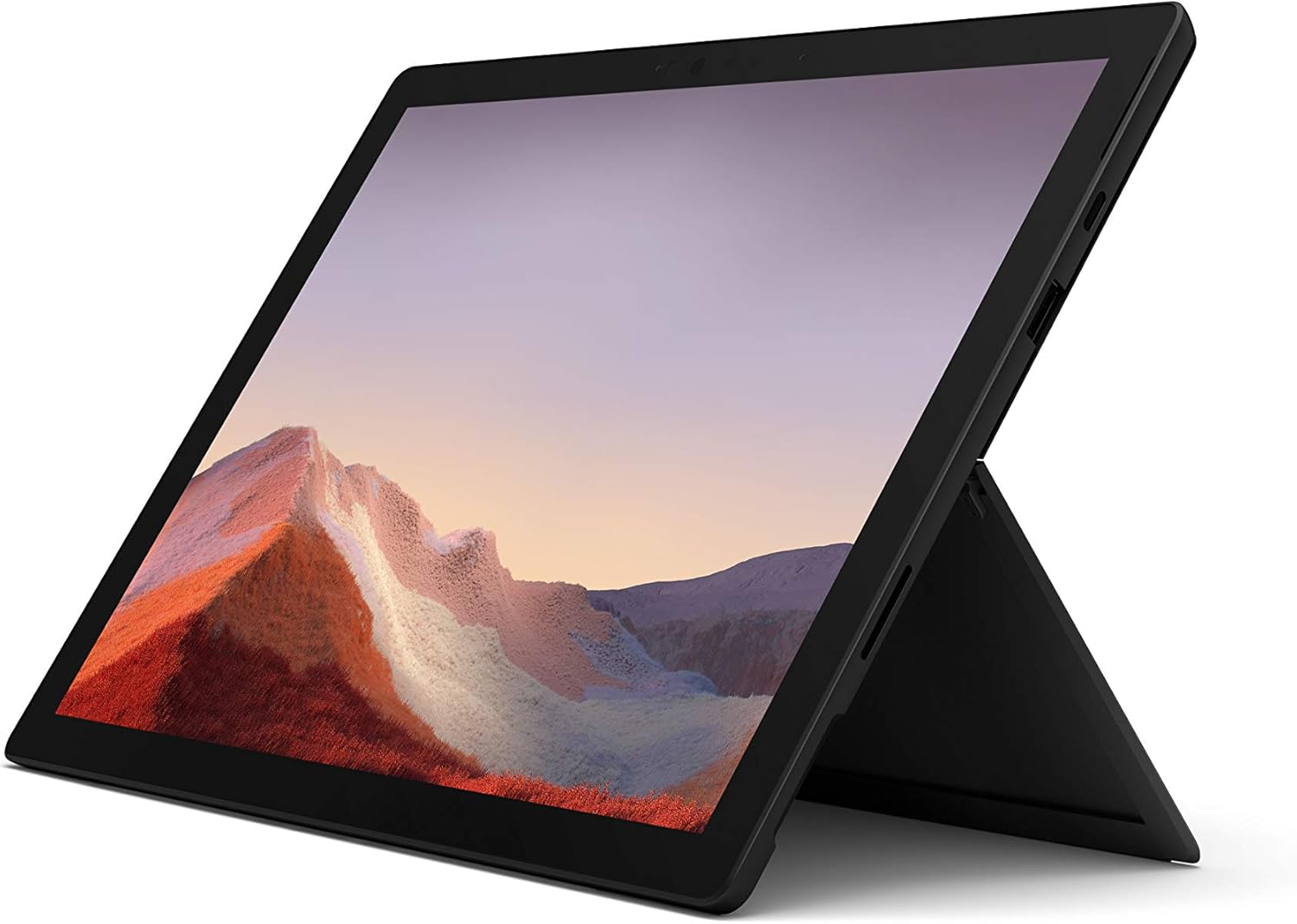
תמונה: חזית view of the Microsoft Surface Pro 7 in an upright position, showcasing its display and kickstand.
- לחצן הפעלה: ממוקם בקצה העליון.
- נדנדת עוצמה: צמוד לכפתור ההפעלה.
- יציאת USB-C: יציאה רב-תכליתית להעברת נתונים, פלט וידאו וטעינה.
- יציאת USB-A: יציאת USB סטנדרטית לחיבור ציוד היקפי.
- יציאת חיבור משטח: For charging and connecting to Surface Dock accessories.
- קורא כרטיסי MicroSD: Located under the kickstand for expandable storage.
- מצלמה קדמית: For video calls and Windows Hello facial recognition.
- מצלמה אחורית: 8 MP camera for capturing photos and 1080p video.
- מיקרופונים לאולפן: Dual array microphones for enhanced audio input.

תמונה: פרו צדדיfile of the Surface Pro 7, showing the placement of its USB-C and USB-A ports.

תמונה: אחורי view of the Surface Pro 7 with its kickstand deployed, revealing the Microsoft logo.
4. התקנה
4.1 הפעלה ראשונית והגדרת Windows
- טען את המכשיר: Before first use, connect the Surface Pro 7 to the power supply using the included charger. The device supports fast charging.
- הפעלה: Press and hold the Power button located on the top edge of the device until the Microsoft logo appears.
- פעל לפי ההנחיות שעל המסך: Windows 10 Home will guide you through the initial setup process. This includes selecting your region and language, connecting to a Wi-Fi network, accepting the license agreement, and creating a user account or signing in with a Microsoft account.
- עדכוני Windows: After initial setup, it is recommended to check for and install any available Windows updates to ensure optimal performance and security. Your device is eligible for a free upgrade to Windows 11 when available.
5. פעולה בסיסית
5.1 Laptop and Tablet Modes
The Surface Pro 7 seamlessly transitions between a full-powered laptop and a versatile tablet. Simply attach the optional Type Cover to use it as a laptop, or detach it for tablet functionality.

Image: The Surface Pro 7 with its Type Cover keyboard, demonstrating its laptop configuration.

Image: The Surface Pro 7 in tablet mode, with the optional Surface Pen positioned beside it.
5.2 Touch, Pen, and Keyboard Input
- מסך מגע: Interact directly with the 12.3-inch PixelSense display using multi-touch gestures.
- עט Surface (אופציונלי): For precise writing, drawing, and navigation. The pen offers natural ink flow and tilt support.
- Type Cover (Optional): Provides a full-size backlit keyboard and a large glass trackpad for comfortable typing and navigation.
6. קישוריות
6.1 חיבורים אלחוטיים
- Wi-Fi: Connect to wireless networks using the integrated 802.11ax Wi-Fi for high-speed internet access.
- בלוטות': Pair Bluetooth-enabled devices such as headphones, mice, and keyboards.
6.2 חיבורים קוויים
- USB-C: Use this port for connecting modern peripherals, external displays, or for charging the device.
- USB-A: Connect traditional USB devices like flash drives, external hard drives, or older peripherals.
7. ביצועים וסוללה
The Surface Pro 7 is powered by a 10th Gen Intel Core processor, offering enhanced performance for multitasking and demanding applications. It features improved graphics performance for a smoother visual experience.
Video: An official Microsoft video showcasing the Surface Pro 7's features, including faster multitasking, improved graphics, instant-on capability, and all-day battery life.
Video: An official Microsoft sizzle reel highlighting the Surface Pro 7's 2-in-1 design, high-speed USB-C, PixelSense display, faster processor, Studio Mics, and accessories.
7.1 חיי סוללה וטעינה
The Surface Pro 7 offers up to 10.5 hours of typical device usage. It supports fast charging, allowing you to charge approximately 80% of the battery in just over an hour. For optimal battery longevity, avoid extreme temperatures and fully discharging the battery frequently.
8. תחזוקה
- ניקוי: Use a soft, lint-free cloth to clean the screen and exterior. For stubborn smudges, a slightly damp cloth with water or a mild screen cleaner can be used. Avoid abrasive materials or harsh chemicals.
- עדכוני תוכנה: Regularly check for and install operating system and driver updates to ensure your device runs smoothly and securely.
- ניהול אחסון: מעת לעת מחדשview and manage your storage to free up space. Utilize the microSD card slot for additional storage if needed.
- תנאים סביבתיים: הפעל את המכשיר בטווח הטמפרטורה והלחות המומלצים כדי למנוע נזק.
9. פתרון תקלות
If you encounter issues with your Surface Pro 7, try the following basic troubleshooting steps:
- המכשיר לא מגיב: Press and hold the Power button for about 10 seconds until the device turns off, then press it again to restart.
- בעיות תצוגה: Ensure all cables are securely connected if using an external display. Try adjusting display settings in Windows.
- בעיות קישוריות: For Wi-Fi or Bluetooth issues, try turning the respective feature off and on again, or restart your device. Check your router or Bluetooth accessory.
- הסוללה מתרוקנת במהירות: Adjust power settings to battery saver mode, reduce screen brightness, and close unnecessary applications.
- תקלות תוכנה: Ensure your Windows operating system is up to date. If problems persist, consider running Windows Troubleshooters or performing a system restore.
10. מפרטים
| תכונה | פְּרָט |
|---|---|
| מותג | מיקרוסופט |
| שם הדגם | Surface Pro 7 |
| מספר דגם של פריט | PUV-00016 |
| גודל מסך | 12.3 אינץ' |
| רזולוציית מסך | 2736x1824 (Max 1920x1080) |
| מעבד | דור 10 של Intel Core i5 |
| אַיִל | 8 GB DDR4 |
| כונן קשיח | SSD 256 גיגה-בייט |
| מעבד גרפי | המשולב Intel Graphics |
| סוג אלחוטי | בלוטות', 802.11ax |
| יציאות USB | USB-C, USB-A |
| חיי סוללה ממוצעים | עד 10.5 שעות |
| מַעֲרֶכֶת הַפעָלָה | Windows 10 Home (ניתן לשדרוג ל-Windows 11) |
| משקל פריט | 1.7 פאונד |
| מידות המוצר | 12.74 x 9.09 x 1.91 אינץ' |
| צֶבַע | שחור מט |
11. אחריות ותמיכה
For detailed warranty information and technical support, please refer to the Warranty and Compliance Guide included in your product packaging or visit the official Microsoft support website. Microsoft provides resources for troubleshooting, driver downloads, and service options.
Ask a question about this manual
Ask about setup, troubleshooting, compatibility, parts, safety, or missing instructions. Manuals+ will review the question and use this page’s manual context to help answer it.