
1. הקדמה
Welcome to the user manual for your Google Pixel 4 XL smartphone. This guide provides essential information to help you get started, understand its features, and maintain your device. The Google Pixel 4 XL is designed to offer a seamless Android experience with advanced camera capabilities, intuitive gesture controls, and the integrated Google Assistant.

Figure 1.1: Google Pixel 4 XL (Oh So Orange)
2. התקנה
2.1 מה בקופסה
- Google Pixel 4 XL Smartphone
- מתאם AC
- כבל USB (USB-C ל-USB-C)
- OTG Dongle (USB-A to USB-C adapter)
- כלי לחילוץ מגש ה-SIM
- מדריך להתחלה מהירה
2.2 הכנסת כרטיס ה-SIM
- Locate the SIM card tray on the side of your Pixel 4 XL.
- הכנס את כלי חילוץ מגש ה-SIM לחור הקטן שליד המגש ולחץ בחוזקה עד שהמגש ייצא החוצה.
- Place your Nano SIM card into the tray with the gold contacts facing down. Ensure it fits securely.
- דחף בזהירות את מגש ה-SIM בחזרה לתוך הטלפון עד שייכנס למקומו בנקישה.

איור 2.1: מיקום מגש כרטיס ה-SIM
2.3 הפעלה ראשונית והתקנה
- Press and hold the Power button (located on the right side) until the Google logo appears.
- Follow the on-screen instructions to select your language, connect to Wi-Fi, and transfer data from an old device if desired.
- היכנס באמצעות חשבון גוגל שלך או צור חשבון חדש.
- Set up security features such as Face Unlock.
2.4 טעינת המכשיר
Connect the USB cable to the AC adapter and plug it into a power outlet. Connect the other end of the USB cable to the USB-C port at the bottom of your Pixel 4 XL. The device supports fast charging. For optimal battery health, avoid fully discharging the battery frequently.
3. הוראות הפעלה
3.1 ניווט בסיסי
The Pixel 4 XL uses a touchscreen interface for navigation. Swipe up from the bottom to go to the home screen, swipe from the left or right edge to go back, and swipe up and hold to view אפליקציות אחרונות.

Figure 3.1: Pixel 4 XL Front Display
עוזר גוגל אחד
The new Google Assistant is integrated into the Pixel 4 XL. You can activate it by squeezing the sides of your phone or by saying "Hey Google." Use your voice to send texts, share photos, get directions, and more.
3.3 תכונות המצלמה
The Pixel 4 XL camera offers advanced photography capabilities:
- Point and Shoot: Capture brilliant color and control exposure balance.
- ראיית לילה: Take clear photos in low-light conditions, including astrophotography for capturing the Milky Way.
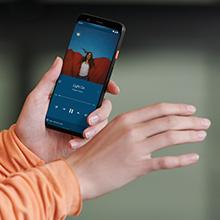
Figure 3.2: Using the Pixel 4 XL Camera
3.4 Motion Sense (Quick Gestures)
Utilize Quick Gestures to control your phone without touching it. Wave your hand above the screen to skip songs, silence calls, and more. Motion Sense functionality is available in specific regions including the US, Canada, Singapore, Australia, Taiwan, and most European countries.
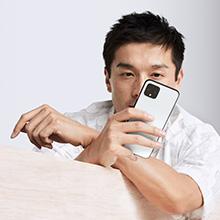
Figure 3.3: Motion Sense in Action
3.5 Call Screen
The Google Assistant's Call Screen feature helps filter out spam calls. It can proactively screen unknown callers and provide a transcript of the conversation, allowing you to decide whether to answer.
3.6 סרטון מוצר רשמי
Video 3.1: An official video from Google Inc showcasing the features of the Google Pixel 4, including Google Assistant and Motion Sense. This video provides a visual overview של פונקציות מפתח.
4. תחזוקה
4.1 ניקוי המכשיר שלך
To clean your Pixel 4 XL, use a soft, lint-free cloth. Avoid abrasive materials, solvents, or aerosol sprays. For stubborn marks, slightly dampיש לשטוף את המטלית במים. אין לטבול את המכשיר במים.
4.2 עדכוני תוכנה
Google regularly releases software updates to improve performance, add features, and enhance security. Ensure your device is connected to Wi-Fi and has sufficient battery life before installing updates. You can check for updates in Settings > System > System update.
4.3 טיפול בסוללה
כדי להאריך את חיי הסוללה:
- הימנע מטמפרטורות קיצוניות.
- Use the provided charger or a compatible Qi-certified wireless charger.
- Enable Adaptive Battery in settings to optimize app usage.
- Disable features like Motion Sense and Always-on Display if not actively needed to conserve power.
4.4 גיבוי נתונים
Regularly back up your data to your Google Account. This includes photos, videos, contacts, and app data. Go to Settings > System > Backup to manage your backup settings.
5. פתרון תקלות
5.1 בעיות ופתרונות נפוצים
- המכשיר לא מגיב: לחץ והחזק את לחצן ההפעלה למשך כ-30 שניות כדי לאלץ הפעלה מחדש.
- אפליקציות קורסות: Clear the cache and data for the problematic app in Settings > Apps & notifications > See all apps > [App Name] > Storage & cache.
- בעיות קישוריות (Wi-Fi/Bluetooth): Try toggling Wi-Fi or Bluetooth off and on. If the issue persists, reset network settings in Settings > System > Reset options > Reset Wi-Fi, mobile & Bluetooth.
- חיי סוללה גרועים: Review battery usage in Settings > Battery to identify apps consuming excessive power. Adjust screen brightness and disable unnecessary features.
5.2 איפוס להגדרות היצרן
איפוס להגדרות היצרן ימחק את כל הנתונים מהטלפון שלך וישחזר אותו להגדרות היצרן המקוריות. פעולה זו יכולה לפתור בעיות תוכנה מתמשכות. Warning: Back up all important data before proceeding.
- עבור אל הגדרות > מערכת > אפשרויות איפוס.
- הקש על "מחק את כל הנתונים (איפוס להגדרות יצרן)".
- אשר את החלטתך ופעל לפי ההנחיות שעל המסך.
6. מפרטים
Key technical specifications for the Google Pixel 4 XL:
| תכונה | מִפרָט |
|---|---|
| מותג | גוגל |
| שם הדגם | Pixel 4 XL |
| מַעֲרֶכֶת הַפעָלָה | דְמוּי אָדָם |
| קיבולת אחסון זיכרון | 64 ג'יגה-בייט |
| גודל זיכרון RAM מותקן | 6 ג'יגה-בייט |
| גודל מסך | 6.3 אינץ' |
| הַחְלָטָה | 1440 x 2960 |
| קצב רענון | 120 הרץ |
| דגם מעבד | Snapdragon S3 |
| מהירות מעבד | 2.84 גיגה-הרץ |
| צֶבַע | Oh So Orange |
| ספירת חריצי כרטיסי SIM | סים בודד |
| סוג מחבר | USB סוג C |
| תכונת אבטחה ביומטרית | זיהוי פנים |
| רמת עמידות במים | עמיד במים |
| שקע אוזניות | אין שקע אוזניות |
| Front Photo Sensor Resolution | 8 מגה פיקסל |
| רזולוציית לכידת וידאו | 4k (30fps) |
| סוג תצוגה | OLED |
| ספק אלחוטי | לא נעול |
| חיי סוללה ממוצעים | 12 שעות |
7. מידע על אחריות
Your Google Pixel 4 XL comes with a אחריות יצרן לשנה. This warranty covers defects in materials and workmanship under normal use. It does not cover damage caused by accidents, misuse, unauthorized repairs, or normal wear and tear.
For detailed terms and conditions, please refer to the warranty card included with your product or visit the official Google support webאֲתַר.
8. תמיכה
If you require further assistance or encounter issues not covered in this manual, please utilize the following resources:
- עזרה מקוונת: Visit the official Google Pixel Help Center for comprehensive articles, FAQs, and troubleshooting guides.
- פורומים קהילתיים: Engage with other Pixel users and experts in Google's official product forums.
- צור קשר עם התמיכה: Access direct support options (chat, phone, email) through the Google Pixel Help Center.
Always ensure you are referring to official Google support channels for accurate and up-to-date information.