
1. הקדמה
This user manual provides comprehensive instructions for the operation, setup, maintenance, and troubleshooting of your TOPVISION Portable Projector, model TP-98. Please read this manual thoroughly before using the projector to ensure proper functionality and to maximize your viewניסיון. שמור מדריך זה לעיון עתידי.
2. המוצר נגמרview
The TOPVISION TP-98 projector is designed to deliver a high-quality visual experience with its advanced features and versatile connectivity. It is suitable for both home entertainment and professional presentations.
2.1 תכונות עיקריות
- רזולוציית Full HD מקורית של 1080P: Provides clear and detailed images, supporting 4K video input.
- בהירות גבוהה: 9500 Lumens for vibrant and bright projections.
- גודל תצוגה גדול: Capable of projecting images up to 350 inches for an immersive viewניסיון.
- רמקולי סטריאו Hi-Fi מובנים: Dual integrated speakers with SRS sound for enhanced audio.
- L מורחבamp חַיִים: לד lamp designed for up to 150,000 hours of use.
- אפשרויות קישוריות מרובות: Includes HDMI, USB, AV, and 3.5mm audio output ports.
- מערכת קירור יעילה: Designed for low power consumption and reduced fan noise.
2.2 רכיבי מוצר

תמונה 2.1: The TOPVISION TP-98 Portable Projector shown with its included carrying case. The projector is white with a black control panel on top and a prominent lens on the front. The carrying case is black with the TOPVISION logo.

תמונה 2.2: תקריב view of the TOPVISION projector's control panel located on the top surface. It features buttons for power, menu navigation, source selection, and volume control, designed for intuitive operation.
3. התקנה
3.1 מיקום
For optimal projection, place the projector on a stable, flat surface. Ensure there is adequate ventilation around the unit. The distance from the screen will determine the image size. Refer to the "Display Adjustment" section for recommended projection distances.

תמונה 3.1: Diagram illustrating the relationship between projection distance and screen size. It shows that a 45-inch display requires approximately 2 meters, a 120-inch display requires 3.5 meters, a 240-inch display requires 5 meters, and a 350-inch display requires 8 meters.
3.2 חיבור מתח
- חבר את כבל החשמל לשקע החשמל של המקרן.
- חבר את הקצה השני של כבל החשמל לשקע חשמלי רגיל.
- The power indicator light on the projector will illuminate, indicating it is ready for use.
4. הוראות הפעלה
4.1 הפעלה/כיבוי
- To power on the projector, press the power button on the control panel or the remote control.
- כדי לכבות, לחץ שוב על לחצן ההפעלה. אשר את הכיבוי אם תתבקש.
4.2 בחירת מקור
After powering on, select your desired input source (HDMI, USB, AV) using the 'Source' button on the control panel or remote. Navigate through the options using the arrow keys and confirm with 'OK'.
4.3 ניווט בתפריט
Use the 'Menu' button to access settings such as picture mode, sound settings, and system preferences. Use the arrow keys to navigate and 'OK' to select. 'Exit' or 'Return' button to go back.
5. קישוריות
The TOPVISION projector offers a variety of ports for connecting different devices:
- HDMI (2x): For connecting laptops, game consoles (PS4, Xbox), TV boxes, and other HDMI-enabled devices.
- USB (x2): לחיבור כונני הבזק מסוג USB להפעלת מדיה files ישירות.
- AV: לחיבור מכשירים ישנים יותר באמצעות כבל AV.
- יציאת שמע 3.5 מ"מ: לחיבור רמקולים חיצוניים או אוזניות.

תמונה 5.1: An illustration demonstrating the various connectivity options of the TOPVISION projector. It highlights HDMI, USB, and AV inputs, along with a line out. Below, icons show compatibility with mobile phones/tablets, USB disks, laptops, Chromecast, audio devices, Fire TV Stick, Xbox/PS4, and DVD players.

תמונה 5.2: A visual guide detailing how to connect various devices to the projector. It shows: (a) iOS devices requiring a Lightning to HDMI adapter, (b) iOS devices using an Airplay/Miracast dongle for wireless connection, (c) Android phones using a Miracast dongle for wireless connection, and (d) PCs/laptops/PS4/TV Boxes connecting directly via an HDMI cable.
הערה לגבי שירותי סטרימינג: Due to copyright restrictions, direct streaming of content from apps like Netflix, Prime Video, or Hulu is not supported via direct phone connection. To view these services, connect a laptop, Chromecast, wireless dongle, TV Stick, or Roku device to the projector's HDMI port.
6. התאמת תצוגה
6.1 התאמת פוקוס
Rotate the focus ring located near the projector lens until the projected image appears sharp and clear. This adjustment compensates for different projection distances.
6.2 תיקון אבן מפתח
If the projected image appears trapezoidal (wider at the top or bottom), use the keystone correction dial (usually located near the focus ring) to adjust the image geometry. This corrects the distortion when the projector is not perfectly perpendicular to the screen. The projector supports ±30 degrees keystone correction.
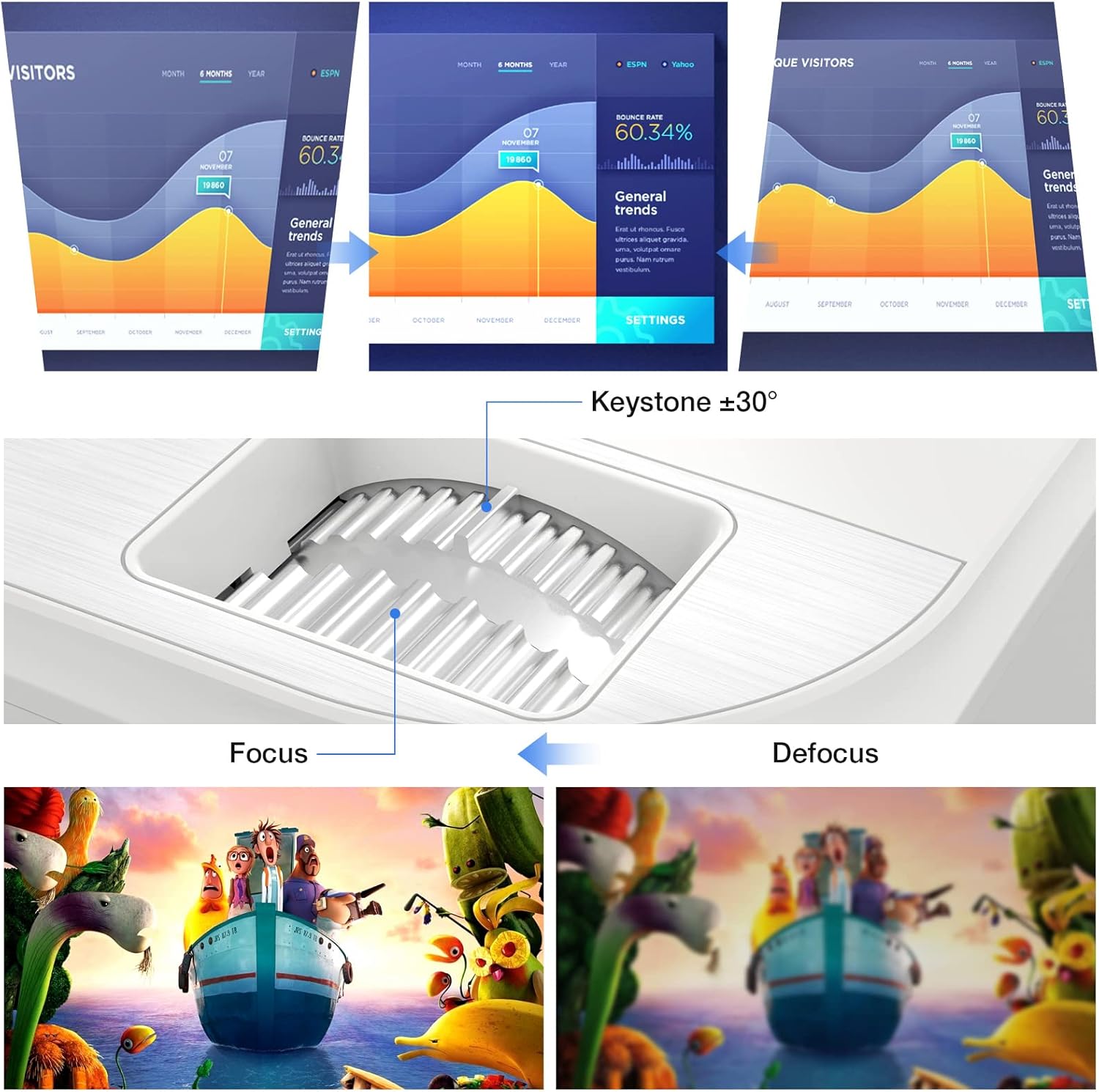
תמונה 6.1: A diagram illustrating the focus and keystone adjustment mechanisms on the projector. It shows the keystone dial for correcting trapezoidal distortion (up to ±30 degrees) and the focus ring for sharpening the image, with visual examples of focused versus defocused projections.
7. תחזוקה
7.1 ניקוי
- עֲדָשָׁה: השתמשו במטלית רכה ונטולת סיבים המיועדת במיוחד לעדשות אופטיות. אין להשתמש בחומרי ניקוי שוחקים.
- גוף המקרן: נגבו את המשטח בעזרת מטלית רכה ויבשה. עבור סימנים עקשניים, נגבו מעטamp cloth can be used, but ensure no liquid enters the device.
- פתחי אוורור: Regularly check and clean the ventilation ports to prevent dust buildup, which can affect cooling performance. Use a soft brush or compressed air.
7.2 ל'amp חַיִים
LED של המקרן lamp has an estimated lifespan of 150,000 hours, providing long-term, consistent performance without frequent lamp תחליפים.
7.3 מערכת קירור
The projector features an optimized cooling system to maintain stable operating temperatures and minimize fan noise. Ensure proper airflow around the projector by not blocking the ventilation openings.
8. פתרון תקלות
| בְּעָיָה | סיבה אפשרית | פִּתָרוֹן |
|---|---|---|
| אין תמונה מוקרנת | כבל חשמל רופף; מקור קלט שגוי; המכשיר אינו מחובר כראוי. | Check power connection; Select correct input source (HDMI, USB, AV); Ensure source device is powered on and connected securely. |
| התמונה מטושטשת | המיקוד לא מותאם; המקרן קרוב/רחוק מדי מהמסך. | כוונן את טבעת המיקוד; כוונן את מרחק ההקרנה. |
| התמונה היא טרפזית | המקרן אינו ניצב למסך. | Use keystone correction dial to adjust. |
| אין קול | Volume too low; Muted; External speakers not connected; Source device audio settings. | Increase volume; Unmute projector; Connect external speakers if desired; Check audio output settings on source device. |
| השלט רחוק לא עובד | סוללות ריקות/הוכנסו בצורה שגויה; חסימה בין השלט למקרן. | החלף סוללות; ודא שקו ראייה ברור למקלט ה-IR במקרן. |
9. מפרטים
| תכונה | פְּרָט |
|---|---|
| מותג | TOPVISION |
| מספר דגם | TP-98 |
| רזולוציה מקורית | רזולוציית Full HD 1920x1080P |
| רזולוציית תצוגה מקסימלית | Supports 4K UHD |
| בְּהִירוּת | 9500 לומן |
| יחס ניגודיות | 12000:1 |
| Lamp חַיִים | 150,000 שעות |
| גודל הקרנה | 45 - 350 אינץ' |
| תיקון קיסטון | ± 30 מעלות |
| קישוריות | 2x HDMI, 2x USB, 1x AV, 1x 3.5mm Audio Out |
| מידות המוצר | 30L x 25W x 11H ס"מ |
| מִשׁקָל | 4.3 ק"ג |
| סוג תצוגה | LCD |
| תכונות מיוחדות | Built-in Stereo Speakers, Touch Sensitive Panel |
10. אחריות ותמיכה
TOPVISION provides a 3-year free repair service for this product. Additionally, lifetime professional technical support is available. If you encounter any issues or require assistance, please do not hesitate to contact TOPVISION customer service.
For support, please refer to the contact information provided on the TOPVISION official webהאתר או מסמכי הרכישה שלך.