
1. המוצר נגמרview
The TP-Link Archer T4U Plus is an AC1300 Dual Band Wireless USB Adapter designed to provide high-speed Wi-Fi connectivity for desktop computers. It supports the 802.11ac Wi-Fi standard, offering speeds of up to 867 Mbps on the 5 GHz band and 400 Mbps on the 2.4 GHz band. Equipped with dual high-gain antennas and a USB 3.0 interface, it aims to enhance wireless range and data transfer efficiency.

The TP-Link Archer T4U Plus USB WiFi Adapter, featuring two high-gain antennas and a USB 3.0 cable for connection to a computer.
2. תכולת החבילה
ודא שהחבילה שלך מכילה את הפריטים הבאים:
- מתאם USB אלחוטי בעל אנטנות כפולות AC1300 בעל הגבר גבוה (Archer T4U Plus)
- כבל USB 3.0 באורך מטר אחד
- מדריך התקנה מהירה
- Resource CD (for drivers)
3. הוראות התקנה
3.1 התקנת חומרה
- פרק את המתאם: Carefully remove the Archer T4U Plus adapter and its USB cable from the packaging.
- חבר את כבל ה-USB: Connect one end of the provided 1-meter USB 3.0 cable to the USB 3.0 port on the Archer T4U Plus adapter.
- התחבר למחשב: Plug the other end of the USB 3.0 cable into an available USB 3.0 port on your desktop computer. For optimal performance, use a USB 3.0 port (typically blue inside).
- מקם את המתאם: Place the adapter in a location that allows for good signal reception, ideally away from obstructions. The adjustable antennas can be rotated and angled for best performance.

The Archer T4U Plus adapter shown connected to a USB port via its included cable, illustrating its desktop placement.
3.2 התקנת דרייבר
The Archer T4U Plus requires drivers to function correctly. Drivers can be installed via the included Resource CD or by downloading them from the TP-Link webאֲתַר.
For Windows Operating Systems (Windows 11/10/8.1/8/7/XP):
- שימוש בתקליטור המשאבים: Insert the Resource CD into your computer's CD-ROM drive. Follow the on-screen instructions to install the drivers.
- הורדה מ-TP-Link Webאֲתַר: If your computer lacks a CD-ROM drive, visit the official TP-Link support website, search for "Archer T4U Plus", and download the latest drivers for your specific Windows version. Run the downloaded installer and follow the prompts.
- Automatic Installation (Windows 10/11): In some cases, Windows 10 or 11 may automatically detect and install the necessary drivers upon connecting the adapter. Verify installation in Device Manager under "Network Adapters".
For Mac OS (10.15 and earlier):
- הורדה מ-TP-Link Webאֲתַר: בקרו באתר התמיכה הרשמי של TP-Link website, search for "Archer T4U Plus", and download the latest drivers for your Mac OS version.
- התקן דרייברים: פתח את ההורדה file and follow the installation instructions. You may need to restart your computer after installation.
4. הוראות הפעלה
4.1 חיבור לרשת אלחוטית
Once the drivers are successfully installed, you can connect to a Wi-Fi network:
- הגדרות רשת גישה:
- חלונות: לחץ על סמל ה-Wi-Fi במגש המערכת (בפינה הימנית התחתונה של המסך).
- מערכת הפעלה Mac: לחץ על סמל ה-Wi-Fi בשורת התפריטים (בפינה הימנית העליונה של המסך).
- בחר רשת: תופיע רשימה של רשתות אלחוטיות זמינות. בחר את הרשת הרצויה (SSID).
- הזן סיסמה: אם תתבקש, הזן את סיסמת ה-Wi-Fi (מפתח אבטחה) עבור הרשת שלך.
- לְחַבֵּר: לחץ על "התחבר" כדי ליצור את החיבור האלחוטי.
4.2 פעולה כפולה
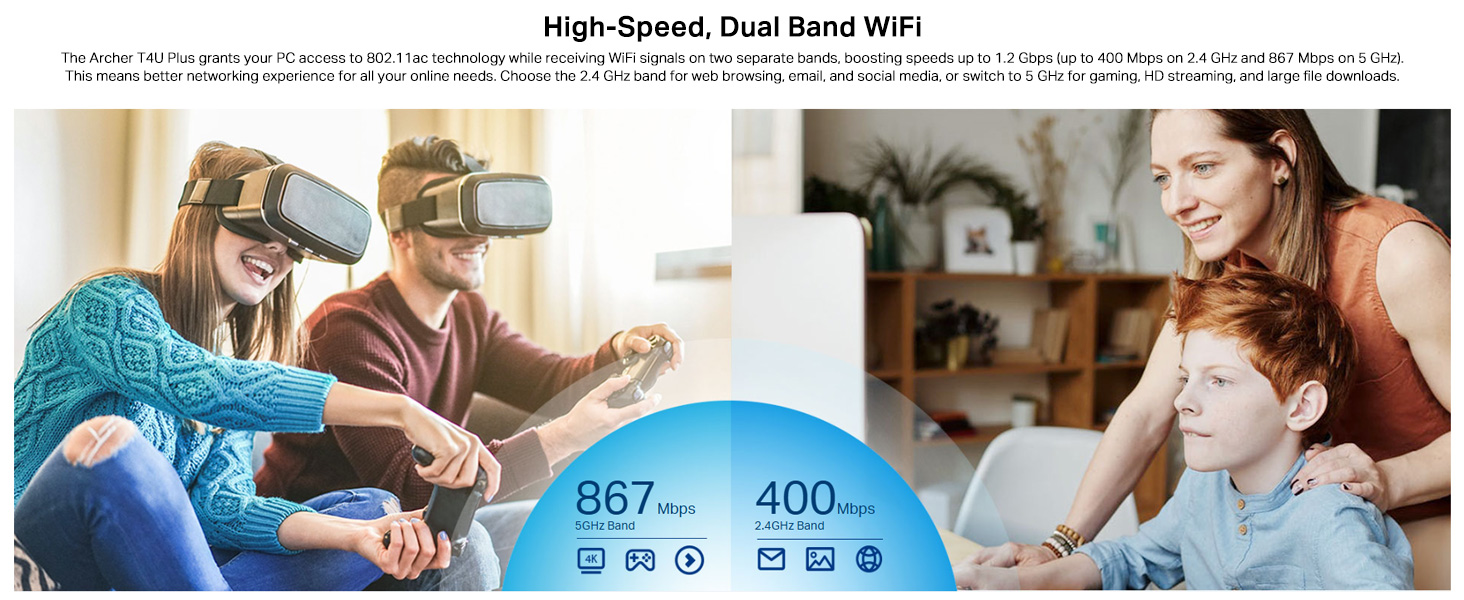
The Archer T4U Plus supports both 2.4 GHz and 5 GHz Wi-Fi bands. You can choose the band that best suits your needs:
- רצועת 2.4 GHz: Offers broader coverage and better penetration through walls, suitable for general internet use like web גלישה ואימייל.
- רצועת 5 GHz: Provides faster speeds and less interference, ideal for bandwidth-intensive activities such as online gaming, HD video streaming, and large file העברות.
Your router may broadcast separate SSIDs for each band (e.g., "MyWiFi_2.4GHz" and "MyWiFi_5GHz"). Select the appropriate network from the available list.

An image illustrating the dual-band capabilities of the adapter, showing 867 Mbps on the 5GHz band for activities like 4K streaming and gaming, and 400 Mbps on the 2.4GHz band for web גלישה ואימייל.
4.3 Enhanced Coverage and MU-MIMO
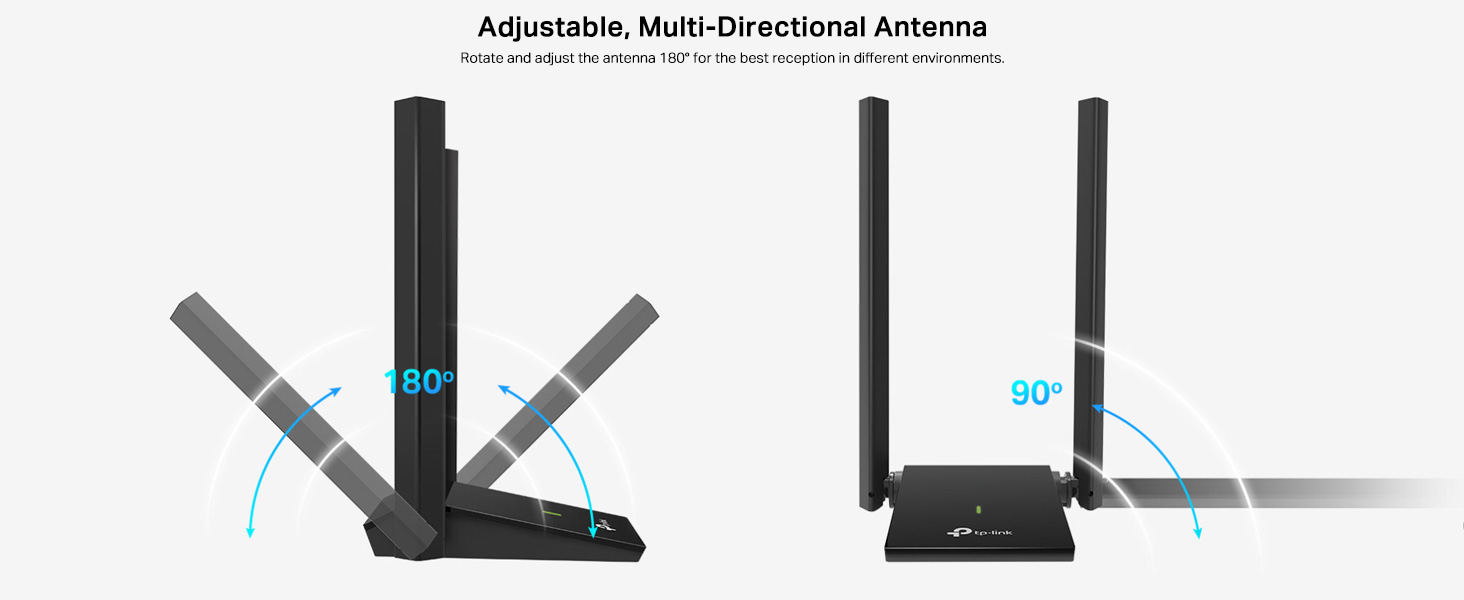
The dual high-gain antennas are designed to improve signal transmission and reception, extending your wireless coverage. For optimal performance, adjust the antennas to point towards your wireless router.
Illustrates the flexibility of the adapter's antennas, which can be rotated 180 degrees and adjusted 90 degrees for optimal signal reception.
The adapter also supports MU-MIMO technology. When used with a compatible MU-MIMO router, this technology allows the adapter to communicate with multiple devices simultaneously, improving network throughput and efficiency.
A visual representation of MU-MIMO technology, showing how the Archer T4U Plus adapter, when paired with a compatible router, can communicate with multiple devices simultaneously for improved network efficiency.
5. תחזוקה
- שמור על מנהלי התקנים מעודכנים: בדקו באופן קבוע את התמיכה של TP-Link webאתר עבור מנהלי ההתקנים העדכניים ביותר כדי להבטיח ביצועים ותאימות אופטימליים.
- נקה את המכשיר: השתמשו במטלית רכה ויבשה לניקוי המתאם. הימנעו משימוש בחומרי ניקוי נוזליים או ממסים.
- מיקום נכון: Ensure the adapter is placed in a well-ventilated area and not covered, to prevent overheating.
- חיבור מאובטח: Ensure the USB cable is securely connected to both the adapter and your computer to prevent intermittent disconnections.
6. פתרון תקלות
- אין חיבור Wi-Fi:
- ודא שהמתאם מחובר כראוי ליציאת USB.
- Verify that the drivers are correctly installed. Check Device Manager (Windows) or System Information (Mac OS) for the adapter's status.
- הפעל מחדש את המחשב והנתב.
- נסה לחבר ליציאת USB אחרת.
- מהירויות Wi-Fi איטיות:
- Ensure you are connected to the 5 GHz band if available and your router supports it, for faster speeds.
- Adjust the adapter's antennas for better signal reception.
- Minimize physical obstructions between the adapter and your router.
- בדוק אם יש הפרעות ממכשירים אחרים (למשל, מיקרוגלים, טלפונים אלחוטיים).
- עדכן את מנהלי ההתקנים של המתאם שלך לגרסה העדכנית ביותר.
- ניתוקים תכופים:
- ודא שכבל ה-USB אינו רופף.
- נסה יציאת USB אחרת, רצוי יציאת USB 3.0.
- Check for updated drivers.
- Ensure the adapter is not overheating.
- בעיות בהתקנת מנהלי התקנים:
- Disable any antivirus or firewall software temporarily during installation.
- Download drivers directly from the official TP-Link webאתר עבור מערכת ההפעלה הספציפית שלך.
- For Linux users, specific driver installation steps may be required, often involving command-line instructions. Refer to community forums or TP-Link's support for detailed guidance.
7. מפרטים
| תכונה | תֵאוּר |
|---|---|
| מותג | TP-Link |
| מספר דגם | Archer T4U Plus |
| ממשק חומרה | USB 3.0 |
| תקן אלחוטי | 802.11ac |
| קצב העברת נתונים | 1300 Mbps (867 Mbps on 5GHz, 400 Mbps on 2.4GHz) |
| אנטנות | אנטנות כפולות בעלות הגבר גבוה של 5dBi |
| מערכות הפעלה | Windows 11/10/8.1/8/7/XP, Mac OS 10.15 and earlier |
| מידות (L x W x H) | 8.4L x 15.6W x 1.9H סנטימטרים |
| משקל פריט | 100 גרם |
| צֶבַע | שָׁחוֹר |
8. אחריות ותמיכה טכנית
8.1 מידע אחריות
מוצר זה מגיע עם א אחריות יצרן לשנהאנא שמור את הוכחת הרכישה שלך לצורך תביעות אחריות.
8.2 תמיכה טכנית
For technical assistance, driver downloads, or further inquiries, please contact TP-Link support:
- TP-Link India Private Limited
- כְּתוֹבֶת: Green Industrial Park, Dongri Pada, Poman, Kaman-Bhiwandi Road, Vasai East, Palghar, Maharashtra – 401208
- איש קשר חינם: 1800 2094 168
- תמיכה בדוא"ל: support.in@tp-link.com
- יַצרָן: תאגיד TP-Link, בניין דרומי, דרך קיואן מס' 5, אזור מרכזי, פארק המדע והטכנולוגיה, ננשאן, שנזן, סין העממית
For the most up-to-date support information and resources, please visit the official TP-Link webאֲתַר.