
מָבוֹא
The Hotone Jogg is a compact, low-latency 1-in/2-out USB audio interface pedal designed to integrate your pedalboard with computer-based recording setups. It features high-headroom 24-bit conversion and supports 44.1kHz/48kHz sample rates for high-quality audio. Connectivity includes a 1/4-inch hi-Z instrument input, 1/4-inch unbalanced stereo outputs, an auxiliary input, a headphone output, and an XLR balanced output. The Jogg also provides a Gain knob for input level adjustment and an Output knob for overall output control. An activation code for Hotone's VStomp amp modeling software is included.
תכונות המוצר
- 1-in/2-out USB Audio Interface Pedal with 24-bit AD/DA conversion.
- Supports 44.1kHz/48kHz Sampling Rates for Mac/PC/iOS/Android devices.
- Compact and durable stompbox design.
- Features a 1/4-inch hi-Z instrument input.
- Includes 1/4-inch unbalanced stereo outputs.
- Dedicated auxiliary input and headphone output.
- XLR balanced output for professional connections.
- Adjustable Gain knob (up to +12dB) and Output level knob.
- Comes with an activation code for Hotone VStomp amp modeling software.
הגדרה
1. Connecting the Jogg Pedal
The Hotone Jogg is designed for easy integration into your audio setup. Follow these steps to connect your device:
- חיבור חשמל: Connect the Jogg to a 9V DC power supply (not included) via the DC 9V input. Alternatively, connect the Jogg to your computer using the provided USB-C cable for bus power.
- קלט מכשיר: Plug your instrument (e.g., guitar) into the 1/4-inch HI-Z input on the front panel.
- פלט שמע: Connect your monitoring speakers or headphones to the 1/4-inch unbalanced stereo outputs (OUT R, OUT L) or the dedicated headphone output. For balanced output, use the XLR OUT.
- קלט עזר: Use the AUX IN to connect external audio sources like a smartphone or media player.
- חיבור USB: Connect the Jogg to your computer (Mac/PC) or mobile device (iOS/Android) using the USB-C port. This enables audio transmission and bus power.

איור 1: בסך הכל view of the Hotone Jogg USB Audio Interface Pedal.
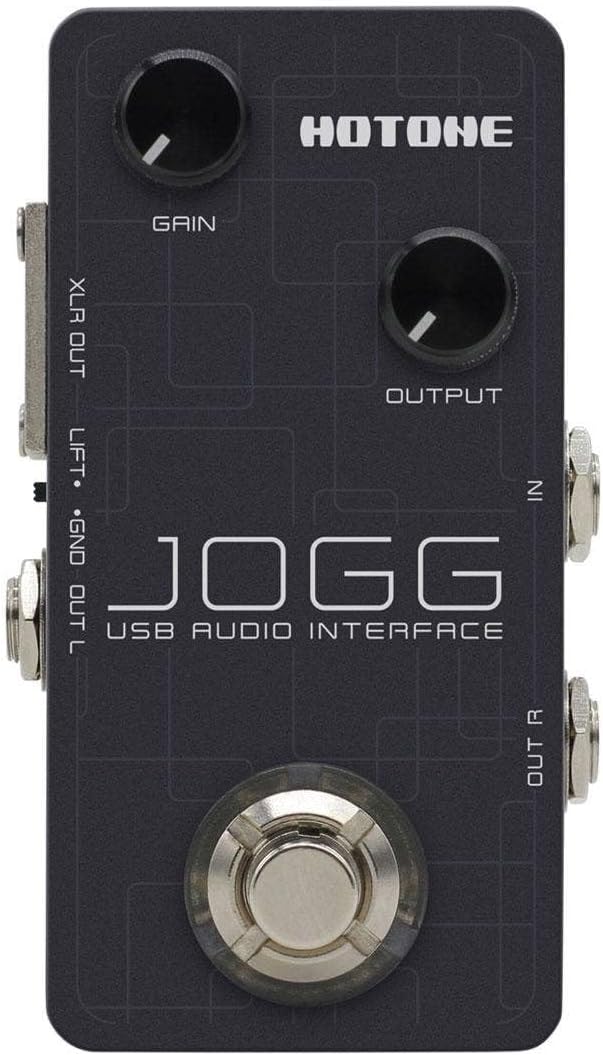
Figure 2: Top panel showing Gain and Output knobs, and input jacks.

Figure 3: Rear panel with USB, DC 9V, AUX IN, and PHONES connections.

איור 4: צד view displaying the XLR balanced output.

איור 5: צד view showing the 1/4-inch unbalanced stereo outputs (OUT R, OUT L).
2. התקנת תוכנה
For optimal performance and access to included features, ensure you install the necessary drivers and software:
- נהגים: Visit the official Hotone website to download and install the latest USB audio drivers for your operating system (Mac, PC, iOS, Android).
- VStomp Software: Use the provided activation code to download and register Hotone's VStomp amp modeling software. Follow the on-screen instructions for installation.
הוראות הפעלה
1. כוונון הגבר הקלט
The Jogg features a Gain knob to control the input level of your instrument. Rotate the knob clockwise to increase gain and counter-clockwise to decrease it. Adjust this to achieve a strong signal without clipping (distortion).
2. Controlling Output Level
The Output knob controls the overall output volume of the Jogg. Adjust this to a comfortable listening level for your speakers or headphones.
3. Monitoring Your Audio
Connect headphones to the PHONES output for direct monitoring of your input signal and playback from your computer. Adjust the Output knob to control the headphone volume.
4. Using VStomp Software
Once VStomp is installed and registered, launch the software on your computer. The Jogg will act as the hardware interface, allowing you to utilize VStomp's amp modeling and effects. Refer to the VStomp user manual for detailed instructions on software operation.
תַחזוּקָה
- ניקוי: Use a soft, dry cloth to clean the exterior of the Jogg. Avoid abrasive cleaners or solvents.
- אִחסוּן: יש לאחסן את הדוושה במקום קריר ויבש, הרחק מאור שמש ישיר וטמפרטורות קיצוניות, כאשר אינה בשימוש.
- טיפול: Handle the pedal with care to prevent damage to knobs, jacks, and internal components.
פתרון בעיות
- אין כוח: Ensure the USB-C cable is securely connected to both the Jogg and your computer/power source. If using a DC adapter, verify it is the correct voltage (9V) and polarity.
- אין כניסת קול: Check all instrument and microphone connections. Verify the Gain knob is adjusted appropriately. Ensure the correct input device is selected in your computer's audio settings or DAW.
- אין פלט קול: Check speaker/headphone connections. Adjust the Output knob. Verify the correct output device is selected in your computer's audio settings or DAW.
- בעיות אחזור: Ensure you have installed the latest drivers from the Hotone website. Adjust buffer size settings in your DAW to a lower value (if your system can handle it).
- Software Not Recognizing Jogg: Reinstall the USB drivers. Ensure the Jogg is connected and powered on before launching your DAW or VStomp software.
מפרטים
| תכונה | פְּרָט |
|---|---|
| מותג | HOTONE |
| דֶגֶם | Jogg |
| סוּג | דוושת ממשק שמע USB |
| המרת AD / DA | 24 סיביות |
| Sampשיעורי ling | 44.1kHz / 48kHz |
| תשומות | 1 x 1/4-inch Hi-Z Instrument Input, 1 x Auxiliary Input |
| פלטים | 2 x 1/4-inch Unbalanced Stereo Outputs, 1 x Headphone Output, 1 x XLR Balanced Output |
| טכנולוגיית קישוריות | USB-C (Bus Powered) |
| מכשירים תואמים | Laptop, Personal Computer, iOS, Android |
| תוכנה נתמכת | VStomp amp modeling software |
| משקל פריט | 10.4 אונקיות |
אחריות ותמיכה
For information regarding product warranty, technical support, and service, please refer to the official Hotone webאתר או צרו קשר ישירות עם שירות הלקוחות שלהם. שמרו את קבלת הרכישה כהוכחת קנייה לתביעות אחריות.
Official Hotone Webאֲתַר: hotoneaudio.com