
Macally ACEBTKEY-US
מדריך הוראות למקלדת Bluetooth אלחוטית של Macally
Model: ACEBTKEY-US | Brand: Macally
מָבוֹא
Thank you for choosing the Macally Wireless Bluetooth Keyboard. This multi-device keyboard is designed to enhance your productivity across various platforms, including Mac, iOS, Windows, and Android devices. Featuring 110 keys, 20 Mac OS shortcuts, and a numeric keypad, it offers a comfortable and efficient typing experience. Its ultra-slim design and rechargeable battery make it an ideal companion for both work and leisure.

Image: The Macally Wireless Bluetooth Keyboard, showcasing its full layout and sleek silver design.
תוכן החבילה
- Macally Wireless Bluetooth Keyboard
- כבל טעינה
- מדריך למשתמש
הגדרה
1. טעינת המקלדת
Before initial use, fully charge the keyboard using the included charging cable. Connect the cable to the keyboard's charging port and a USB power source. The LED indicator will show charging status.

Image: Illustration showing the keyboard connected to a charging cable, emphasizing its rechargeable nature.
2. התאמה למכשירים
The Macally Wireless Bluetooth Keyboard supports connecting up to three Bluetooth-enabled devices simultaneously. Follow these steps to pair your devices:
- הפעל את המקלדת באמצעות מתג ההפעלה.
- Press and hold one of the Bluetooth keys (BT1, BT2, or BT3) for a few seconds until the corresponding LED indicator starts blinking rapidly. This indicates pairing mode.
- On your device (computer, tablet, or smartphone), go to Bluetooth settings and search for available devices.
- Select "Macally Keyboard" (or similar name) from the list.
- If prompted, enter the pairing code displayed on your screen using the Macally keyboard and press Enter.
- Once paired, the LED indicator will stop blinking and remain solid for a few seconds before turning off.
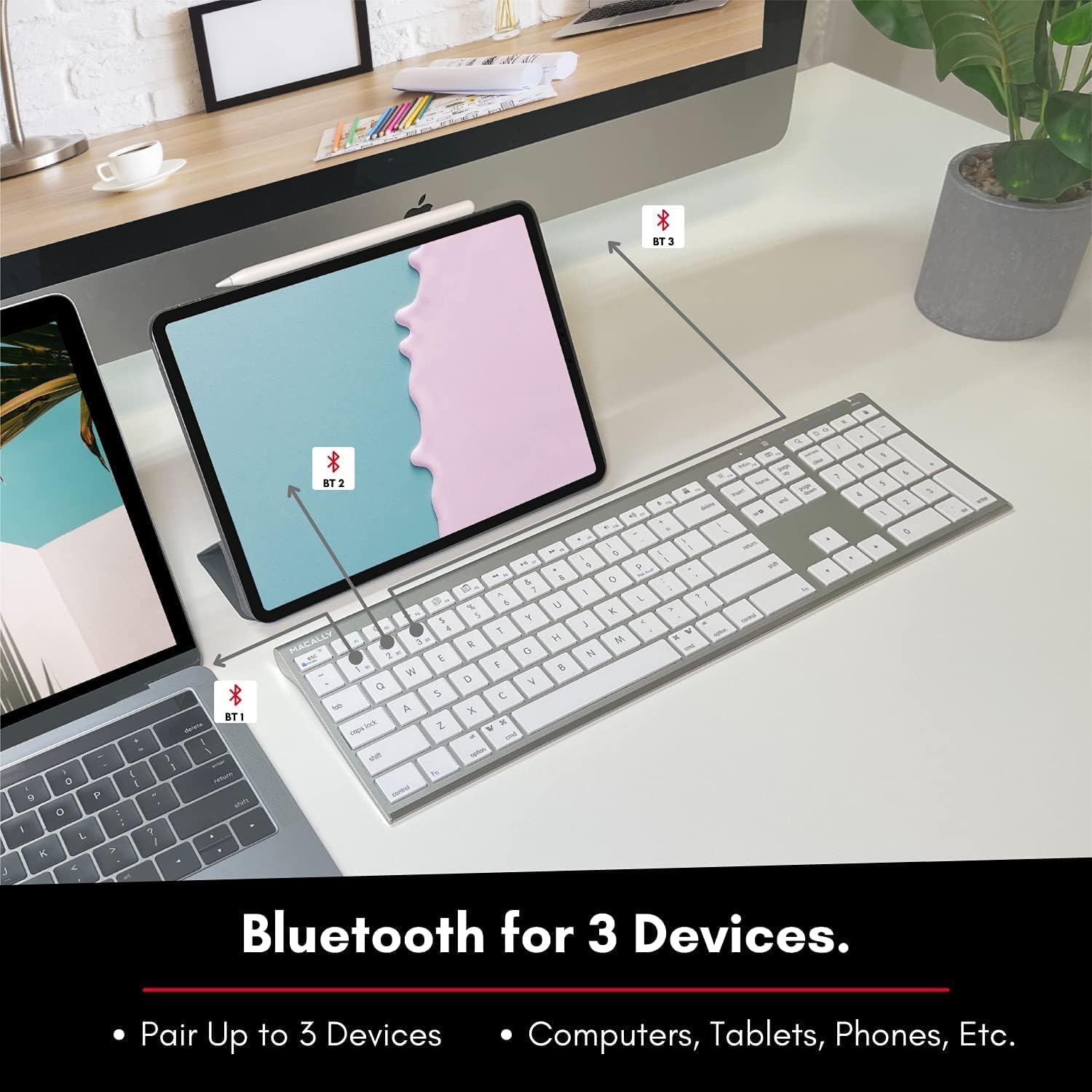
Image: The keyboard connected to a laptop and a tablet, illustrating its multi-device pairing capability.
הוראות הפעלה
מעבר בין מכשירים
To switch between paired devices, simply press the corresponding Bluetooth key (BT1, BT2, or BT3) once. The keyboard will automatically connect to the selected device within a few seconds.

Image: Visual representation of the keyboard seamlessly switching between a smartphone, iMac, and laptop, highlighting the multi-sync feature.
מקשי פונקציה וקיצורי דרך
The keyboard features a full set of 110 keys, including a numeric keypad and 20 dedicated Mac OS shortcut keys. These shortcuts provide quick access to various functions such as brightness control, volume adjustment, media playback, and more. Refer to your device's operating system documentation for specific shortcut functionalities.
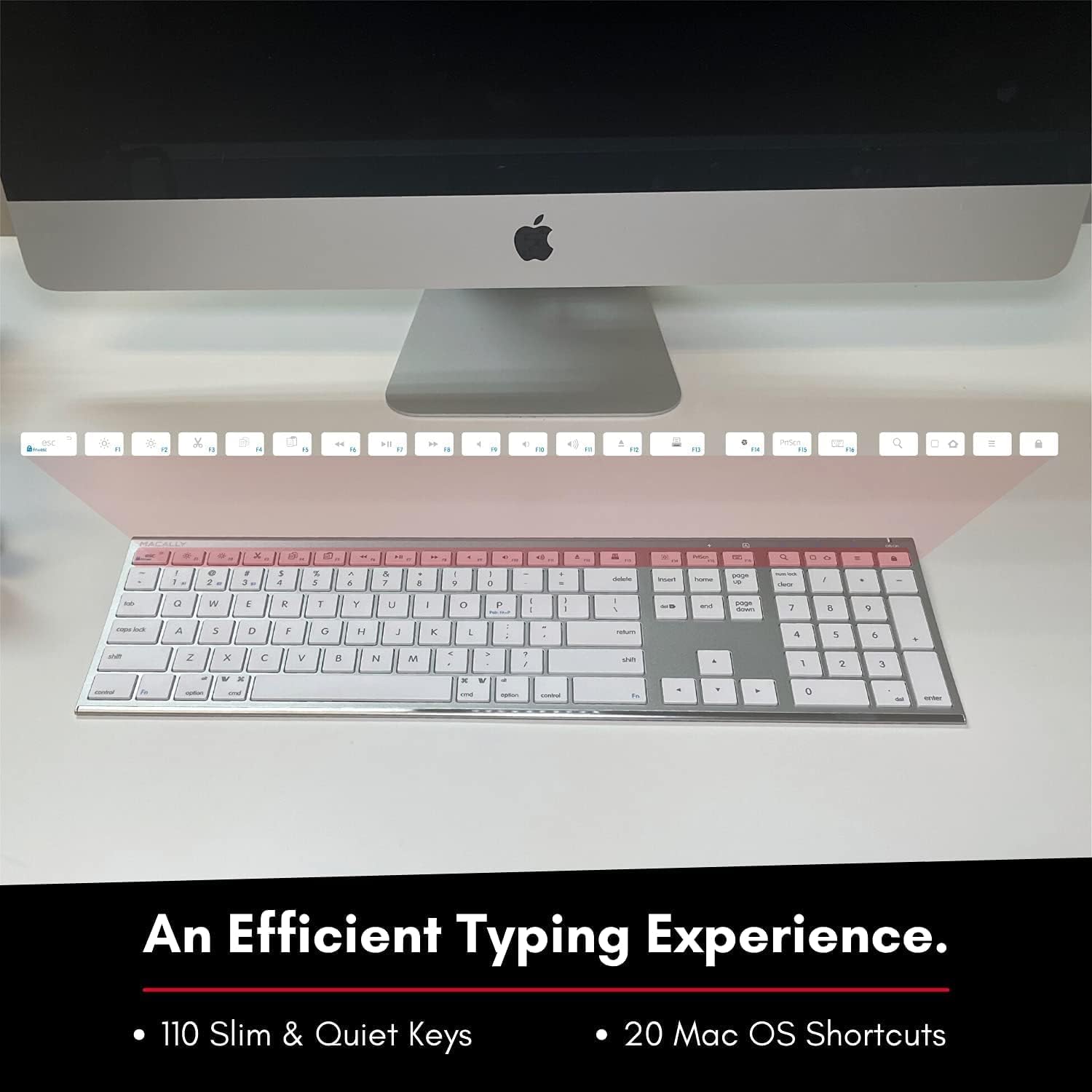
Image: Close-up of the keyboard's top row, highlighting the dedicated function and shortcut keys.
תְאִימוּת
This keyboard is broadly compatible with a range of operating systems and devices, including:
- macOS
- חלונות
- iOS (iPhone, iPad)
- דְמוּי אָדָם

Image: The keyboard positioned in front of an iMac, indicating its compatibility with Mac systems.
תַחזוּקָה
To ensure the longevity and optimal performance of your Macally Wireless Bluetooth Keyboard, follow these maintenance guidelines:
- ניקוי: Use a soft, lint-free cloth to wipe the surface of the keyboard. For stubborn dirt, slightly dampשטפו את המטלית במים או בתמיסת ניקוי עדינה. הימנעו מלחות מוגזמת.
- טיפול בסוללה: The keyboard features a built-in rechargeable battery. To maximize battery life, avoid fully discharging the battery frequently. Charge the keyboard when the low battery indicator appears.
- אִחסוּן: כאשר המקלדת אינה בשימוש למשך תקופות ממושכות, כבה אותה כדי לחסוך בחיי הסוללה. אחסן אותה במקום קריר ויבש הרחק מאור שמש ישיר וטמפרטורות קיצוניות.
- הימנע משפכים: הרחק נוזלים מהמקלדת כדי למנוע נזק לרכיבים הפנימיים.
פתרון בעיות
Keyboard Not Responding or Typing Incorrectly
- ודא שהמקלדת טעונה.
- Verify that the keyboard is powered on and the correct Bluetooth channel (BT1, BT2, or BT3) is selected for your device.
- נסה לחבר מחדש את המקלדת למכשיר שלך.
- Check if the Fn lock is active. On the top right, there should be a lock symbol with an FN in the lock. If there is a Blue LED light on the panel which is on the top right, then press and hold Fn ולחץ ESC to shut off the Fn lock.

Image: A troubleshooting tip for the Fn lock feature, showing the relevant keys.
Mouse Keys Issue (macOS)
- If your keyboard inputs are behaving like mouse movements, you may have "Mouse Keys" enabled.
- Go to System Preferences (or System Settings on newer macOS versions), then click on נְגִישׁוּת. After that, scroll to בקרת מצביע ולהשבית Enable Mouse Keys.

Image: A troubleshooting tip for disabling Mouse Keys in system settings.
בעיות חיבור בלוטות'
- ודא שה-Bluetooth של המכשיר שלך מופעל וניתן לגילוי.
- Move the keyboard closer to your device to ensure a strong signal.
- הסר כל מקורות הפרעה פוטנציאליים (למשל, מכשירים אלחוטיים אחרים, חפצים מתכתיים גדולים).
- הפעל מחדש גם את המקלדת וגם את המכשיר שלך.
מפרטים
| מותג | מקאלי |
| מספר דגם | ACEBTKEY-US |
| מידות המוצר | 18.11 x 6.3 x 0.91 אינץ' |
| משקל פריט | 14.9 אונקיות |
| טכנולוגיית קישוריות | בלוטות' |
| מספר מפתחות | 110 |
| מכשירים תואמים | מק OS, חלונות, iOS, אנדרואיד |
| סוֹלְלָה | 3 Lithium Polymer batteries (included, rechargeable) |
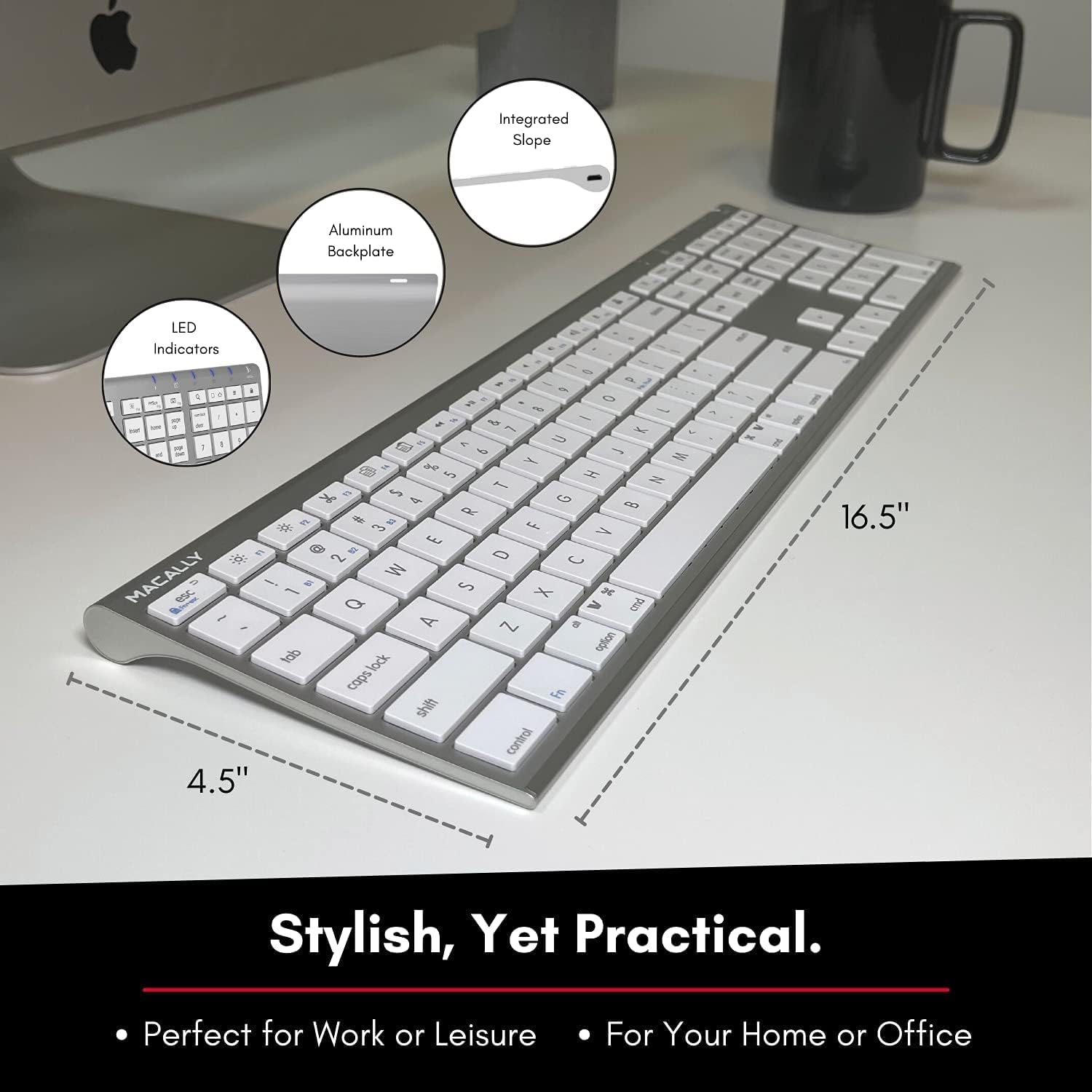
Image: Diagram illustrating the physical dimensions of the Macally Wireless Bluetooth Keyboard.
אחריות ותמיכה
Macally is committed to delivering high-quality, user-friendly workflow solutions. For any product inquiries, technical support, or warranty information, please visit the official Macally webאתר או צרו קשר עם שירות הלקוחות שלהם. תוכלו למצוא מידע נוסף ומשאבי תמיכה ב חנות מקאלי באמזון.
Ask a question about this manual
Ask about setup, troubleshooting, compatibility, parts, safety, or missing instructions. Manuals+ will review the question and use this page’s manual context to help answer it.