
1. הקדמה
The Hohem iSteady X is a lightweight, foldable 3-axis smartphone gimbal stabilizer designed to capture smooth and stable video footage with your mobile device. This manual provides detailed instructions for setup, operation, maintenance, and troubleshooting to ensure optimal performance.
2. מה בקופסה
Upon unboxing your Hohem iSteady X, verify that all components are present:
- Hohem iSteady X Gimbal Stabilizer
- מעמד מיני חצובה
- כבל טעינה (USB-C)
- רצועת יד
- נרתיק אחסון
- מדריך להתחלה מהירה
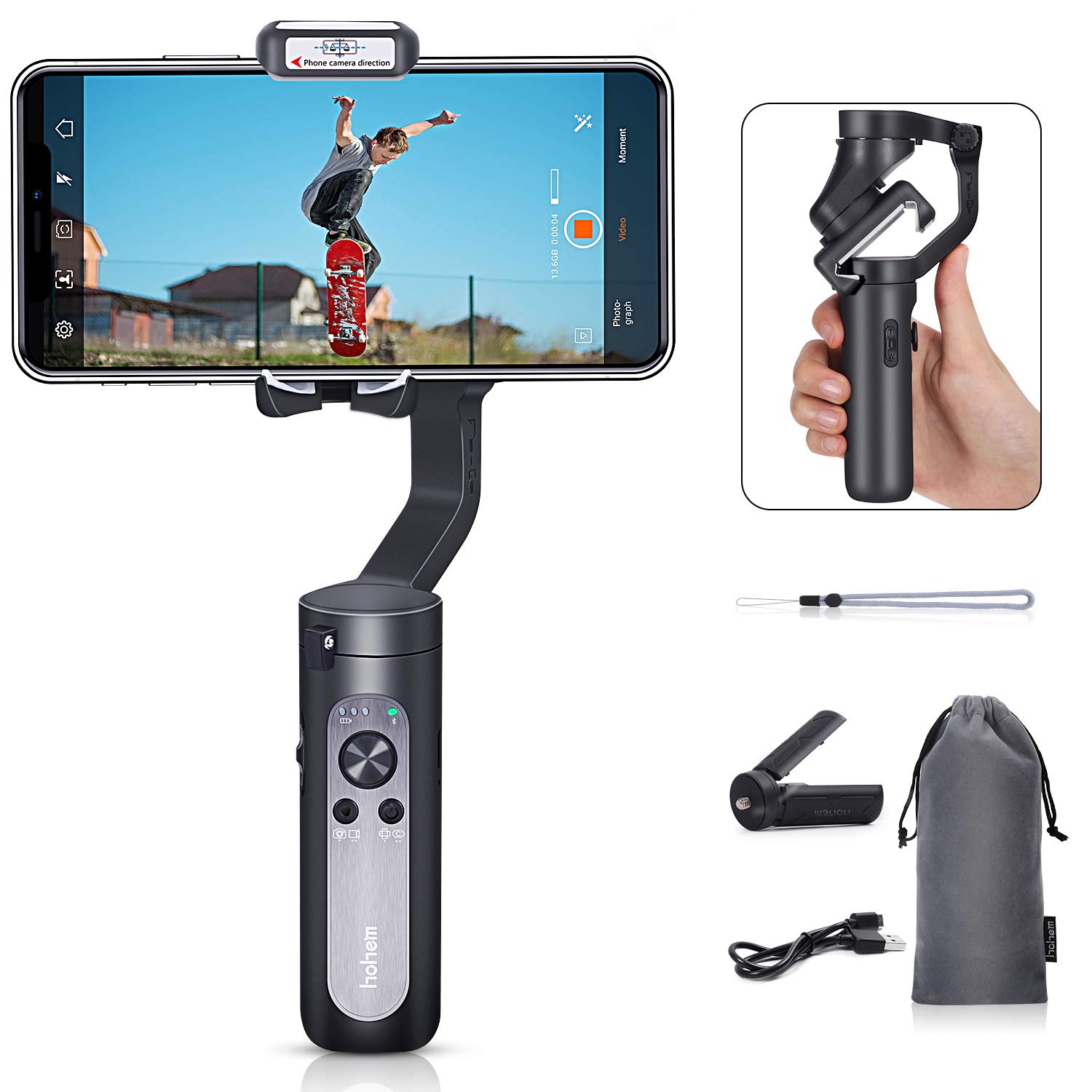
Figure 2.1: Contents of the Hohem iSteady X package, including the gimbal, mini tripod, charging cable, wrist strap, and storage pouch.
3. התקנה
3.1 פתיחת הגימבל
The iSteady X is designed to be compact when folded. To unfold, gently extend the gimbal arm until it locks into its operational position. Ensure all motor buckles are unlocked before powering on.

Figure 3.1: Visual guide for unfolding the gimbal, securing the smartphone, and unlocking the motor axes.
3.2 הרכבה ואיזון של הטלפון החכם
- Ensure your smartphone is removed from its case for proper balancing.
- Place your smartphone securely in the phone clamp.
- כוונן את מיקום הטלפון בתוך ה-clamp to achieve a balanced state. The phone should remain level when the gimbal is powered off.
3.3 App Download and Activation
Before first use, the iSteady X requires activation via the Hohem Pro app. Download the app from your smartphone's app store (iOS App Store or Google Play Store).
- הפעל Bluetooth בטלפון החכם שלך.
- Launch the Hohem Pro app.
- The app will detect the iSteady X. Tap 'Connect' and then 'Pair' when prompted for Bluetooth pairing.
- Follow the on-screen instructions to complete the activation process. Do not turn off the phone or gimbal during activation.
4. הוראות הפעלה
4.1 בקרות בסיסיות
לגימבל יש פקדים אינטואיטיביים על הידית שלו:
- לחצן הפעלה: Long press to power on/off. Single press to switch between photo/video mode. Double press to switch between horizontal/vertical shooting.
- ג'ויסטיק: שולט בתנועות סיבוב והטיה.
- מחוון זום (T/W): Controls digital zoom within the Hohem Pro app.
- לחצן ההדק: Press and hold to enter All Lock mode. Double press to recenter the gimbal. Triple press to enter Inception mode.
4.2 מצבי צילום
The Hohem Pro app offers various shooting modes to enhance your video creation:
- Standard Follow Mode (Tilt/Pan Follow): The camera follows your hand movements on both tilt and pan axes, maintaining a steady horizon.
- Pan Follow Mode: The camera only follows your pan (horizontal) movements.
- All Lock Mode: The camera remains fixed in its current orientation, ignoring all movements.
- נקודת מבט (POV) View) מצב: The camera follows all three axes (pan, tilt, roll) for dynamic first-person perspective shots.
- Horizontal & Vertical Switch: Easily switch between landscape and portrait orientations for different platforms.

Figure 4.1: The gimbal supports smart switching between horizontal and vertical shooting modes.
- סריקת פנים: The gimbal automatically tracks a detected face, keeping it centered in the frame.

Figure 4.2: The Hohem Pro app enables smart face-tracking for hands-free recording.
- Motion Timelapse: Capture time-lapse videos with dynamic camera movement.

Figure 4.3: The Motion Timelapse feature allows for creative time-lapse videos with programmed movements.
- Auto Low-Angle Shots: The gimbal can automatically adjust to capture stable low-angle footage.

Figure 4.4: The gimbal facilitates smooth auto low-angle shots.
- Auto Inception Mode (270° Roll): Create cinematic spinning shots with a 270-degree roll.

Figure 4.5: Auto Inception Mode allows for dynamic 270-degree rotating video effects.
- מצב מקל סלפי: The gimbal can be used as an extended selfie stick for wider shots.

Figure 4.6: The gimbal can be quickly switched to selfie stick mode for convenient self-portraits or group shots.
5. תחזוקה
- שמרו על הגימבל נקי מאבק ופסולת. השתמשו במטלית רכה ויבשה לניקוי.
- הימנע מחשיפת הגימבל לטמפרטורות קיצוניות או לחות.
- Store the gimbal in its provided pouch when not in use to prevent damage.
- טען את הסוללה באופן קבוע, גם אם אינה בשימוש תכוף, כדי לשמור על תקינותה.
6. פתרון תקלות
- גימבל לא נדלק: Ensure the battery is charged. Connect to the charging cable and try again.
- גימבל לא מאוזן: Remove the smartphone case. Re-center the smartphone in the clamp.
- בעיות חיבור בלוטות': Ensure Bluetooth is enabled on your phone. Restart the Hohem Pro app and try connecting again. If issues persist, restart both the phone and the gimbal.
- אוכל לא יציבtage: Ensure the smartphone is properly balanced. Check for any obstructions to the gimbal's movement.
7. מפרטים
| תכונה | מִפרָט |
|---|---|
| מידות המוצר | 7.04 x 3.11 x 1.53 inches (folded: 179mm x 79mm x 39mm) |
| משקל פריט | 8 אונקיות (227 גרם) |
| סוללות | נדרשות 2 סוללות ליתיום יון (כלולות) |
| מכשירים תואמים | סלולרי |
| צֶבַע | שָׁחוֹר |
| ASIN | B07R2J372X |
| UPC | 749390448534 |
8. אחריות ותמיכה
For warranty information and customer support, please refer to the official Hohem webאתר או צרו קשר ישירות עם שירות הלקוחות שלהם. שמרו את קבלת הרכישה כהוכחת קנייה.