
1. הקדמה
Thank you for choosing the Targus W620 Wireless Optical Mouse. This manual provides detailed instructions for setting up, operating, and maintaining your mouse to ensure optimal performance and longevity. The Targus W620 offers reliable 2.4 GHz wireless connectivity, a precise 1600 DPI optical sensor, and a compact design suitable for both office and mobile use.
2. תכולת החבילה
אנא בדקו את החבילה עבור הפריטים הבאים:
- Targus W620 Wireless Optical Mouse
- מקלט USB
- 2 x AAA סוללות
3. המוצר נגמרview
Familiarize yourself with the components of your Targus W620 Wireless Optical Mouse.
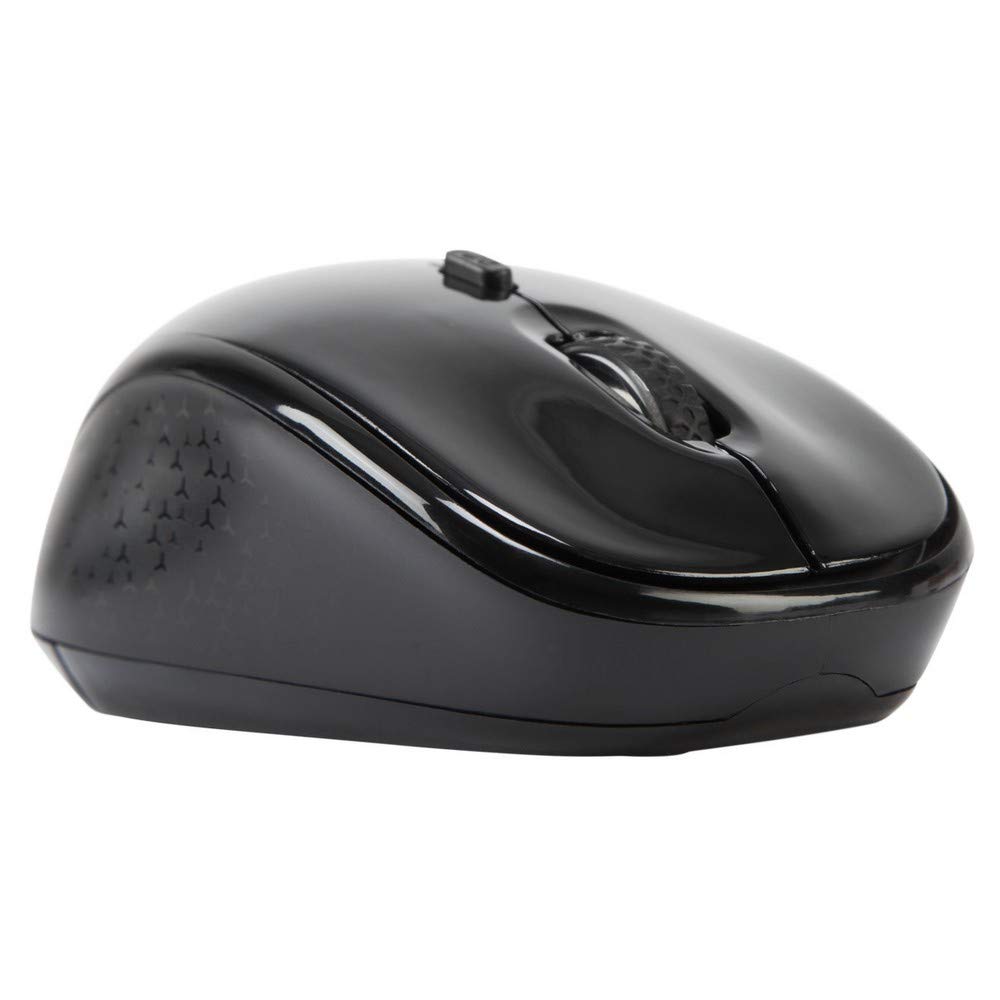
תמונה 3.1: רֹאשׁ view of the Targus W620 Wireless Optical Mouse. This image displays the primary buttons and scroll wheel.
- כפתור לחיצה שמאלי: פונקציית לחיצה ראשית סטנדרטית.
- כפתור לחיצה ימנית: פונקציית לחיצה משנית סטנדרטית.
- גלגל גלילה: לגלילה אנכית ולפונקציית לחיצה אמצעית.
- לחצן DPI: מתאים את רגישות העכבר (DPI).
- חיישן אופטי: Located on the bottom, detects mouse movement.
- תא סוללות: Located on the bottom, holds two AAA batteries.
- אחסון מקלט USB: A dedicated slot on the bottom for storing the USB receiver when not in use.

תמונה 3.2: תַחתִית view of the mouse, highlighting the battery compartment and optical sensor.
4. הוראות התקנה
Follow these steps to set up your Targus W620 Wireless Optical Mouse:
- התקן סוללות:
- אתר את מכסה תא הסוללה בתחתית העכבר.
- החלק את המכסה פתוח.
- הכניסו את שתי סוללות ה-AAA, תוך הקפדה על קוטביות נכונה (+/-).
- סגור היטב את מכסה תא הסוללות.
- חבר מקלט USB:
- The USB receiver is typically stored in a slot on the bottom of the mouse for transport. Gently remove it.
- חבר את מקלט ה-USB ליציאת USB זמינה במחשב שלך.

תמונה 4.1: The mouse with its USB receiver, ready for connection.
- הפעלה:
- There is no explicit power switch on this model; the mouse activates upon movement and connection.
- המחשב שלך אמור לזהות ולהתקין באופן אוטומטי את מנהלי ההתקנים הדרושים. פעולה זו עשויה להימשך מספר רגעים.
- Once drivers are installed, the mouse is ready for use.
5. הוראות הפעלה
The Targus W620 Wireless Optical Mouse is designed for intuitive use. Here are its primary functions:
- ניווט בסיסי: הזז את העכבר על משטח ישר כדי לשלוט בסמן על המסך.
- לחיצה שמאלית: השתמש לבחירת פריטים, פתיחה files, או הפעלת פונקציות.
- מקש ימני: Use for accessing context menus or secondary functions.
- גלגל גלילה: Rotate the wheel to scroll vertically through documents and web pages. Press the scroll wheel for a middle-click function, often used for opening links in new tabs or auto-scrolling.
- התאמת DPI: Press the DPI button (located behind the scroll wheel) to cycle through the available DPI settings (800, 1200, 1600 DPI). This changes the sensitivity of the mouse cursor. A higher DPI means the cursor moves further with less physical mouse movement.
6. תחזוקה
Proper maintenance ensures the longevity and performance of your mouse.
- ניקוי: השתמשו במטלית רכה, יבשה ונטולת סיבים כדי לנקות את החלק החיצוני של העכבר. במקרה של לכלוך עיקש, שטפו קלותampשטפו את המטלית במים. הימנעו משימוש בכימיקלים חזקים או בחומרי ניקוי שוחקים.
- חיישן אופטי: שמרו על אזור החיישן האופטי בתחתית העכבר נקי מאבק או פסולת כדי להבטיח מעקב מדויק.
- החלפת סוללה: When the mouse performance degrades or stops responding, it is likely time to replace the batteries. Follow the steps in Section 4.1 to replace the two AAA batteries.
- אִחסוּן: When transporting or storing the mouse, always place the USB receiver back into its dedicated storage slot on the bottom of the mouse to prevent loss.
7. פתרון תקלות
If you encounter issues with your Targus W620 mouse, try the following solutions:
| בְּעָיָה | פתרון אפשרי |
|---|---|
| Mouse not responding or cursor not moving. |
|
| תנועת הסמן אינה יציבה או קופצנית. |
|
| כפתור ה-DPI לא משנה את הרגישות. |
|
| בעיות חיבור אלחוטי. |
|
8. מפרטים
| מותג | טארגוס |
| מספר דגם | AMW620AP |
| טכנולוגיית קישוריות | אלחוטי 2.4 גיגה-הרץ (תדר רדיו) |
| טכנולוגיית זיהוי תנועה | Optical (BlueTrace Technology) |
| רמות DPI | 800 / 1200 / 1600 DPI (ניתן להתאמה) |
| מספר כפתורים | 4 (Left, Right, Scroll Wheel, DPI) |
| כיוון יד | Right (Comfortable for ambidextrous use) |
| מקור כוח | 2 x AAA סוללות (כלולות) |
| משקל פריט | 26 גרם |
| תאימות מערכת הפעלה | Linux, Windows XP (Compatible with modern Windows and macOS) |
| פלטפורמת חומרה | מק, מחשב אישי |
| צֶבַע | שָׁחוֹר |
9. אחריות ותמיכה
מידע על אחריות: The Targus W620 Wireless Optical Mouse comes with a אחריות יצרן לשנה מתאריך הרכישה. אחריות זו מכסה פגמים בחומרים ובביצוע בשימוש רגיל. אנא שמור את הוכחת הרכישה שלך לצורך תביעות אחריות.
תמיכת לקוחות: For technical assistance, troubleshooting beyond this manual, or warranty inquiries, please visit the official Targus website or contact their customer support service. Refer to the contact information provided with your product packaging or on the Targus official webאֲתַר.