
מָבוֹא
This manual provides essential information for the safe and efficient use of your ASUS X441BA 14-inch laptop. It covers initial setup, basic operation, maintenance guidelines, troubleshooting common issues, and detailed product specifications. Please read this manual thoroughly before using your device.
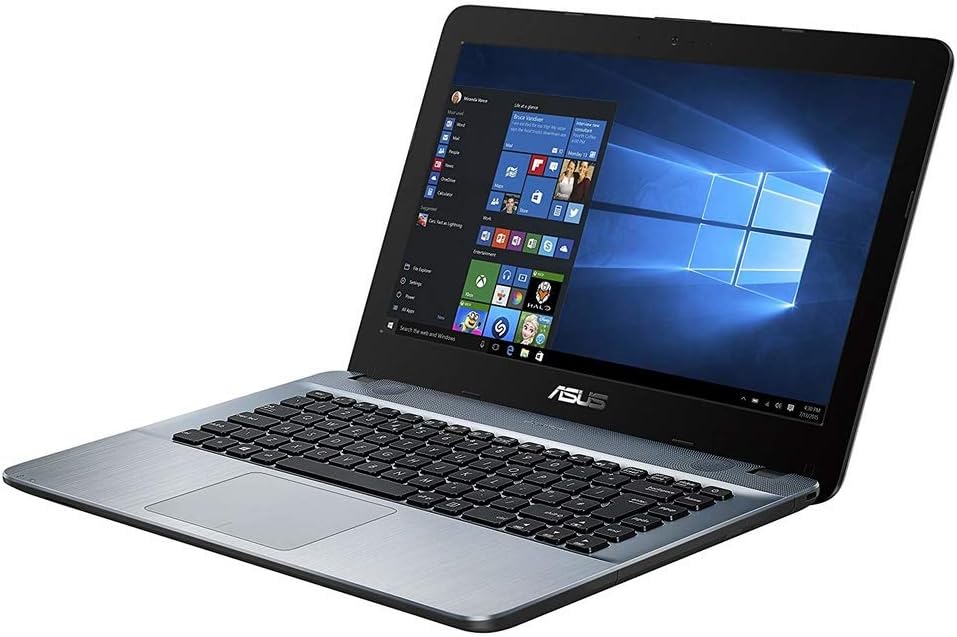
Image: The ASUS X441BA laptop, showcasing its 14-inch display and keyboard layout.
הגדרה
1. פריקה ובדיקה ראשונית
הוצא בזהירות את המחשב הנייד ואת כל האביזרים מהאריזה. בדוק אם יש סימני נזק. אם חסרים או ניזוקו רכיבים כלשהם, פנה מיד לחנות.
2. חיבור חשמל
Connect the AC adapter to the laptop's power input port, then plug the power cord into a wall outlet. The laptop can be used while charging. It is recommended to fully charge the battery before first use.
3. Initial Boot and Windows 10 Setup
Press the power button located on the top-right of the keyboard to turn on the laptop. Follow the on-screen instructions to complete the Windows 10 setup process, which includes selecting your language, region, and creating a user account.
4. חיבור לרשת
- Wi-Fi: During Windows setup or afterward, click the network icon in the taskbar, select your desired Wi-Fi network, and enter the password.
- אתרנט: For a wired connection, plug an Ethernet cable into the RJ45 LAN port on the side of the laptop.
הפעלת המחשב הנייד שלך
1. ניהול צריכת חשמל
- הפעלה: לחץ על לחצן ההפעלה.
- כיבוי: נְקִישָׁה הַתחָלָה > כּוֹחַ > סגור.
- מצב שינה: נְקִישָׁה הַתחָלָה > כּוֹחַ > לִישׁוֹן to put the laptop into a low-power state.
- הפעל מחדש: נְקִישָׁה הַתחָלָה > כּוֹחַ > הפעל מחדש.
2. מקלדת ומשטח מגע
The integrated keyboard provides a comfortable typing experience. The touchpad, located below the keyboard, allows for precise cursor control and supports multi-touch gestures for scrolling, zooming, and other functions. Refer to Windows settings for touchpad customization.
3. Connecting External Displays
Your laptop features multiple ports for connecting external monitors:
- יציאת HDMI: Connects to modern displays, TVs, and projectors for high-definition video and audio.
- יציאת VGA: Connects to older monitors and projectors.
- יציאת USB 3.1 Type-C: May support video output with an appropriate adapter (sold separately).
After connecting, press מקש Windows + P to select your display mode (e.g., Duplicate, Extend, Second screen only).
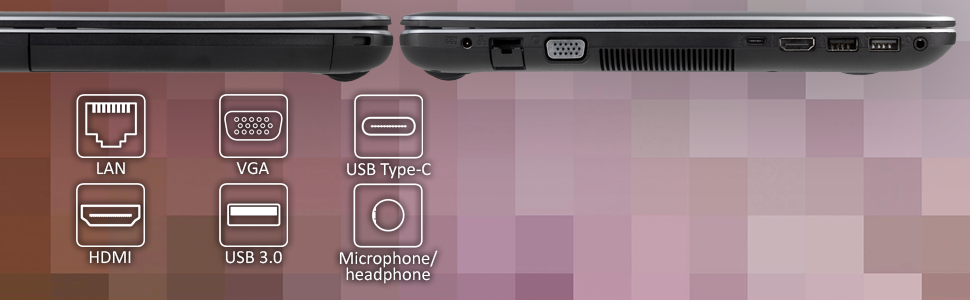
תמונה: צד view of the ASUS X441BA laptop, highlighting the available connectivity ports.
4. USB Ports and Peripherals
The laptop is equipped with various USB ports for connecting external devices:
- USB 3.0 (סוג A): להעברת נתונים במהירות גבוהה עם מכשירים תואמים.
- USB 3.1 (Type-C): A reversible connector for newer devices, offering fast data transfer.
- USB 2.0: For standard peripherals like mice, keyboards, or printers.
5. תכונות אודיו
The laptop includes integrated speakers for audio playback. A combo audio jack is available for connecting headphones or an external microphone.
תַחזוּקָה
1. הוראות ניקוי
- מָסָך: השתמשו במטלית מיקרופייבר רכה ונטולת סיבים. עבור כתמים עקשניים, נגבו קלותampen the cloth with water or a screen-specific cleaner. Avoid spraying liquids directly onto the screen.
- שלדה ומקלדת: Use a soft, dry cloth. A can of compressed air can be used to remove dust from between keyboard keys and vents.
- כְּלָלִי: Avoid abrasive cleaners, solvents, or harsh chemicals. Ensure the laptop is powered off and unplugged before cleaning.
2. עדכוני תוכנה
Regularly check for and install Windows updates to ensure your operating system has the latest security patches, bug fixes, and performance improvements. Go to הַתחָלָה > הגדרות > עדכון ואבטחה > Windows Update.
3. ניהול כונן קשיח
Your laptop is equipped with a 500GB HDD. To maintain optimal performance:
- ניקוי דיסק: Periodically run the Disk Cleanup utility to remove temporary fileונתונים מיותרים אחרים.
- איחוי: For HDDs, regular defragmentation can improve file access speeds. חפש "Defragment and Optimize Drives" in Windows.
- ניהול אחסון: Monitor your storage usage and delete large, unneeded fileכדי לפנות מקום.
4. טיפול בסוללה
To prolong the lifespan of your laptop's integrated Lithium Ion battery:
- הימנעו מחשיפת המחשב הנייד לטמפרטורות קיצוניות.
- Do not frequently fully discharge the battery.
- If storing the laptop for an extended period, ensure the battery is charged to around 50-60%.
פתרון בעיות
This section addresses common issues you might encounter with your ASUS X441BA laptop.
1. Laptop is Slow or Unresponsive
- Check Background Processes: Open Task Manager (Ctrl+Shift+Esc) to identify and close resource-intensive applications.
- Free Up Disk Space: Ensure there is sufficient free space on your 500GB HDD. Run Disk Cleanup.
- הפעל מחדש: A simple restart can often resolve temporary performance issues.
- עדכוני תוכנה: ודא ש-Windows ומנהלי ההתקנים מעודכנים.
- שיקולי חומרה: The laptop comes with 4GB DDR4 RAM and a 500GB HDD. While suitable for basic tasks, heavy multitasking or demanding applications may benefit from a professional RAM upgrade (if supported) or replacing the HDD with a Solid State Drive (SSD).
2. הסוללה לא נטענת או מתרוקנת במהירות
- AC Adapter Check: Ensure the AC adapter is securely connected to both the laptop and the power outlet. Try a different outlet.
- הגדרות חשמל: Adjust Windows power settings to optimize battery life. Go to הַתחָלָה > הגדרות > מַעֲרֶכֶת > סוֹלְלָה.
- בריאות הסוללה: Over time, battery capacity naturally degrades. If the issue persists and the laptop is older, the battery may need service.
3. Unusual Noise (Fan or Internal)
- פתחי אוורור שקופים: Ensure the laptop's ventilation openings are not blocked by dust or objects, which can cause the fan to work harder and louder.
- טֶמפֶּרָטוּרָה: High CPU usage or hot environments can increase fan speed. Reduce workload or move to a cooler area.
- רעש מתמשך: If the noise is unusual or persistent, it may indicate a hardware issue requiring professional inspection.
4. Connectivity Problems (Wi-Fi, Bluetooth)
- הפעל מחדש מכשירים: Restart your Wi-Fi router/modem and the laptop.
- בדיקת מנהלי התקנים: Ensure your wireless and Bluetooth drivers are up to date via Device Manager.
- זיווג Bluetooth: עבור התקני Bluetooth, ודא שהם במצב צימוד ובטווח קליטה.
מפרטים
Below are the key technical specifications for the ASUS X441BA laptop:
| תכונה | מִפרָט |
|---|---|
| מותג | ASUS |
| שם הדגם | X441BA |
| גודל מסך | 14 אינץ' |
| רזולוציית תצוגה | HD (1366x768) LED backlit |
| מעבד | AMD A6-9225 (7th Gen), Dual-Core, 2.6 GHz (up to 3.0 GHz) |
| גרָפִיקָה | AMD Radeon R4 Graphics |
| זיכרון RAM | 4 GB DDR4-2400 SDRAM |
| אִחסוּן | 500 GB HDD (5400 RPM) |
| מַעֲרֶכֶת הַפעָלָה | Windows 10 Home |
| קישוריות | 802.11b/g/n Wi-Fi, Bluetooth V4.0, Ethernet (RJ45) |
| נמלים | 1x USB 3.0 Type-A, 1x USB 3.1 Type-C, 1x USB 2.0, 1x HDMI, 1x VGA, 1x COMBO audio jack, 1x RJ45 LAN |
| סוֹלְלָה | 3-cell Lithium Ion, 45 Watt Hours |
| מִשׁקָל | 3.9 פאונד |
| שנת דגם | 2019 |
אַחֲרָיוּת
Your ASUS X441BA laptop comes with a אחריות מוגבלת לשנה. Please refer to the warranty card included with your product for full terms and conditions, including coverage details and limitations. Keep your proof of purchase for warranty claims.
תְמִיכָה
לסיוע טכני, הורדות מנהלי התקנים, שאלות נפוצות ומשאבי תמיכה נוספים, אנא בקרו באתר התמיכה הרשמי של ASUS website. You can typically find support by searching for your specific model number (X441BA) on the ASUS support portal.
For customer service inquiries, please refer to the contact information provided in your product packaging or on the ASUS official webאֲתַר.