
1. הקדמה
This manual provides detailed instructions for the installation, operation, maintenance, and troubleshooting of your Thermaltake Toughpower iRGB Plus 750W 80+ Gold Power Supply. This fully modular digital power supply features a patented 16.8 million-color Ring Duo 14 RGB fan and supports Smart Power Management (SPM) for advanced control and monitoring.

תמונה 1.1: חזית view of the Thermaltake Toughpower iRGB Plus 750W Power Supply, showcasing its design and RGB fan.
2. מידע בטיחות
Please read and follow these safety guidelines carefully to prevent injury and damage to your equipment:
- נתק חשמל: יש לנתק תמיד את כבל החשמל AC משקע הקיר לפני התקנה, הסרה או ביצוע כל תחזוקה על ספק הכוח או על רכיבי מחשב אחרים.
- אל תפתח: The power supply unit contains high voltage components. Do not open the PSU casinז. אין חלקים בפנים הניתנים לתיקון על ידי המשתמש. פתיחת ה-casing voids the warranty.
- הארקה נכונה: Ensure your computer system is properly grounded to prevent electrical shock.
- אוורור: Ensure adequate ventilation around the power supply. Do not block the fan or ventilation openings.
- לחות וטמפרטורה: Avoid exposing the power supply to moisture, high humidity, or extreme temperatures. Operate within the specified operating temperature range (0°C to +50°C).
- Correct Cables: Use only the modular cables provided with this power supply. Using incompatible cables may cause damage to the PSU or connected components.
3. תכונות מוצר
The Thermaltake Toughpower iRGB Plus 750W Power Supply offers several advanced features:
- Smart Power Management (SPM): Monitor real-time PSU, CPU, VGA, RAM, and HDD status, control lighting, and receive warning alerts via PC and mobile applications.
- Razer Chroma Compatibility: Synchronize gaming and RGB lighting effects with the Razer Chroma ecosystem for a unified lighting experience.
- שליטה קולית של אלקסה: Control lighting or fan speed by speaking to an Alexa-enabled device.
- Smart Zero Fan: The fan activates only when the power supply reaches 30% of its rated load, minimizing noise during low-load operation.
- Built-in Ring Duo RGB Fan: Features a 16.8 million-color Ring Duo 140mm RGB fan with 18 addressable LEDs to customize your build's aesthetics.

תמונה 3.1: שתיים views of the power supply highlighting the built-in 140mm Riing Duo RGB fan with 18 addressable LEDs.

תמונה 3.2: מלמעלה למטה view of the power supply fan, showing the RGB lighting capabilities.
4. תכולת החבילה
ודא שהחבילה שלך מכילה את הפריטים הבאים:
- Thermaltake Toughpower iRGB Plus 750W Power Supply Unit
- כבל מתח AC
- סט כבלים מודולרי (כמפורט להלן)
- ברגי הרכבה
- מדריך למשתמש (מסמך זה)
סט כבלים מודולרי:

Image 4.1: A table detailing the connector types, cable lengths, and quantities included with the 750W power supply.

Image 4.2: The power supply unit with its fully modular cable design, showing the various ports for connecting cables.
| סוג מחבר | אורך כבל | כַּמוּת |
|---|---|---|
| מחבר חשמל ראשי (24 פינים) | 600 מ"מ | 1 |
| ATX 12V (4 + 4 Pin) | 650 מ"מ | 1 |
| SATA (5 פינים) | 500mm+150mm+150mm+150mm+150mm | 9 |
| PCI-E (6 + 2 Pin) | 500 מ"מ+150 מ"מ+150 מ"מ | 4 |
| Peripheral (4 Pin) | 500mm+150mm+150mm+150mm | 4 |
| מתאם תקליטונים (4 פינים) | 100 מ"מ | 1 |

Image 4.3: The power supply unit shown with a selection of its modular cables connected, demonstrating the flexibility of the design.
5. התקנה והתקנה
בצע את השלבים הבאים כדי להתקין את ספק הכוח שלך:
- הכן את המערכת שלך: ודא שהמחשב כבוי לחלוטין ומנותק משקע החשמל בקיר. פתח את מארז המחשב.
- הסר את ספק הכוח הישן (אם רלוונטי): נתק את כל הכבלים מספק הכוח הישן שלך והסר אותו מהמארז.
- התקן את ספק הכוח החדש: Place the Thermaltake Toughpower iRGB Plus 750W into the power supply bay of your computer case. Secure it with the provided mounting screws. Ensure the fan is facing the correct direction for optimal airflow (typically facing down if your case has a bottom vent, or up if it's a top-mounted PSU).
- חיבור כבלים חיוניים:
- חבר את מחבר חשמל ראשי בעל 24 פינים ללוח האם שלך.
- חבר את 4+4-pin ATX 12V Connector to your motherboard's CPU power socket.
- חבר את הדרוש 6+2-pin PCI-E Connectors to your graphics card(s).
- לְחַבֵּר SATA Power Connectors to your storage drives (HDDs, SSDs) and optical drives.
- לְחַבֵּר Peripheral (4-pin Molex) Connectors to any other components requiring them (e.g., case fans, fan controllers).
- במידת הצורך, השתמש ב- מתאם תקליטונים for older devices.
- Connect USB Cable for Digital Control: Locate the USB port on the power supply and connect one end of the provided USB cable. Connect the other end to an available USB 2.0 header on your motherboard. This connection is essential for Smart Power Management (SPM) and RGB control software.
- ניהול כבלים: נתבו את הכבלים בצורה מסודרת כדי לשפר את זרימת האוויר והאסתטיקה.
- סגור את המארז והפעל אותו: Close your computer case, connect the AC power cord to the power supply, and then plug it into a wall outlet. Flip the power switch on the back of the PSU to the 'ON' position.

Image 5.1: Rear panel of the power supply, indicating the AC power inlet and the main power switch.
6. הוראות הפעלה
Once installed, you can utilize the advanced features of your power supply:
6.1. Smart Power Management (SPM)
The SPM platform allows you to monitor and manage your power supply digitally. Download and install the Thermaltake SPM software from the official Thermaltake website. This software provides:
- Real-time monitoring of power consumption, efficiency, voltagה, וטמפרטורה.
- Fan speed control and Smart Zero Fan mode management.
- Customizable warning alerts for abnormal conditions.
- Access via PC application and mobile app.
6.2. בקרת תאורת RGB
The iRGB Plus series offers extensive RGB lighting customization:
- TT RGB Plus Software: Use the Thermaltake TT RGB Plus software to customize the 16.8 million-color RGB fan. This software allows for various lighting modes, effects, and color synchronization with other compatible Thermaltake RGB products.
- Razer Chroma: Integrate your PSU's RGB lighting with the Razer Chroma ecosystem for synchronized effects across your Razer peripherals and other Chroma-compatible devices.
- שליטה קולית של אלקסה: If configured, you can use voice commands through an Alexa-enabled device to change lighting colors, effects, or adjust fan speed.
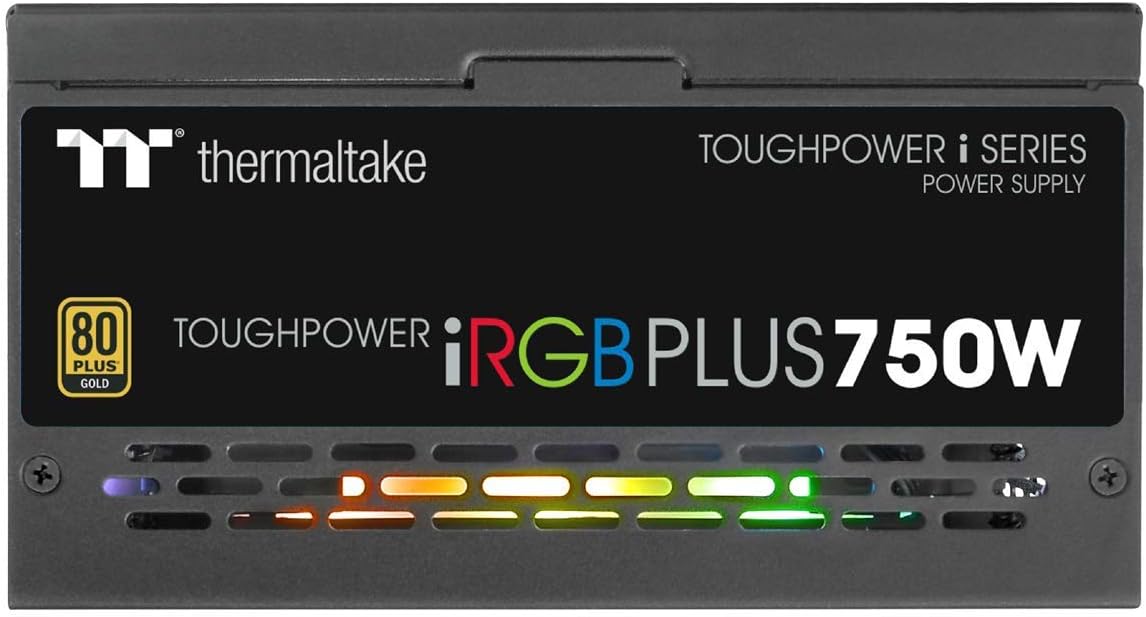
תמונה 6.1: צד view of the power supply, illustrating the vibrant RGB lighting effects.
7. תחזוקה
תחזוקה שוטפת מסייעת להבטיח את אורך החיים והביצועים האופטימליים של ספק הכוח שלך:
- הסרת אבק: Periodically clean the power supply's fan and ventilation grilles using compressed air. Ensure the system is powered off and unplugged before cleaning.
- בדיקת כבלים: Occasionally check all modular cable connections to ensure they are securely seated.
- עדכוני תוכנה: Keep the Thermaltake SPM and TT RGB Plus software updated to the latest versions for improved features and stability.
8. פתרון תקלות
אם נתקלת בבעיות עם ספק הכוח שלך, עיין בשלבי פתרון הבעיות הנפוצים הבאים:
- אין כוח:
- ודא שכבל החשמל AC מחובר היטב גם לספק הכוח וגם לשקע בקיר.
- ודא שמתג ההפעלה בגב ספק הכוח נמצא במצב 'פועל'.
- Check all modular cable connections, especially the 24-pin and 4+4-pin motherboard connectors.
- בדוק את שקע הקיר עם מכשיר אחר כדי לוודא שיש לו חשמל.
- תאורת RGB לא עובדת:
- Ensure the internal USB cable from the PSU is correctly connected to a USB 2.0 header on your motherboard.
- Install or update the Thermaltake TT RGB Plus software.
- Check software settings to ensure RGB lighting is enabled and configured.
- הפעל מחדש את המחשב.
- Smart Zero Fan Not Functioning / Fan Always On:
- The Smart Zero Fan feature only activates the fan when the PSU load exceeds 30%. If your system load is consistently above this threshold, the fan will remain on.
- Check the SPM software settings to ensure Smart Zero Fan mode is enabled.
- Ensure the internal USB cable is connected for software control.
- Software Glitches (SPM/TT RGB Plus):
- Ensure you have the latest version of the software installed from the official Thermaltake webאֲתַר.
- Temporarily disable any conflicting RGB software from other manufacturers.
- Check your firewall settings to ensure the software is not being blocked.
- Reinstall the software if issues persist.
9. מפרטים
Detailed technical specifications for the Thermaltake Toughpower iRGB Plus 750W Power Supply:
| תכונה | מִפרָט |
|---|---|
| מספר דגם | PS-TPI-0750F3FDGU-1 |
| סוּג | ATX 12V V2.4 and EPS V2.92 |
| מקסימום קיבולת פלט | 750W |
| קיבולת פלט שיא | 900W |
| מימד (W/H/D) | 150 מ"מ (W) x 86 מ"מ (H) x 160 מ"מ (D) |
| PFC (תיקון גורם כוח) | פעיל PFC |
| יְעִילוּת | 80 PLUS Gold at 115Vac Input |
| מערכת קירור | 14cm Hydraulic bearing fan |
| MTBF (זמן ממוצע בין כישלונות) | מינימום 120,000 שעות |
| אישור בטיחות | CE/cTUVus/TUV/FCC/EAC/s-mark |
| זרם קלט | 10A מקסימום |
| טווח תדרי כניסה | 50Hz - 60Hz |
| קלט כרךtage | 100V - 240V~ |
| טמפרטורת הפעלה | 0°C עד +50°C |
| לחות הפעלה | 20% עד 90%, לא מתעבה |
| טמפרטורת אחסון | -20 מעלות צלזיוס עד +70 מעלות צלזיוס |
| לחות אחסון | 5% עד 95%, לא מתעבה |
| קבלים | 100% Japanese 105°C/221°F |
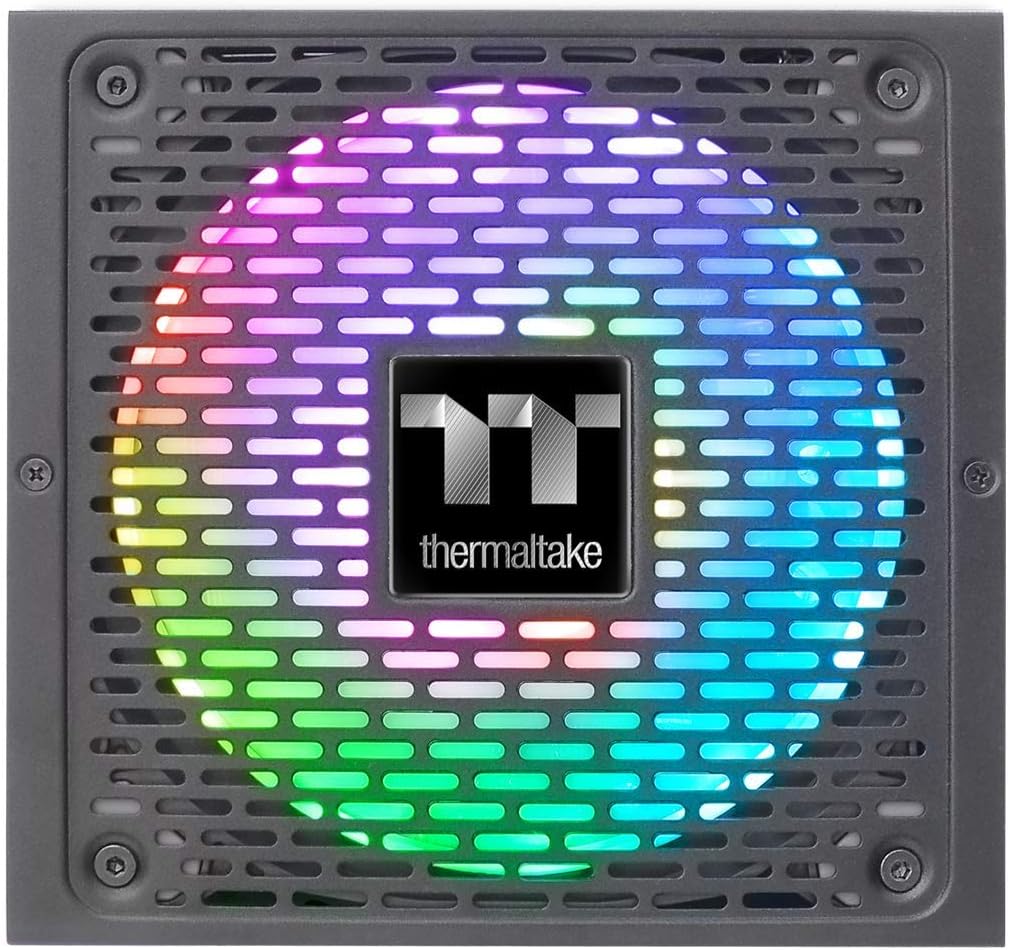
Image 9.1: Product label showing model number, input/output specifications, and safety warnings.

תמונה 9.2: תקריב פנימי view of the power supply, highlighting the 100% Japanese 105°C/221°F capacitors for enhanced durability and stability.

תמונה 9.3: פנימי view of the power supply's circuit board and components, demonstrating quality construction.
10. מידע על אחריות
The Thermaltake Toughpower iRGB Plus 750W Power Supply comes with a אחריות לשנה. This warranty covers defects in materials and workmanship under normal use. Please retain your proof of purchase for warranty claims. For full warranty terms and conditions, please refer to the official Thermaltake webאתר או צור קשר עם תמיכת הלקוחות שלהם.
11. תמיכה
For further assistance, technical support, or to download the latest software and drivers, please visit the official Thermaltake webאֲתַר:
ייתכן שתמצאו גם משאבים מועילים ושאלות נפוצות בדפי התמיכה שלהם.
סרטון מוצר רשמי:
Video 11.1: An official product video demonstrating features and functionality of the Thermaltake Toughpower iRGB Plus Power Supply. This video provides a visual overview עבור משתמשים.