
1. הקדמה
The ENHANCE Infiltrate USB Gaming Mouse is designed for an enhanced gaming experience, featuring customizable controls and dynamic lighting. This manual provides instructions for setting up, operating, and maintaining your gaming mouse.

Image: The ENHANCE Infiltrate USB Gaming Mouse, showcasing its ergonomic design and sleek black finish.
2. תכונות עיקריות
- Multi-Color LED Light: Dynamic rainbow lighting pattern illuminates the mouse accents, slowly fading between colors.
- On-the-Fly DPI Adjustment: Quickly select from 4 DPI intervals (800, 1200, 1600, 2400) using the dedicated DPI button.
- Ergonomic Design with Smooth Rubber Grip: The top features a sleek rubber coating, while the side includes two extra thumb buttons with a textured grip for comfort.
- 6 לחצנים ניתנים לתכנות: Customize your gaming experience with additional buttons for macros or specific functions.
- עיצוב Plug & Play: Connects easily to your PC via a gold-plated USB connector for immediate use.
- כבל קלוע עמיד: Designed for longevity and resistance to tangles.
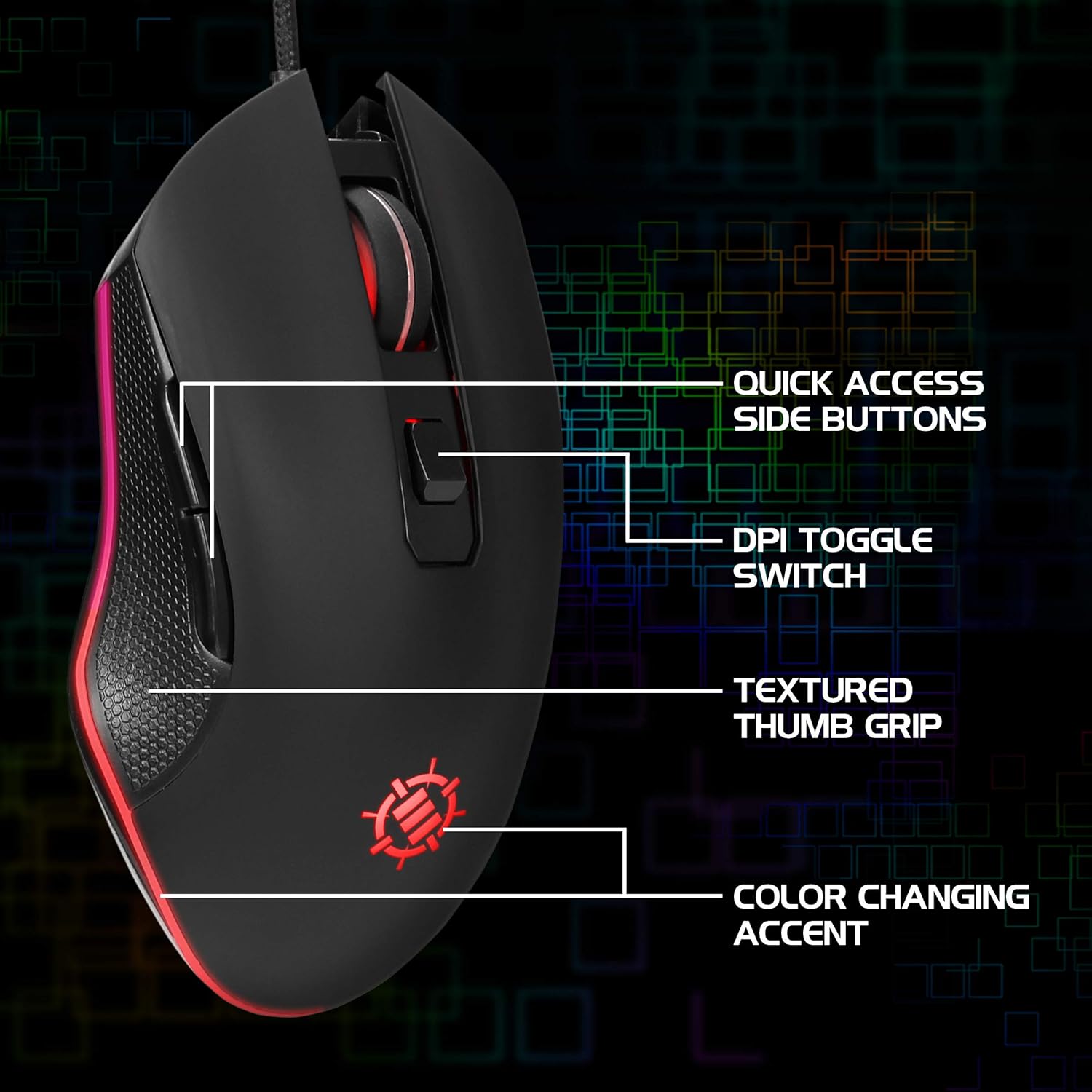
Image: Diagram highlighting key features of the ENHANCE Infiltrate mouse, including quick access side buttons, DPI toggle switch, textured thumb grip, and color-changing accent.
3. מדריך התקנה
- פירוק העכבר: Carefully remove the ENHANCE Infiltrate USB Gaming Mouse from its packaging.
- התחבר למחשב: Locate an available USB port on your computer. Insert the gold-plated USB connector of the mouse into the USB port. The mouse is plug-and-play, so no additional drivers are typically required for basic functionality.
- הכרה ראשונית: מערכת ההפעלה שלך אמורה לזהות ולהתקין באופן אוטומטי את מנהלי ההתקנים הדרושים. תהליך זה עשוי להימשך מספר רגעים.
- אימות פונקציונליות: Once installed, the mouse's LED lighting should activate, and you should be able to move the cursor on your screen.

תמונה: תקריב view of the heavy-duty braided cable and gold-plated USB connector, ready for connection.
For a visual guide on connecting and using the mouse, please watch the official product video below.
Video: Official product video demonstrating the ENHANCE Infiltrate USB Gaming Mouse, including connection and feature highlights.
4. הוראות הפעלה
4.1 פונקציות בסיסיות של עכבר
The ENHANCE Infiltrate mouse functions like a standard USB mouse. It includes left-click, right-click, and a scroll wheel with a clickable middle button.

Image: A hand demonstrating the ergonomic grip of the ENHANCE Infiltrate Gaming Mouse on a gaming mouse pad.
התאמת 4.2 DPI
The mouse features a dedicated DPI button located behind the scroll wheel. Press this button to cycle through four preset DPI (Dots Per Inch) sensitivity levels:
- 800 DPI
- 1200 DPI
- 1600 DPI
- 2400 DPI
Each DPI setting may correspond to a different LED color on the mouse, providing visual feedback for the current sensitivity level.
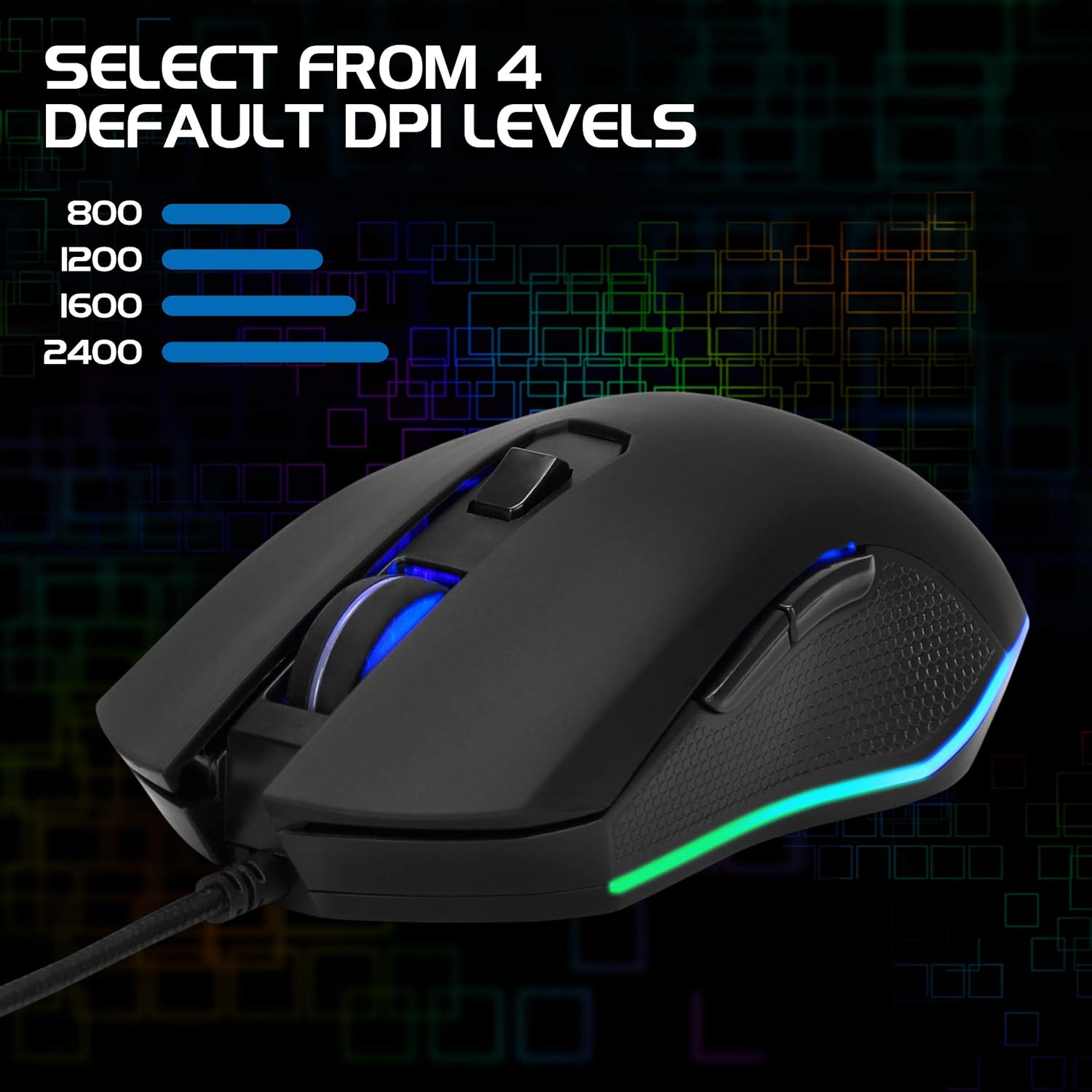
Image: The ENHANCE Infiltrate Gaming Mouse illustrating the four selectable DPI levels (800, 1200, 1600, 2400) and their corresponding LED indicators.
4.3 Multi-Color LED Lighting
The Infiltrate mouse features dynamic multi-color LED lighting that cycles through a rainbow pattern. This lighting is automatic and provides an aesthetic enhancement to your gaming setup.

Image: The ENHANCE Infiltrate Gaming Mouse displaying its sleek color-changing lighting accents.

תמונה: פרו צדדיfile of the ENHANCE Infiltrate Gaming Mouse, showcasing its blue LED lighting.
4.4 לחצנים ניתנים לתכנות
The mouse includes 6 programmable buttons. For advanced customization and programming of these buttons, please refer to your operating system's mouse settings or any third-party software compatible with generic gaming mice. Specific software for this model is not provided by the manufacturer.
5. תחזוקה
- ניקוי: השתמשו במטלית רכה ויבשה כדי לנגב את פני השטח של העכבר. במקרה של לכלוך עיקש, נגבו מעטamp ניתן להשתמש בבד, תוך הקפדה על כך שלא תיכנס לחות לרכיבים הפנימיים.
- חיישן אופטי: Periodically clean the optical sensor area on the underside of the mouse with a cotton swab to ensure optimal tracking performance.
- טיפול בכבלים: הימנעו מכיפופים חדים או משיכה מוגזמת של כבל ה-USB הקלוע כדי למנוע נזק.
- אִחסוּן: כאשר אינו בשימוש, יש לאחסן את העכבר בסביבה נקייה ויבשה הרחק מטמפרטורות קיצוניות.
6. פתרון תקלות
- עכבר לא מגיב:
- ודא שכבל ה-USB מחובר היטב ליציאת USB תקינה במחשב שלך.
- נסה לחבר את העכבר ליציאת USB אחרת.
- הפעל מחדש את המחשב.
- בדוק את העכבר במחשב אחר כדי לקבוע אם הבעיה היא בעכבר או במערכת שלך.
- תנועת הסמן אינה יציבה או קופצנית:
- נקו את החיישן האופטי בחלק התחתון של העכבר.
- ודא שאתה משתמש בעכבר על משטח נקי ולא מחזיר אור. מומלץ להשתמש במשטח עכבר.
- Check for any software conflicts or outdated drivers on your computer.
- נורות LED לא עובדות:
- ודא שהעכבר מחובר כראוי למחשב שלך.
- The LED lighting is automatic and should activate upon connection. If not, try a different USB port or computer.
- כפתור DPI לא משנה רגישות:
- Ensure the mouse is fully recognized by your computer.
- לחץ בחוזקה על כפתור ה-DPI.
7. מפרטים
| מותג | לְהַגבִּיר |
| מספר דגם | ENINMNU100BOEW |
| פלטפורמת חומרה | מק, מחשב אישי |
| משקל פריט | 4.4 אונקיות |
| מידות המוצר (LxWxH) | 4.92 x 2.68 x 1.56 אינץ' |
| צֶבַע | שָׁחוֹר |
| מקור כוח | חשמלי עם כבלים (USB) |
| טכנולוגיית קישוריות | USB |
| תכונה מיוחדת | עיצוב ארגונומי |
| טכנולוגיית זיהוי תנועה | אוֹפּטִי |
| רמות DPI | 800, 1200, 1600, 2400 |
8. אחריות ותמיכה
The ENHANCE Infiltrate USB Gaming Mouse is backed by a 3 שנות אחריות יצרן. אחריות זו מכסה פגמים בחומרים ובעבודה בשימוש רגיל.
For warranty claims or technical support, please contact ENHANCE customer service. Keep your proof of purchase for warranty validation.
For further assistance, visit the official ENHANCE Gaming webאתר או צור קשר עם ערוצי התמיכה שלהם.