
מָבוֹא
This manual provides instructions for the setup, operation, and maintenance of your Zelotes T20 Ergonomic Vertical Mouse. Please read this manual thoroughly before using the product to ensure proper function and longevity.
המוצר נגמרview
The Zelotes T20 is an ergonomic vertical mouse designed to promote a natural hand and wrist posture, reducing strain during extended use. It features adjustable DPI settings and multiple programmable buttons for enhanced control.

Figure 1: Zelotes T20 Ergonomic Vertical Mouse. This image displays the overall design of the mouse, highlighting its vertical orientation and LED lighting.
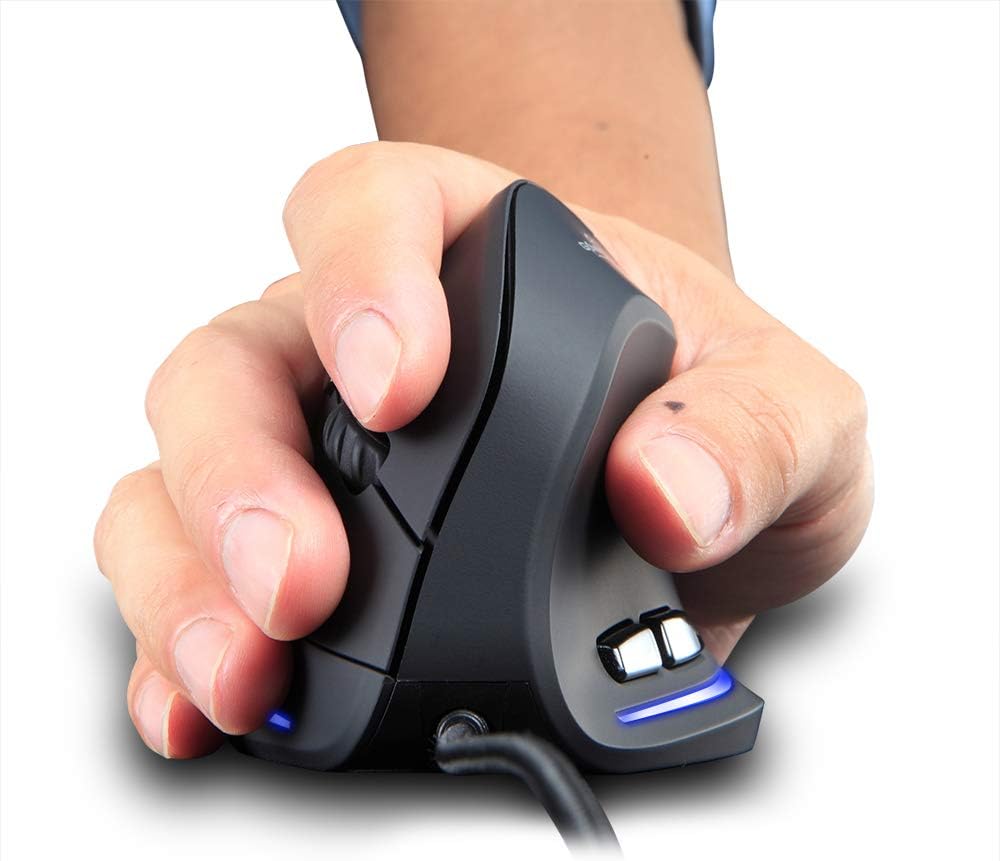
Figure 2: Proper hand placement on the Zelotes T20 mouse. This image illustrates how the vertical design allows for a natural handshake grip, intended to reduce wrist strain.

Figure 3: Ergonomic comparison. This diagram contrasts the natural wrist posture with a vertical mouse against the twisted posture often associated with traditional horizontal mice, emphasizing fatigue reduction.
תוכן החבילה
ודא שכל הפריטים נמצאים בחבילה:
- 1 x Zelotes Ergonomic Vertical Mouse
- 1 x מדריך הוראות (מסמך זה)
הגדרה
- חבר את העכבר: Plug the USB cable of the Zelotes T20 mouse into an available USB port on your computer.
- התקנת דרייבר: העכבר הוא מסוג "חבר והפעל". מערכת ההפעלה שלך אמורה לזהות ולהתקין באופן אוטומטי את מנהלי ההתקנים הדרושים. בדרך כלל אין צורך בהתקנת תוכנה נוספת.
- הסר סרט מגן: Before use, locate and remove the protective film from the "Bigfoot pads" on the underside of the mouse for optimal gliding performance.

Figure 4: Underside of the mouse. This image shows the Teflon material pads and indicates the location of the protective film that should be removed before initial use.
הוראות הפעלה
פונקציות כפתור
The Zelotes T20 mouse features 6 buttons for various functions:
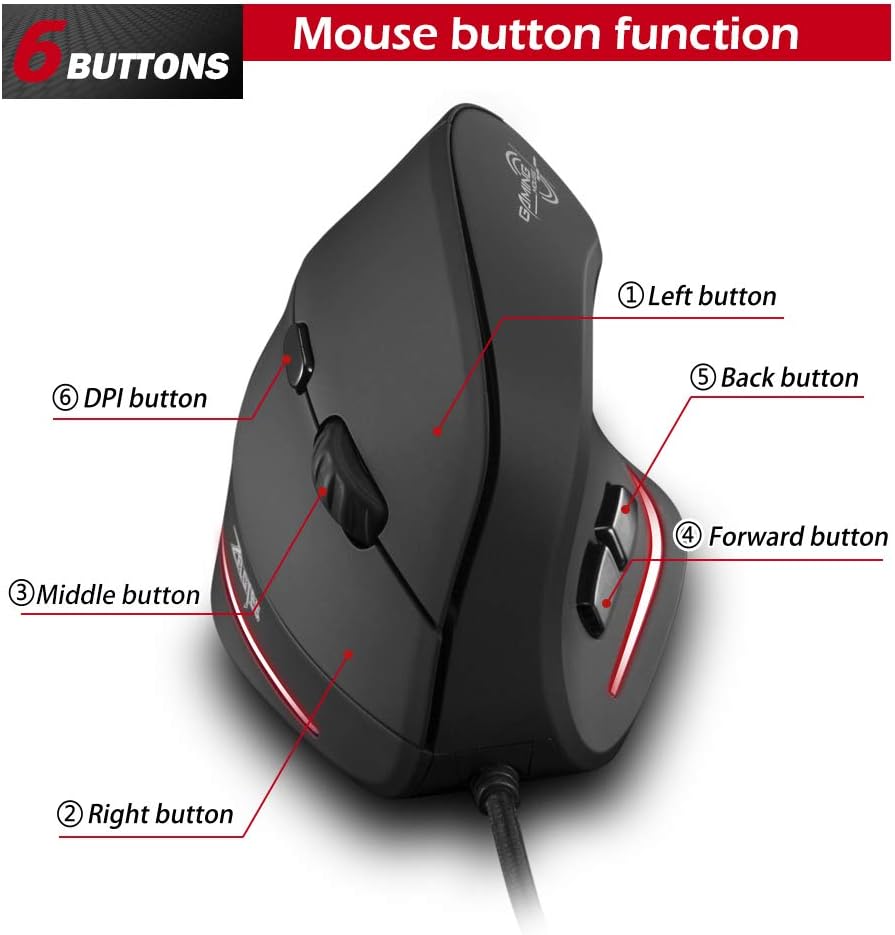
Figure 5: Mouse button layout. This diagram labels each of the six buttons: Left, Right, Middle (scroll wheel click), Forward, Back, and DPI adjustment button.
- כפתור שמאל: פונקציית לחיצה שמאלית סטנדרטית.
- כפתור ימין: פונקציית לחיצה ימנית סטנדרטית.
- כפתור אמצעי (גלגל גלילה): גלגל גלילה הניתן ללחיצה עבור פונקציות לחיצה אמצעית.
- לחצן קדימה: מנווט קדימה ב web דפדפנים או file חוקרים.
- כפתור חזרה: מנווט אחורה ב web דפדפנים או file חוקרים.
- לחצן DPI: מתאים את רגישות העכבר (DPI).
התאמת DPI (רגישות)
The mouse offers four adjustable DPI settings to suit different tasks and preferences. Press the DPI button (Button 6 in Figure 5) to cycle through the settings. Each DPI level is indicated by a specific LED light color:
- 1200 DPI: Blue light hint
- 1600 DPI: Dark purple light hint
- 2400 DPI: Red light hint
- 3200 DPI: Light purple light hint
The light will stay on for approximately 3 seconds when switching DPI settings to indicate the current level.

Figure 6: DPI adjustment and LED indicators. This image illustrates the DPI button and the color coding for each of the four sensitivity settings.
Using Forward/Back Keys
The dedicated Forward and Back buttons (Buttons 4 and 5 in Figure 5) provide quick navigation. These buttons are designed to streamline browsing through web pages or folders, reducing the need for on-screen clicks.

Figure 7: Forward and Back navigation buttons. This image highlights the placement of the forward and back buttons, designed for convenient web ו file ניווט.
תַחזוּקָה
- ניקוי: השתמשו במטלית רכה ויבשה לניקוי פני השטח של העכבר. במקרה של לכלוך עיקש, נגבו מעטamp ניתן להשתמש במטלית, תוך הקפדה על כך שנוזלים לא ייכנסו לעכבר.
- תחזוקת חיישן: שמרו על ניקיון החיישן האופטי בחלקו התחתון של העכבר וללא אבק או פסולת כדי להבטיח מעקב מדויק.
- טיפול בכבלים: הימנע מכיפופים חדים או משיכה מוגזמת של כבל ה-USB כדי למנוע נזק.

Figure 8: Mouse surface texture. This image provides a close-up view of the mouse's surface, described as smooth for comfortable handling.
פתרון בעיות
- עכבר לא מגיב:
- ודא שכבל ה-USB מחובר היטב ליציאת USB תקינה במחשב שלך.
- נסה לחבר את העכבר ליציאת USB אחרת.
- הפעל מחדש את המחשב.
- מעקב לא מדויק:
- נקו את החיישן האופטי בחלק התחתון של העכבר.
- ודא שאתה משתמש בעכבר על משטח מתאים (למשל, משטח עכבר). משטחים מחזירי אור או שקופים עלולים לגרום לבעיות.
- כוונן את הגדרת ה-DPI באמצעות כפתור ה-DPI.
- כפתורים שאינם פועלים כראוי:
- ודא שהעכבר מחובר כראוי.
- בדוק את העכבר במחשב אחר כדי לקבוע אם הבעיה היא בעכבר או בהגדרות המחשב.
מפרטים
| תכונה | פְּרָט |
|---|---|
| דֶגֶם | T20 |
| מספר כפתור | 6 כפתורים |
| מערכת מעקב | אוֹפּטִי |
| אורך כבל USB | 1.8 מ' |
| כרך עבודהtage/נוכחי | 5V/100mA |
| חיים כפתור | 5 מיליון פעמים |
| Roller Life | 1.2 million turns |
| מידות המוצר (L x W x H) | 110 x 72 x 75 מ"מ (4.33 x 2.83 x 2.95 אינץ') |
| משקל המוצר | 160 ± 5g (5.6 ounces) |
| רזולוציה (DPI) | 1200-1600-2400-3200 |
| שיעור תשואה (שיעור הסקרים) | 125 הרץ |
| תְאִימוּת | Windows 2000/ME/XP (x64)/Vista/7/8/10, Mac OS X (over V10.4), Linux |

Figure 9: Product dimensions. This image provides detailed measurements of the mouse from various angles.
אחריות ותמיכה
למידע על אחריות או תמיכה טכנית, אנא עיינו במדריך הרשמי של היצרן. webאתר או צרו קשר עם מחלקת שירות הלקוחות שלהם. שמרו את קבלת הרכישה כהוכחת קנייה.