
1. הקדמה
The StarTech.com SV231DPU34K is a 2-Port DisplayPort KVM Switch designed to allow control of two DisplayPort-enabled computers from a single monitor, keyboard, and mouse. This device supports high-resolution video up to 4K at 60Hz and includes an integrated USB 3.0 hub for sharing additional USB peripherals between connected systems. It also features 3.5mm analog audio switching and offers flexible control via front-panel push buttons or hotkey commands.
2. תכולת החבילה
- 1x KVM Switch (SV231DPU34K)
- 1x Universal Power Adapter (NA/JP, EU, UK, ANZ)
- 4x Rubber Foot Pads
3. המוצר נגמרview
3.1 לוח קדמי
The front panel provides convenient access to a USB HID port, a USB 3.0 port, and selection buttons for switching between connected computers.

תמונה 1: Front Panel of the SV231DPU34K KVM Switch. Features include a USB HID port, a USB 3.0 port, and two computer selection buttons (1 and 2) with a 'SELECT' button.
3.2 פאנל אחורי
The rear panel houses the power input, console DisplayPort and USB HID ports, and dedicated DisplayPort, USB, and audio ports for each connected PC.
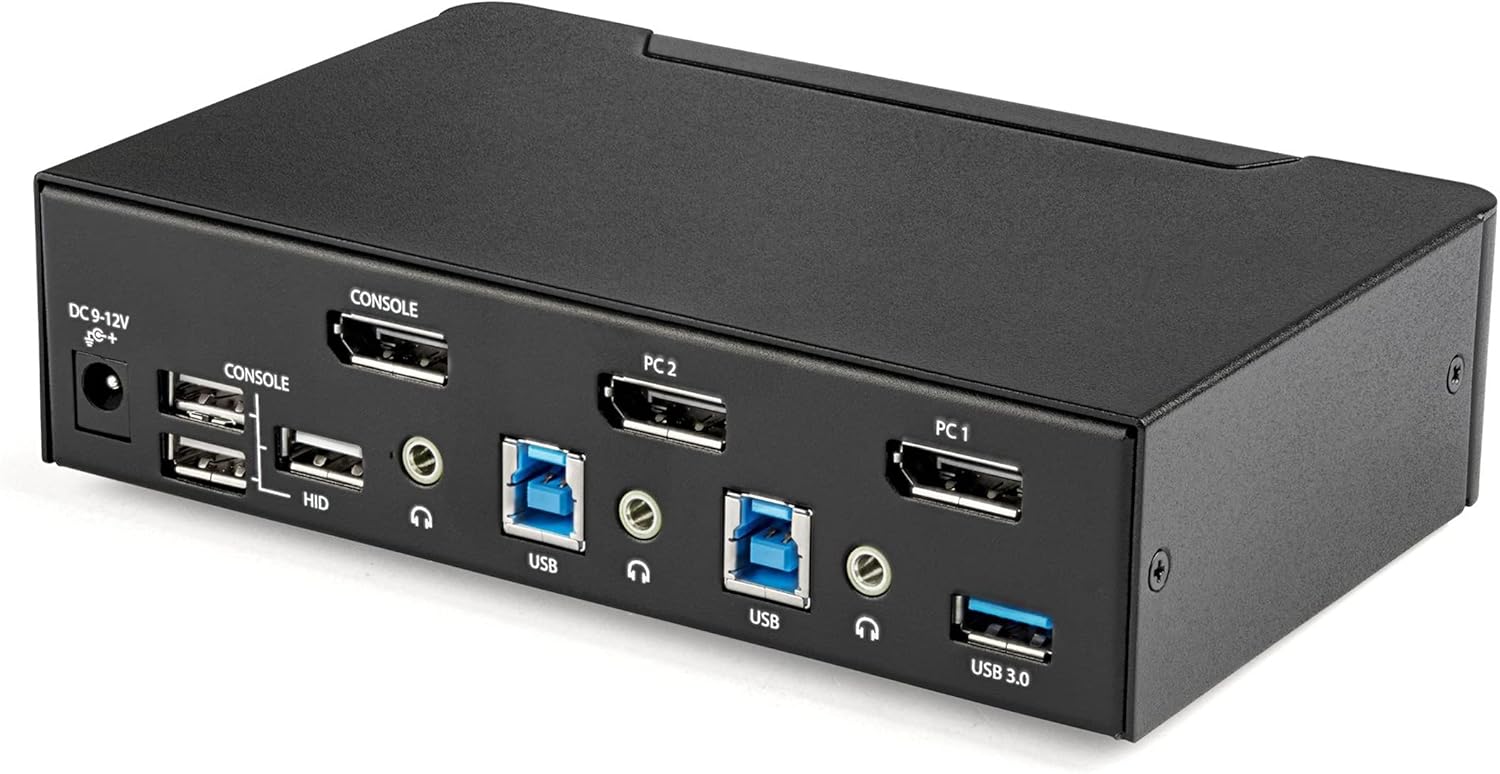
תמונה 2: Rear Panel of the SV231DPU34K KVM Switch. Connections include DC 9-12V power, Console DisplayPort, Console USB HID ports, and individual DisplayPort, USB 3.0 Type-B, and 3.5mm audio jacks for PC1 and PC2.
3.3 Labeled Diagram
This diagram provides a comprehensive view of all ports and their functions on both the front and rear panels.

תמונה 3: Labeled diagram illustrating all ports on the SV231DPU34K KVM Switch, including console connections for monitor, keyboard, and mouse, and PC connections for two computers.
4. הוראות התקנה
Follow these steps to set up your StarTech.com SV231DPU34K KVM Switch:
- כיבוי מכשירים: Ensure all computers, monitors, and peripherals are powered off before beginning the installation.
- חיבור התקני קונסולה:
- Connect your DisplayPort monitor to the CONSOLE DisplayPort on the rear of the KVM switch.
- Connect your USB keyboard and mouse to the CONSOLE HID USB Type-A ports on the rear of the KVM switch.
- אם אתה משתמש ברמקולים חיצוניים או מיקרופון, חבר אותם ל- CONSOLE 3.5mm audio jacks בחלק האחורי.
- Connect Computers (PC1 and PC2): לכל מחשב:
- Connect a DisplayPort cable from your computer's DisplayPort output to the corresponding PC1 DisplayPort or PC2 DisplayPort input on the KVM switch.
- Connect a USB 3.0 Type-A to Type-B cable from your computer's USB 3.0 port to the corresponding PC1 USB 3.0 Type-B or PC2 USB 3.0 Type-B input on the KVM switch.
- If using audio, connect 3.5mm audio cables from your computer's audio output/input to the corresponding PC1/PC2 3.5mm audio jacks.
- חיבור ציוד היקפי USB: Connect any additional USB 3.0 peripherals (e.g., USB hub, printer, flash drive) to the יציאות USB 3.0 Type-A on the front or rear of the KVM switch.
- חבר חשמל: Connect the included universal power adapter to the כניסת מתח DC 9-12V on the rear of the KVM switch, then plug it into a power outlet.
- הפעלה: Power on the KVM switch, then power on your monitor, and finally power on your connected computers.
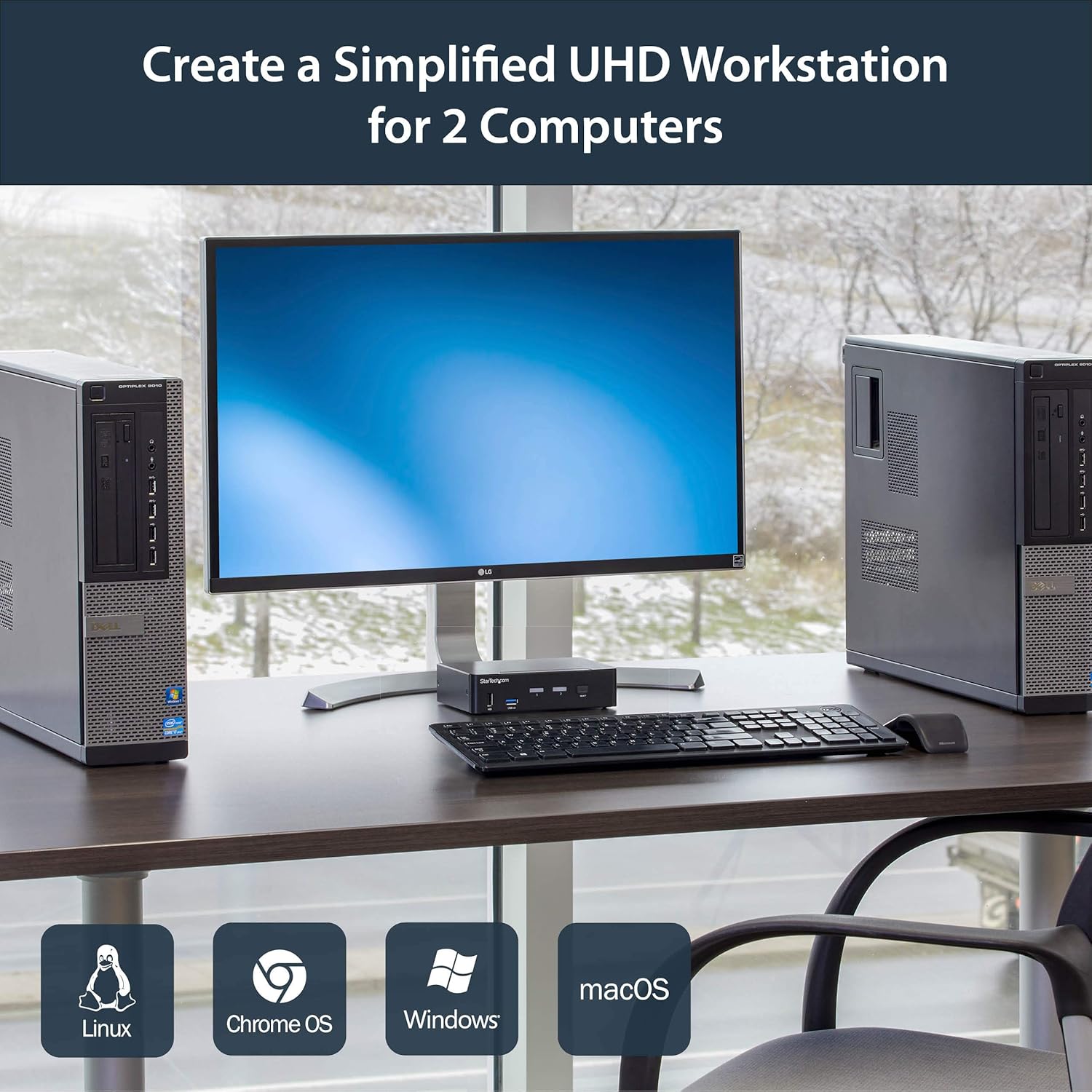
תמונה 4: Connection diagram for the SV231DPU34K KVM Switch, showing how two computers share one display and peripherals.
5. הוראות הפעלה
The SV231DPU34K KVM Switch offers two methods for switching between connected computers:
5.1 Front Panel Push Buttons
לחץ על המקביל לִבחוֹר button on the front panel of the KVM switch to switch to the desired computer (PC1 or PC2). The LED indicator for the selected computer will illuminate.
תמונה 5: Front panel with computer selection buttons.
5.2 החלפת מקשי קיצור
The KVM switch supports hotkey commands for switching between computers. Refer to the quick start guide or the official StarTech.com product page for specific hotkey sequences.
6. תחזוקה
To ensure optimal performance and longevity of your KVM switch, follow these maintenance guidelines:
- ניקוי: Keep the device clean and free from dust. Use a soft, dry, lint-free cloth for cleaning. Avoid using liquid or aerosol cleaners.
- אוורור: Ensure adequate airflow around the KVM switch to prevent overheating. Do not block any ventilation openings.
- ניהול כבלים: סדרו את הכבלים כדי למנוע עומס על היציאות וניתוקים מקריים.
- תנאים סביבתיים: Operate the device within its specified temperature and humidity ranges. Avoid extreme temperatures or moisture.
7. פתרון תקלות
אם נתקלת בבעיות עם מתג ה-KVM שלך, עיין בבעיות הנפוצות ובפתרונות הבאות:
| בְּעָיָה | פתרון אפשרי |
|---|---|
| No display or flickering display after switching. |
|
| מקלדת או עכבר לא מגיבים. |
|
| USB 3.0 devices not detected or working intermittently. |
|
| Audio issues (static, no sound). |
|
| G-Sync or FreeSync not working. |
|
8. מפרטים
| תכונה | פְּרָט |
|---|---|
| דֶגֶם | SV231DPU34K |
| מותג | StarTech.com |
| ממשק וידאו | DisplayPort 1.2 |
| רזולוציה מקסימלית | 3840 x 2160 @ 60Hz (4K UHD) |
| MST Passthrough | נתמך |
| רכזת USB | רכזת USB 2 עם 3.0 יציאות |
| יציאות USB HID | 4x USB Type-A (for keyboard/mouse) |
| שֶׁמַע | 3.5mm Analog Audio Switching |
| שיטות החלפה | Push Button, Hotkey |
| חוֹמֶר | פְּלָדָה |
| מידות (L x W x H) | 3.9 x 6.3 x 1.6 אינץ' (9.9 x 16.0 x 4.1 ס"מ) |
| משקל פריט | 1.3 פאונד (0.59 ק"ג) |
| קלט כוח | DC 9-12V, 18 Watts |
| צֶבַע | שָׁחוֹר |
| טמפרטורת הפעלה | 0°C עד 40°C (32°F עד 104°F) |
| טמפרטורת אחסון | -20°C עד 60°C (-4°F עד 140°F) |
| לַחוּת | 0-80% RH (לא מתעבה) |
9. אחריות ותמיכה
9.1 מידע אחריות
מוצר זה של StarTech.com מגובה על ידי אחריות לשנה. For detailed warranty terms and conditions, please refer to the official StarTech.com webאֲתַר.
9.2 תמיכה טכנית
For technical assistance, product documentation, or driver downloads, please visit the official StarTech.com support webאֲתַר: