
IP-COM G3224P
IP-COM G3224P 24-Port Managed PoE Switch
מדריך למשתמש
Model: G3224P | Brand: IP-COM
1. הקדמה
This user manual provides comprehensive instructions for the installation, operation, maintenance, and troubleshooting of the IP-COM G3224P 24-Port Managed PoE Switch. Please read this manual thoroughly before using the device to ensure proper and safe operation.
The IP-COM G3224P is a high-performance managed Power over Ethernet (PoE) switch designed for small to medium-sized businesses and enterprise networks. It offers 24 Gigabit Ethernet ports with PoE+ capabilities and additional SFP ports for fiber uplinks, providing flexible and scalable network solutions.
2. המוצר נגמרview
2.1 תכולת החבילה
- IP-COM G3224P 24-Port Managed PoE Switch
- כבל חשמל
- ערכת הרכבה לארון תקשורת (סוגריים וברגים)
- רגליות גומי (להנחת שולחן עבודה)
- מדריך התקנה מהירה
2.2 תיאור הלוח הקדמי
The front panel of the IP-COM G3224P switch features various ports and LED indicators for status monitoring.
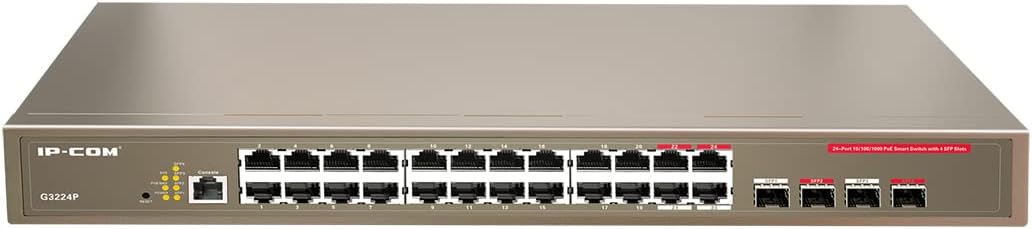
Figure 2.1: IP-COM G3224P Front Panel Layout
This image displays the front panel of the IP-COM G3224P switch. On the left, the IP-COM logo and model number G3224P are visible. To the right, there are LED indicators for SYS, PoE MAX, and individual port status. A console port is also present. The main section features 24 Gigabit Ethernet RJ45 ports, arranged in two rows, with port numbers 1 through 24. On the far right, there are four SFP ports labeled SFP1, SFP2, SFP3, and SFP4, which are used for fiber optic uplinks.
2.3 מחווני LED
| מחוון LED | סטָטוּס | תֵאוּר |
|---|---|---|
| SYS | ירוק (מוצק) | המערכת פועלת כרגיל. |
| SYS | ירוק (מהבהב) | System is booting up or firmware is being upgraded. |
| PoE MAX | אדום (מלא) | PoE power budget is nearing or exceeding its limit. |
| קישור/פעולה (לכל פורט) | ירוק (מוצק) | הנמל מקושר. |
| קישור/פעולה (לכל פורט) | ירוק (מהבהב) | Port is transmitting or receiving data. |
| PoE (לנמל) | צהוב (מוצק) | אספקת חשמל PoE מסופקת למכשיר המחובר. |
3. התקנה והתקנה
3.1 אמצעי זהירות
- ודא את אספקת החשמל כרךtage matches the switch's requirements (240V as per specifications).
- אל תחסום פתחי אוורור.
- הרחק את המכשיר ממים, אש וטמפרטורות גבוהות.
- אל תנסה לפתוח או לתקן את המכשיר בעצמך.
3.2 התקנת מתלה
- חברו את תושבות ההרכבה לארון תקשורת המצורפות לצידי המתג באמצעות הברגים המצורפים.
- אבטח את המתג לתוך מדף ציוד סטנדרטי בגודל 19 אינץ' באמצעות ברגים מתאימים למדף (לא כלולים).
- ודא זרימת אוויר נאותה סביב המתג לקירור תקין.
3.3 התקנת שולחן העבודה
- חבר את רגלי הגומי המסופקות לתחתית המתג.
- Place the switch on a flat, stable surface with sufficient ventilation.
3.4 חיבור המתג
- חיבור חשמל: Connect the power cord to the power inlet on the rear panel of the switch and then to a grounded power outlet.
- התקני רשת: Connect network devices (e.g., computers, servers, IP cameras, VoIP phones) to the RJ45 ports (1-24) on the front panel using standard Ethernet cables.
- התקני PoE: For PoE-powered devices, simply connect them to any of the RJ45 ports. The switch will automatically detect and provide power if the device is PoE compliant.
- חיבורי Uplink: Use the SFP ports (SFP1-SFP4) for fiber optic uplinks to other network devices or the core network. Insert compatible SFP transceivers into the SFP slots before connecting fiber optic cables.
- חיבור קונסולה (אופציונלי): For initial configuration or advanced management, connect a console cable from your computer to the console port on the switch.
4. הוראות הפעלה
4.1 הפעלה ראשונית
After connecting the power cord, the switch will automatically power on. Observe the SYS LED indicator. It will blink during boot-up and turn solid green once the system is ready.
4.2 קישוריות רשת בסיסית
Once powered on, the switch will automatically detect connected devices. The Link/Act LED for each connected port will illuminate solid green, indicating a successful link. It will blink when data is being transmitted or received.
4.3 פעולת PoE
When a PoE-compatible device is connected to a port, the switch will negotiate power delivery. The PoE LED for that port will turn yellow, indicating that power is being supplied. Monitor the PoE MAX LED; if it turns red, the total PoE power budget is being approached or exceeded, and you may need to reduce the number of PoE devices or use a higher-capacity power source.
4.4 גישת ניהול
The IP-COM G3224P is a managed switch, offering various configuration options via a web-based GUI, CLI (Command Line Interface) via the console port, or SNMP. Refer to the detailed management guide (usually available on the manufacturer's website) for advanced configuration, including VLANs, QoS, port mirroring, and security settings.
- Web ממשק משתמש: גישה למתג web interface by typing its default IP address (check the Quick Installation Guide or manufacturer's documentation) into a web דפדפן.
- CLI: Connect via the console port using a terminal emulator (e.g., PuTTY) with appropriate serial port settings.
5. תחזוקה
5.1 ניקוי
- Regularly clean the exterior of the switch with a soft, dry cloth.
- אין להשתמש בחומרי ניקוי נוזליים או אירוסולים.
- ודאו שפתחי האוורור נקיים מאבק וחסימות.
5.2 עדכוני קושחה
Periodically check the IP-COM official webאתר לעדכוני קושחה. שמירה על הקושחה מעודכנת מבטיחה ביצועים אופטימליים, אבטחה וגישה לתכונות חדשות. פעל בקפידה לפי ההוראות המצורפות לחבילת עדכון הקושחה.
5.3 שיקולים סביבתיים
Ensure the switch operates within its specified environmental conditions (temperature, humidity) to prevent damage and ensure longevity.
6. פתרון תקלות
| בְּעָיָה | סיבה אפשרית | פִּתָרוֹן |
|---|---|---|
| No power / SYS LED off | כבל החשמל לא מחובר או ששקע החשמל פגום. | בדוק את חיבור כבל החשמל. נסה שקע חשמל אחר. |
| No link on a port (Link/Act LED off) | Cable issue, device off, or incorrect port. | Check Ethernet cable. Ensure connected device is powered on. Try a different port or cable. |
| PoE device not powering on (PoE LED off) | המכשיר אינו תואם PoE, בעיית כבל או חריגה מתקציב החשמל. | Verify device is PoE compliant. Check cable. Check PoE MAX LED; if red, reduce PoE load. |
| בעיות ביצועי רשת | Cable quality, network congestion, or incorrect configuration. | Use high-quality Ethernet cables. Check for network loops. Review switch configuration (VLANs, QoS). |
| לא ניתן לגשת web ממשק ניהול | Incorrect IP address, network settings, or firewall. | Verify the switch's IP address. Ensure your computer is on the same subnet. Disable temporary firewalls. |
If problems persist, consult the full product documentation or contact IP-COM technical support.
7. מפרטים
| תכונה | פְּרָט |
|---|---|
| דֶגֶם | G3224P |
| נמלים | 24 x 10/100/1000Base-T (RJ45) with PoE+, 4 x 1000Base-X (SFP) |
| קיבולת מיתוג | 56 Gbps |
| שיעור העברה | 41.66 Mpps |
| תקן PoE | IEEE 802.3af / בשעה |
| קלט כרךtage | 240 וולט |
| מידות (L x W x H) | 29 x 44 x 44 ס"מ |
| מִשׁקָל | 15 קילוגרם |
| מדף מדף | כֵּן |
| הַנהָלָה | מנוהל (Web GUI, CLI, SNMP) |
הערה: המפרט נתון לשינויים ללא הודעה מוקדמת.
8. אחריות ותמיכה טכנית
8.1 מידע אחריות
IP-COM products typically come with a limited warranty. Please refer to the warranty card included with your product or visit the official IP-COM webבאתר לקבלת תנאי אחריות מפורטים הספציפיים לאזור ולתאריך הרכישה שלך.
8.2 תמיכה טכנית
For technical assistance, product inquiries, or troubleshooting beyond the scope of this manual, please contact IP-COM technical support. Support contact information can usually be found on the official IP-COM webבאתר או באריזת המוצר.
IP-COM Official Webאֲתַר: www.ip-com.com.cn
Ask a question about this manual
Ask about setup, troubleshooting, compatibility, parts, safety, or missing instructions. Manuals+ will review the question and use this page’s manual context to help answer it.