
BenQ EX3501R
BenQ EX3501R Ultrawide Curved Gaming Monitor User Manual
Model: EX3501R
1. התקנה
1.1 פירוק הצג
הוציאו בזהירות את כל הרכיבים מהאריזה. ודאו שכל הפריטים המפורטים להלן נמצאים:
- BenQ EX3501R Monitor
- מעמד למוניטור (בסיס וצוואר)
- מתאם מתח
- כבל חשמל
- כבל HDMI
- כבל DisplayPort
- כבל USB-C
- מדריך למשתמש (מסמך זה)
1.2 הרכבת המעמד
בצע את השלבים הבאים כדי לחבר את המעמד לצג שלך:
- הנח את הצג כשפניו כלפי מטה על מטלית רכה ונקייה כדי למנוע שריטות.
- חבר את צוואר המעמד לחלקו האחורי של הצג. ודא שהוא נצמד היטב למקומו.
- Connect the stand base to the neck, tightening any screws as indicated in the quick start guide.

איור 1: חזית view of the BenQ EX3501R monitor with its stand.
1.3 כבלים חיבור
Connect the necessary cables to the monitor and your computer. The monitor supports various input options:
- כּוֹחַ: חבר את ספק הכוח לצג ולאחר מכן לשקע חשמל.
- קלט וידאו: Use either the HDMI, DisplayPort, or USB-C cable to connect your computer to the monitor.
- USB-C: The USB-C port supports video, data transfer, and power delivery, allowing for a single-cable connection with compatible devices.
- יציאות USB 3.0: Utilize the integrated USB 3.0 ports for connecting peripherals.
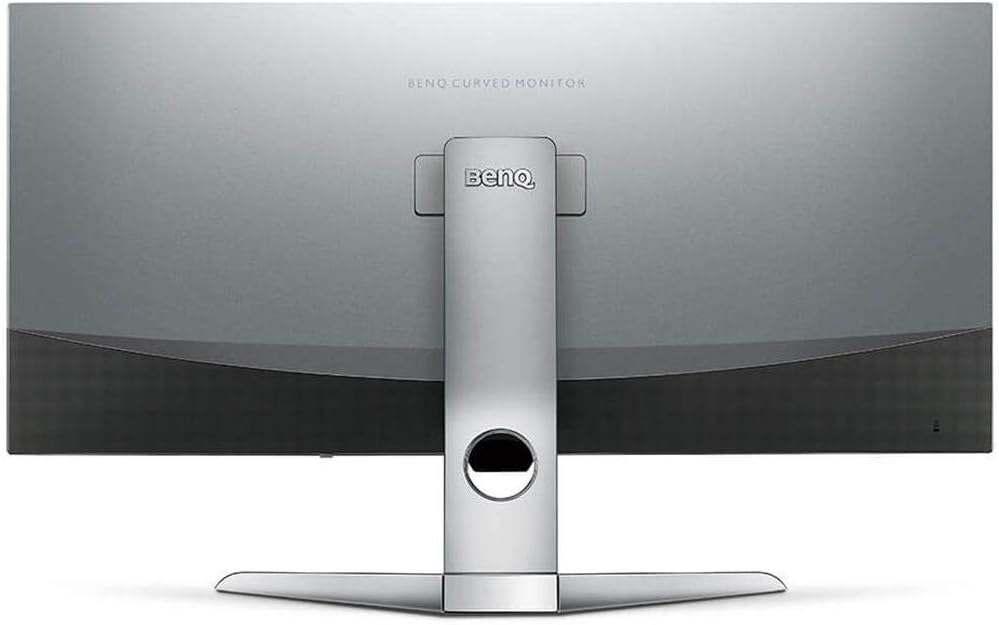
איור 2: אחורי view of the monitor displaying the connectivity ports.
2. הפעלת המוניטור
2.1 הפעלה/כיבוי
Press the power button, usually located on the bottom right side of the monitor, to turn it on or off. The power indicator light will illuminate when the monitor is active.
2.2 ניווט בתצוגה על המסך (OSD)
Use the joystick or buttons located on the monitor's underside to navigate the On-Screen Display (OSD) menu. This menu allows you to adjust various settings such as brightness, contrast, color modes, and input sources.
2.3 Display Features and Eye-Care Technology
The BenQ EX3501R incorporates several technologies designed to enhance viewחוויית ing והפחתת מאמץ העיניים:
- Brightness Intelligence Plus (B.I.+): This patented technology automatically senses ambient lighting conditions and adjusts the screen's brightness and color temperature to provide optimal viewing comfort and protect your eyes during extended use.
- אור כחול נמוך: Filters out harmful blue light emissions to reduce eye fatigue. Multiple levels of blue light reduction are available.
- ZeroFlicker™: Eliminates screen flickering at all brightness levels, further reducing eye strain and discomfort.
- HDR (טווח דינמי גבוה): Offers enhanced brightness and contrast, bringing greater detail and vibrancy to HDR video content.
סרטון 1: אוברview of BenQ's Eye-Care technology, including Low Blue Light, ZeroFlicker, and Brightness Intelligence Plus, demonstrating how these features work to reduce eye strain and adjust screen settings automatically based on ambient light.
2.4 רזולוציה וקצב רענון
The monitor features a QHD (3440x1440) resolution and a 100Hz refresh rate, providing a smooth and detailed visual experience. The 21:9 ultrawide aspect ratio offers ample screen space for multitasking, such as viewing multiple documents side-by-side without needing a second monitor.
2.5 AMD FreeSync
For a fluid gaming experience, the monitor supports AMD FreeSync technology, which synchronizes the monitor's refresh rate with your graphics card's frame rate to eliminate screen tearing and stuttering.
3. תחזוקה
3.1 ניקוי הצג
To maintain optimal performance and appearance, regularly clean your monitor:
- מָסָך: נגבו בעדינות את המסך בעזרת מטלית רכה ונטולת סיבים. עבור כתמים עקשניים, השתמשו בתמיסת ניקוי ספציפית למסך המרוחה על המטלית, ולא ישירות על המסך.
- חִיצוֹנִי: Use a soft, dry cloth to wipe dust and debris from the monitor casing and stand.
Avoid using abrasive cleaners, waxes, or solvents as they can damage the monitor's surface.
3.2 טיפים כלליים לטיפול
- אין לחסום פתחי אוורור על גבי הצג.
- הימנע מהצבת הצג באור שמש ישיר או ליד מקורות חום.
- טפל בצג בזהירות כדי למנוע נזק פיזי.
4. פתרון תקלות
If you encounter issues with your BenQ EX3501R monitor, refer to the following common troubleshooting steps:
4.1 No Display or Black Screen
- ודא שכבל החשמל מחובר היטב הן לצג והן לשקע החשמל.
- ודא שכבל הווידאו (HDMI, DisplayPort או USB-C) מחובר היטב גם לצג וגם למחשב.
- בדוק אם מקור הקלט הנכון נבחר בתפריט המסך של הצג.
- הפעל מחדש את המחשב.
4.2 Flickering or Unstable Image
- Ensure the ZeroFlicker™ feature is enabled in the OSD menu.
- בדוק אם יש חיבורי כבל וידאו רופפים.
- עדכן את מנהלי ההתקן של כרטיס המסך שלך לגרסה העדכנית ביותר.
- If using AMD FreeSync, ensure it is properly configured in your graphics card settings.
4.3 Color or Brightness Issues
- כוונן את הגדרות הבהירות, הניגודיות והצבע דרך תפריט המסך.
- Enable or disable Brightness Intelligence Plus (B.I.+) to see if it resolves the issue.
- Perform a factory reset through the OSD menu.
5. מפרטים
Key technical specifications for the BenQ EX3501R monitor:
| תכונה | מִפרָט |
|---|---|
| גודל מסך | 35 אינץ' |
| רזולוציית מסך מקסימלית | 3440 x 1440 Pixels (QHD Ultrawide) |
| יחס גובה-רוחב | 21:9 |
| קצב רענון | 100 הרץ |
| עַקמוּמִיוּת | 1800R |
| סוג פאנל | VA (יישור אנכי) |
| קישוריות | USB-C, HDMI, DisplayPort |
| תכונות מיוחדות | AMD FreeSync, Brightness Intelligence Plus, Low Blue Light, ZeroFlicker |
| משקל פריט | 21.3 פאונד |
| מידות המוצר | 6.88 x 3.47 x 12.93 אינץ' |
6. אחריות ותמיכה
6.1 אחריות למוצר
The BenQ EX3501R monitor typically comes with a 3-year manufacturer's warranty. Please refer to the warranty card included in your product packaging for specific terms and conditions, or visit the official BenQ webבאתר לקבלת מידע אחריות מפורט.
6.2 תמיכת לקוחות
For further assistance, technical support, or warranty claims, please contact BenQ customer service. You can find contact information and support resources on the official BenQ webאֲתַר: www.benq.com/en-us/support.html
Ask a question about this manual
Ask about setup, troubleshooting, compatibility, parts, safety, or missing instructions. Manuals+ will review the question and use this page’s manual context to help answer it.