
מָבוֹא
Thank you for choosing the KROM Kernel TKL Mechanical Gaming Keyboard. This compact, tenkeyless (TKL) keyboard is designed for gaming enthusiasts, offering a responsive mechanical experience with customizable RGB backlighting and a Spanish layout. This manual provides detailed instructions for setup, operation, maintenance, and troubleshooting to ensure optimal performance and longevity of your device.
המוצר נגמרview
תכונות מפתח
- מתגים מכניים: Durable and responsive mechanical key switches for precise input.
- Tenkeyless (TKL) Design: Compact form factor without a numeric keypad, ideal for saving desk space and improving mouse movement.
- תאורת RGB אחורית: Customizable LED backlighting with various effects and colors.
- פונקציונליות מאקרו: Assign macro functions to any key for personalized commands.
- מקשי מולטימדיה: Dedicated or function-layer multimedia controls for convenience.
- אנטי רפאים: מבטיח שכל לחיצות המקשים נרשמות במדויק, אפילו במהלך משחקי וידאו אינטנסיביים.
- בנייה עמידה: בנוי מחומרים איכותיים לביצועים לאורך זמן.
- Spanish Layout: Designed with a QWERTY Spanish key layout.
תוכן החבילה
- KROM Kernel TKL Mechanical Gaming Keyboard
- כבל USB (מצורף)
- מדריך למשתמש (מסמך זה)
- (Note: Additional accessories may vary by region or specific product bundle.)
תמונה 1.1: KROM Kernel TKL Mechanical Gaming Keyboard packaging, showing the front and back of the box with product features and design.

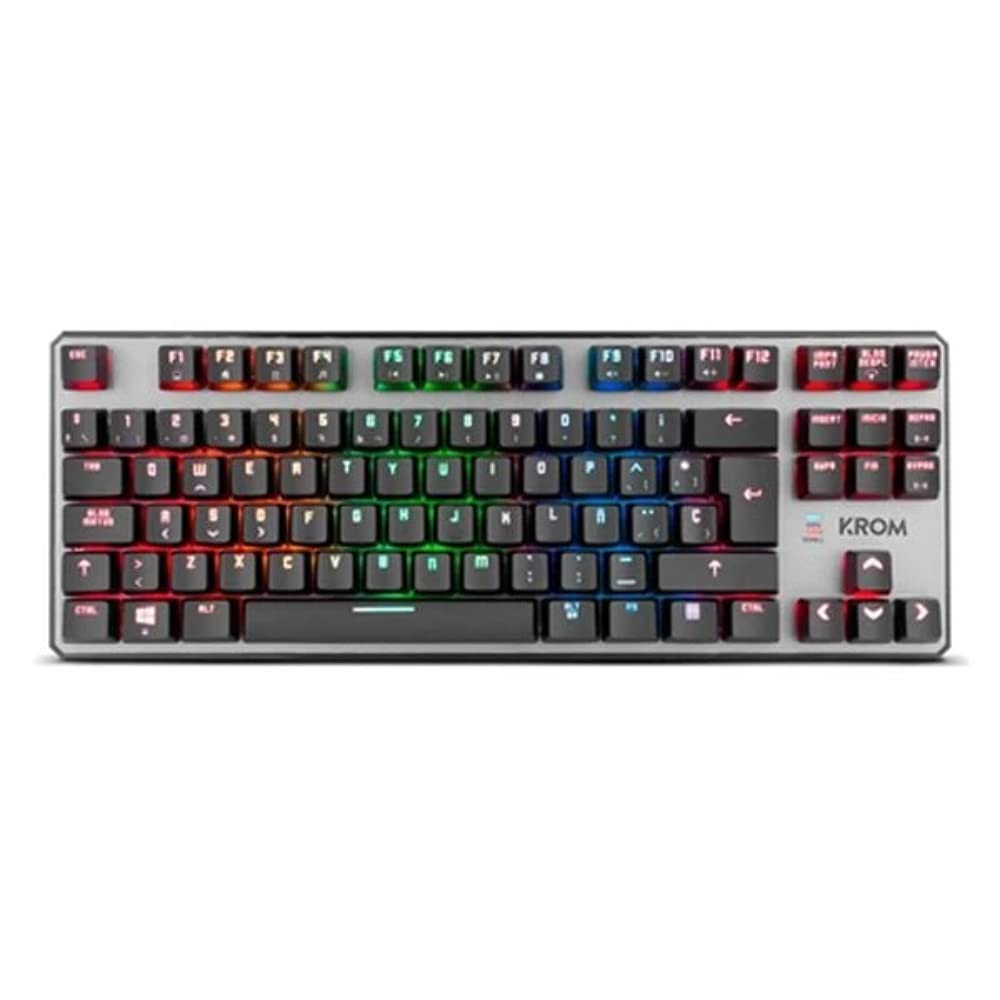
תמונה 1.2: מלמעלה למטה view of the KROM Kernel TKL keyboard, showcasing its compact design and vibrant RGB backlighting across all keys.
הגדרה
- פרק את המקלדת: Carefully remove the KROM Kernel TKL keyboard from its packaging.
- התחבר למחשב: Locate the USB cable attached to the keyboard. Plug the USB connector into an available USB port on your computer (PC or laptop).
- התקנת דרייבר: The keyboard is plug-and-play. Your operating system (Windows 7/8/8.1/10) should automatically detect and install the necessary drivers. This process may take a few moments.
- אימות פונקציונליות: Once drivers are installed, test the keyboard by typing in a text editor or browser to ensure all keys are responsive.
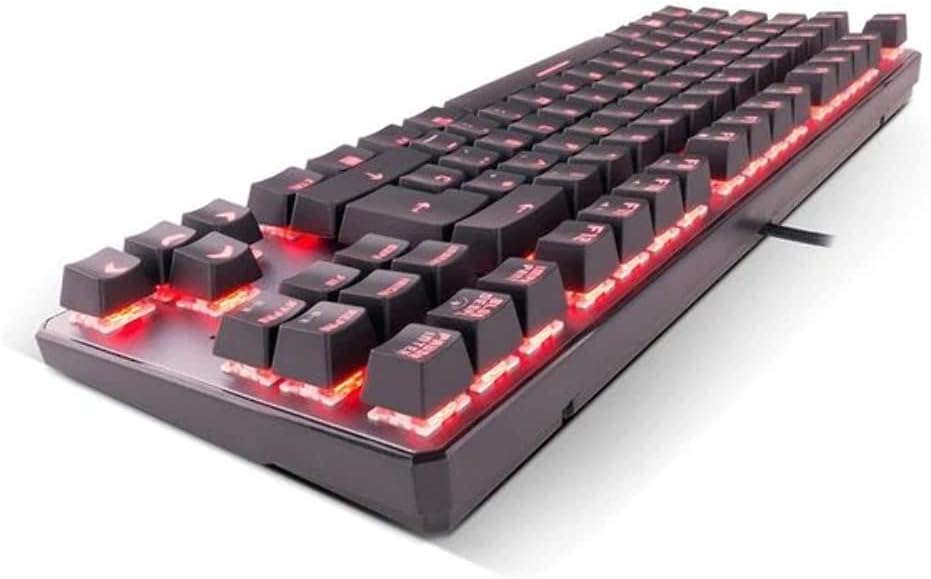
תמונה 2.1: צַד view of the KROM Kernel TKL keyboard, highlighting the red backlighting visible beneath the keycaps and the compact profile.
הוראות הפעלה
בקרת תאורת RGB אחורית
The KROM Kernel TKL keyboard features dynamic RGB backlighting. Use the following key combinations to adjust lighting effects:
- Fn + [מקש]: Specific function keys (often F1-F12 or dedicated keys) are used in combination with the Function (Fn) key to cycle through lighting modes, adjust brightness, change speed, or select colors. Refer to the keyboard's keycap legends for specific symbols indicating lighting controls.
- התאמת בהירות: Typically Fn + Up/Down arrow keys or dedicated brightness keys.
- מהירות אפקט: Often Fn + Left/Right arrow keys to increase or decrease the speed of dynamic lighting effects.
- החלפת מצבים: Cycle through various pre-set RGB lighting modes (e.g., wave, ripple, breathing, static color) using a dedicated Fn combination.

תמונה 3.1: The KROM Kernel TKL keyboard displaying its full RGB spectrum backlighting, enhancing the visual appeal during use.
Macro Function Assignment
The keyboard supports on-the-fly macro recording or software-based macro assignment. For on-the-fly recording:
- Initiate Recording: Press a specific Macro Record key (often labeled "MR" or a Fn combination).
- Select Target Key: Press the key you wish to assign the macro to.
- Record Sequence: הקלד את רצף המקשים שברצונך להקליט כמאקרו.
- סיום ההקלטה: Press the Macro Record key again to save the macro.
Note: Detailed macro programming instructions may require specific software or refer to the full digital manual available on the KROM webאֲתַר.
מקשי מולטימדיה ומקשי קיצור
Access multimedia functions and system shortcuts using the Fn key in combination with the F-keys (F1-F12) or other designated keys. Common functions include:
- בקרת עוצמת הקול: Fn + Fx (e.g., F1-F3 for Mute, Volume Down, Volume Up).
- השמעת מדיה: Fn + Fx (e.g., F5-F8 for Play/Pause, Stop, Previous Track, Next Track).
- קיצורי דרך ליישומים: Fn + Fx (e.g., F9-F12 for Email, Web Browser, My Computer, Calculator).

תמונה 3.2: תקריב view of the KROM Kernel TKL keyboard's keycaps, clearly showing the Spanish QWERTY layout and secondary functions.
תַחזוּקָה
תחזוקה נכונה מבטיחה את אורך החיים והביצועים של המקלדת שלכם.
- ניקוי:
- נתק את המקלדת מהמחשב לפני ניקוי.
- השתמש במיכל אוויר דחוס כדי להסיר אבק ופסולת בין מכסי המקשים.
- נגבו את מכסי המקשים ואת משטח המקלדת בעזרת מטלית רכה, מעט רכהampמטלית נטולת סיבים. הימנעו מלחות מוגזמת.
- אין להשתמש בכימיקלים חזקים, בחומרי ניקוי שוחקים או בממיסים.
- אִחסוּן: אחסנו את המקלדת במקום יבש וקריר, הרחק מאור שמש ישיר וטמפרטורות קיצוניות.
- טיפול: Avoid dropping the keyboard or exposing it to liquids. Do not attempt to disassemble the keyboard as this may void the warranty.

תמונה 4.1: מקצוען צדדיfile view of the KROM Kernel TKL keyboard, illustrating its ergonomic tilt and compact design.

תמונה 4.2: A close-up image showing a mechanical switch on the KROM Kernel TKL keyboard, highlighting its design and potential for easy replacement (CIY Technology).

תמונה 4.3: The CIY Technology logo, indicating that the keyboard features hot-swappable mechanical switches for easy customization or replacement.
פתרון בעיות
If you encounter issues with your KROM Kernel TKL keyboard, refer to the following common solutions:
- המקלדת לא מגיבה:
- ודא שכבל ה-USB מחובר היטב הן למקלדת והן למחשב.
- נסה לחבר את המקלדת ליציאת USB אחרת במחשב שלך.
- הפעל מחדש את המחשב.
- בדוק את המקלדת במחשב אחר כדי לקבוע אם הבעיה היא במקלדת או במערכת שלך.
- תאורה אחורית לא עובדת או לא נכונה:
- Check if the backlighting is turned off. Use the Fn key combinations to cycle through lighting modes and adjust brightness.
- ודא שאין התנגשויות תוכנה שמפריעות לבקרות התאורה.
- מקשים לא נרשמים או מקלידים פעמיים:
- נקו את המקשים הפגועים בעזרת אוויר דחוס כדי להסיר כל פסולת.
- If the keyboard uses hot-swappable switches (like the "CIY Technology" mentioned in an image), try gently removing and re-inserting the switch for the problematic key.
- ודא שמנהלי ההתקנים של מערכת ההפעלה שלך מעודכנים.
- פונקציות מאקרו לא עובדות:
- Review the macro programming steps to ensure correct recording.
- Check if any software is overriding the keyboard's native macro functions.
מפרטים
| תכונה | פְּרָט |
|---|---|
| מספר דגם | NXKROMKRNLTKL |
| סוג מקלדת | מֵכָנִי |
| מַעֲרָך | Spanish QWERTY (TKL) |
| תאורה אחורית | LED RGB |
| קֶשֶׁר | Wired USB (Gold-plated) |
| אורך כבל | 180 cm (Braided) |
| כוח הפעלה | 60 +/- 10 גרם |
| שיעור סקרים | 1000 הרץ |
| זיכרון פנימי | 64 KB (for macros/profiles) |
| צריכה נוכחית | 100-260mA |
| כרך ידtage | 5.0 +/- 0.25 V |
| מידות (L x W x H) | 361 x 133.5 x 22.5 מ"מ |
| מִשׁקָל | 950 +/- 30 גרם |
| תְאִימוּת | Windows 7/8/8.1/10 |
| תכונות מיוחדות | Macro function assignment, Multimedia keys, Shortcut keys |
אחריות ותמיכה
KROM products are designed for reliability and performance. This product comes with a standard manufacturer's warranty. For specific warranty terms and conditions, please refer to the warranty card included with your product or visit the official KROM webאֲתַר.
For technical support, driver downloads, or further assistance, please visit the KROM official support page or contact their customer service. Contact information can typically be found on the KROM webאתר או אריזת מוצר.
KROM הרשמי Webאֲתַר: www.kromgaming.com (הערה: זהו מציין מיקום URL, please verify the actual KROM support webאֲתַר.)