
1. הקדמה
This manual provides essential information for the safe and efficient use of your Alienware AW3418DW 34.1-inch Curved Gaming Monitor. This monitor features a WQHD (3440x1440) resolution, a 120Hz refresh rate (overclocked), and NVIDIA G-SYNC technology for an immersive gaming experience. Please read this manual thoroughly before operating the device.
2. מידע בטיחות
- Always disconnect the power cable from the wall outlet before cleaning the monitor.
- אין לחשוף את הצג לגשם או לחות כדי למנוע סכנת שריפה או התחשמלות.
- אל תפתח את הצג גasinז. אין חלקים בפנים הניתנים לתיקון על ידי המשתמש. יש לפנות לכל טיפול וטיפול באנשי שירות מוסמכים.
- הנח את הצג על משטח יציב ושטוח כדי למנוע ממנו ליפול.
- ודא אוורור נאות סביב הצג. אין לחסום פתחי אוורור.
- השתמש רק במתאם החשמל ובכבלים המצורפים לצג.
3. תכולת החבילה
ודא שכל הרכיבים נמצאים בחבילה:
- Alienware AW3418DW Monitor
- מעמד למסך (בסיס ומעמד הרם)
- כבל חשמל
- כבל DisplayPort
- כבל HDMI
- כבל USB 3.0 Upstream
- תיעוד (מדריך התקנה מהיר, מידע בטיחות)
4. התקנה
4.1 מבנה פיזי
Carefully remove the monitor and its components from the packaging. Place the monitor face down on a soft cloth or cushion to prevent scratches.
חיבור המעמד
- חבר את מעמד ההרמה לפאנל הצג עד שייכנס למקומו בנקישה.
- Attach the stand base to the stand riser and tighten the captive screw.

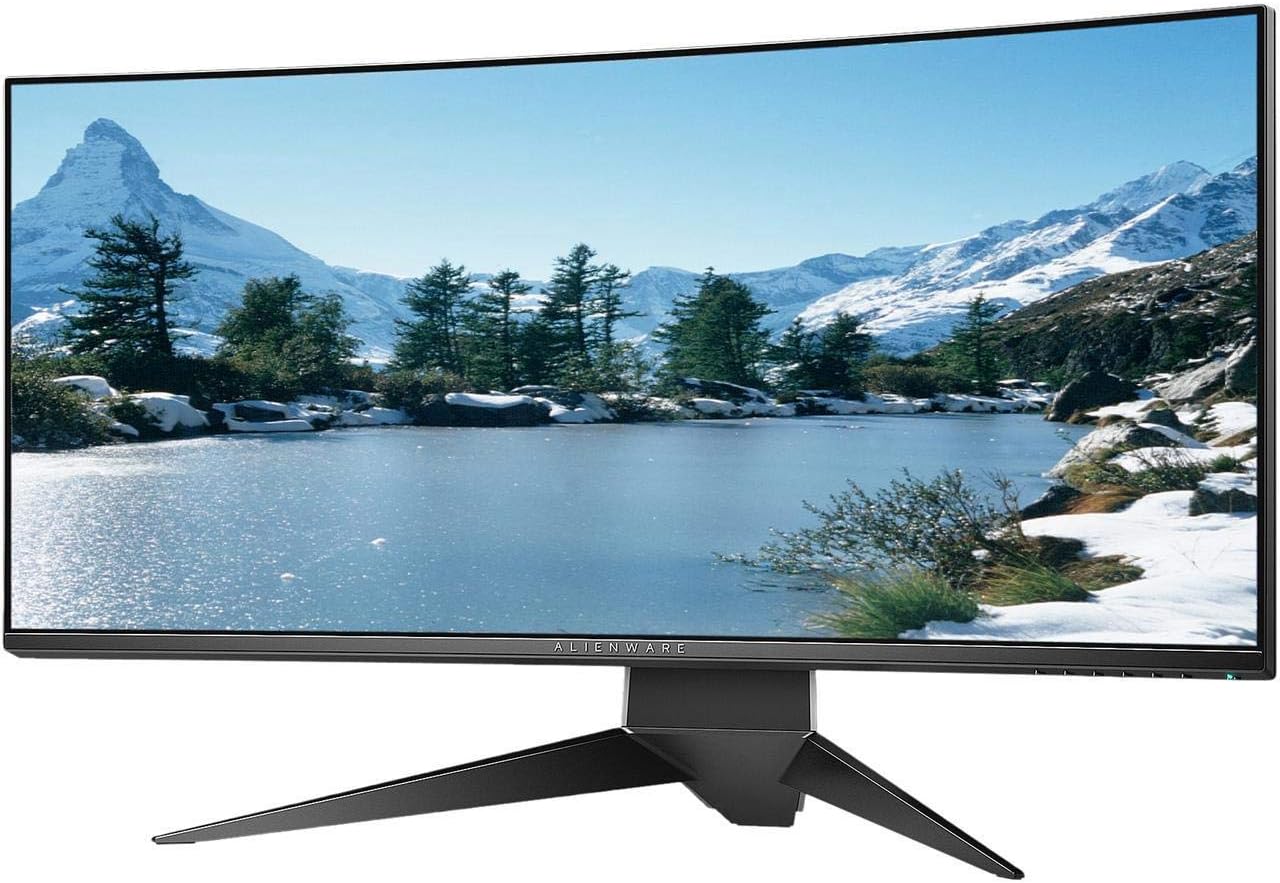
איור 4.1: חזית view of the Alienware AW3418DW monitor with its stand attached.

איור 4.2: צד view of the Alienware AW3418DW monitor with its stand.
איור 4.3: אחורי view of the Alienware AW3418DW monitor showing the stand and AlienFX lighting.
הרכבה VESA
The monitor supports VESA mounting (100 x 100 mm). Remove the stand riser by pressing the release button and then attach the VESA-compatible mount to the monitor using appropriate screws. Ensure the mount can support the monitor's weight of 26.1 pounds (without stand).

Figure 4.4: Monitor dimensions for VESA mount compatibility.
4.2 כבלים חיבור
Connect the necessary cables to your monitor and computer.
- כבל חשמל: חבר את כבל החשמל ליציאת החשמל של הצג ולאחר מכן לשקע בקיר.
- כבל וידאו: Connect either the DisplayPort cable or the HDMI cable from your computer's graphics card to the corresponding port on the monitor. For optimal performance, especially for 120Hz refresh rate and G-SYNC, use the DisplayPort connection.
- כבל USB במעלה הזרם: Connect the USB 3.0 upstream cable from your computer to the monitor's upstream USB port to enable the monitor's USB hub functionality.
- יציאות USB במורד הזרם: Connect your USB devices (e.g., keyboard, mouse, webcam) to the four USB 3.0 downstream ports on the monitor.
5. הוראות הפעלה
5.1 הפעלה/כיבוי
לחץ על לחצן ההפעלה הממוקם על הצג כדי להפעיל או לכבות אותו. נורית ההפעלה תציין את מצב הצג.
5.2 ניווט בתצוגה על המסך (OSD)
The On-Screen Display (OSD) menu allows you to adjust various monitor settings. Use the control buttons, typically located on the bottom right or rear of the monitor, to navigate the OSD.
- לחץ על לחצן בקרה כדי להפעיל את תפריט המסך.
- השתמשו בכפתורי הניווט (למעלה/למטה/שמאלה/ימינה) כדי לנווט בין אפשרויות התפריט.
- לחץ על כפתור הבחירה כדי לאשר בחירה או להיכנס לתפריט משנה.
- Use the back/exit button to return to the previous menu or exit the OSD.
5.3 הגדרות תצוגה
התאם את הגדרות התצוגה לאופטימליות viewing and gaming performance.
- הַחְלָטָה: Set your computer's display resolution to 3440x1440 for the native WQHD experience.
- קצב רענון: The monitor supports up to 120Hz refresh rate (overclocked). Ensure your graphics card drivers are updated and the refresh rate is set in your operating system's display settings or graphics control panel.
- NVIDIA G-SYNC: For tear-free and smooth gameplay, enable G-SYNC in your NVIDIA Control Panel. This feature synchronizes the monitor's refresh rate with your GPU's frame rate.
- ניגוד בהירות: Adjust these settings in the OSD menu to suit your environment and preference.
5.4 AlienFX Lighting
Customize the AlienFX lighting zones on your monitor through the OSD menu or Alienware Command Center software (if installed on your PC). You can select colors, effects, and synchronize lighting with other Alienware devices.
5.5 USB Hub Usage
The monitor acts as a USB 3.0 hub, providing convenient access to four downstream USB ports for connecting peripherals. Ensure the USB upstream cable is connected to your computer for this feature to function.
6. תחזוקה
6.1 ניקוי הצג
- Always unplug the monitor from the electrical outlet before cleaning.
- השתמש קלות במטלית רכה נטולת מוך דampנשטפו במים או בחומר ניקוי מסכים שאינו שוחק.
- אין לרסס חומר ניקוי ישירות על המסך.
- נגב את המסך בעדינות כדי להסיר אבק וכתמים.
- נקו את החלק החיצוני גasinנגבו בעזרת מטלית רכה ויבשה.
6.2 אחסון
If storing the monitor for an extended period, disconnect all cables, carefully disassemble the stand (if applicable), and store it in its original packaging in a cool, dry place.
7. פתרון תקלות
אם נתקלת בבעיות עם הצג שלך, עיין בשלבי פתרון הבעיות הנפוצים הבאים:
- אין תצוגה: Ensure all power and video cables are securely connected. Check if the monitor is powered on and the correct input source is selected in the OSD.
- הבהוב/גמגום: Verify that your graphics drivers are up to date. Ensure G-SYNC is properly configured in the NVIDIA Control Panel. Check for interference from other electronic devices.
- רזולוציה/קצב רענון שגויים: Adjust the display settings in your operating system or graphics control panel to the native resolution (3440x1440) and desired refresh rate (up to 120Hz).
- פיקסלים מתים: The Alienware AW3418DW comes with a Premium Panel Guarantee. Refer to the warranty information for details on pixel policy.
- יציאות USB לא עובדות: Ensure the USB 3.0 upstream cable is connected from the monitor to your computer.
8. מפרטים
| תכונה | מִפרָט |
|---|---|
| מותג | Alienware |
| מספר דגם | AW3418DW |
| גודל מסך | 34.1 אינץ' |
| הַחְלָטָה | WQHD (3440 x 1440 Pixels) |
| יחס גובה-רוחב | 21:9 |
| קצב רענון | 120 Hz (Overclocked) |
| זמן תגובה | 4 אלפיות שניות |
| טכנולוגיית סינכרון אדפטיבי | NVIDIA G-SYNC |
| סוג תצוגה | LED IPS |
| עַקמוּמִיוּת | 1900R |
| בְּהִירוּת | 300 תקליטורים/מ"ר |
| יחס ניגודיות | 1000:1 |
| Viewזווית | 178 מעלות |
| קישוריות | 1x DisplayPort (1.2), 1x HDMI (1.4), 4x USB 3.0 Downstream, 1x USB 3.0 Upstream |
| משקל פריט | 26.1 פאונד (ללא מעמד) |
| סוג הרכבה | VESA Compatible (100 x 100 mm) |
9. אחריות ותמיכה
Your Alienware AW3418DW monitor is covered by a 3 Years Limited Hardware Warranty ו 3 Years Advance Exchange Service, כולל א Premium Panel Guarantee. The Premium Panel Guarantee ensures a free panel replacement during the limited hardware warranty period even if only one bright pixel is found.
For technical support, warranty claims, or additional information, please visit the official Alienware or Dell support website. You may also find updated drivers and firmware there.
תמיכה מקוונת: www.dell.com/support