
ILEBYGO H18
ILEBYGO H18 Mini Wireless Keyboard Touchpad Combo User Manual
Model: H18 | Brand: ILEBYGO
1. הקדמה
This manual provides detailed instructions for the ILEBYGO H18 2.4Ghz Mini Wireless Keyboard Touchpad Combo. This device combines a QWERTY keyboard with a multi-touch touchpad, offering versatile control for various smart devices. Please read this manual thoroughly before use to ensure proper operation and longevity of your device.
2. מה בקופסה
- 1 x ILEBYGO H18 2.4G Mini Wireless Keyboard (Batteries included)
- 1 x מקלט USB
- 1 x כבל טעינה USB
- 1 x מדריך למשתמש
3. המוצר נגמרview
The ILEBYGO H18 features a compact design with a large touchpad area that doubles as a keyboard. Key indicators and control buttons are strategically placed for ease of use.
3.1 פריסת מכשיר

Figure 1: ILEBYGO H18 device dimensions and top view.
3.2 מחוונים וכפתורים
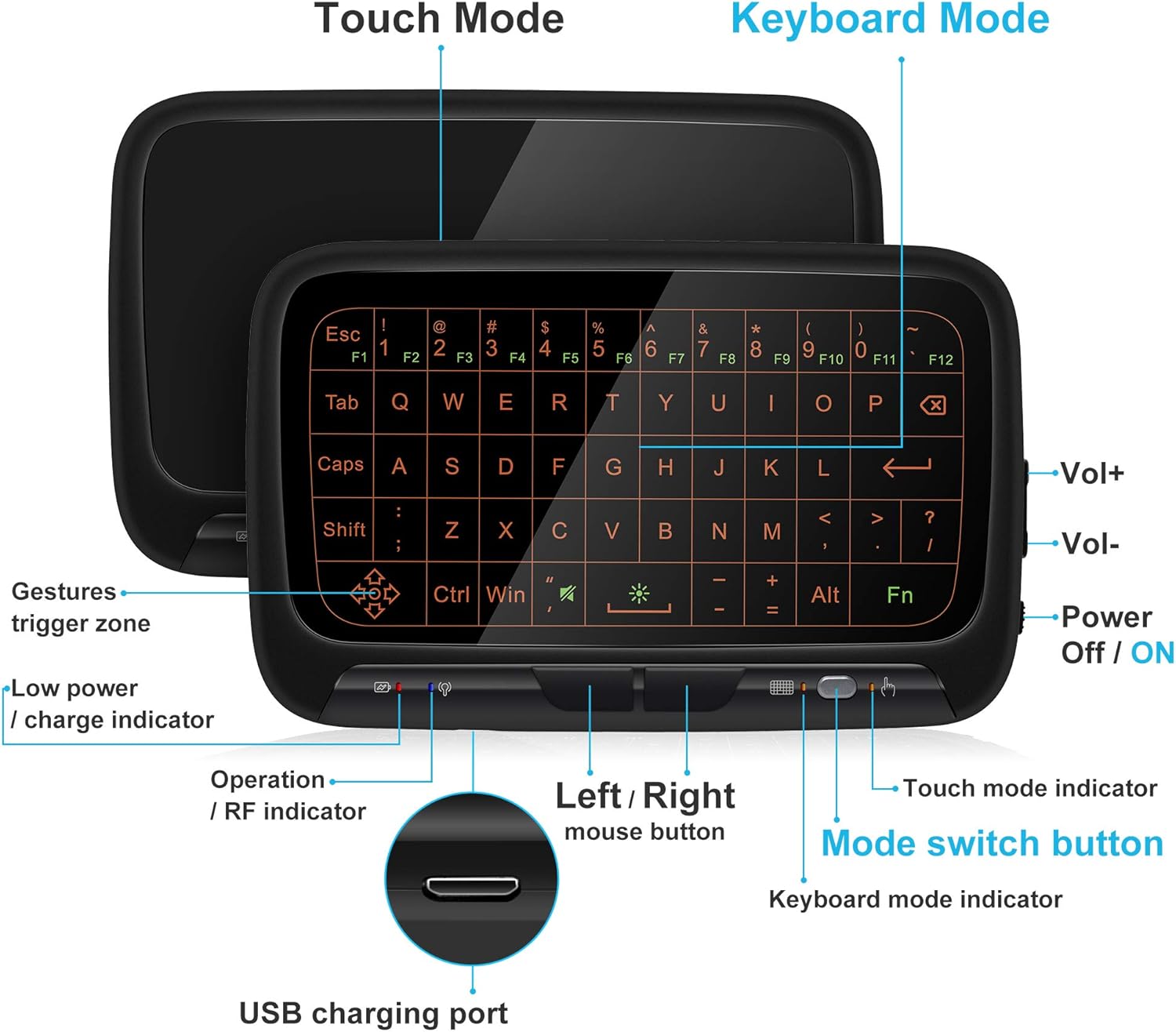
איור 2: חזית view of the ILEBYGO H18 with labeled indicators and buttons.
- יציאת טעינה מסוג USB: לטעינת המכשיר.
- Low Power / Charge Indicator: מציג את מצב הסוללה.
- Operation / RF Indicator: מציין את מצב החיבור.
- Left / Right Mouse Buttons: Physical buttons for mouse clicks.
- לחצן החלפת מצב: Toggles between Touchpad Mode and Keyboard Mode.
- Touch Mode Indicator: Lights up when in Touchpad Mode.
- Keyboard Mode Indicator: Lights up when in Keyboard Mode.
- Volume Controls (Vol+ / Vol-): מכוונן את פלט השמע.
- Power Off / ON Switch: מפעיל או מכבה את המכשיר.
4. התקנה
4.1 טעינת המכשיר
- Connect the provided USB charging cable to the micro USB port on the device.
- חבר את הקצה השני של הכבל למקור חשמל USB (למשל, יציאת USB של המחשב, מתאם USB לקיר).
- The Low Power / Charge Indicator will illuminate during charging. It will change or turn off when fully charged.

Figure 3: Charging the ILEBYGO H18.
4.2 התחברות למכשיר
- אתר את מקלט ה-USB הכלול בחבילה.
- Insert the USB receiver into an available USB port on your target device (e.g., Android TV Box, Projector, HTPC, PC, Laptop).
- Turn on the ILEBYGO H18 by sliding the Power Off / ON switch to the "ON" position.
- The Operation / RF Indicator will blink, then turn solid blue once a connection is established.

Figure 4: Connecting the ILEBYGO H18 via USB receiver.
5. הוראות הפעלה
5.1 Switching Between Touchpad and Keyboard Modes
הקש על לחצן החלפת מצב (located near the right mouse button) to toggle between Touchpad Mode and Keyboard Mode. The corresponding indicator light will illuminate to show the active mode.

Figure 5: Switching between Keyboard and Touchpad Modes.
5.2 Touchpad Mode Gestures
The touchpad supports various multi-touch gestures for intuitive navigation:

Figure 6: Touchpad gesture guide.
- לחיצה יחידה: קליק שמאלי בעכבר.
- הקשה בשתי אצבעות: קליק ימני בעכבר.
- Single Finger Drag: Mouse movement.
- Two-Finger Drag: גלול את המסך.
- Two-Finger Pinch: זום/החוצה.
- Three-Finger Swipe: Switch applications or access multitasking view.
5.3 מצב מקלדת
In Keyboard Mode, the touchpad area illuminates to display a full QWERTY keyboard layout. You can type by tapping on the virtual keys. The keyboard supports standard functions like Shift, Ctrl, Alt, and Windows key combinations.
5.4 התאמת תאורה אחורית
The keyboard features a 3-level adjustable backlight. To adjust the backlight brightness, press the Fn key and the backlight adjustment key (often indicated by a sun icon or similar) simultaneously or in sequence, depending on the specific model's implementation.

Figure 7: Adjusting keyboard backlight.
6. תחזוקה
- שמור על ניקיון המכשיר על ידי ניגוב שלו עם מטלית רכה ויבשה.
- הימנע מחשיפת המכשיר לטמפרטורות קיצוניות, לחות או לאור שמש ישיר.
- אל תנסו לפרק את המכשיר, שכן פעולה זו תגרום לביטול האחריות.
- טען את המכשיר באופן קבוע כדי לשמור על תקינות הסוללה, גם אם אינו בשימוש תכוף.
7. פתרון תקלות
7.1 המכשיר אינו מגיב
- ודא שהמכשיר מופעל.
- Check if the USB receiver is securely plugged into the host device.
- Verify the device battery is charged. Recharge if the low power indicator is active.
- Try plugging the USB receiver into a different USB port on the host device.
7.2 תאורת רקע לא עובדת
- Ensure the device is in Keyboard Mode.
- Press the Fn key and the backlight adjustment key to cycle through brightness levels or turn it on.
7.3 Touchpad Sensitivity Issues
- Ensure the device is in Touchpad Mode.
- Clean the touchpad surface to remove any dirt or oils that might affect sensitivity.
8. מפרטים
| תכונה | פְּרָט |
|---|---|
| מותג | ILEBYGO |
| מספר דגם | H18 |
| טכנולוגיית קישוריות | אלחוטי 2.4Ghz (מקלט USB) |
| פריסת מקלדת | QWERTY |
| תכונות מיוחדות | 3-Level Backlit, Rechargeable, Touchpad Mode, Keyboard Mode |
| סוֹלְלָה | סוללת Li-ion מובנית בקיבולת 300mAh |
| מידות המוצר | אורך 5.6 אינץ', רוחב 3.6 אינץ', גובה 0.7 אינץ' |
| משקל פריט | 0.13 פאונד |
| מכשירים תואמים | Laptop, PC, Projector, Android TV Box, IPTV, HTPC |
9. אחריות ותמיכה
ILEBYGO provides a 12-month warranty for this product. For any issues, questions, or support needs, please contact our customer service. Refer to the contact information provided with your purchase or visit the official ILEBYGO webאֲתַר.
Note: The warranty does not cover damage caused by misuse, accidents, or unauthorized modifications.
10. סרטוני מוצר
סרטון 1: אובר רשמיview of the ILEBYGO 2.4Ghz Mini Wireless Keyboard Touchpad Combo, demonstrating its features and functionality.
Ask a question about this manual
Ask about setup, troubleshooting, compatibility, parts, safety, or missing instructions. Manuals+ will review the question and use this page’s manual context to help answer it.