
מָבוֹא
This manual provides comprehensive instructions for the setup, operation, and maintenance of your NETUM NT-R3 Mini 1D CCD Bluetooth Barcode Scanner. Please read this guide thoroughly to ensure proper use and to maximize the performance of your device.
תוכן החבילה
בעת פירוק האריזה, אנא ודא שכל הפריטים המפורטים להלן נמצאים ובמצב תקין:
- 1 x NETUM Mini Bluetooth Barcode Scanner (NT-R3)
- 1 x כבל טעינה USB
- 1 x מדריך התחלה מהירה
- 1 x 2.4 GHz Adapter
המוצר נגמרview
The NETUM NT-R3 is a compact and versatile 1D CCD barcode scanner designed for portability and ease of use. Its ring-style design allows for comfortable wear, enhancing productivity in various environments.

Image: The NETUM NT-R3 Mini Barcode Scanner, a small black electronic device with a screen and button, designed to be worn on a finger with an adjustable ring structure.
תכונות עיקריות:
- Ring Design: סגסוגת מגנזיום גasing and trigger for durability and ease of use.
- סיבוב של 180 מעלות: Unique rotatable design for scanning from various angles.
- CCD Scanning: Reads 1D barcodes directly from LCD screens of computers or mobile devices, including poorly printed or damaged barcodes.
- קישוריות אלחוטית: Supports Bluetooth (SPP, HID) and 2.4 GHz wireless connections.
- תאימות רחבה: Compatible with Windows XP/7/8/8.1/10, Google Android, iOS, and Mac OS X.
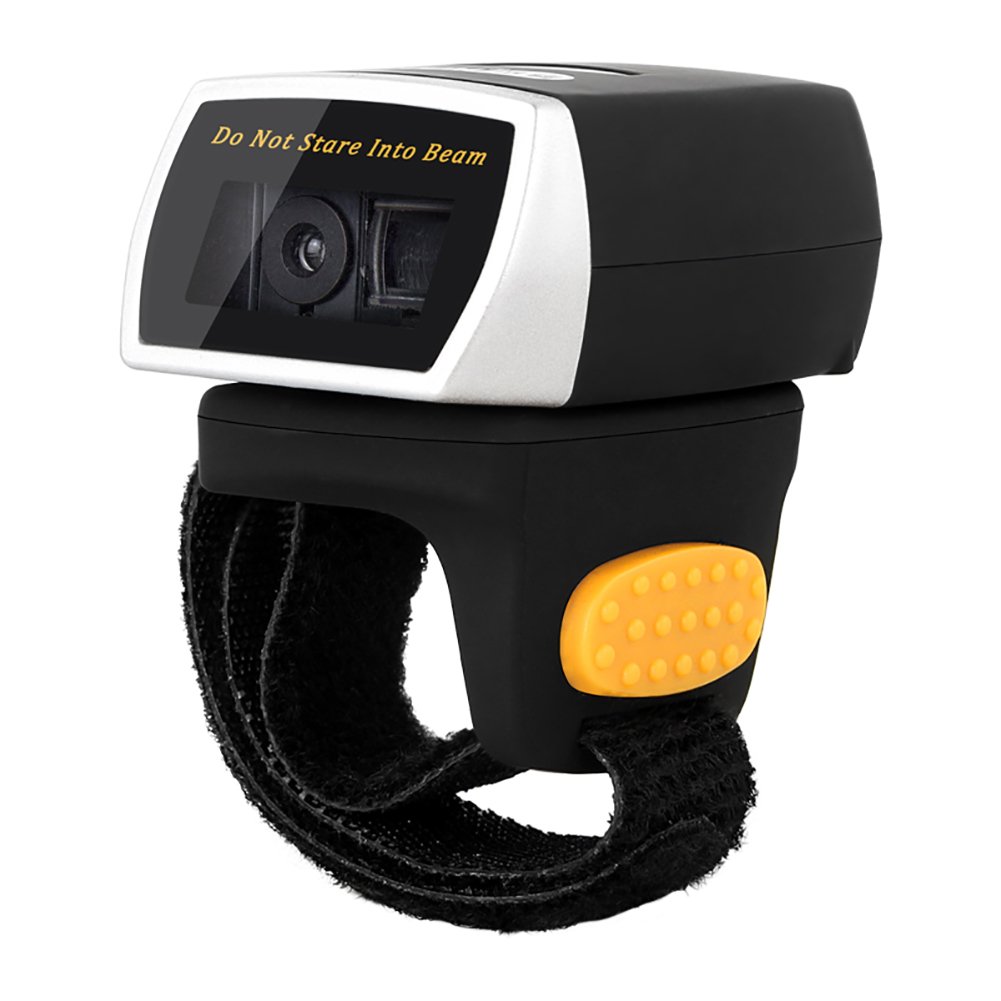
Image: The NETUM NT-R3 Mini Barcode Scanner demonstrating its 180-degree rotation design, allowing for flexible scanning angles.

Image: The NETUM NT-R3 Mini Barcode Scanner held in a hand, illustrating its compact dimensions (50mm x 44mm x 38mm) and light weight (50g), emphasizing its strong compatibility with various devices.
הגדרה וקישוריות
1. טעינת הסורק
Before initial use, fully charge the scanner using the provided USB charging cable. Connect the small end of the USB cable to the scanner's charging port and the other end to a USB power source (e.g., computer, USB wall adapter). The charging indicator light will show the charging status.
2. הפעלה / כיבוי
To power on the scanner, press and hold the trigger button for a few seconds until you hear a beep and see the indicator light. To power off, press and hold the trigger button again until the indicator light turns off.
3. אפשרויות קישוריות
The NT-R3 scanner offers two primary connectivity methods:
Bluetooth Connection (HID Mode - Keyboard Emulation)
- ודא שהסורק מופעל.
- Scan the "Bluetooth HID Mode" barcode (refer to the Quick Start Guide for specific barcodes).
- במכשיר המארח שלך (סמארטפון, טאבלט, מחשב), הפעל את Bluetooth וחפש מכשירים זמינים.
- Select "NETUM Barcode Scanner" or a similar name from the list of devices.
- The scanner will beep to confirm successful pairing.
In HID mode, scanned barcodes are input directly as keyboard entries into any active text field.
Bluetooth Connection (SPP Mode - Serial Port Profile)
SPP mode is typically used for applications that require direct data communication with the scanner. This mode requires specific software on the host device to interpret the data. Refer to your application's documentation for SPP setup.
- ודא שהסורק מופעל.
- Scan the "Bluetooth SPP Mode" barcode (refer to the Quick Start Guide).
- Follow the instructions provided by your specific application for connecting to an SPP device.
חיבור אלחוטי 2.4 GHz
- Plug the provided 2.4 GHz adapter into a USB port on your computer.
- ודא שהסורק מופעל.
- Scan the "2.4G Wireless Mode" barcode (refer to the Quick Start Guide).
- The scanner will automatically connect to the adapter. A successful connection is indicated by a specific beep or light pattern (refer to the Quick Start Guide for details).
The 2.4 GHz connection offers a wireless range of up to 10 meters (30 feet).
מצבי הפעלה
The NETUM NT-R3 scanner supports two data upload modes:
1. מצב העלאה מיידית
In this mode, scanned barcodes are immediately transmitted to your connected device. This is suitable for real-time data entry.
2. מצב אחסון
The scanner can store up to 2000 barcodes in its built-in flash memory. This mode is useful when working out of range of your host device. Barcodes can be uploaded later when a connection is established.
Image: A visual representation of the two upload modes. Instant Upload Mode shows barcodes being sent directly to a device. Storage Mode shows barcodes being stored internally and then uploaded later.
To switch between modes, scan the corresponding configuration barcodes found in the Quick Start Guide.
סריקת ברקודים
כדי לסרוק ברקוד:
- החזק את הסורק כאשר חלון הסריקה פונה אל הברקוד.
- Press the trigger button. A red scanning line will appear.
- Align the red scanning line across the entire barcode.
- Once successfully scanned, the scanner will emit a beep, and the indicator light will flash.
The NT-R3 is capable of reading 1D barcodes from various surfaces, including:
- תוויות מודפסות
- LCD screens (computers, smartphones, tablets)
- Poorly printed or damaged barcodes
תַחזוּקָה
טיפול בסוללה
- כדי להאריך את חיי הסוללה, הימנעו מפריקת הסוללה לחלוטין לעתים קרובות.
- Charge the scanner regularly, even if not in constant use.
- אחסנו את הסורק במקום קריר ויבש כאשר אינו בשימוש למשך תקופות ממושכות.
ניקוי
- Use a soft, dry, lint-free cloth to clean the scanner's exterior.
- עבור חלון הסריקה, השתמש במטלית ניקוי עדשות או במטלית רכה שניגבה קלותampנשטפו במים או בחומר ניקוי עדין ולא שוחק.
- אין להשתמש בכימיקלים חזקים, ממסים או חומרים שוחקים, מכיוון שאלה עלולים לפגוע במכשיר.
פתרון בעיות
| בְּעָיָה | סיבה אפשרית | פִּתָרוֹן |
|---|---|---|
| הסורק לא נדלק. | סוללה חלשה. | טען את הסורק למשך שעתיים לפחות. |
| Scanner does not connect via Bluetooth. | Incorrect mode selected; device not discoverable; out of range. | Ensure "Bluetooth HID Mode" or "SPP Mode" is scanned. Make sure Bluetooth is enabled on the host device and the scanner is within 10 meters. Try re-pairing. |
| Scanner does not connect via 2.4 GHz adapter. | Adapter not properly inserted; incorrect mode selected. | Ensure the 2.4 GHz adapter is securely plugged in. Scan the "2.4G Wireless Mode" barcode. |
| הסורק לא קורא ברקודים. | Barcode is unreadable; scanner not aligned; scanner in storage mode. | Ensure the barcode is clear and well-lit. Align the red line across the entire barcode. If in storage mode, switch to instant upload mode or upload stored data. |
| הנתונים הסרוקים מופיעים באופן שגוי. | Keyboard layout mismatch (for HID mode). | Scan the appropriate keyboard layout barcode (e.g., US, UK, French) from the Quick Start Guide. |
מפרט טכני
| תכונה | פְּרָט |
|---|---|
| מספר דגם | NT-R3 |
| טכנולוגיית סריקה | CCD 1D |
| קישוריות | Bluetooth (SPP, HID), 2.4 GHz Wireless, USB |
| מערכות הפעלה תואמות | Windows XP/7/8/8.1/10, Google Android, iOS, Mac OS X |
| קצב סריקה | 260 ש'ampלס לשנייה |
| קיבולת אחסון | עד 2000 ברקודים (במצב אחסון) |
| סוג סוללה | 1 Lithium metal battery (included) |
| מקור כוח | מופעל על סוללה |
| כרך הפעלהtage | 5 וולט |
| טמפרטורת אחסון מקסימלית | 45 מעלות צלזיוס |
| הסמכות | CE, ISO, RoHS |
| יַצרָן | Guangzhou Netum Electronic Technology Co.,Ltd. |
| ארץ מוצא | סִין |
אחריות ותמיכה
מדיניות החזרה
מוצר זה זכאי להחזר כספי או החלפה תוך 30 יום ממועד הרכישה, בהתאם למדיניות ההחזרות של המוכר.
מידע על היצרן
Manufacturer: Guangzhou Netum Electronic Technology Co.,Ltd.
For further assistance or technical support, please refer to the contact information provided in your Quick Start Guide or visit the official NETUM webאֲתַר.
הערה: מידע בנוגע לזמינות חלקי חילוף ועדכוני תוכנה מובטחים אינו זמין כרגע.