
1. הקדמה
The Sengled Smart Light Bulbs A19 are Zigbee-compatible LED bulbs designed for integration into smart home systems. These bulbs provide soft white (2700K) illumination, are dimmable, and offer control via voice commands or a mobile application when connected to a compatible Zigbee hub. This manual provides instructions for installation, setup, operation, and troubleshooting.

Image 1.1: Sengled Smart Light Bulbs A19 (4-Pack)
2. מידע בטיחות
- בטיחות חשמל: Always ensure power is turned off at the switch before installing or removing bulbs.
- שימוש פנימי בלבד: These bulbs are designed for indoor use in dry locations. Do not expose to water or excessive humidity.
- טמפרטורת הפעלה: אין להתקין בגופי תאורה סגורים המגבילים את זרימת האוויר, מכיוון שהדבר עלול לקצר את חיי הנורה.
- תאימות דימר: These bulbs are dimmable via the smart home system. Do not use with standard incandescent dimmers.
- רְשׁוּת: יש להשליך פסולת אלקטרונית באחריות בהתאם לתקנות המקומיות.
3. תכולת החבילה
החבילה כוללת:
- 4 x Sengled Smart LED Light Bulbs (A19, Soft White 2700K)
4. מפרטים
| תכונה | פְּרָט |
|---|---|
| מספר דגם | E21-N13A |
| סוג נורה | LED |
| גודל צורת נורה | A19 |
| בסיס נורה | E26 |
| מהtage | 9 וואט |
| שווה ליבון | 60 וואט |
| בְּהִירוּת | 800 לומן |
| טמפרטורת צבע | 2700 קלווין (לבן רך) |
| כרך ידtage | 120 וולט (100-120 וולט, 60 הרץ) |
| שיטת בקרה | קול, אפליקציה |
| קישוריות | פרוטוקול זיגבי (נדרשת רכזת) |
| חיים ממוצעים | 25,000 שעות |
| שימוש בפנים/חוץ | מקורה |
| מידות | רוחב 2.4 אינץ' x גובה 4.5 אינץ' |
5. הוראות התקנה
These Sengled Smart Light Bulbs require a compatible Zigbee hub for full functionality. Compatible hubs include Sengled Smart Hub, Amazon Echo devices with a built-in Zigbee hub (e.g., Echo 4th Gen, Echo Plus, Echo Show 10, Echo Studio), SmartThings Hub, Wink Hub, or Hubitat Hub.
5.1. שלבי ההתקנה הראשוניים
- התקן את הנורה: Screw the Sengled Smart Light Bulb into a standard E26 light socket. Ensure the power to the fixture is turned off before installation.
- הפעלה: הפעל את החשמל לגוף התאורה. הנורה אמורה להידלק.
- הורד את האפליקציה: Download the Sengled Home App from the Apple App Store or Google Play Store. Alternatively, use the app for your chosen compatible hub (e.g., Amazon Alexa App, SmartThings App).
- הרשמה/התחברות: Open the app and register for an account or log in if you already have one.
- הוסף מכשיר: Follow the in-app instructions to add a new device. This typically involves scanning a QR code on the bulb or packaging, or initiating a device search within the app.
- התחברות לרכזת: The bulb will connect to your Zigbee hub. This process usually completes within one minute.
5.2. Hub-Specific Setup Options
The following images illustrate common setup configurations:

Image 5.1: Setup with Sengled Smart Hub

Image 5.2: Setup with Samsung SmartThings Hub

Image 5.3: Setup with Amazon Echo (Built-in Hub)
6. תפעול
Once successfully paired with your smart hub, the Sengled Smart Light Bulbs offer various control options.
6.1. שליטה קולית
Control your lights hands-free using voice commands with compatible assistants like Amazon Alexa or Google Home Assistant.

Image 6.1: Voice control example with Alexa
6.2. Dimming and Remote Control
Adjust the brightness from 1% to 100% and control your lights from anywhere using the Sengled Home App or your smart home platform's app.
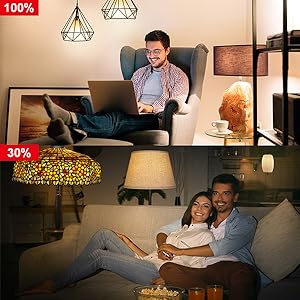
Image 6.2: Dimming functionality from 100% to 30%

Image 6.3: Remote control from any location
6.3. תזמון ושגרה
Set schedules for your lights to turn on/off or adjust brightness at specific times, such as dusk or sunrise. Create routines for automated lighting scenarios.
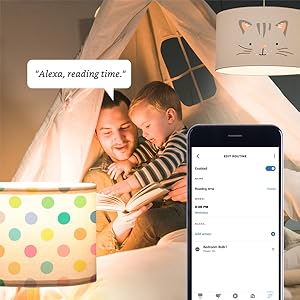
Image 6.4: Setting up a reading time routine
6.4. בקרה קבוצתית
Add multiple smart bulbs (up to 64) to your smart hub system and control them individually or as a group within the app.
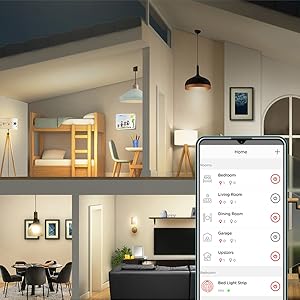
Image 6.5: Managing lights by room for group control
7. תחזוקה
- ניקוי: ודא שהנורה כבויה והתקררה לפני הניקוי. נגב בעזרת מטלית רכה ויבשה. אין להשתמש בחומרי ניקוי נוזליים.
- אִחסוּן: אם אתם מאחסנים נורות, יש לשמור אותן במקום קריר ויבש, הרחק מאור שמש ישיר וטמפרטורות קיצוניות.
- אין חלקים שניתנים לשירות המשתמש: Do not attempt to disassemble or repair the bulb. This will void the warranty.
8. פתרון תקלות
8.1. Bulb Not Responding/Connecting
- בדוק כוח: Ensure the light fixture switch is in the ON position and the bulb is receiving power.
- חיבור רכזת: Verify that your Zigbee hub is powered on and connected to your network.
- קִרבָה: Ensure the bulb is within range of your Zigbee hub or another Zigbee device acting as a repeater.
- התאמה מחדש: If the bulb loses connection, try removing it from your app and re-pairing it according to the setup instructions. Power cycling the bulb (turning it off and on 5 times) can sometimes reset it for re-pairing.
- עדכון אפליקציה: Ensure your Sengled Home App or smart home platform app is updated to the latest version.
8.2. בעיות בקרת קול
- Assistant Link: Confirm that your Sengled account (or smart hub) is correctly linked to your voice assistant (Alexa, Google Home).
- גילוי מכשירים: Ask your voice assistant to "Discover devices" to ensure all bulbs are recognized.
- Command Clarity: Speak commands clearly and ensure the device name used in the command matches the name in your app.
8.3. Unstable Connection
- רשת זיגבי: A strong Zigbee mesh network is crucial. Adding more Zigbee devices (like smart plugs or other bulbs) can strengthen the network.
- הַפרָעָה: Keep your Zigbee hub away from Wi-Fi routers, microwaves, or other devices that might cause wireless interference.
9. מידע על אחריות
Sengled Smart Light Bulbs are covered by a אחריות מוגבלת לשנה from the date of purchase. This warranty covers defects in materials and workmanship under normal use. For warranty claims or detailed terms, please refer to the official Sengled webאתר או צור קשר עם תמיכת הלקוחות.
10. תמיכת לקוחות
For further assistance, technical support, or to report issues, please visit the official Sengled support website or contact their customer service department. Contact information can typically be found on the Sengled website or within the Sengled Home App.